

June News 2012

May TechSmith Newsletter Header

Letter from the Editor

 Your Newsletter Editor
Phew! Ever wonder where all the time goes? I sure do lately. Time seems to be flying by here at TechSmith. With all the hustle and bustle of a handful of releases going on at once, we've had an extra busy month!

We've been working hard to bring you some extraordinary product releases that are jam-packed with impressive new features. Many of these features were inspired by feedback from users like you. So, thank you! Your feedback helped us develop our best screen capture, screen recording, and video editing products yet. That's why I encourage you to keep the feedback and comments coming - especially after you check out our latest and greatest accomplishments.

Curious what exactly we've been up to? To begin, our innovative developers completely rebuilt the "engine" of Camtasia Studio to give you the best screen recording and video editing experience. With Camtasia Studio 8, we've added great new features that make creating engaging videos easier than ever. Some of these features you'll notice right away, like the multi-track timeline and revamped media library. Yet, there are some powerful redesigned features that you won't see, but you'll experience, like our improved world-class screen recorder and the brand new TechSmith Smart Player™. But that's just the beginning.

For Mac users, Camtasia for Mac 2.2 is now available. With powerful new features, you'll be able to create interactive videos faster and easier. Added support for interactive hotspots in your videos, new annotations and video effects, and smoother playback with the TechSmith Smart Player™ are just a few of the features you'll be able to take advantage of with Camtasia for Mac 2.2.

And our coaching app, Coach's Eye has now released its 2.1 version. Coach's Eye 2.1 includes all the great improvements of 2.0, like the ability to use Coach's Eye on the iPad, but also contains new capabilities that make sharing to social networks such as Facebook and Twitter easier.

As you can tell, I'm a little excited about our new releases. There's a lot more information I could share, but I don't want to spoil the fun. Dig deeper into the releases you're specifically interested in, give them a try, and let us know what you think. Plus, enjoy user stories and tutorials hand-picked just for you.

Looking forward to hearing from you soon!

Lauren Buskirk
Newsletter Editor
newsletter@techsmith.com | @TechSmith | contact support


New Release: Camtasia Studio 8 is finally here!

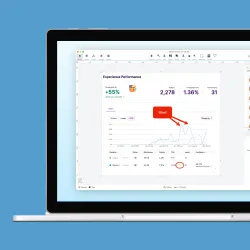
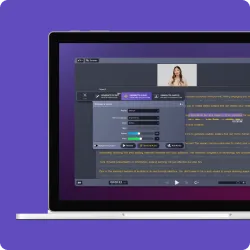
Camtasia Studio 8The long anticipated new generation of Camtasia Studio has arrived. With the newly rebuilt Camtasia Studio 8, it's easier than ever to record your screen, edit and customize your videos, and share them with anyone, anywhere.

What great new features can you expect to find in Camtasia Studio 8?

World-class Screen Recording
Use the completely rebuilt recording engine to smoothly record high-quality videos.

Multi-track Timeline
Construct more interactive and engaging videos with the new, versatile timeline.

Media Asset Library
Create videos that make you look like a design genius with the impressively revamped library.


Animate Content
Keep your audience intrigued by easily animating videos, images, callouts, and more.

TechSmith Smart Player™
Experience the brand new, intuitive media player that helps your videos play on nearly any device.

And so much more!

Ready to try Camtasia Studio 8 or get the upgrade?
Try Camtasia Studio 8 for free, or upgrade your Camtasia Studio license to Camtasia Studio 8 for a limited-time only price of $99! And as always, we'd love to hear your feedback or help you with any questions you may have at our feedback site.

Check Out Camtasia Studio 8 »


New Release: Camtasia for Mac 2.2

CMac 2.2If you own Camtasia for Mac 2 or above, Camtasia for Mac 2.2 is a free upgrade for you!

With the latest version of Camtasia for Mac, you can easily record and share high-quality, interactive videos that your viewers can watch anytime, on nearly any device.

Save time, and create engaging videos the fast and easy way with these great new features:

TechSmith Smart Player™
Engage your viewers by supporting interactive elements of your videos like hotspots or table of contents, on nearly any device.

TechSmith Smart Player™ App
Give your audience a more interactive viewing experience. Allow them to watch and interact with your video content right on their iPhones.

Interactive Hotspots
Allow viewers to interact directly with your video content by linking to a website, another video, or a specific section within your video.

Plus, more! Check out the full-scoop on Camtasia for Mac 2.2, and upgrade to get all the new features.

Learn More About Camtasia for Mac 2.2 »


New App Release: Coach's Eye 2.0 & 2.1

Coach's EyeGood news, we've got a new version of Coach's Eye for you to try!

The Coach's Eye team has been busy incorporating customer feedback into making Coach's Eye even better. You'll find all of these great new features and more in versions 2.0 and 2.1.

What's new in Coach's Eye 2.0?

iPad. Coach's Eye 2.0 is now a universal binary that runs on all iterations of the iPad. Enjoy instant video analysis paradise with a bigger canvas to paint on.

Consolidated media library. Now the centerpiece of Coach Eye's workflow, the media library has been completely revamped and built from the groud up with an eye toward speed, efficiency, and power at any size.

Powerful previews. Use the new preview experience that's designed to let you quickly scan through large video previews, or immediately jump to analyzing or sharing a video.

What's new in Coach's Eye 2.1?

Multi-touch drawing. Take advantage of the touch screen your iOS device provides by simply placing and sizing shapes and lines with two fingers.

Social sharing. Easily share great moments or ask for help from friends and experts by sharing directly to Facebook and Twitter.

Want to try Coach's Eye 2.1? Get it here. Have ideas or requests? Let us know!

Discover More About Coach's Eye »


Education News: Introducing www.techsmith.com/edu

Students Looking at ComputerHello Educators!

As we announced in last month's newsletter, the newly formed Academic Solutions Team has been working on several projects, and we're ready to share one of them with you.

We're pleased to launch the first phase of our education website at www.techsmith.com/edu. It's only our first step, but we're really excited to have a dedicated education presence on the TechSmith website.

Our goals with these webpages are to provide practical information about how educators are using TechSmith products to address common problems faced by educators on a daily basis. We also want to share ideas with you on how other educators are using technology successfully to adapt to trends in education and not just in K-12, but in higher education as well.

We'd love to hear what you'd like to see on our education webpages. What topics would you like us to cover? What questions would you like to have us answer? What education trends would you like to learn more about? Answer these questions and share your opinions with us in this short survey.

Thank you for helping to shape our website and sharing your thoughts. And as always, please feel free to contact the education team at education@techsmith.com or visit our booth (#5113) at ISTE if you're attending.

Happy Learning!
TechSmith Academic Solutions Team


Pack Your Sleeping Bag: Come to TechSmith for ScreencastCamp 2012!

ScreencastCamp 2012Join us at ScreencastCamp on August 3 – 5, 2012 at TechSmith Headquarters in Okemos, Michigan.

What's ScreencastCamp?

SreencastCamp is a gathering of screencasters and visual communication aficionados wanting to network, learn, and collaborate on the art of screencasting. All sessions, discussions, and demos are led by attendees sharing their knowledge. The sessions are not determined beforehand - you, the attendees, create the agenda on the first day. TechSmithies will be participating at ScreencastCamp. We're there to learn from you and share what we've learned about screencasting over the years. If you're a screencast veteran or have never hit record, ScreencastCamp is for you. ScreencastCamp is an unconference based on the BarCamp model.

Here are the important details about ScreencastCamp:

  • When: August 3 – 5, 2012
  • Where: TechSmith Headquarters in Okemos, Michigan. You'll also have access to TechSmith's studio and sound room.
  • Cost: The event is free, but we do need you to register here. TechSmith will provide food, beverages, wifi, and fun.
  • Who: You! ScreencastCamp is for screencasters with years of experience or those just getting started. TechSmith trainers, developers, video staff, and evangelists will be onsite and sharing their knowledge too.
  • Travel: Find travel information here.
  • Social: Stay up to date with all the news here on our blog. Like us on Facebook here. Follow us on Twitter here.
  • Introduce yourself and propose some topics you'd like to lead or learn about here on our wiki.
  • Hashtag: #screencastcamp


Learn More About ScreencastCamp »


Snagit Help: We're Still Collecting Questions!

Last month we introduced a new way for you to get your Snagit questions answered, and many of you have written in to helpmycapture@techsmith.com asking for help - thank you! But, I know there are more of you out there with something to share. If you're interested, there is still time to send us a Snagit graphic in its original .SNAG file, or just ask a question.

Starting next month, we'll begin showcasing questions and providing feedback on TechSmith's Tips and How To's blog to help everyone improve their image creation skills. Feel free to check out the blog in the meantime, and don't forget to send your images and/or questions to helpmycapture@techsmith.com. We'll have an answer for you soon!


Get Snagit Help »


User Story: Connecting with Team Members and Clients through Videos

LoudpixelLoudpixel, a small business that helps companies understand what's being said about them online, has a small team of analysts that are located throughout the world.

Their core business is based around monitoring social conversations for issues or opportunities and drawing actionable insights based around conversation trends. Therefore, communication is extremely important to Loudpixel. And with partners in East Lansing, Michigan and Palo Alto, California and analysts located remotely, Loudpixel not only relies on communication for their business model, but for communicating internally as well.

"When we find good people, we don't want to let them go," said Allie Siarto, Co-Founder and Director of Analytics at Loudpixel. "We can make it work from anywhere, as long as there's a solid Internet connection. Since we're so spread out, we have to get creative about how we communicate with each other."

To solve their unique communication challenges, Loudpixel uses Camtasia for Mac to create screencasts for internal communication and external communication via their website and with clients. "We work with some fairly complicated software, and often it's much easier to walk our clients through specific questions visually rather than try to explain with words alone," said Allie. "Since we all run busy schedules and work in different time zones, we've been able to create quick videos in a matter of minutes to walk clients through step-by-step directions rather than having to set up a conference call or webinar. It's definitely a time-saver."

As a small business owner, time is always crunched. However, Allie has found that she's able to create professional quality videos quickly. "For my quick client videos, I'll spend less than five minutes. For more formal training videos, I might put 45 minutes to an hour or more into a polished three minute video," she said.

"I love that I can export my videos to Screencast.com with a few clicks and share them with clients within a matter of minutes. Our company works in a fast-paced industry - we're always looking for quick and easy ways to communicate, so we appreciate that there aren't a lot of barriers to entry. Camtasia is easy to use - no steep learning curve - and it allows us to get our point across quickly and clearly."

Currently Loudpixel uses Camtasia to help demo their software to new and potential clients, but Allie sees more opportunities ahead. "As we grow our business, I see us pushing more screencasts internally to help train new employees," she said. "Given how much of our work is in the browser, screencasts remain the best way to quickly build high-quality training."


Learn How Others are Using Camtasia for Mac »


Like this story? Share yours! We're ready and waiting.


User Story: Flipping for Everyone

Stacey and Wendy RoshanMeet Wendy and Stacey Roshan. A mother and daughter committed to helping their students succeed inside and outside of the classroom and both users of Camtasia Studio.

The push for these two to start using technology in the classroom first came from Stacey, who teaches AP calculus at Bullis School in Potomac, Maryland. She noticed that there wasn't enough time to lecture and answer all the questions students had within a class period. This created stress for her, her students, and their parents. Stacey wanted to make a change that would create a more peaceful and calm classroom environment, which she believes is best for learning. So, she gave the flipped classroom model a try.

Watch Stacey's Story »

Stacey's mother, Wendy, a calculus teacher at the Madeira School in McLean, Virginia, soon followed in her daughter's footsteps. The ability to work with each student individually for the entire class period sold her on the idea of flipping her classroom. The changes Wendy has experienced in her class have made her realize that she will never go back to the traditional way of teaching.

Watch Wendy's Story »
 

Like this story? Share yours! We're ready and waiting.


Ask TechSmith: Send Us Your Questions!

Ask TechSmith ImageIf you haven't visited yet, our feedback website allows you to ask questions publicly to get the help you need, while helping others. Asking your questions this way allows you to get feedback from TechSmith staff and users like you, and even engage in helpful conversation.

So, check it out and ask away! You never know what you might learn just by browsing the site, someone may have already asked/answered your question. But if not, TechSmith will be there to help you as soon as possible.


Have a Question? Ask Us! »


New Blog Posts: June Blog Recap

Blog ImageSee the latest happenings from the TechSmith blog-o-sphere...

TechSmith's Live Web Show: The Forge
Did you miss this month's episode of The Forge, all about the new Camtasia Studio 8? Don't worry. You can always catch up on any episode you miss. Subscribe to the TechSmith YouTube channel and/or TechSmith Blogs for updates on the latest episodes.


Snagit Tutorial: Understanding the Capture Modes

Snagit ImageThere are 3 different capture modes in Snagit: image, text, and video. This tutorial focuses on image capture.

When you open Snagit, the capture window will automatically display. This is where you select your capture mode. Once you have selected your capture mode, all you need to do is click the red capture button, click and drag over what you want to capture, release the button, and you're all set!

Your capture opens in the Snagit editor for easy editing. Check out this tutorial to learn more about Snagit's capture modes.


View the Tutorial »


Have a tutorial idea? Let us know!


Snagit Expert Tutorial: Capturing a Scrolling Region

Snagit Expert ImageAvoid ads, comments, or other portions of a scrolling window that you don't want to capture by using a scrolling region.

Watch this video tutorial to learn how to easily capture a region, so you can capture exactly what you want and nothing that you don't.

View the Tutorial »

Have a tutorial idea? Let us know!


Snagit on Mac Tutorial: Annotate with Drawing Tools

Snagit on Mac ImageAnnotating the captures you gather in Snagit on Mac can be really helpful. Give feedback, explain an idea, or share knowledge easily with captures by doctoring them quickly with Snagit on Mac's many drawing tools.

In this tutorial, you'll learn how to annotate captures you compile in Snagit with these drawing tools:

  • Shape
  • Stamp
  • Callout
  • Selection
  • Arrow
  • Pen
  • Highlight
  • Blur
  • Fill

View the Tutorial »

Have a tutorial idea? Let us know!


Camtasia Studio Tutorial: Prepare, Script, Audio

Camtasia Studio ImageFor Camtasia Studio 8, we've created a getting started video tutorial series to help you get off on the right foot.

Check out this tutorial to find out how to prep yourself, your computer, and your screen to create awesome screencasts. See what you should be doing before you start recording to ensure you create the exact video you want.

View the Tutorial » 

Have a tutorial idea? Let us know!


Camtasia Studio Expert Tutorial: Timeline
In-Depth

Camtasia Expert ImageA lot has changed with the timeline in Camtasia Studio 8. You can now use unlimited tracks, and you can put your video, audio, callouts, and images on any track you want.

Watch this video tutorial to get a better understanding of how the new multi-track timeline works and how to take advantage of all the new capabilities.

View the Tutorial » 

Have a tutorial idea? Let us know!


Camtasia for Mac Tutorial: Add Interactive Hotspots to Your Video

Camtasia for Mac TutorialInteractive hotspots allow you to direct your viewers to points inside or outside of your video easily. Use interactive hotspots within Camtasia for Mac to:

  • Take viewers to specific markers within the video.
  • Allow viewers to replay a section of in the video.
  • Direct customers to websites in a new browser window.

Check out this tutorial to learn how to add interactive hotspots to your videos to help viewers engage with your content.

View the Tutorial » 

Have a tutorial idea? Let us know!


Camtasia Relay Tutorial: The Portable Recorder

Camtasia Relay ImageThe portable recorder allows you to record from any computer, anywhere. This makes recording fieldwork, conferences, SmartBoards, and anything else you want to record while remote simple.

With this tutorial, you'll learn what you need to use Camtasia Relay's portable recorder and how to easily record using the portable recorder.

View the Tutorial » 

Have a tutorial idea? Let us know!


Screencast.com Tutorial: Create and Share a Folder

Jing ImageKeeping your captures and content organized within your Screencast.com account is easy. Use folders to organize your content - just like on your desktop. Simply place content inside your folders to group your files together.

Once you've created a folder, you can easily share your folder to anyone, anywhere. Check out this tutorial to learn how!

View the Tutorial » 

Have a tutorial idea? Let us know!


Morae Tutorial: Export Videos to Screencast.com

Morae ImageBeing able to share highlight videos with coworkers and stakeholders is extremely important. Screencast.com, TechSmith's free hosting site, offers you a great way to store and share the videos you create in Morae.

Check out this tutorial to learn how to export highlight videos from Morae to Screencast.com for easy sharing to anyone, anywhere.

View the Tutorial » 

Have a tutorial idea? Let us know!