

In this issue:
- Letter from the Editor
- Coming Soon: Camtasia Relay 4!
- Forge Update: Catch Up with TechSmith's Web Show
- New Blog Posts: October Blog Recap
- Ask the Editor: Get Your Questions Answered!
- User Story: Making the Grade
- User Story: Taking Flight with Camtasia Studio
- User Story: An Invitation from the Prime Minister
- Snagit Tutorial: Back to Basics
- Snagit Expert Tutorial: Capture Transparent Windows
- Snagit on Mac Tutorial: Give Visual Feedback
- Camtasia Studio Tutorial: Working with Audio on the Timeline
- Camtasia Studio Expert Tutorial: Smart Focus
- Camtasia for Mac Tutorial: Sync Audio and Video
- Camtasia Relay Tutorial: Setting Hotkeys
- Jing Tutorial: Add a Microphone? Tell Jing!
- Morae Tutorial: Analyze Session Data
Letter from the Editor

Happy Halloween!! Whether you're the type to bust out your favorite costume, stuff your face with candy, just enjoy the fall weather - or all of the above - there is generally a little something for everyone this time of year.
As you may have noticed, there is a jack-o-lantern in place of my photo this month (to the left). I needed something to get me in the Halloween spirit, so I had some fun with Snagit and created a virtual pumpkin in about 5-minutes - and it was super easy! All I did was use a few drawing tools in the Snagit Editor and voila, a jack-o-lantern was born. Snagit is perfect for little projects like these, especially if you're not great with the pro design software out there, but would like to create something fun to share with friends. Give it a try sometime!
In other Halloween news, our resident monster - ScreenChomp - has been busy this month, with a shout out from the Wall Street Journal and a new feature that allows you to select different pen widths for your videos. ScreenChomp has helped students, teachers, friends, and families learn on their iPad since it launched... and the fun has yet to stop. Check out what ScreenChomp is all about, or get the update anytime!
This month, you'll get news on the products you love, stories from users like you, and of course, the tutorials that teach you the skills you need to create engaging images and videos for your viewers.
Happy Reading,
Nikki Wickham
Newsletter Editor
newsletter@techsmith.com | @TechSmith | contact support
Coming Soon: Camtasia Relay 4!

The latest version of Camtasia Relay is coming soon, and brings with it new additions and updates aimed to make your life easier.
Enjoy these new features when Camtasia Relay 4 arrives:
Webcam Support
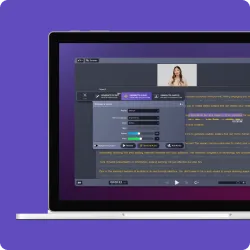
Add yourself to your presentation! Now you can simultaneously record webcam video and screen video during your presentations and let your audience see you, hear you, and watch you present as if they were there.
Publish to YouTube
Send your presentation straight to your YouTube channel with just a click. The new YouTube publishing destination in Camtasia Relay makes it easy.
Global Caption Editor
As a presenter, you can hand over the caption editing responsibility to an assistant, an intern, or anyone else you’d like. With the new global caption editor, anyone can fix the captions for any presentation.
Forge Update: Catch Up with TechSmith's Web Show

Did you miss the latest episode of The Forge? TechSmith's live web show aired on October 13th and featured...
- Tom Johnson - Technical Communicator and author of I'd Rather be Writing
- Dan Nunez with info on Clipboard
- Mike Kujansuu with an intro to Coach's Eye
- The Screencast of the Month with Shane Lovellette
You can always catch up on any episode you miss on TechSmith's YouTube channel. But in the meantime, mark your calendar for upcoming episodes of The Forge for an educational, up-close-and-personal look at TechSmith!
- Thursday, November 10th at 2pm
- Thursday, December 8th at 2pm
- Thursday, January 12th at 2pm
New Blog Posts: October Blog Recap
Check out the latest happenings from the TechSmith blog-o-sphere.
Visual Lounge Blog:
- Dev Corner - Viewing a Gdiplus::Bitmap in the VS debugger
- Time Saver Tuesday - Teleprompters
- Dev Corner - HTML 5 Video Player with multiple video streams
- UPDATED: Be Here! Join us LIVE on The Forge at 2pm EST Today! (Recording Available)
- We Need Your Stamp and Callout Requests...
Education Community Blog:
- EDUCAUSE 2011 Zeitgeist (Thursday recap)
- EDUCAUSE 2011 Zeitgeist (Wednesday recap)
- EDUCAUSE 2011 Zeitgeist (Tuesday recap)
- EDU11 Presenter: Eric Coffman
- EDU11 Presenter: Leigh Graves Wolf
Jing Blog
Ask the Editor: Get Your Questions Answered!

This month's "Ask the Editor" question comes from Martin S...
"I would like to compile several images in the editor before sending them to Word or email. My goal is to re-arrange the images, which are not always taken in the correct order, and manipulate them."
Combining images in Snagit will solve Martin's issue and it's incredibly easy to do. After capturing the images you need and editing them to your liking, you can open a new blank canvas in the Snagit Editor, then simply drag-and-drop your images onto that new canvas.
From there, you can position and resize images however you'd like. Then save your new Snagit project and send it straight to Word, your email, or print it on the spot.
User Story: Making the Grade

Aly Tapp is a technology support specialist and English teacher at York Suburban School District in York County, Pennsylvania. She taught English for nine years before being named the district’s technology integration coach, which was a position required of all districts by a Pennsylvania state grant called Classrooms for the Future (CFF). The grant provided laptops and other technology in schools, as well as professional development in how to best utilize digital technologies for learning.
In her role as technology support specialist, Aly assists teachers in the planning of instruction and management of technology resources including Moodle, Google Apps, WordPress, and other instructional tools. She also teaches English IIICP, the school’s junior-year American literature survey course.
A new challenge
“I was craving a challenge and wanted to put some of my ideas into action, so I requested part-time classroom work and am now teaching three English classes on top of my technology support responsibilities,” Aly said.
Aly and two fellow math and science teachers applied for a York Suburban Education Foundation grant and were awarded monies to pay for Camtasia Studio licenses, cameras, and USB microphones. Each has committed to flipping lessons in their classrooms this academic year. They meet monthly to discuss best practices and are also collecting feedback from students to help evaluate their progress.
Putting ideas into action
Aly is blogging about her teaching experiences this year at www.alytapp.com. Recently she blogged about using TechSmith’s Jing to grade students’ papers. It took her about 10 to 15 minutes to grade each paper, but she said the response from students made it totally worth it. “It wasn’t just that they liked it--the vast majority liked it—it was that most students LOVED the feedback and were eager for more. For an English teacher, this is magical!”
After students listened to their personalized screencast in class, they wrote a 10 minute reflection. Aly said the students really responded well to this. “I was amazed at how focused and thoughtful they were in their reflection,” she said. “Their faces while writing were worth a million.”
Creating a community
Using Google Docs has helped Aly’s students collaborate, and screencasting has helped them provide meaningful feedback to each other as well. Aly has challenged her students to reflect in ways other than writing. “I’ll ask them to read a piece and analyze it verbally while recording with Jing. It challenges them to express their thoughts on a piece in a new way,” she said.
Aly also loves that her students can create their own screencast presentations so that she can review them on her own and not spend three or four days of class time on presentations. “It forces students to be brief, focused, and have a planned script, since Jing allows for only five minutes of recording.”
In addition to her personal blog, Aly maintains a class assignment blog for parents to follow. She also set up a text message service that sends reminders to her students about the upcoming week’s assignments on Sundays. “Technology allows for so much more class community,” Aly said.
User Story: Taking Flight with Camtasia Studio

William Wood is a communications and training strategist for the simulation technologies sector of Adacel, a world-class provider in aviation control and simulation solutions. His focus has been writing product and functional specifications for various applications within Adacel. Based in Montreal, William is an experienced air traffic controller and training designer with more than 35 years with Canadian Air Traffic Control Services.
William began using Camtasia Studio earlier this year after using Snagit and loving the product, as well as TechSmith’s customer services. During his work on a product spec. for Adacel’s Intelligent Communications Environment (ICE), an aviation-specific communications trainer and assessment tool for air traffic controllers and pilots, William saw the potential of dynamically demonstrating ICE through screencasting.
“My bosses had initially asked me to write storyboards for videos to be outsourced to a professional production company, which would have cost upwards of $20,000,” William said. “After I created a short screencast overview of ICE, I showed it to the product managers and COO, who were impressed and saw great potential with the software.”
“My colleagues travel to conferences around the world, and they showcase this video by presenting it in a continuous loop. It has definitely attracted more traffic at our booth and generated further discussion. It has also been launched on screencast.com and shared with potential customers around the world,” he said.
“That $300 initial investment on my part generated work for me and created awareness for the product worldwide.”
User Story: An Invitation from the Prime Minister

It’s half term this week in the UK, and one of our users across the pond has a little more to celebrate than the well-earned autumn respite – an invitation from the Prime Minister.
Jodie Collins, a teacher from south east London, is a keen Snagit and Camtasia Studio user. Back in 2010, Jodie’s work at South Rise Primary School was recognized with a BECTA Next Generation Learning Award, scooping the honor in the London and South East area.
Now Jodie, along with other past winners, has been invited to 10 Downing Street, the traditional residence of the UK’s Prime Minister, for a reception to celebrate excellence in teaching.
Jodie won the award as recognition for her innovation and dedication to improving technology and teaching skills during her time as ICT (Information and Communication Technologies) coordinator and teacher at South Rise. She introduced new methods of learning, using everything from podcasting to Nintendo DS consoles, to get children engaged in the classroom.
While at South Rise, Jodie used Camtasia Studio to create a range of training screencast videos to help new teachers and teaching assistants, fresh out of university themselves, get to grips with using commonplace software and the school’s Managed Learning Environment (MLE).
Snagit has also been used by Jodie’s pupils, helping them highlight websites and spam emails that may be dangerous, as part of a project to promote e-safety.
You can read more about Jodie’s use of ICT and her own project, Getting into Literacy, on her website or by following her on Twitter.
We can’t wait to see what Jodie gets up to next in the classroom – and if she’ll be getting an invitation from the Queen any day soon.
Snagit Tutorial: Back to Basics

In order to create eye-catching visuals in Snagit, you first need to know the basics. Whether that means assembling common captures into profiles, or just changing the color scheme of the Snagit user interface, these tips can save you time and help you make engaging images.
In this tutorial you'll learn how to:
- Change the color of the user interface
- Create profiles for common tasks
- Skip the editor, go straight to an output
- Preview transparency in the tray
- And more!
Snagit Expert Tutorial: Capture Transparent Windows

I'm sure you've noticed that the standard computer desktop has changed in the last few years. Windows on your screen that used to be slate gray are now transparent. And while these transparent windows may look more aesthetically pleasing than the drab gray, they can actually make taking screen captures a bit difficult.
Why? Because, when capturing that transparent window, you're also capturing your desktop background. And since you might not want to share that with the world, Snagit gives you the power to control how the transparent window looks when it's captured.
Snagit on Mac Tutorial: Give Visual Feedback

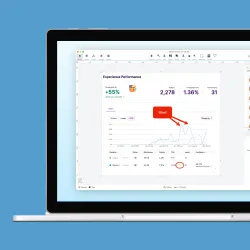
Have you ever tried using the drawing tools in the Snagit Editor for giving feedback on mockups, or grading papers?
You can do anything from adding a callout, to crossing out text, highlighting a section, and more! Snagit makes it easy to communicate online.
Check out this tutorial and learn the basics, then start giving visual feedback.
Camtasia Studio Tutorial: Working with Audio on the Timeline

If you're struggling to understand how to edit the audio from your Camtasia Studio video - all you need to do is take 4 minutes out of your day to learn how to work with audio on the timeline.
After this tutorial video, you should be able to easily:
- Open an additional audio track on the timeline
- Insert an audio file to be used as background music
- Adjust the volume level of audio on the timeline
- Delete audio from the timeline
Whether you need to brush up on the basics or get some new tips and tricks, you'll be an audio pro in no time. Just check out this tutorial video, and get started!
Camtasia Studio Expert Tutorial: Smart Focus

SmartFocus is like a magnifying glass for your Camtasia Studio videos - it highlights exactly what you want your viewers to see. And you may have played around with it for your screencasts, but have you discovered all of the benefits SmartFocus can add to your videos?
After this tutorial video, you should be able to easily:
- Apply SmartFocus to your Camrec clip
- Reposition and edit a zoom keyframe on the timeline
- Manually add a zoom keyframe
- Delete one, or all, zoom keyframes on the timeline
Camtasia for Mac Tutorial: Sync Audio and Video

You may have found yourself wondering how professional screencasters can get their audio and video to match up so perfectly that it looks and sounds seamless - like they created the perfect video with just one take. Syncing the audio and video from two separate tracks may sound tricky, but it's probably easier than you think.
Check out this tutorial video to get the tips you need to successfully sync your audio and video tracks and look like a screencasting pro - every time.
Camtasia Relay Tutorial: Setting Hotkeys

What do the Ctrl, Shift, and Alt keys have in common? With their powers combined, they can form a hotkey in Camtasia Relay for you to start and stop recordings with just a few strokes of your keyboard.
So, what are hotkeys? Hotkeys are key combinations offering you short cuts that can save you time and unnecessary clicks by allowing you to customize how you're Camtasia Relay recorder works.
In this tutorial video, you'll learn how to set start and stop hotkeys in Camtasia Relay, so you can begin and end a recording with a few simple strikes of the keyboard.
Jing Tutorial: Add a Microphone? Tell Jing!

This month's Jing tutorial comes to you from the Jing Blog...
Paraphrased from Tech Support: "Hi, I bought a new USB microphone to use for my screencasts, but my audio still sounds terrible. It's tiny and there's a lot of background noise. The mic sounds great in other apps though."
Ah-ha! Here's what's probably going on. I'd like to explain how Jing works with audio devices (microphones).
The core issue is that if Jing finds a microphone that has worked before, it will keep on using it until you say otherwise. It doesn't automatically pick "the best" microphone or the newest one connected. The following example will make the workflow more clear.
Morae Tutorial: Analyze Session Data

Did you know that you can create video clips and graphs of your Morae study, and arrange them on the Storyboard to create highlght videos to share with stakeholders?
Now is your chance to learn. Morae comes with tons of great features to help you organize and review your content, and the ability to analyze your session data is no exception.

Corporation, All Rights Reserved.