Add Arrows, Shapes, & Callouts
Learn how to enhance your video and focus viewers' attention with annotations, including callouts, arrows, lines, shapes, blur, and keystrokes.



Learn how to enhance your video and focus viewers' attention with annotations, including callouts, arrows, lines, shapes, blur, and keystrokes.

In this tutorial:
Annotations are visual elements and text to emphasize, direct viewers’ attention, provide additional information, or cover up areas in your video.
Camtasia includes six types of annotations:

Callouts
Add a callout to display onscreen text, titles, and lower-thirds, or to focus viewers’ attention.
Blur & Highlight
Add a blur to cover up an area or a highlight to emphasize an area.
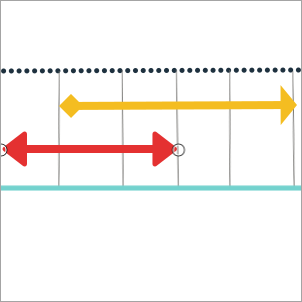
Arrows & Lines
Add arrows to point out areas or lines to add visual elements.

Sketch Motion Callouts
Add an animated callout to give the appearance of drawing on the screen to highlight specific areas.
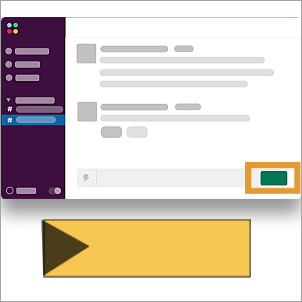
Shapes
Add shapes as a visual elements or to cover up areas.
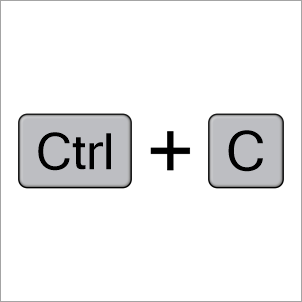
Keystroke Callouts
Add callouts to display keyboard shortcuts mentioned in your video.
Note: Additional callouts are available in the Camtasia Assets. To browse these assets, select Media tab > Camtasia Assets subtab > Callouts > See All. See Enhance Your Video with Camtasia Assets.
The timeline displays the sequence of all media in a video. The timeline playhead displays the current frame in the video.
To position when the annotation appears in your video:
The canvas is the video preview area. On the canvas, set the desired position and size for the annotation. Complete any of the following edits on the canvas to position media in your video:
Move
Click and drag the annotation to move to a new location on the canvas.
Resize / Scale
Click to select the annotation on canvas. Drag a corner handle in or out.
Rotate
Click to select media on canvas. Drag the center handle in the annotation to rotate around the anchor point.
Align
The canvas offers boundary guidelines to help you snap objects to the edge or center of the canvas, or align with other media or annotations.
Edit Callout Text
Double-click the callout on the canvas and enter the desired text.
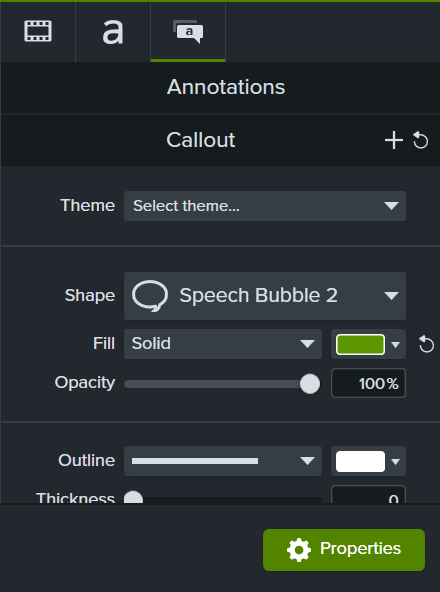
 : Fine tune edits on the canvas with properties such as scale, opacity, position, and rotation.
  : Edit the font, style, and colors for the annotation text.
  : Edit properties specific to the selected annotation type such as style and color. For example, enter the keystrokes to display for Keystroke annotations or set the draw time for Sketch Motion callouts.
 Tip: Save annotations for reuse.
Add a custom annotation to your list of Favorites or preset annotations. See Customize Camtasia.
Apply animations, transitions, behaviors, or visual effects to enhance or animate annotations.
For example, to animate an annotation similar to the example above, drag a Slide Right transition to the start of the callout and a Slide Left transition to the end. 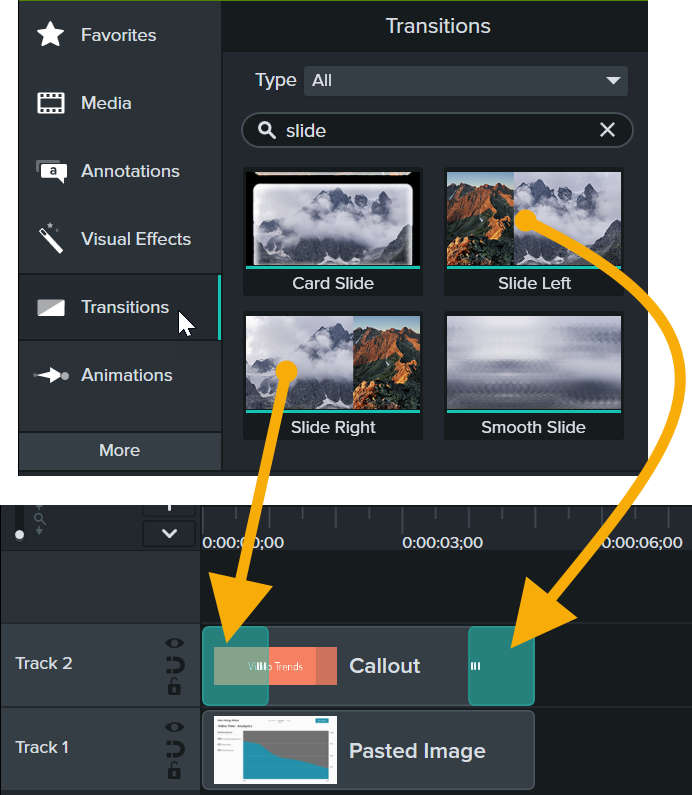
To learn more, see the following tutorials:
Check out these tutorials to continue to build your skills and discover new ways to use annotations in your videos: