


Learn how to use Camtasia Editor
We'll guide you through making your first video.


We'll guide you through making your first video.
Try one of our recommended lessons or scroll down to browse all available topics.
beginner
3 videos
A helpful beginner's guide to basic video editing.
beginner
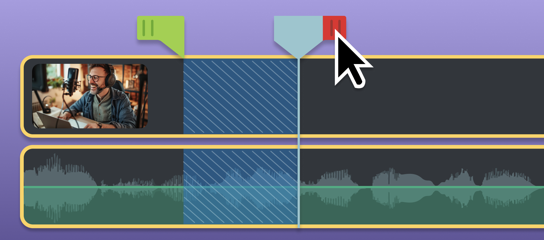
14 videos
Learn how to complete common edits on the timeline.
beginner
5 videos
Follow a sample project to add and animate video text.

intermediate
Learn about the latest features and improvements in Camtasia Editor.
What's New in Camtasia Editor
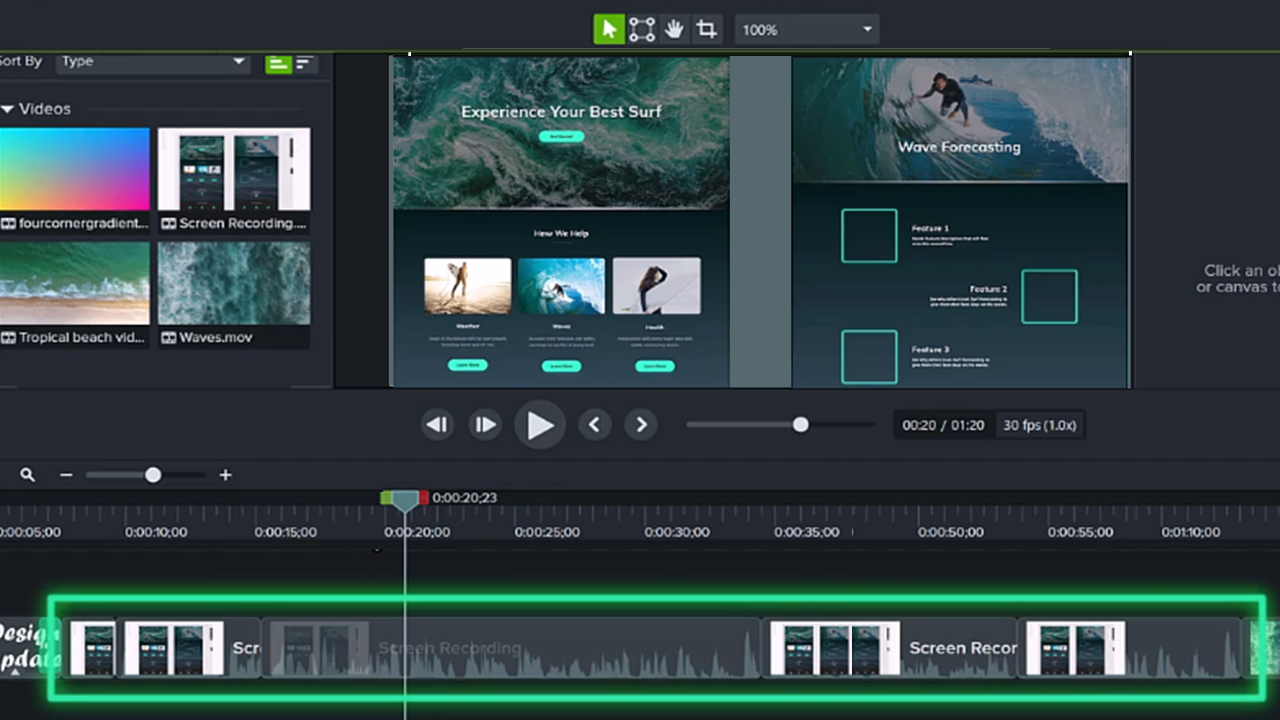
Build Your First Video
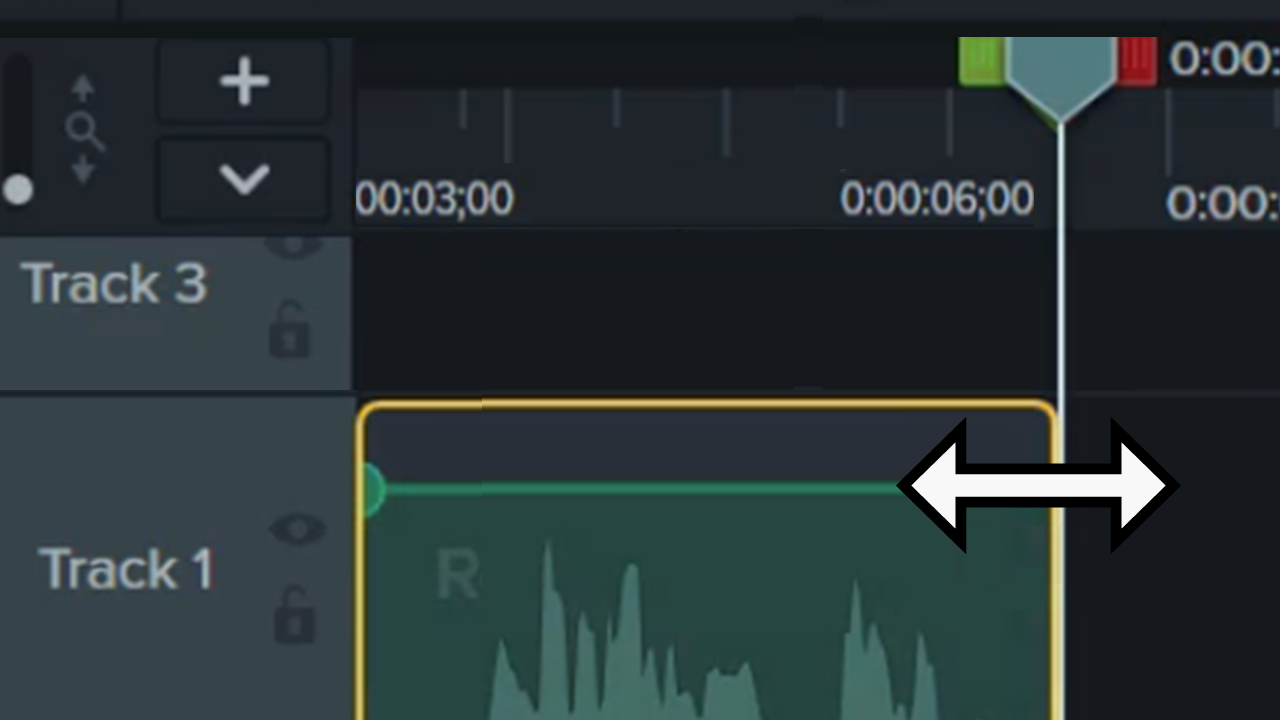
Basic Edits After Recording
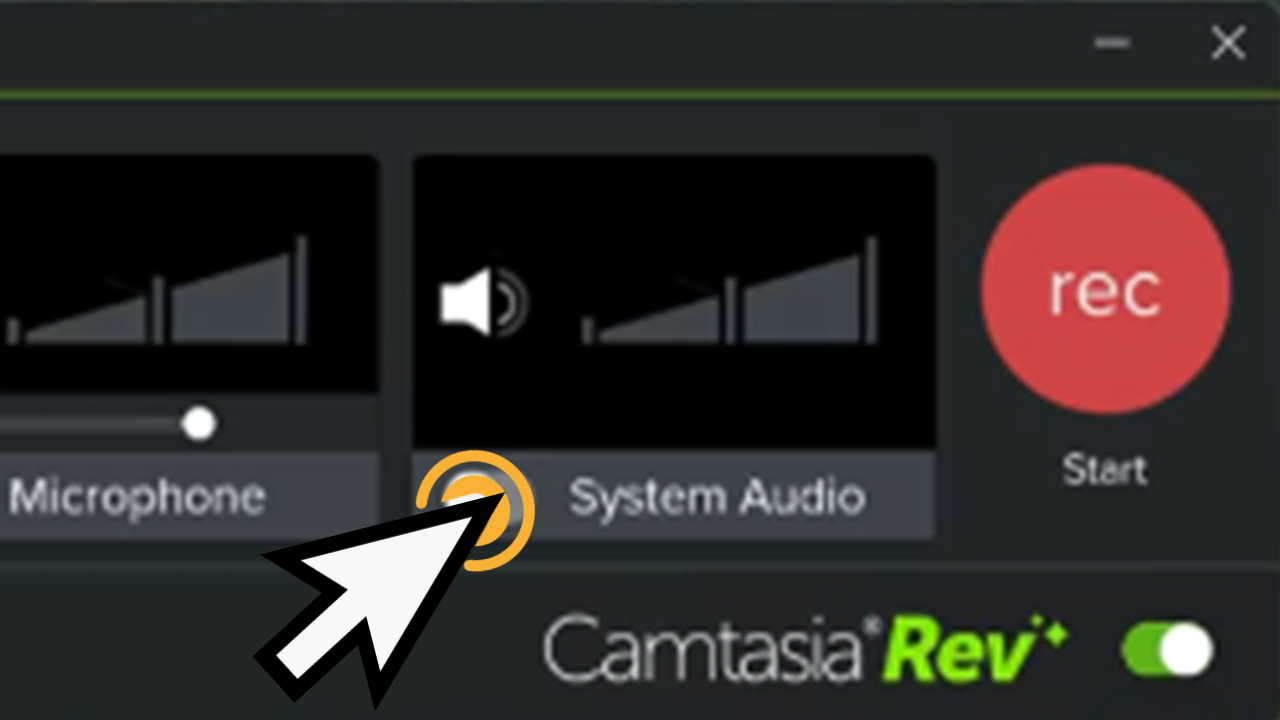
Introduction to Camtasia Recorder
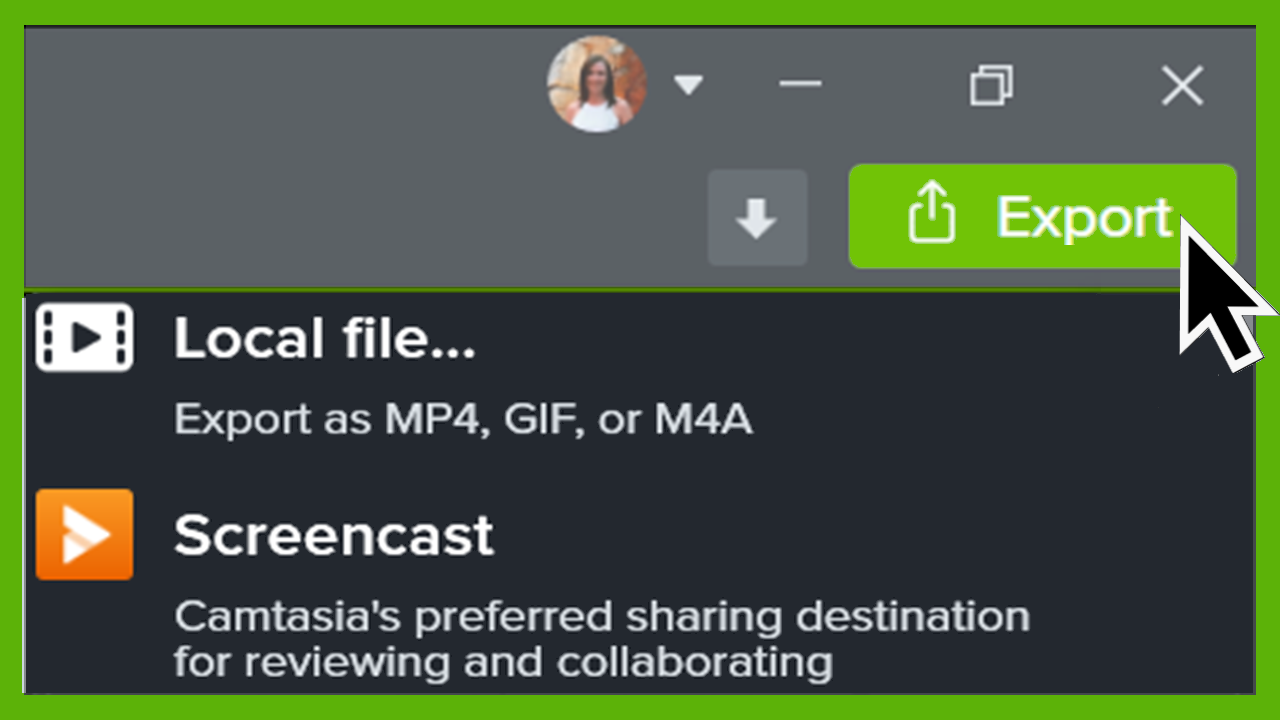
Export & Share Your Video
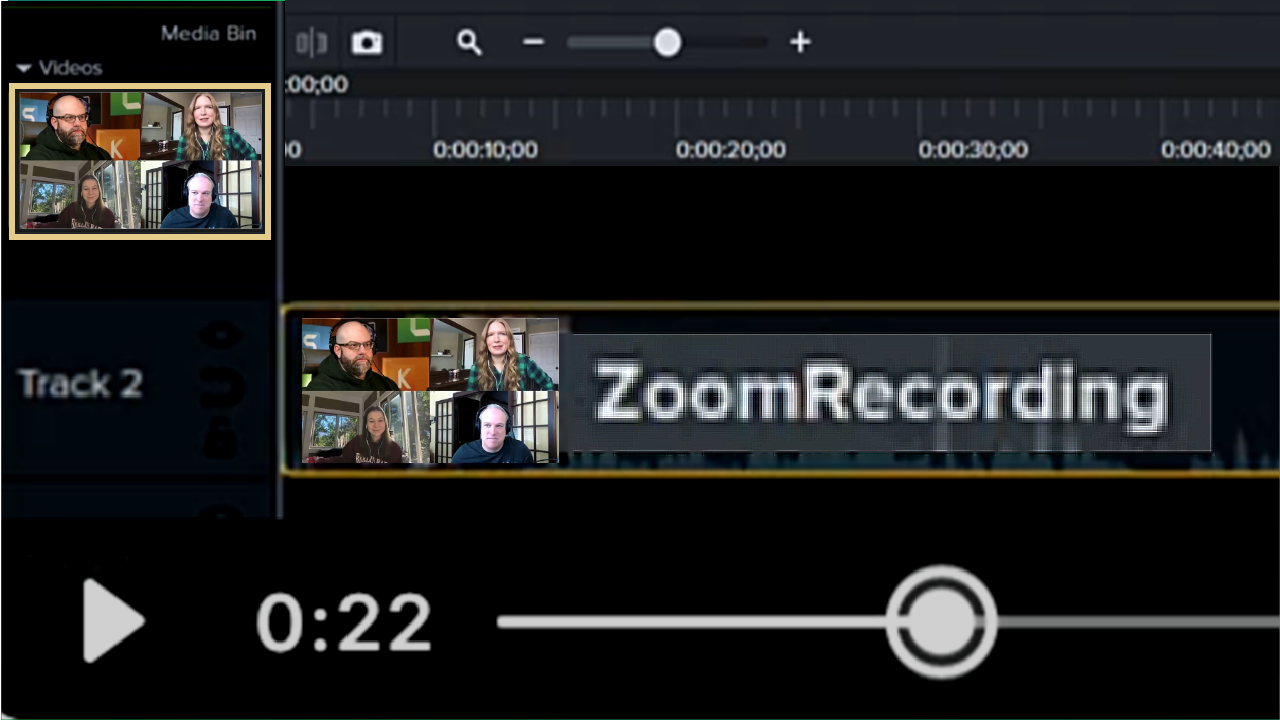
Edit Zoom Recordings
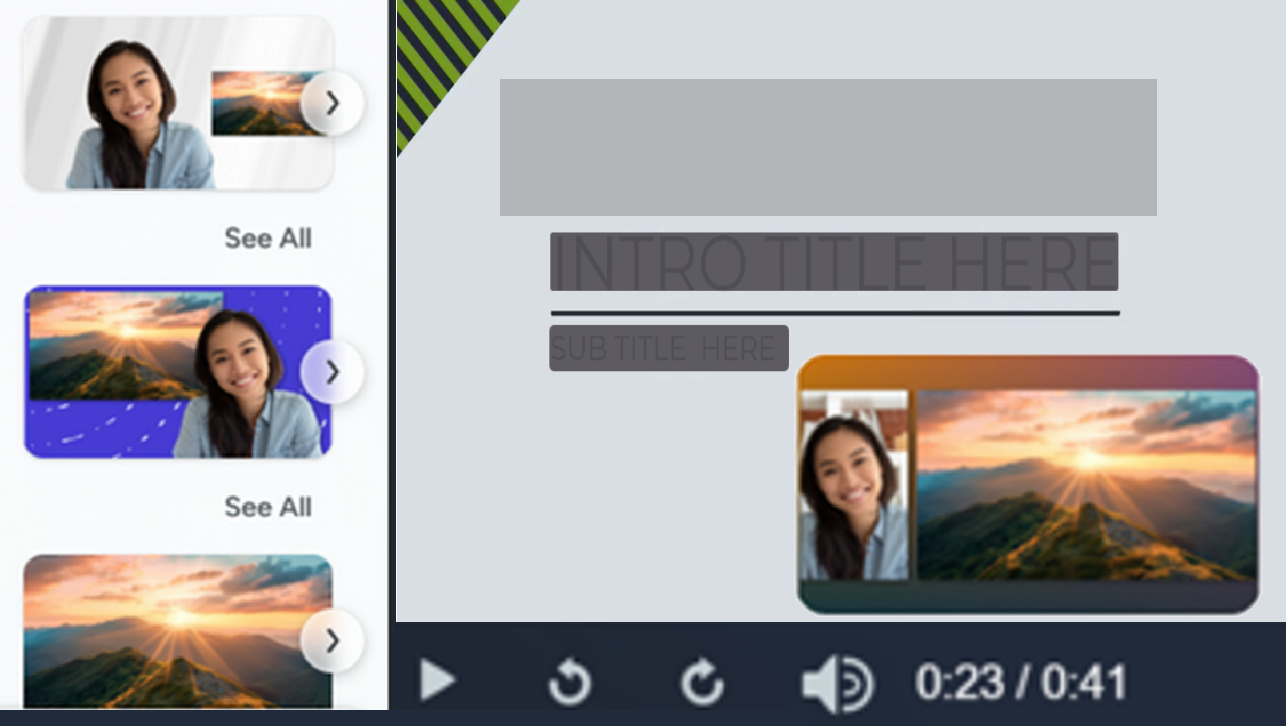
Import & Manage Your Project Media (Media Bin)
Edit Microsoft Teams & Other Meeting Recordings
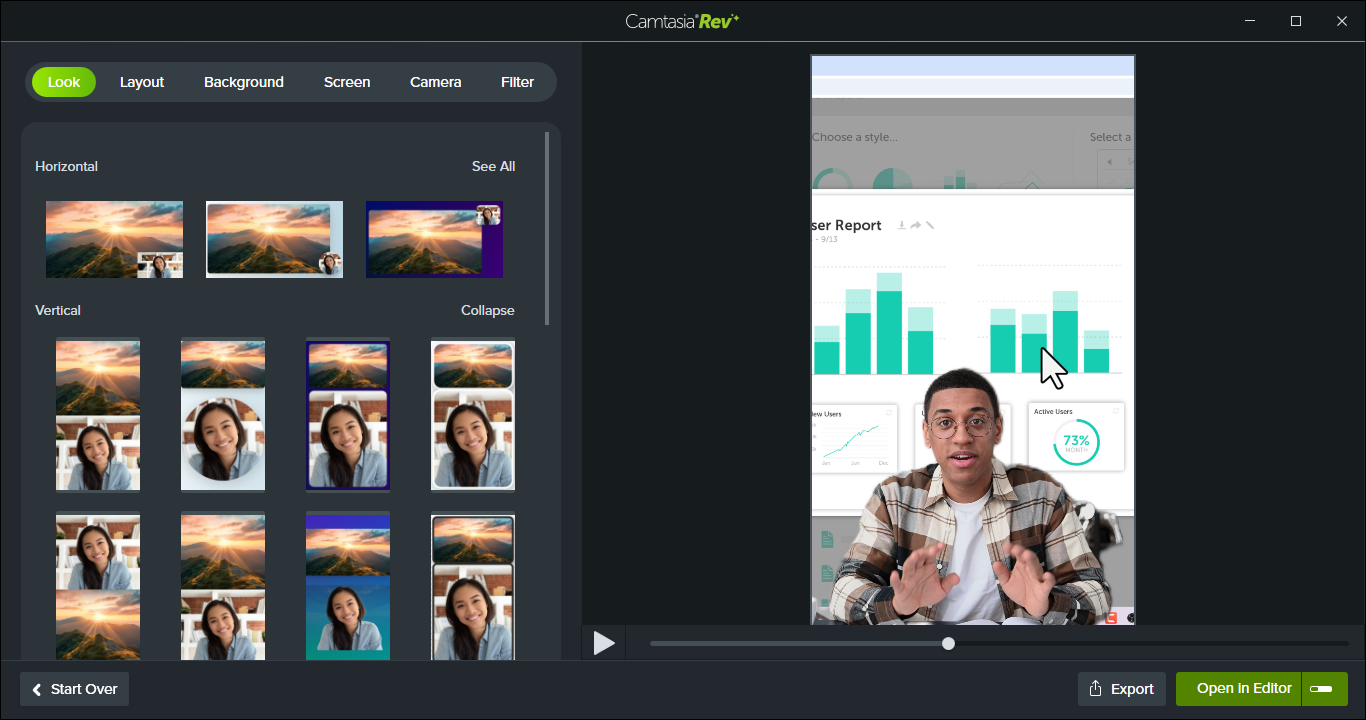
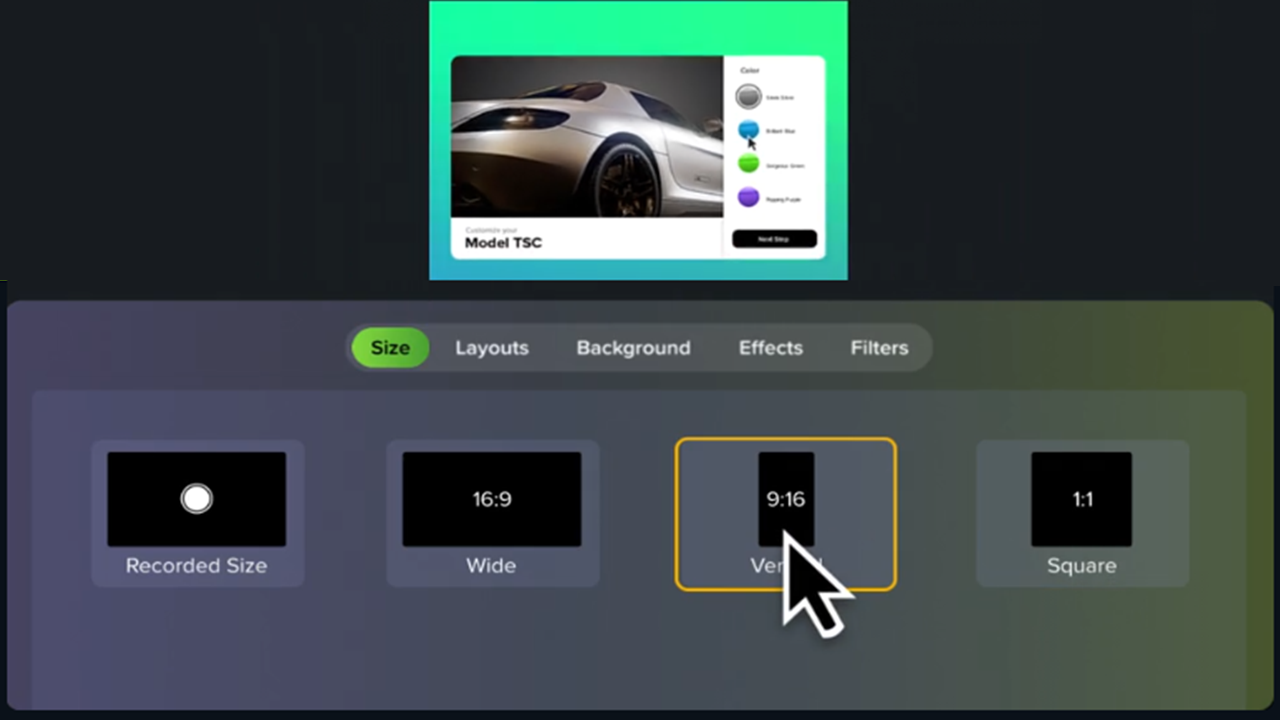
Create Vertical Videos
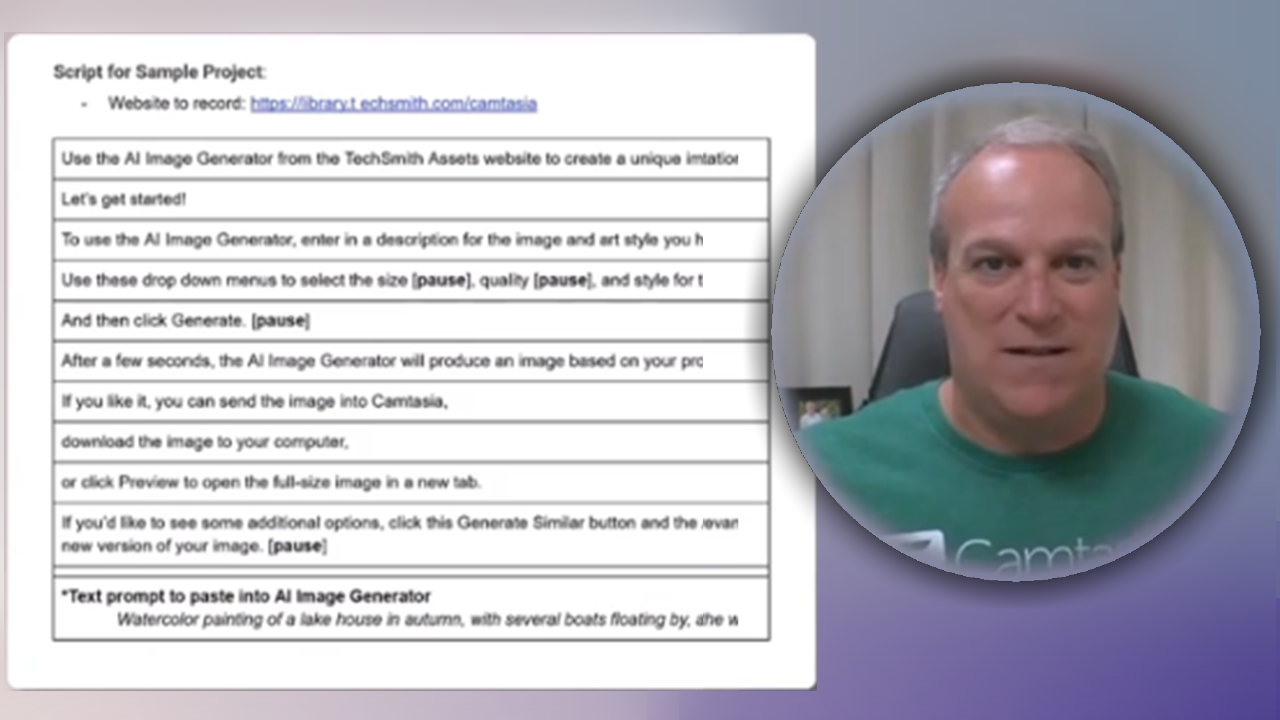
Create a Video from a Script
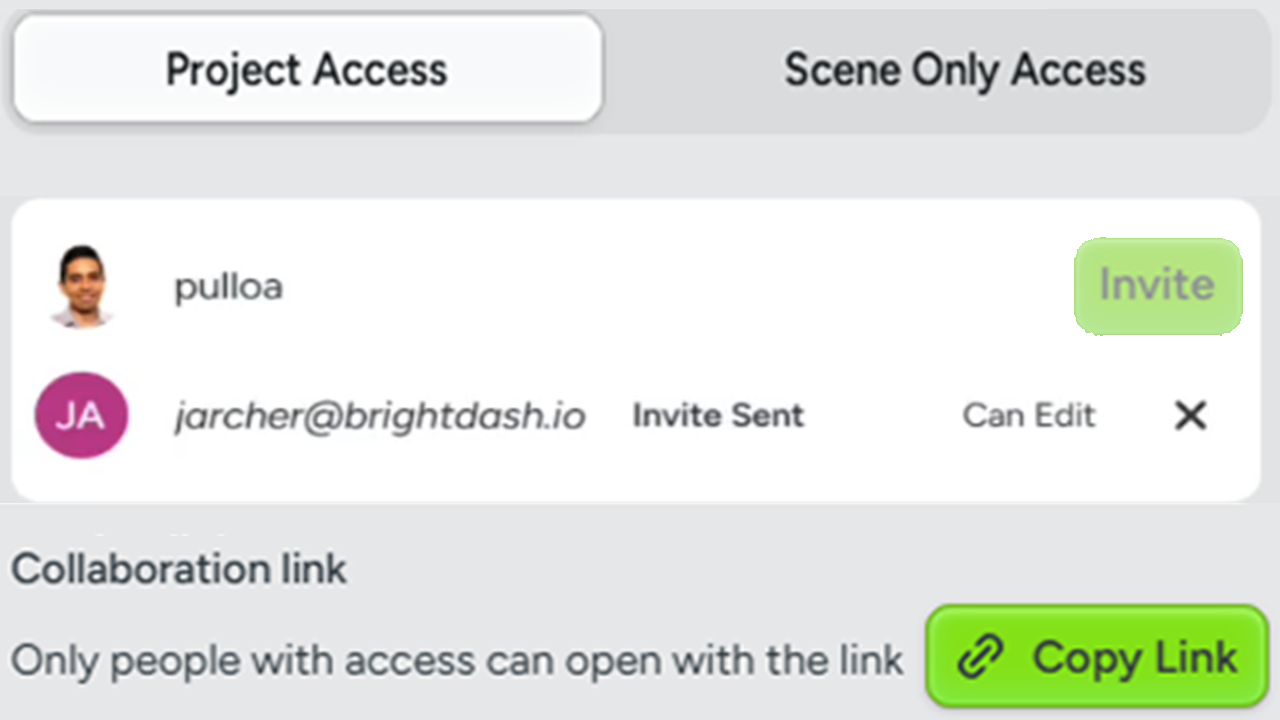
Collaborate on a Video Project
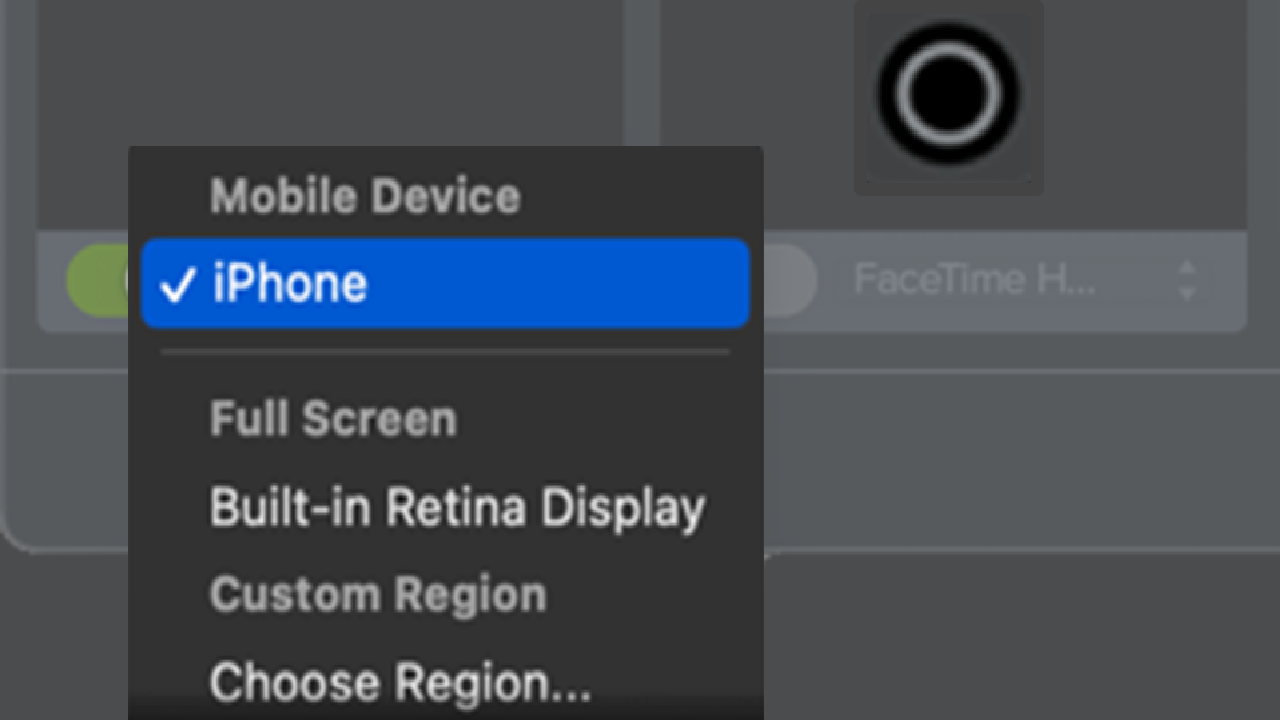
Record an iOS Demo or Tutorial
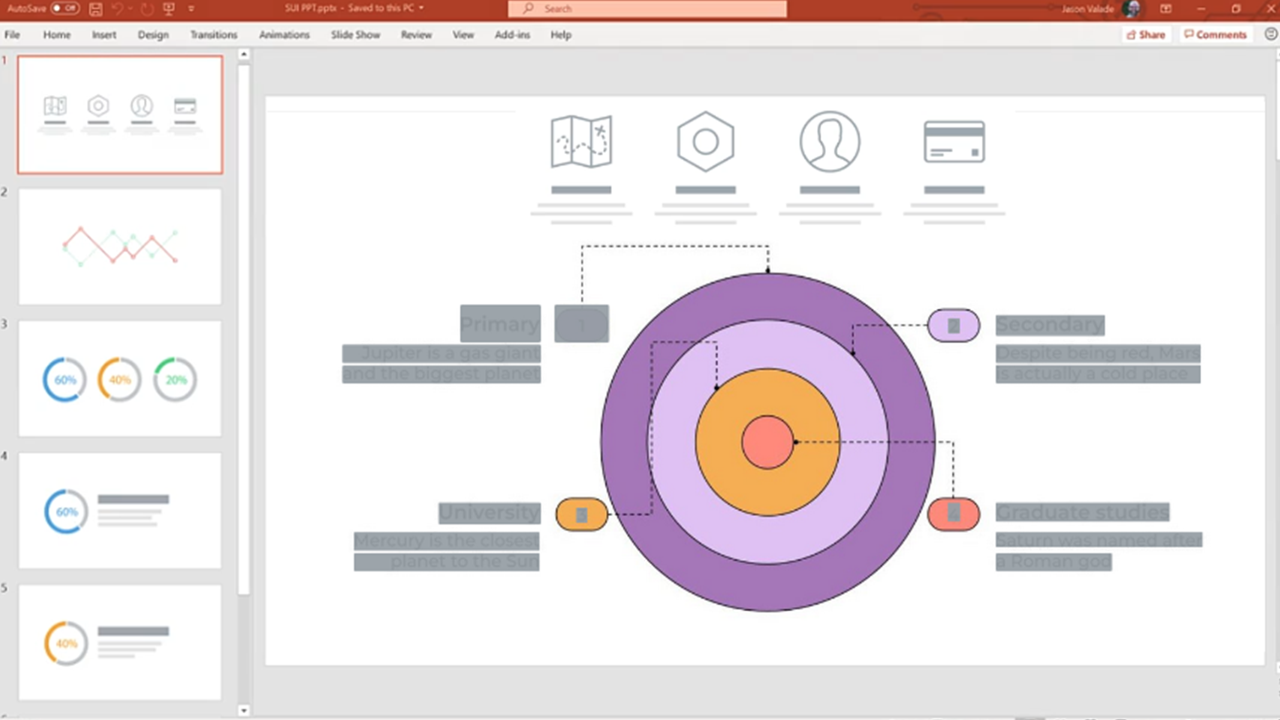
Record a PowerPoint Presentation
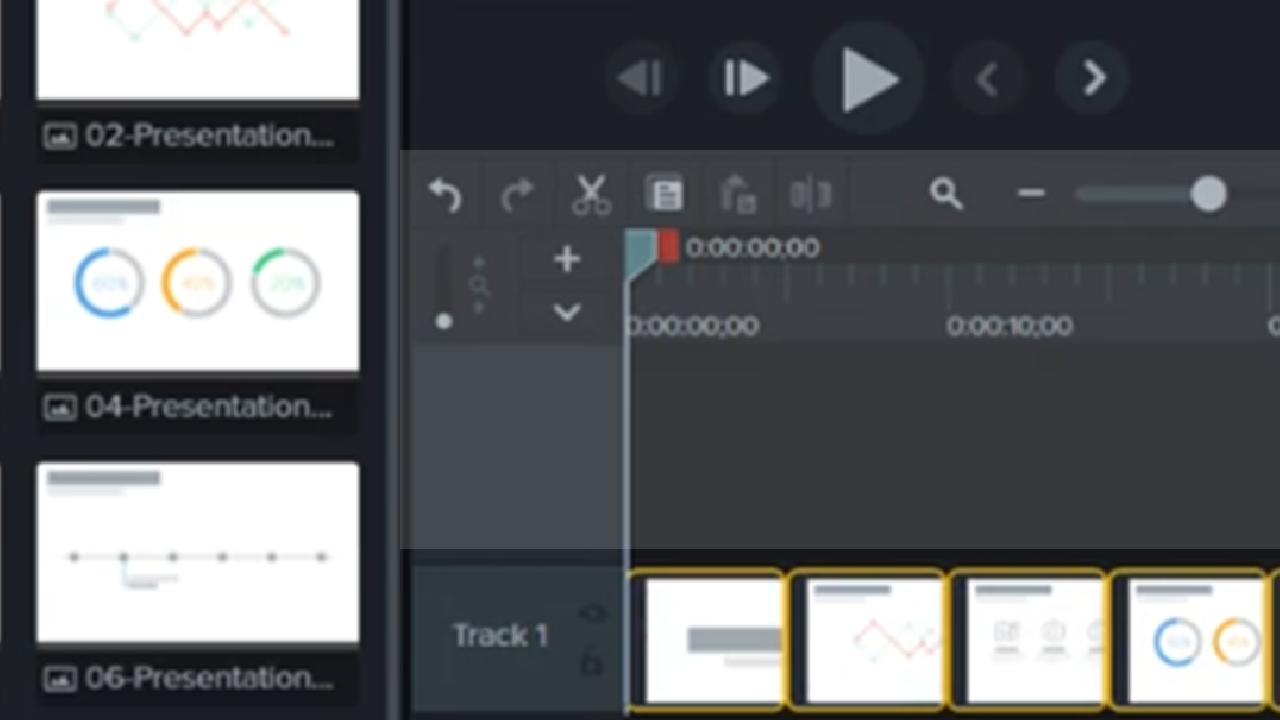
Import Presentation Slides
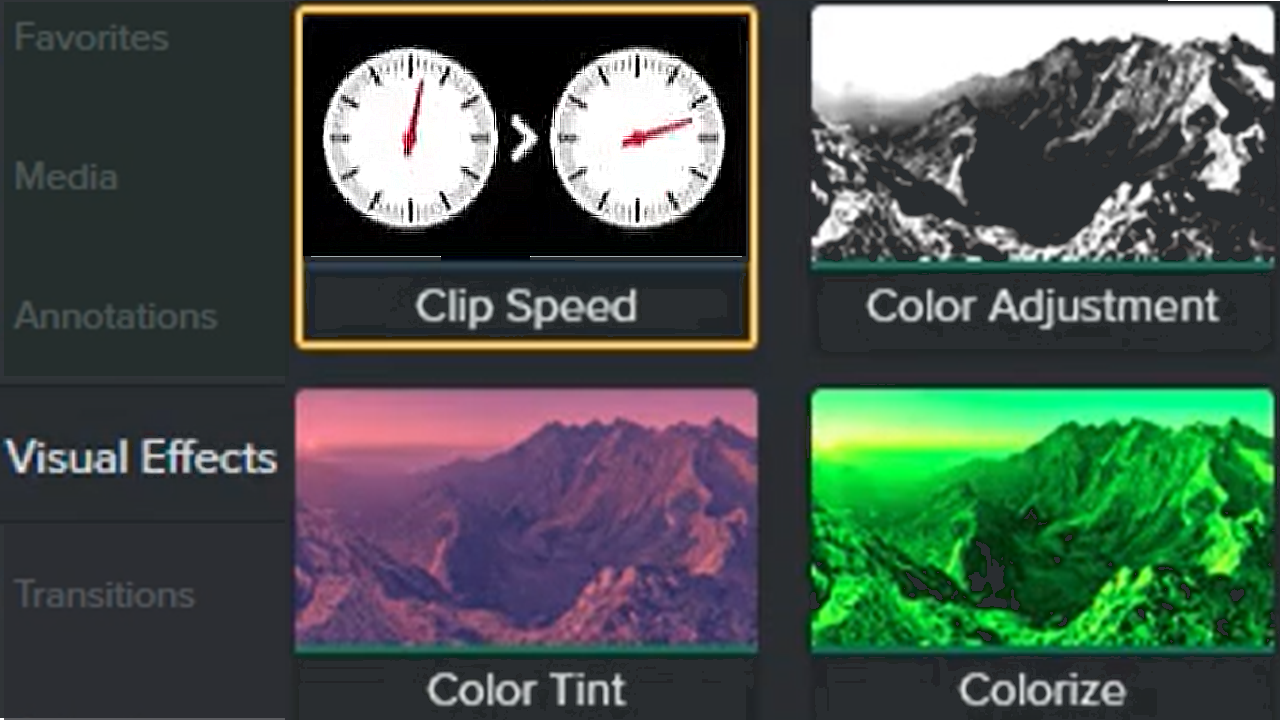
Visual Effects Overview
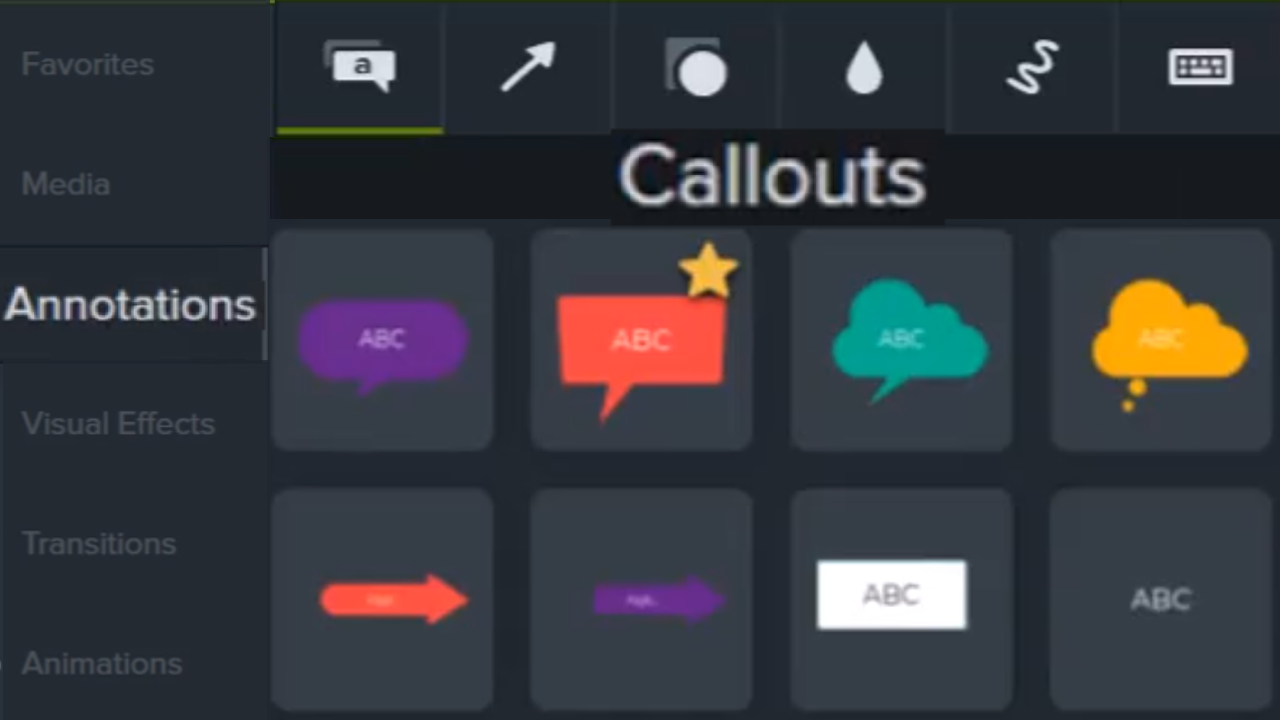
Add Arrows, Shapes, & Callouts
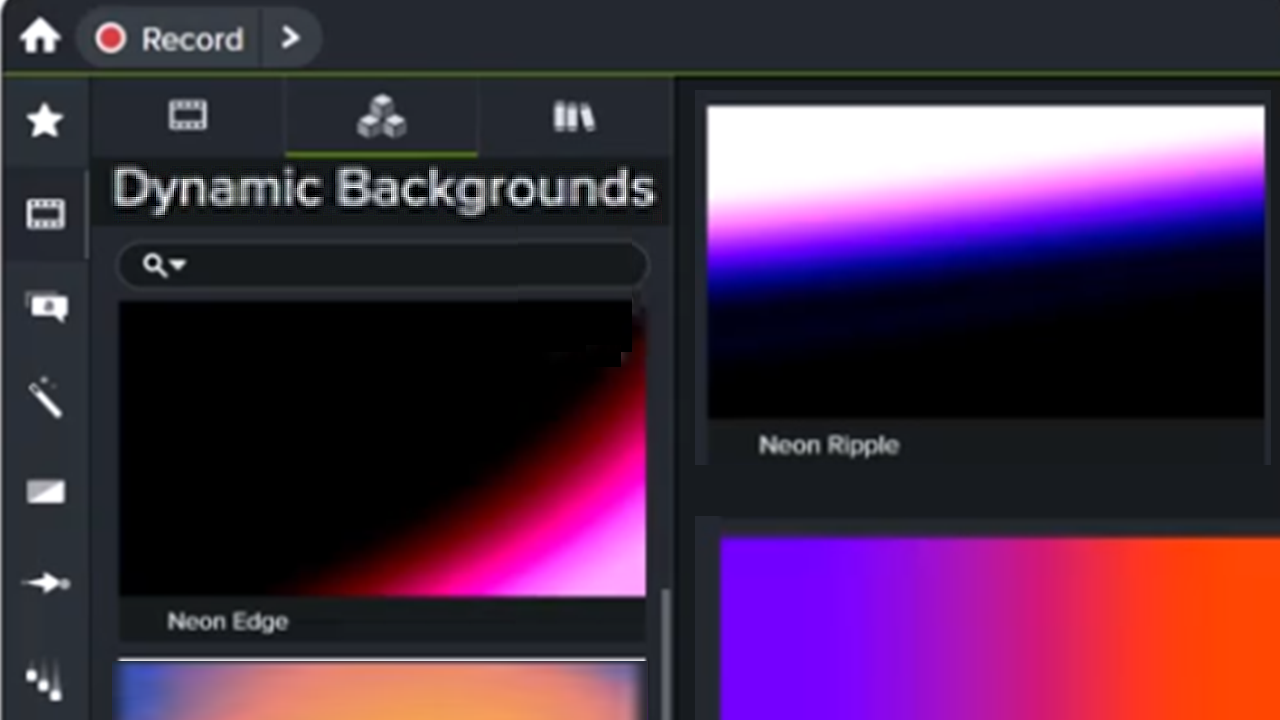
Add a Dynamic Background
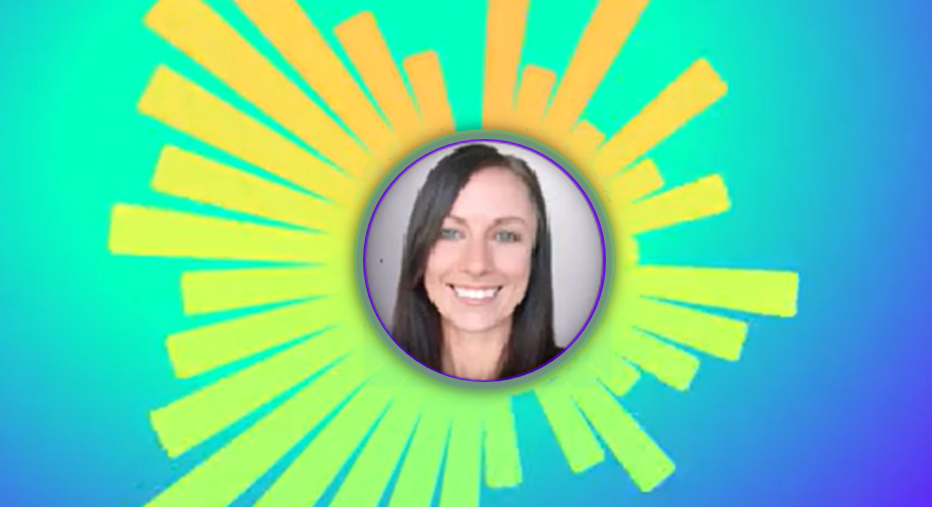
4 Ways to Visualize Your Audio
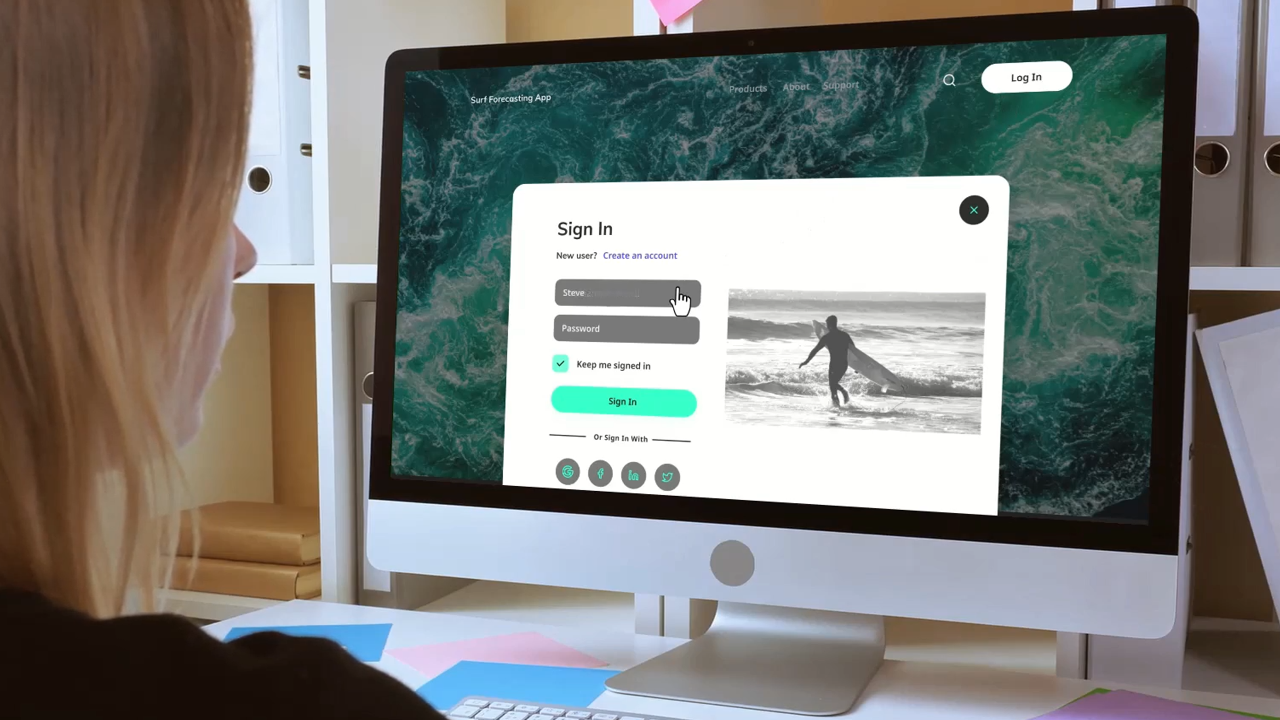
Create the Illusion of 3D Perspective (Corner Pinning)

Remove a Background from Your Video
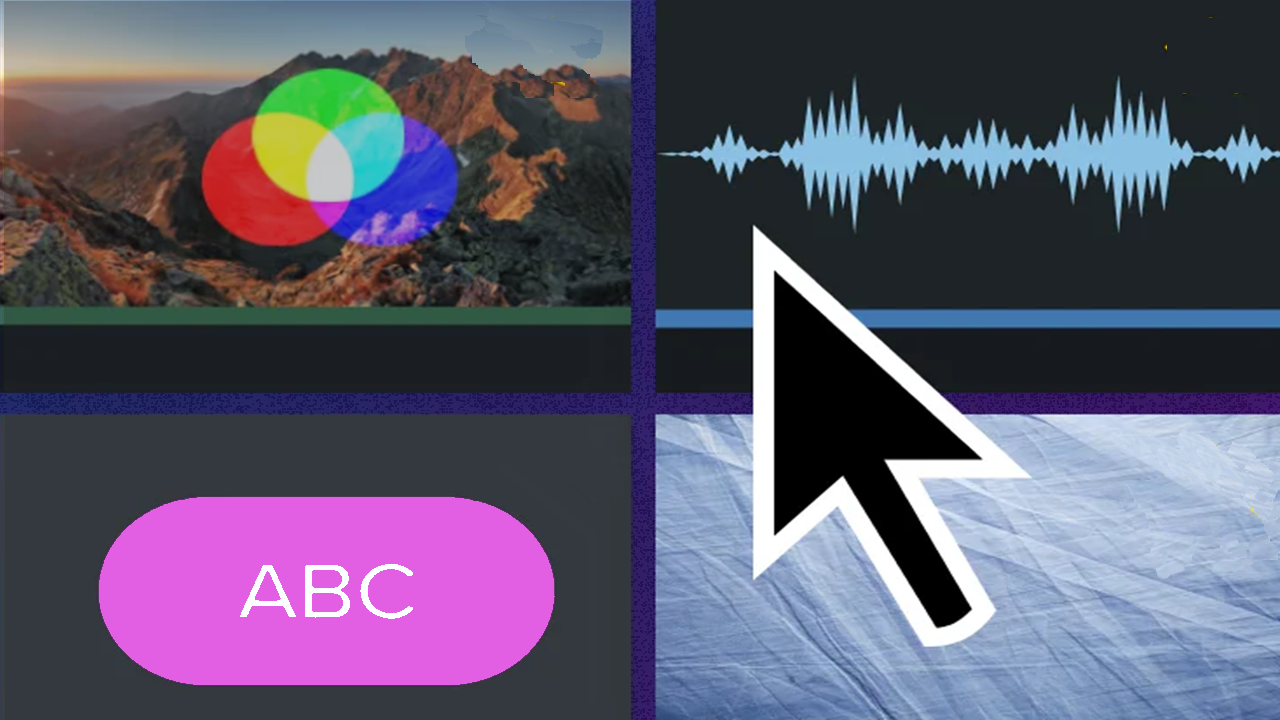
Enhance Your Video Overview
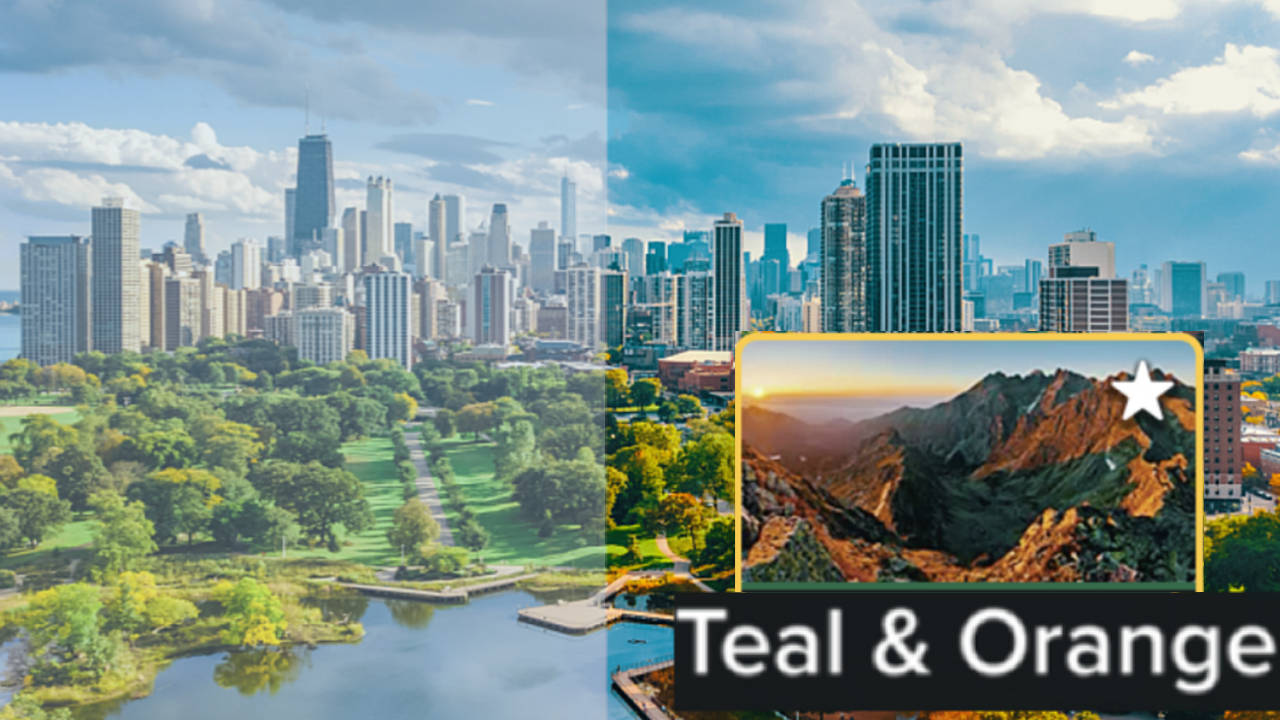
Add Video Filters
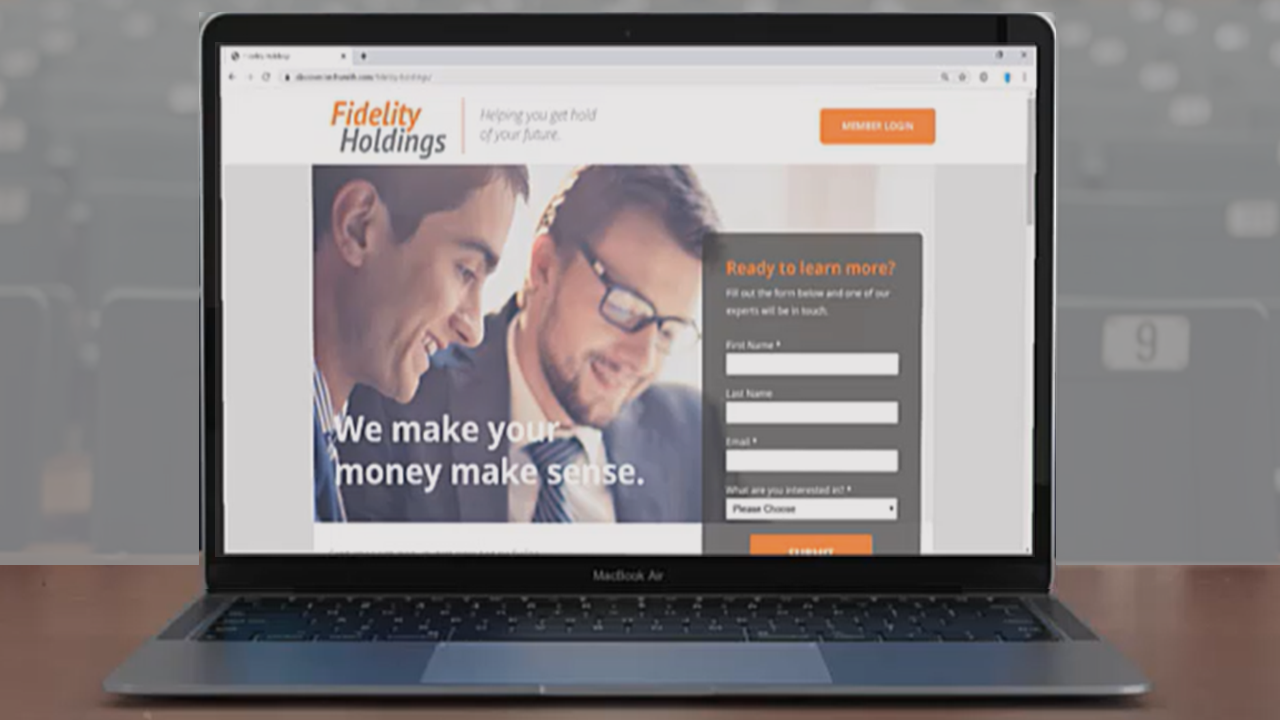
Provide Context with Device Frames
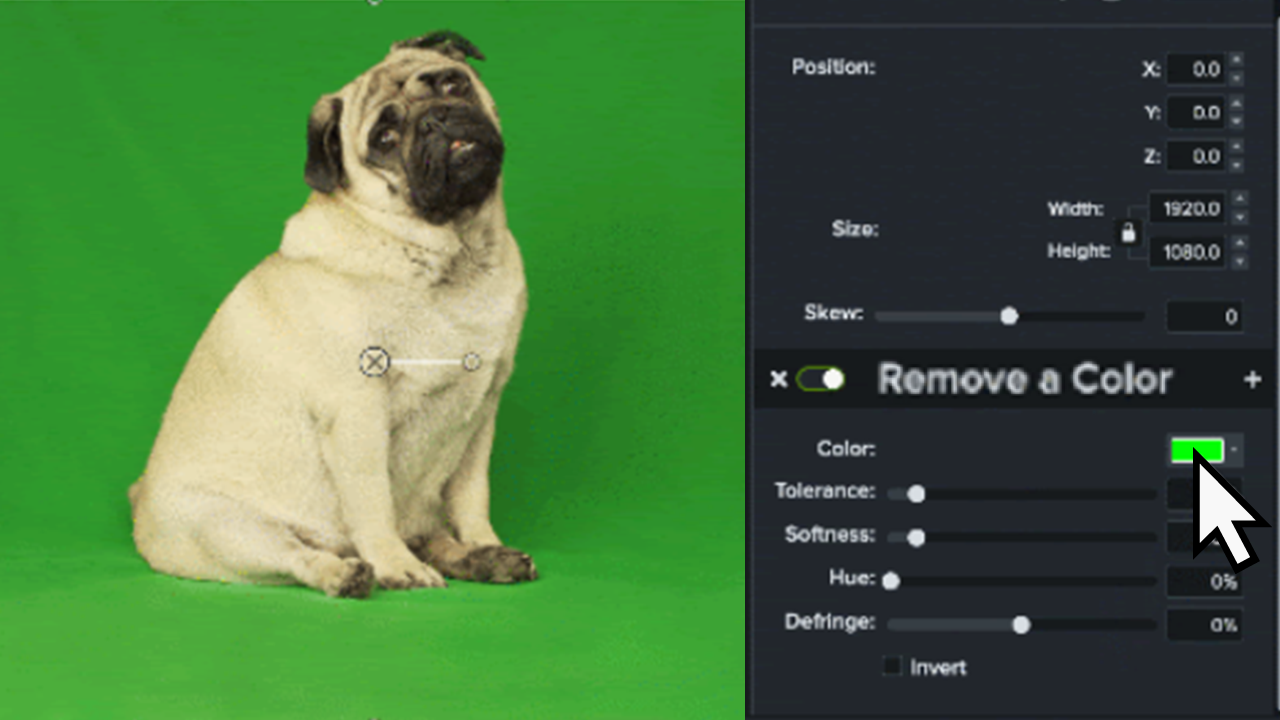
Remove A Color (Green Screen)
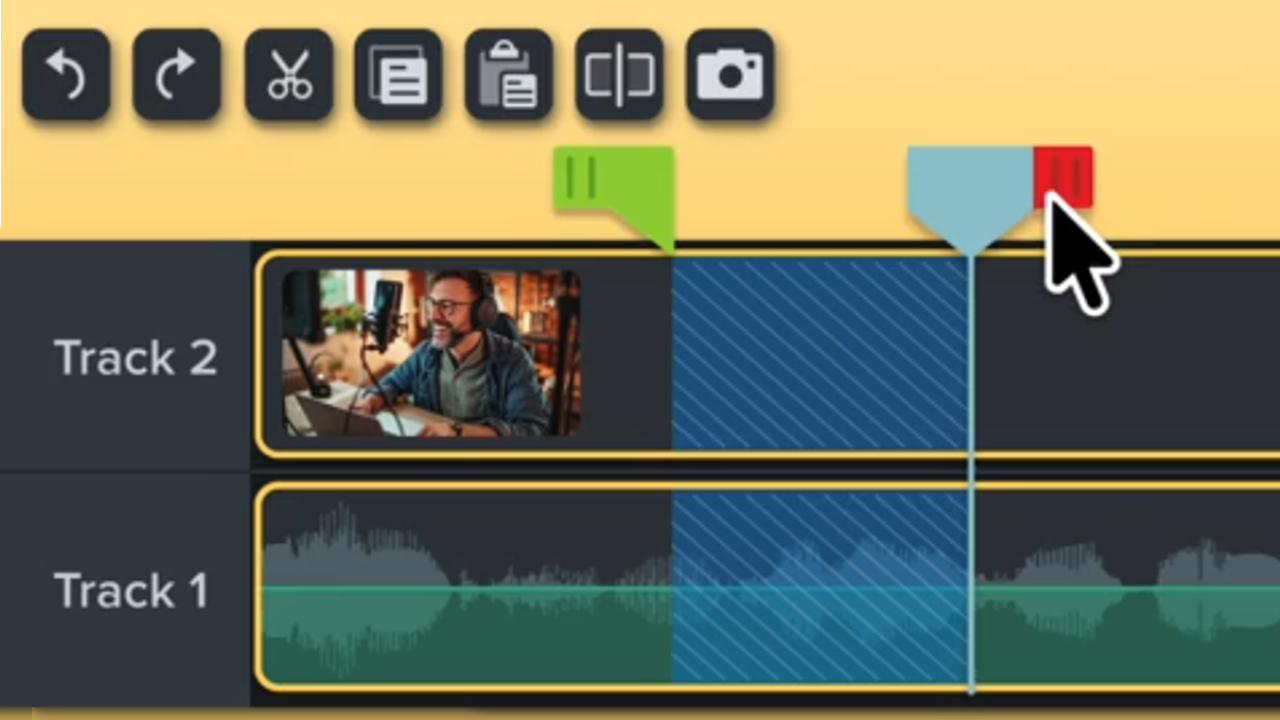
Video Editing Quick Guide
Basic Edits After Recording

3 Keys to the Camtasia Editor Timeline
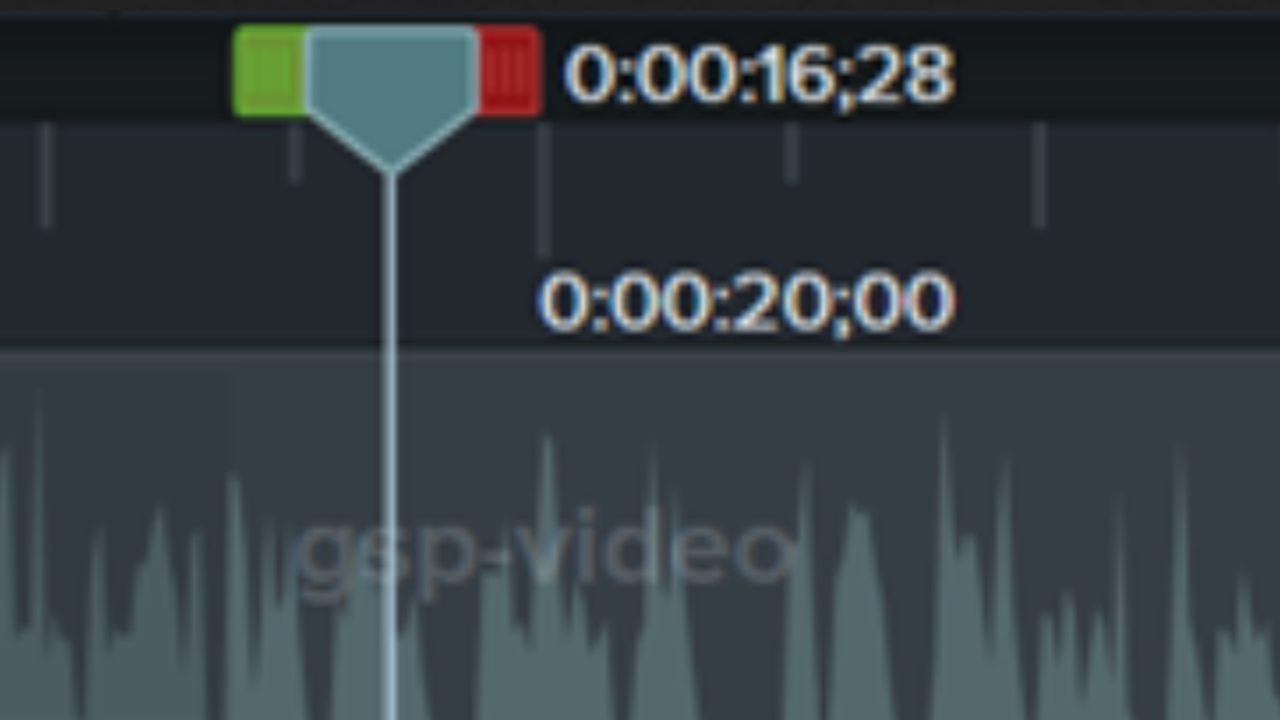
Explore the Timeline
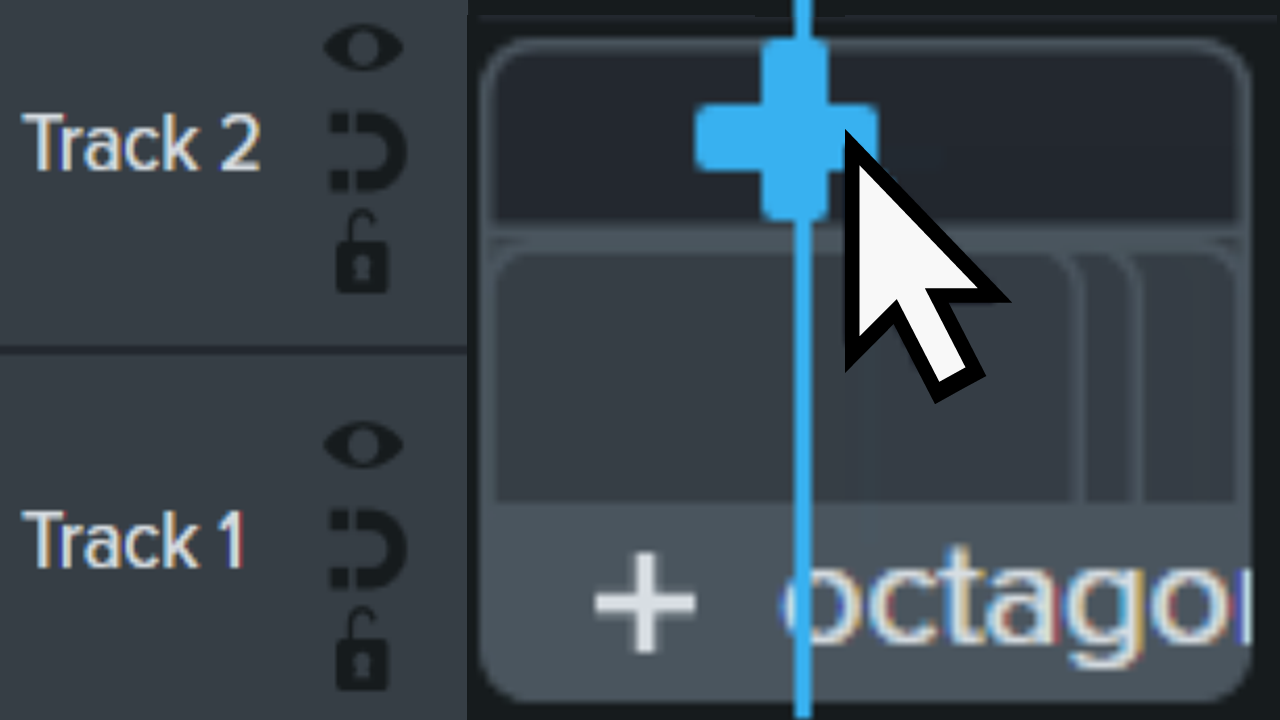
Add Markers & Video Table of Contents
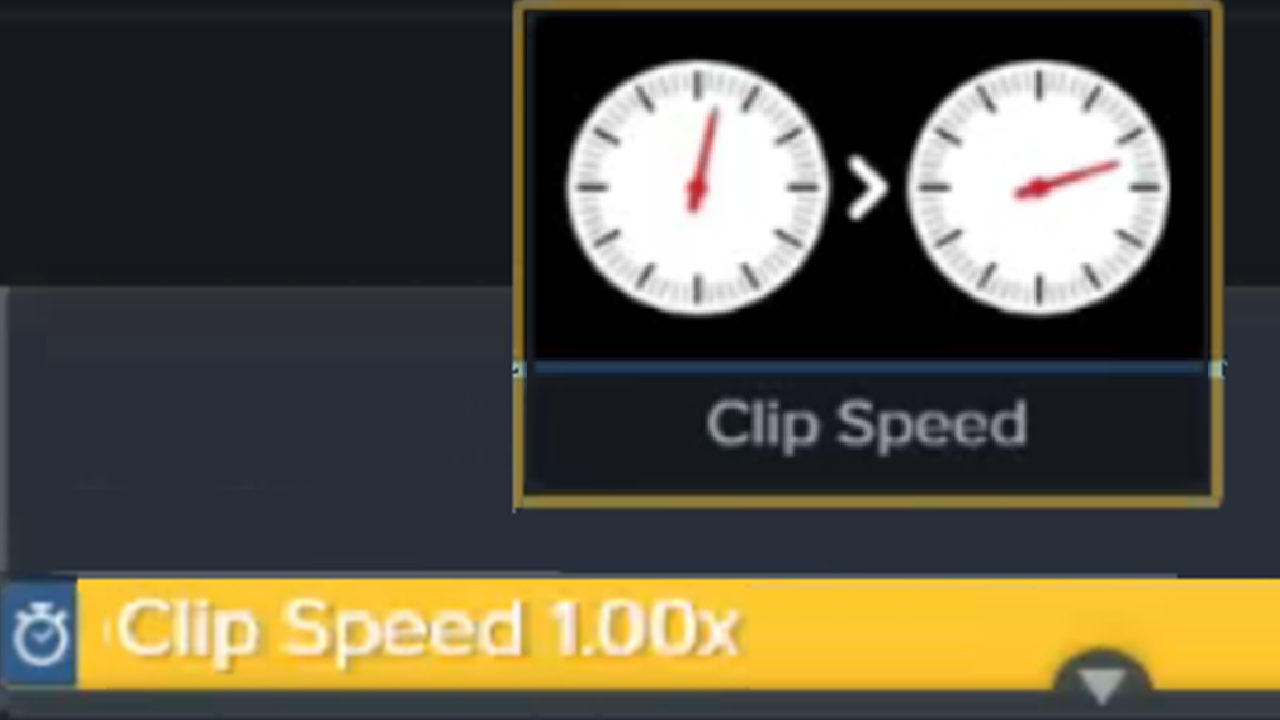
Speed Up & Slow Down Video Clips
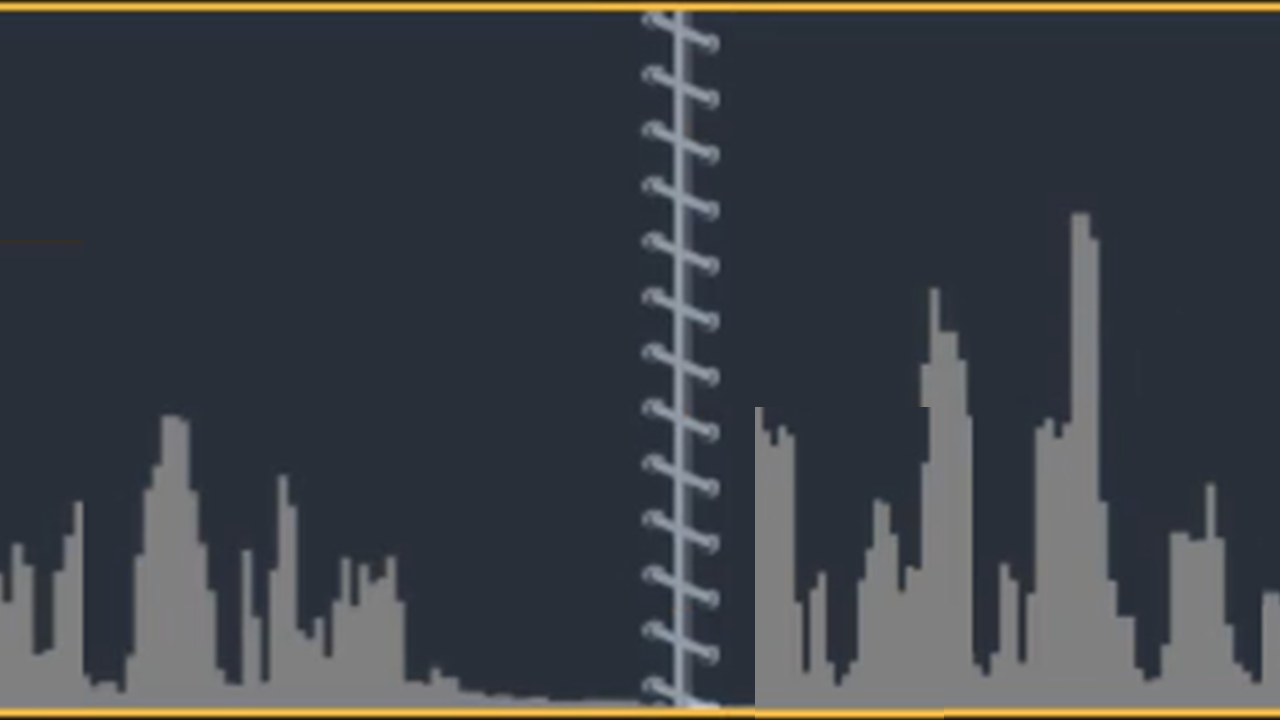
Join Clips Together
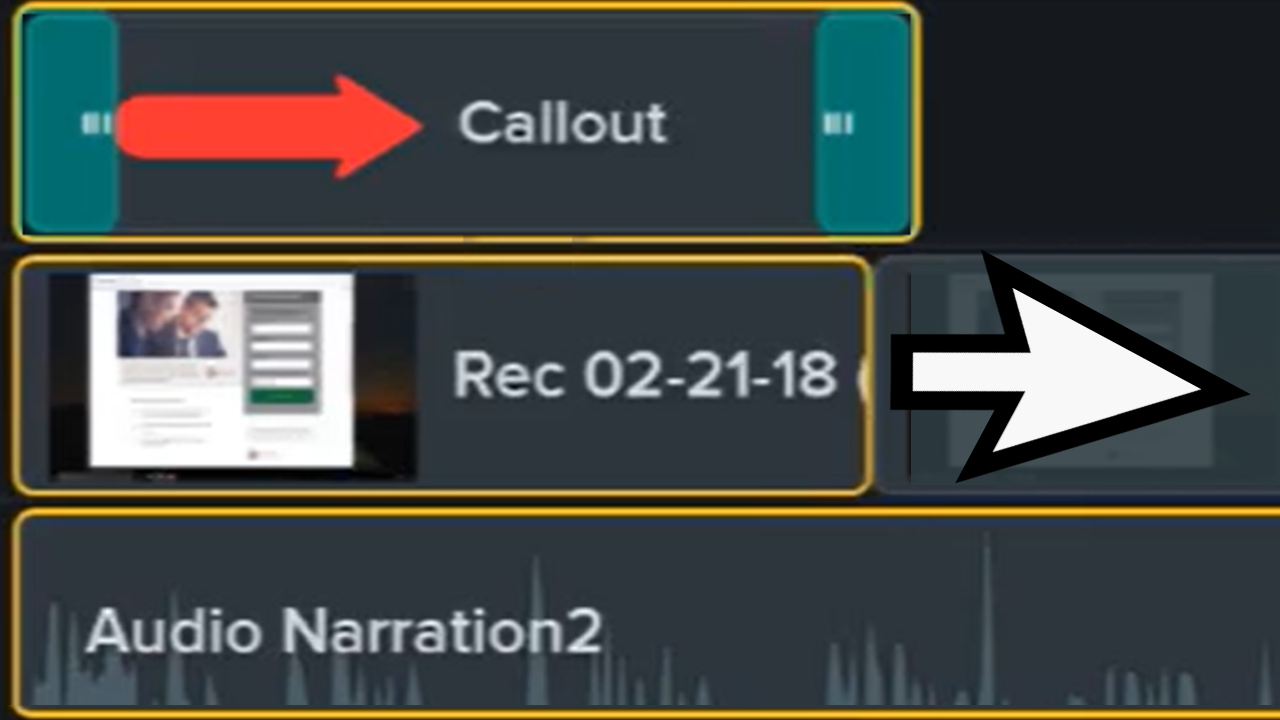
Move Multiple Clips at Once
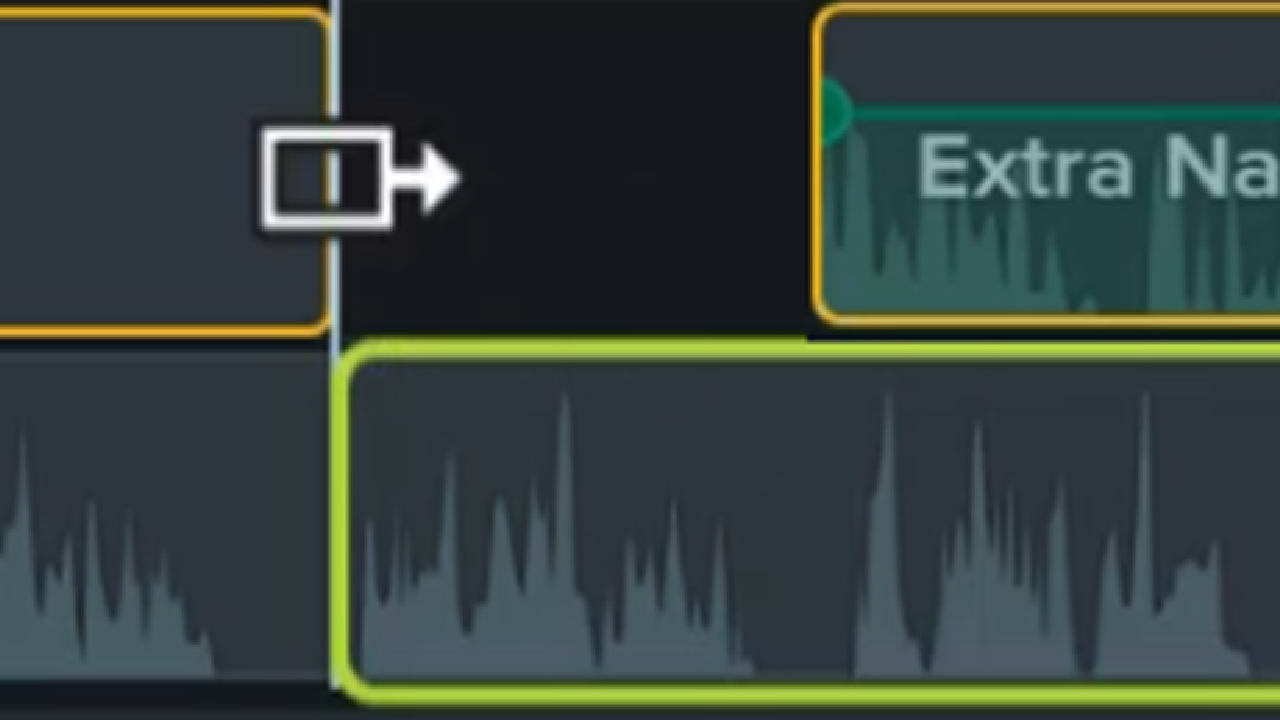
Ripple Move & Extend Frame
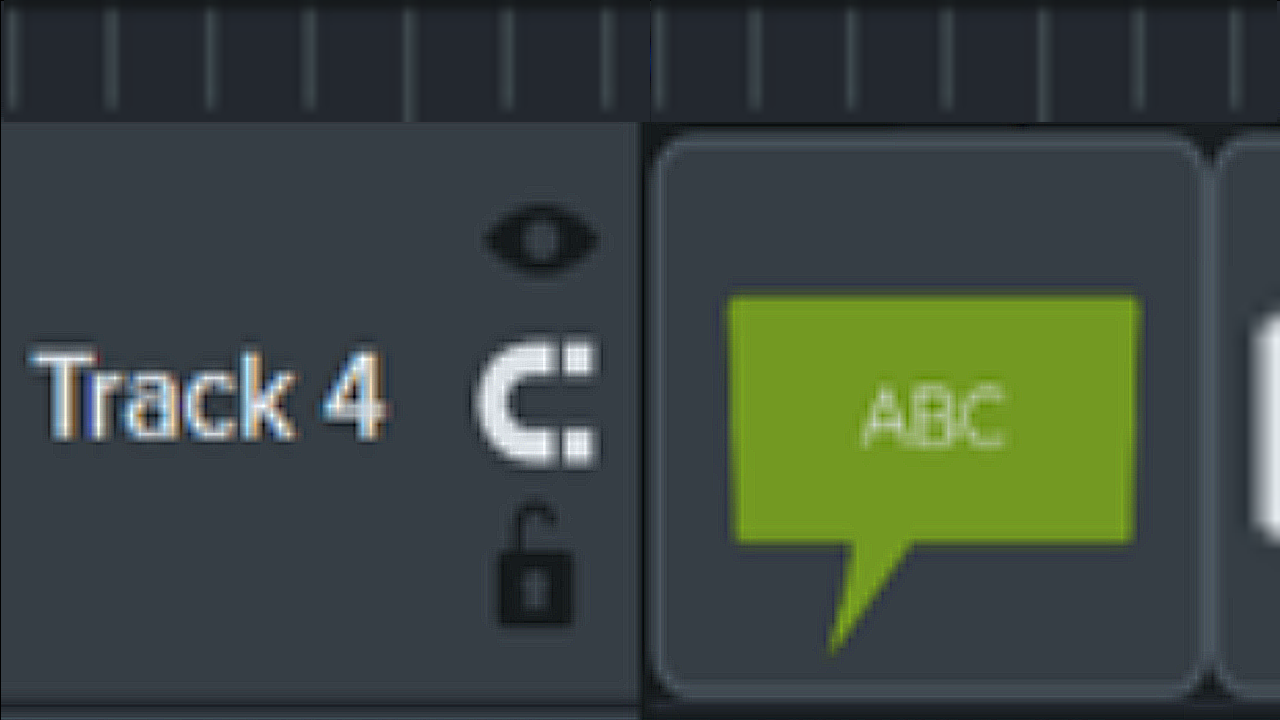
Close Timeline Gaps with Magnetic Tracks
Speed Up Editing with Camtasia Audiate
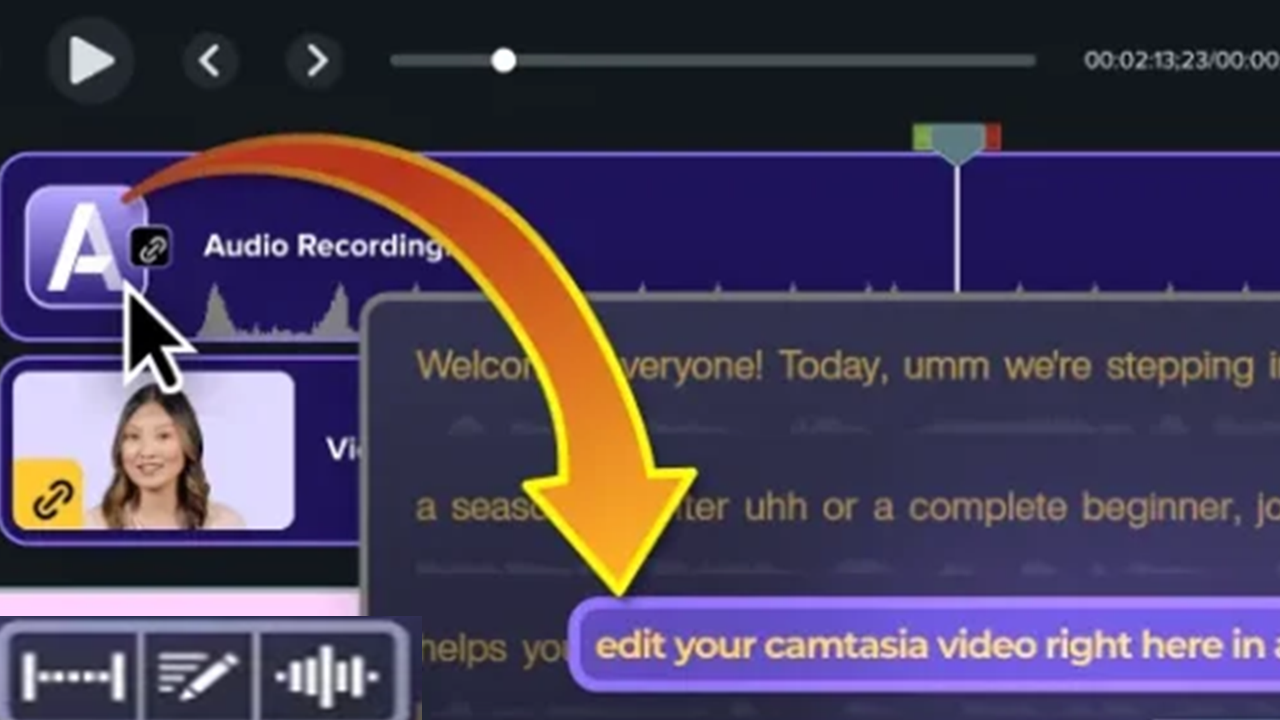
Introduction to AI Video Generation
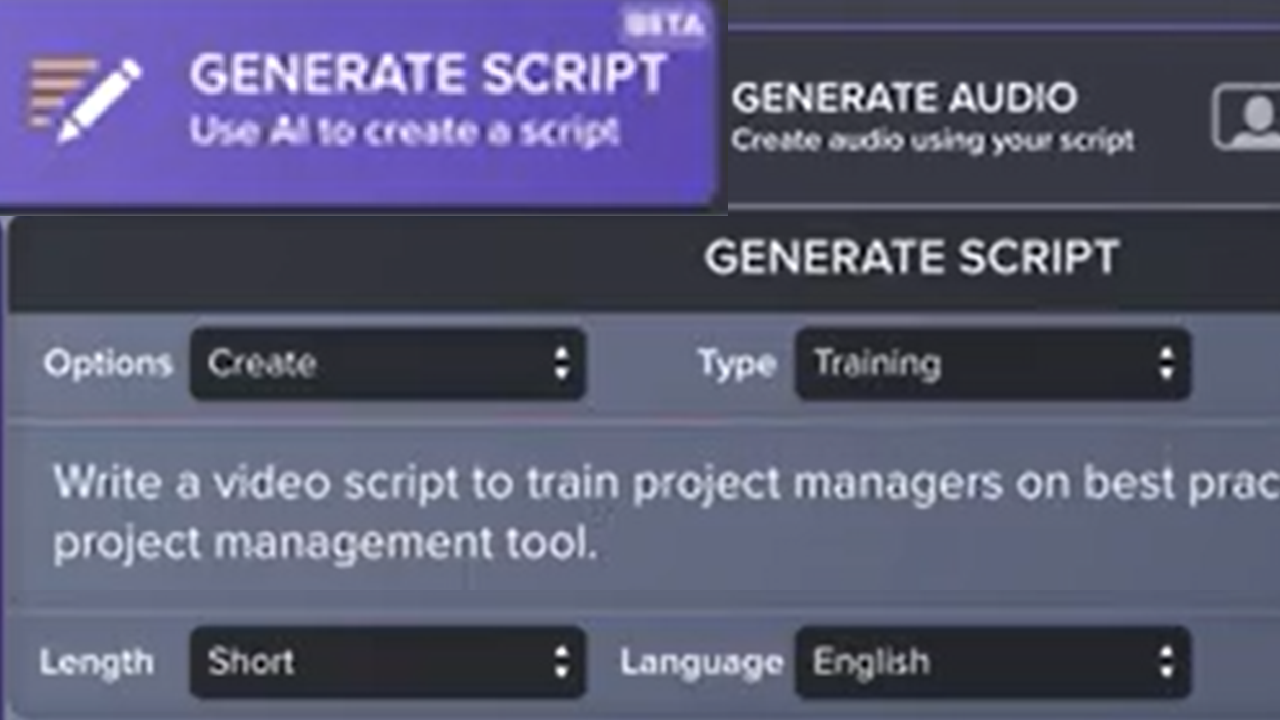
Generate a Script with AI
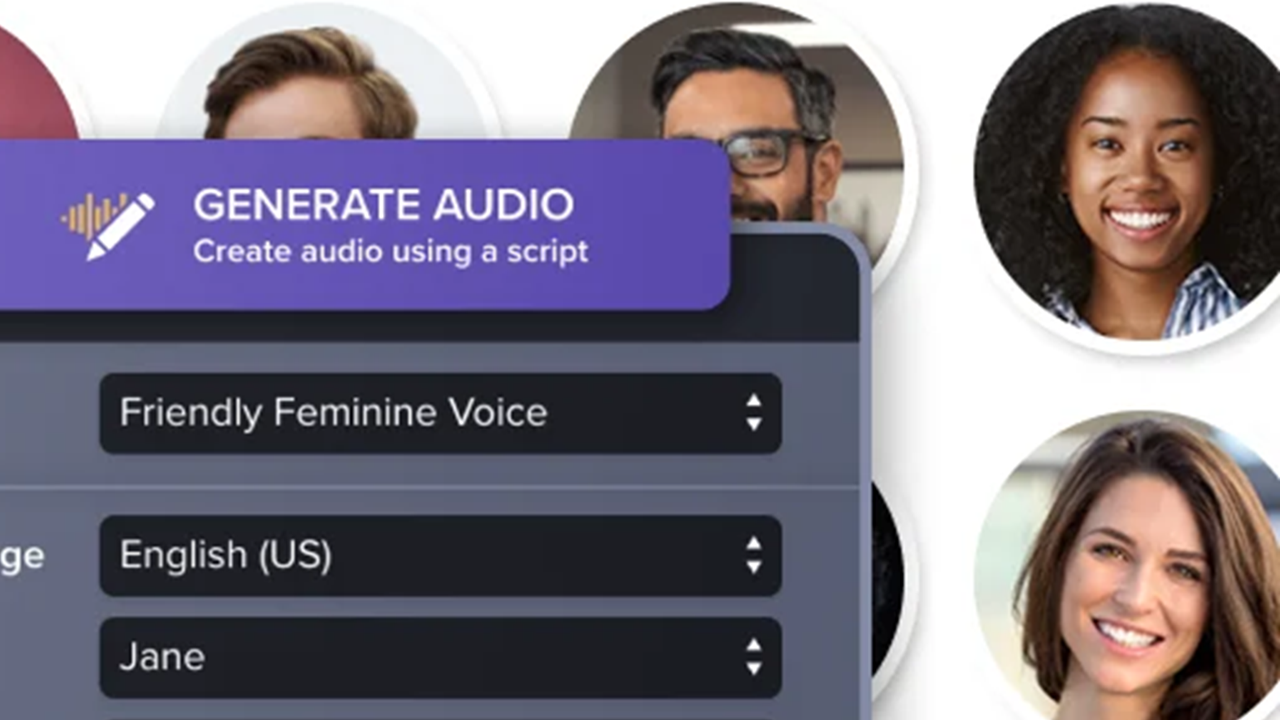
Generate AI Voices from Text or a Script
Generate AI Avatars
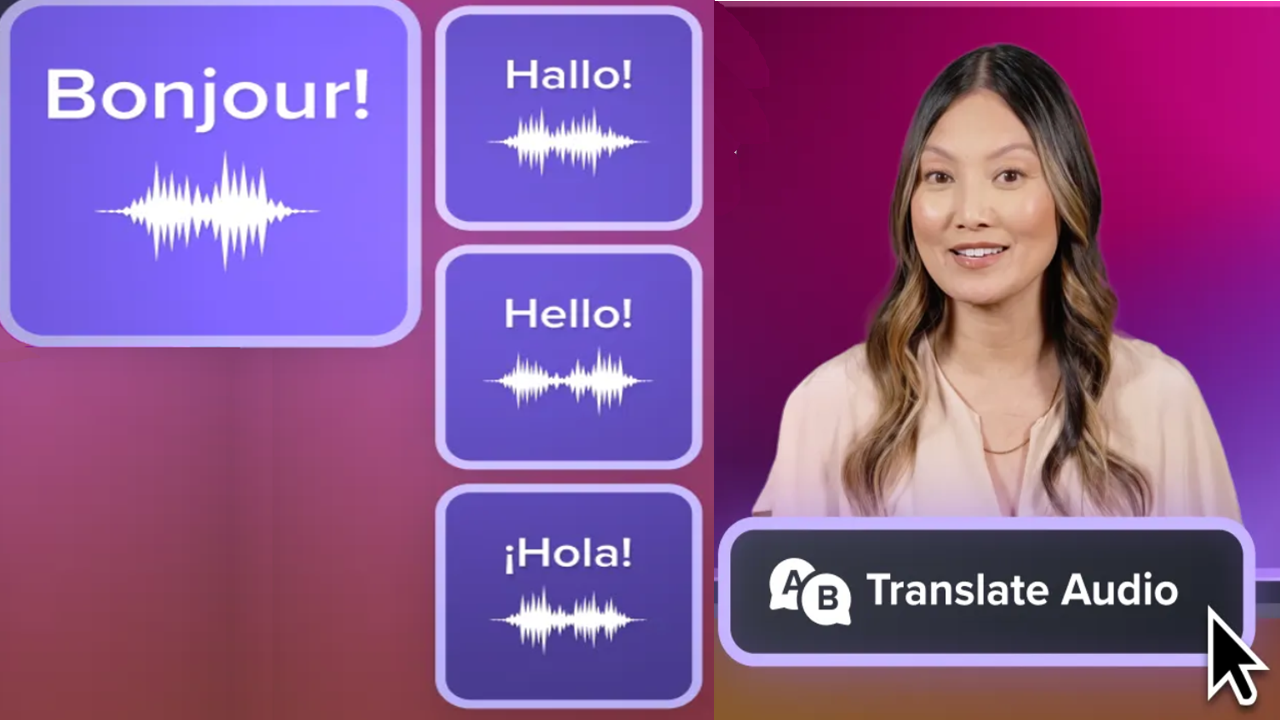
Translate Your Script, Audio, and Captions
Speed Up Editing with Camtasia Audiate
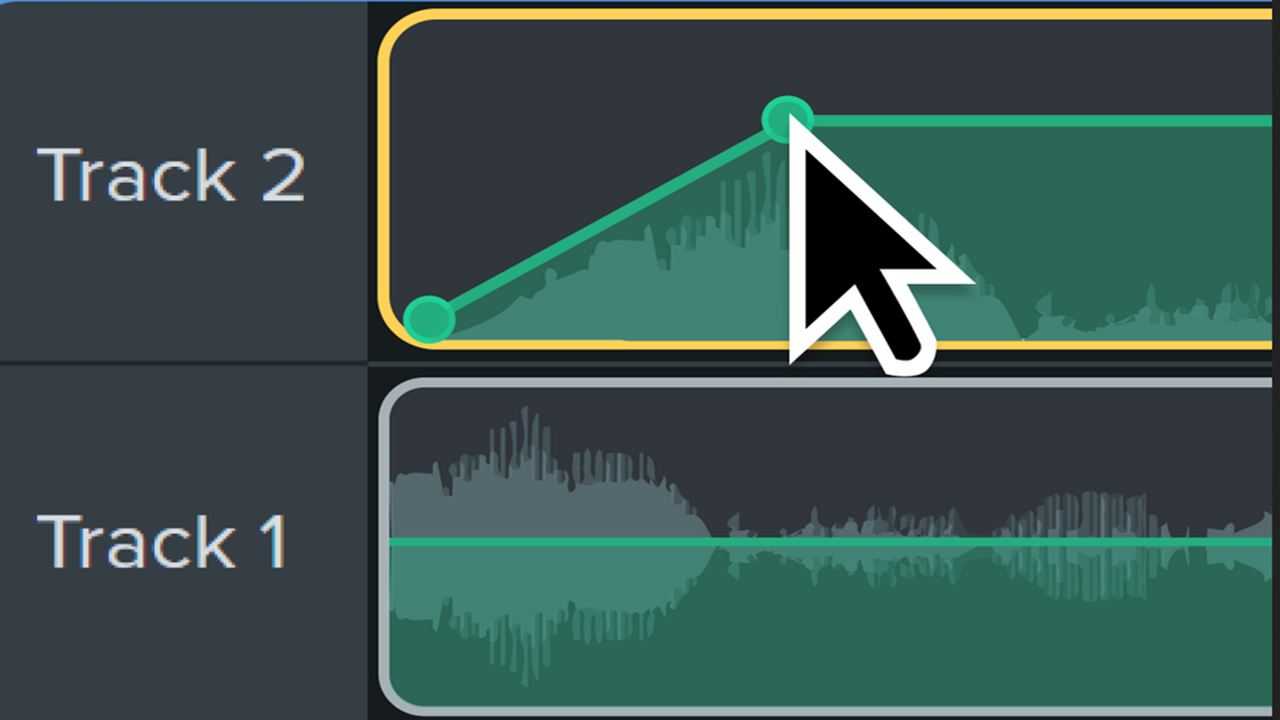
Recommended Audio Edits
Tips for Getting the Best Audio
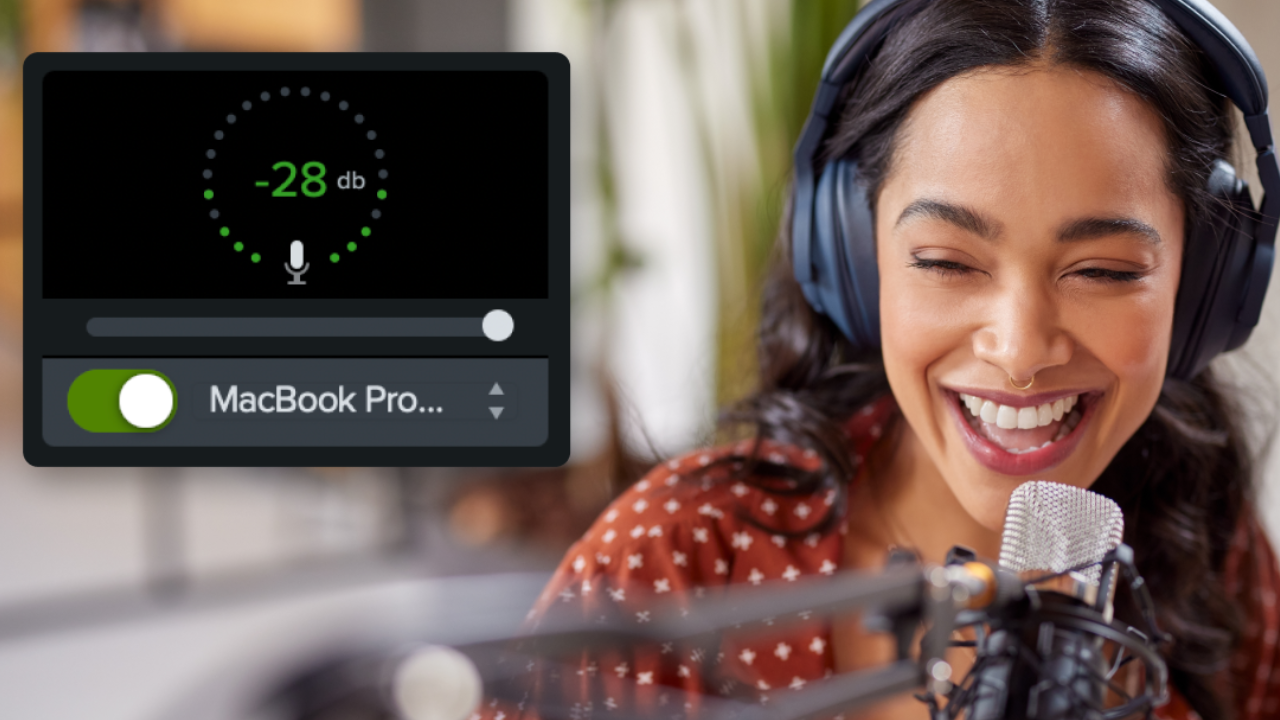
Set the Tone with Background Music
4 Ways to Visualize Your Audio
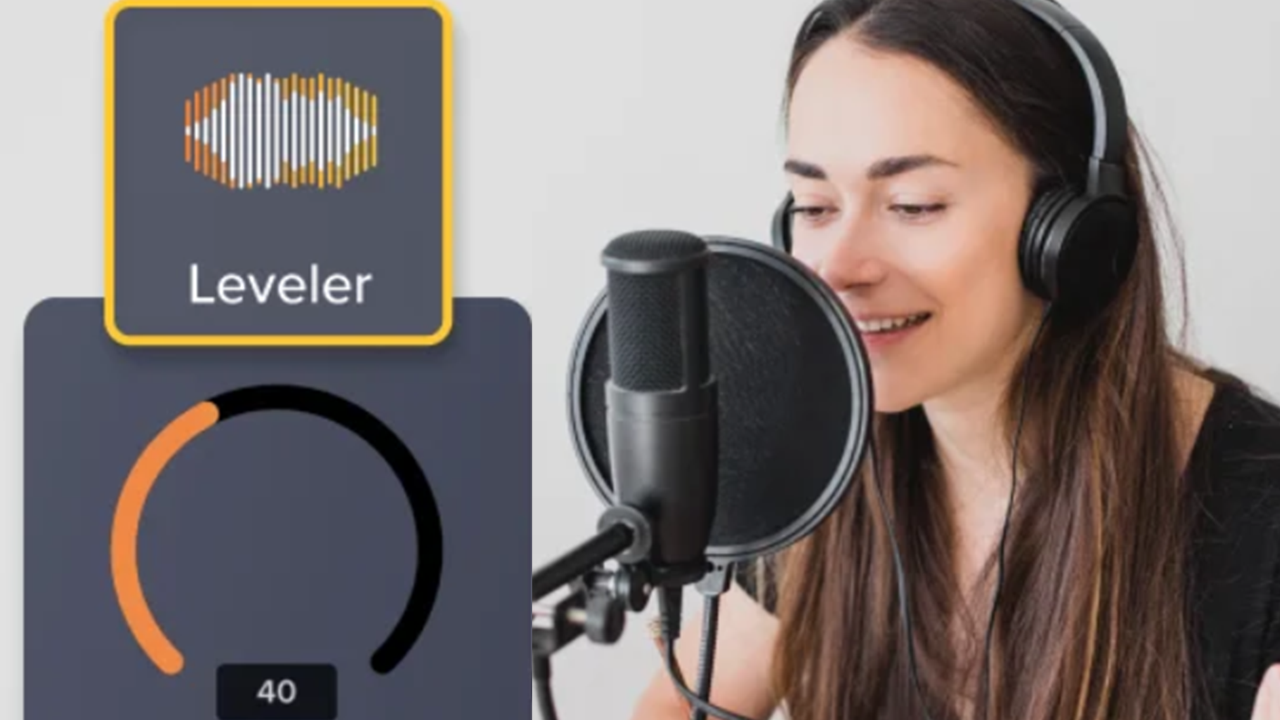
Edit Audio
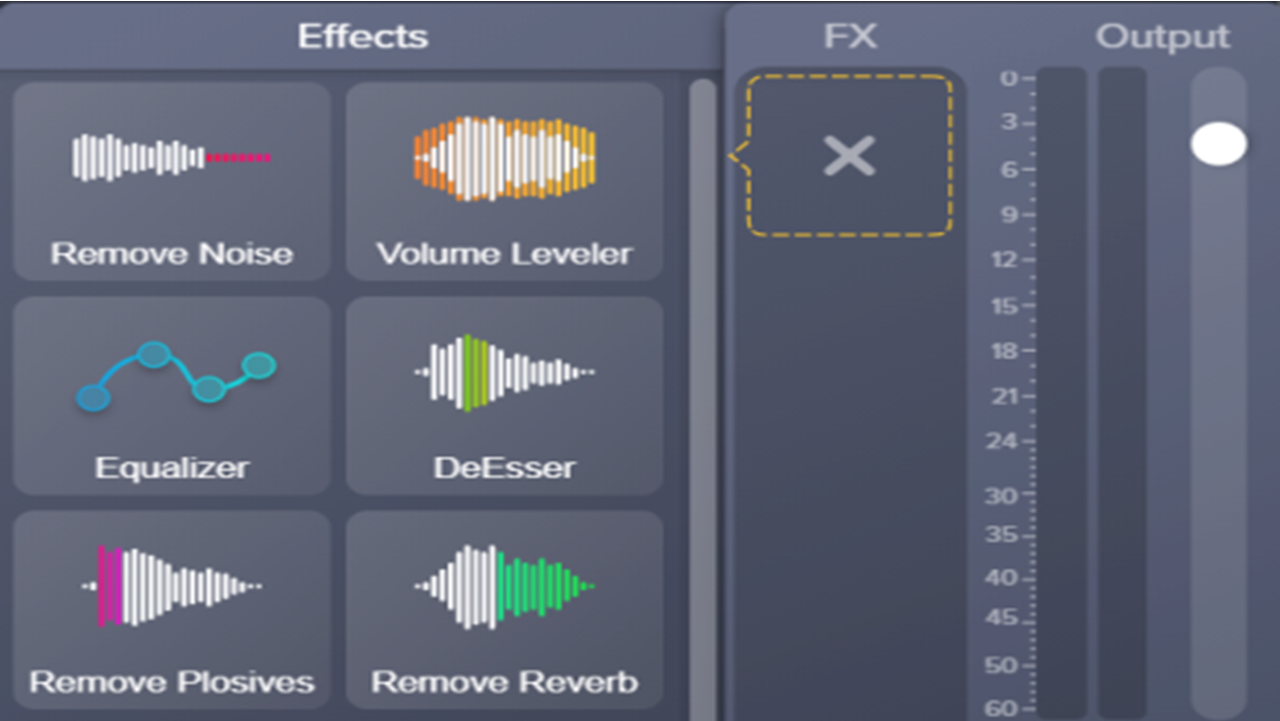
Add Audio Effects
Record Voice Narration

Add Cursor Effects
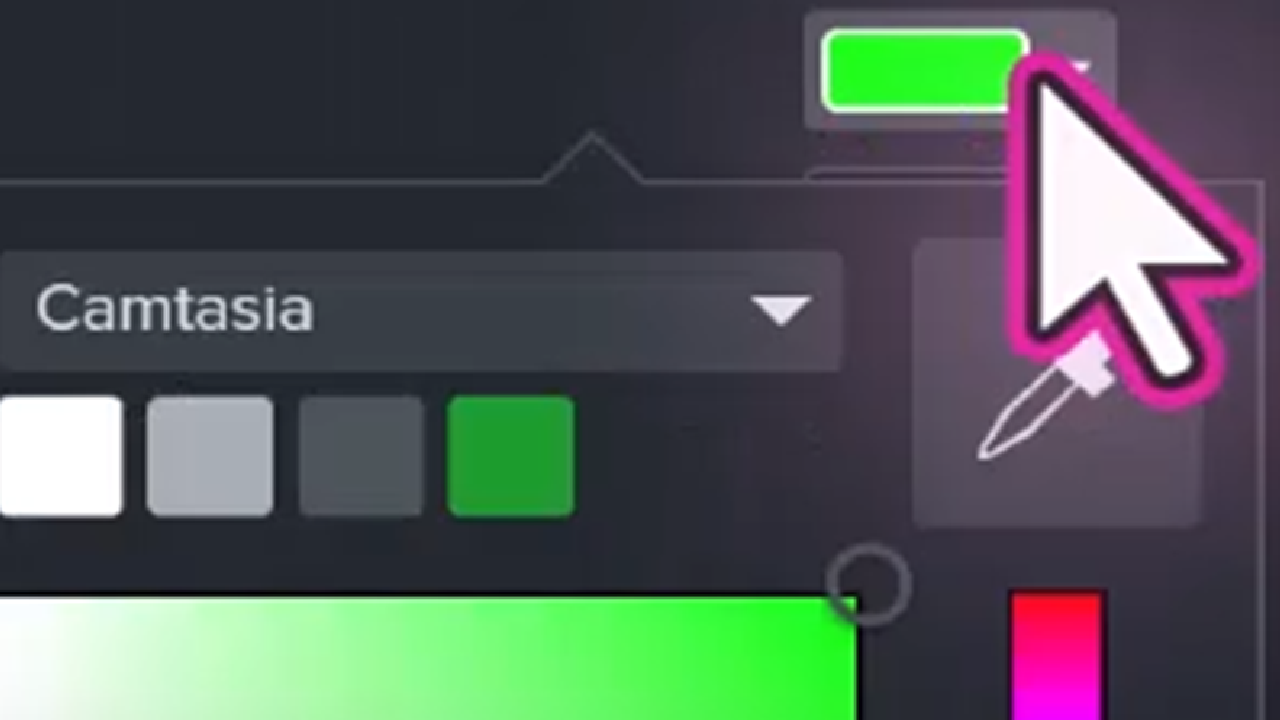
Introduction to Cursor Editing
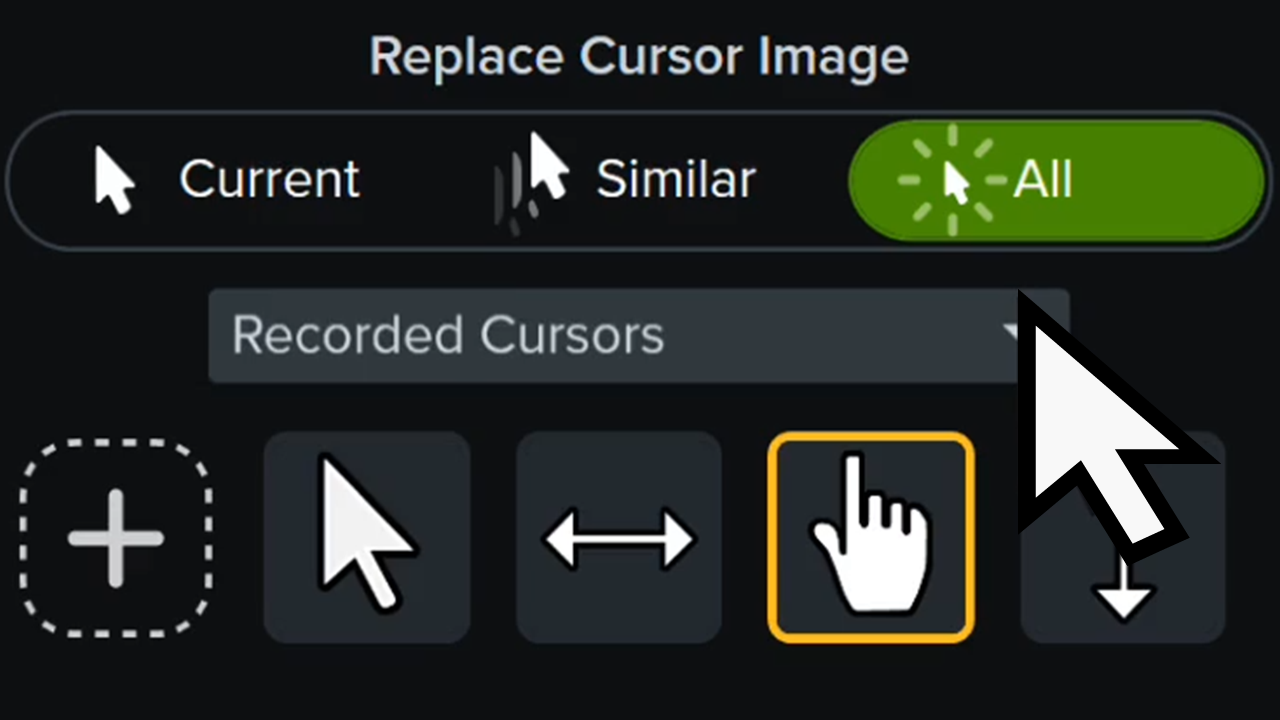
Replace the Cursor
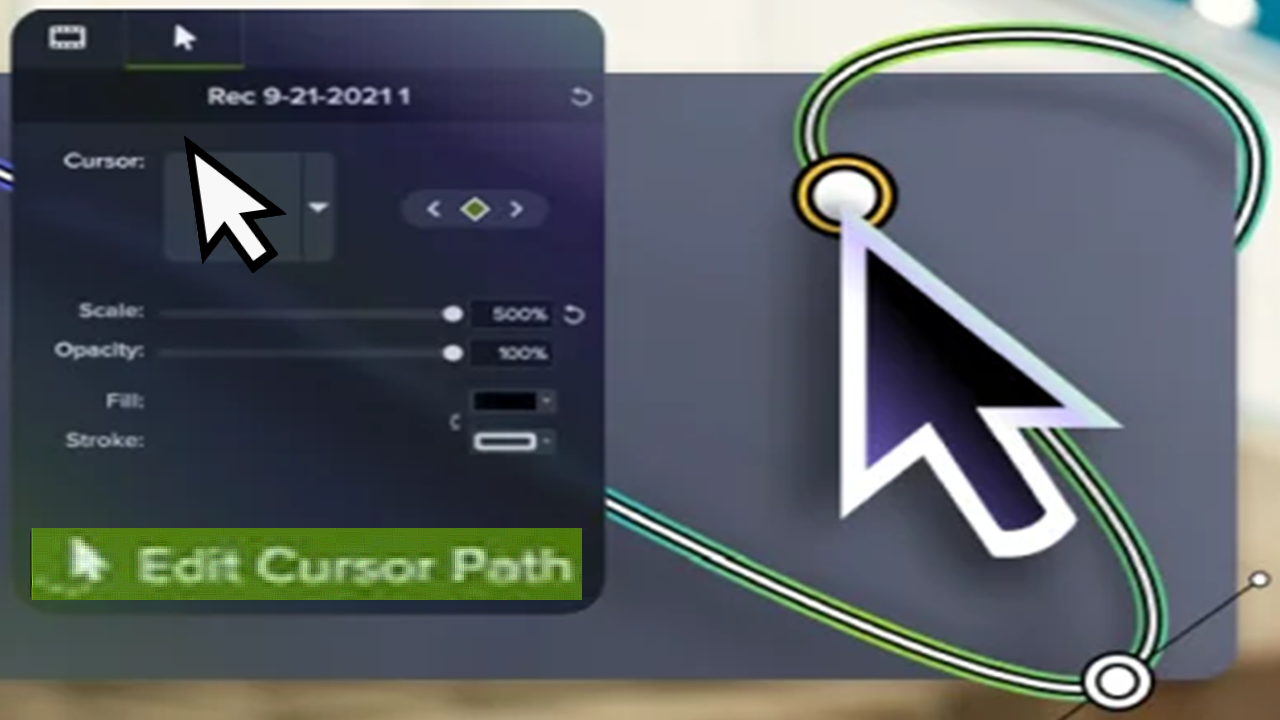
Customize the Cursor Path
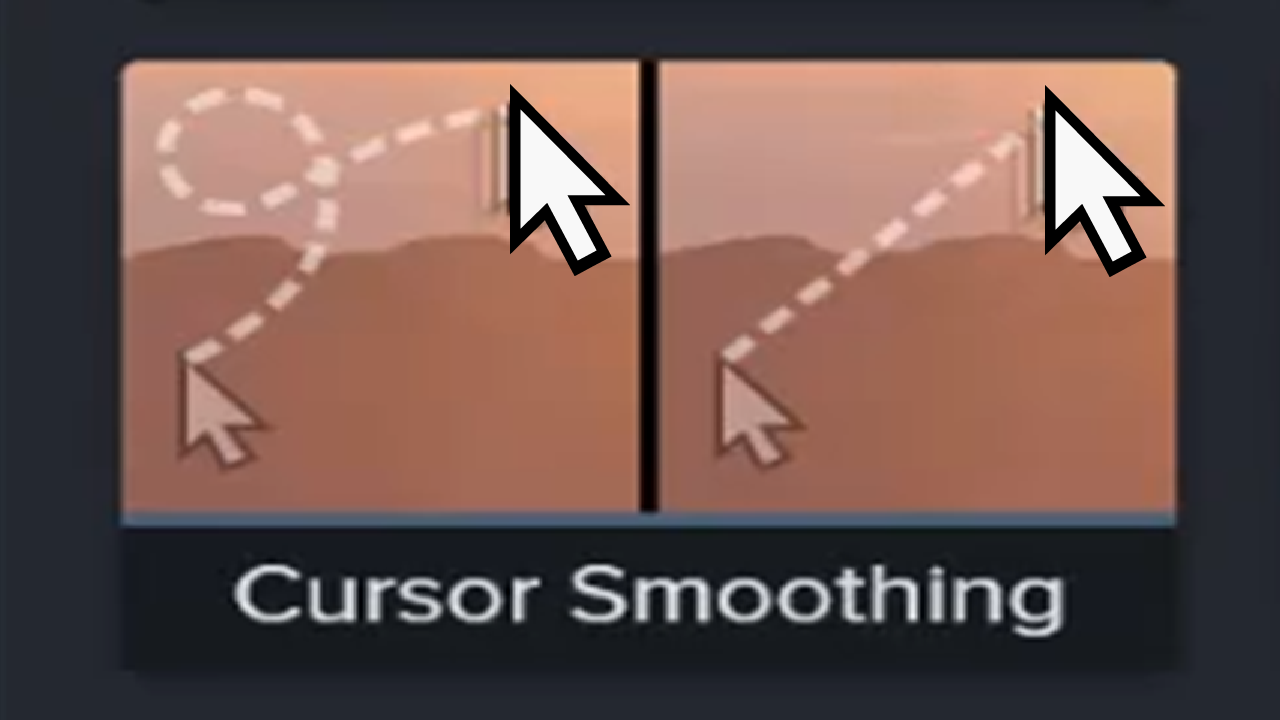
Quickly Smooth Cursor Movements
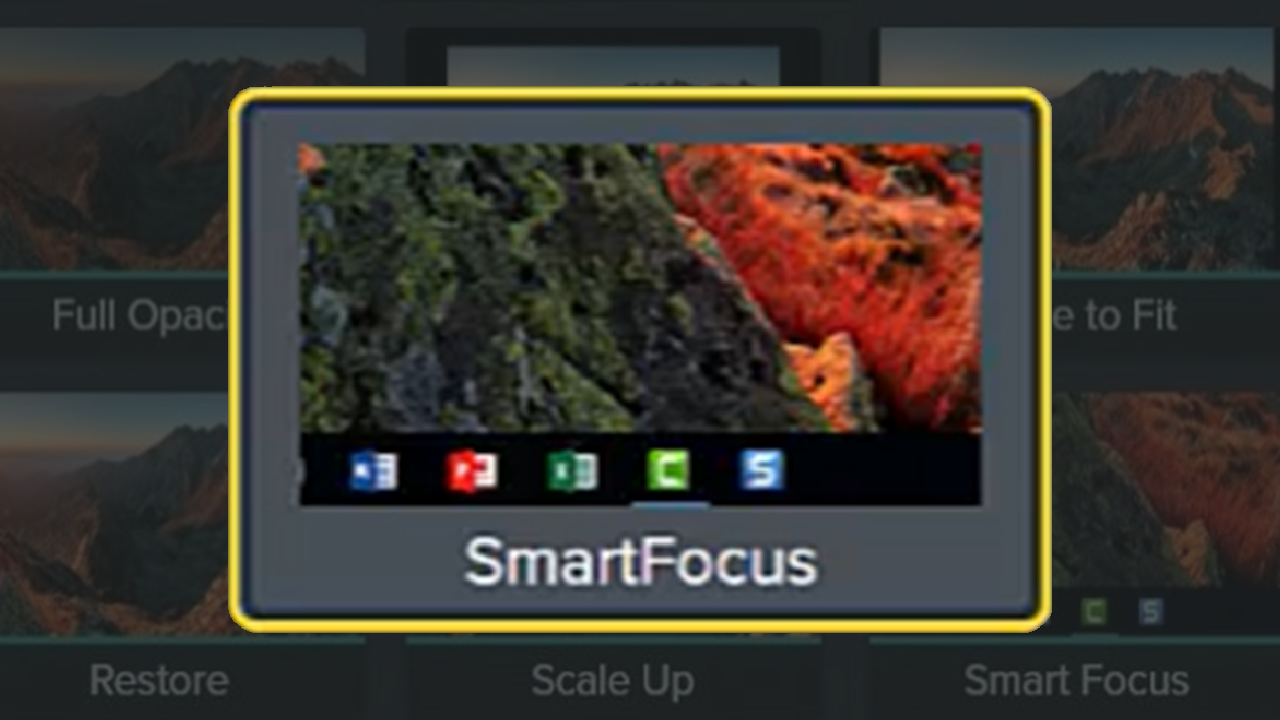
Zoom In to Focus Attention
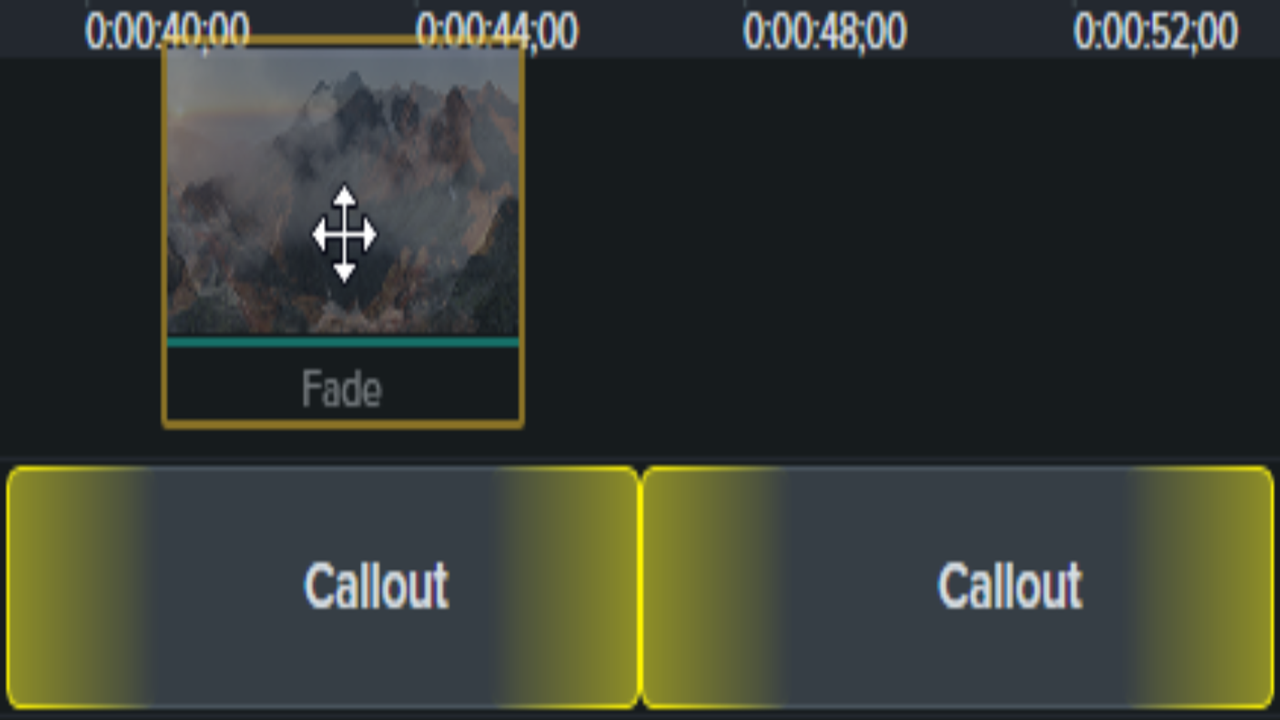
Add a Transition
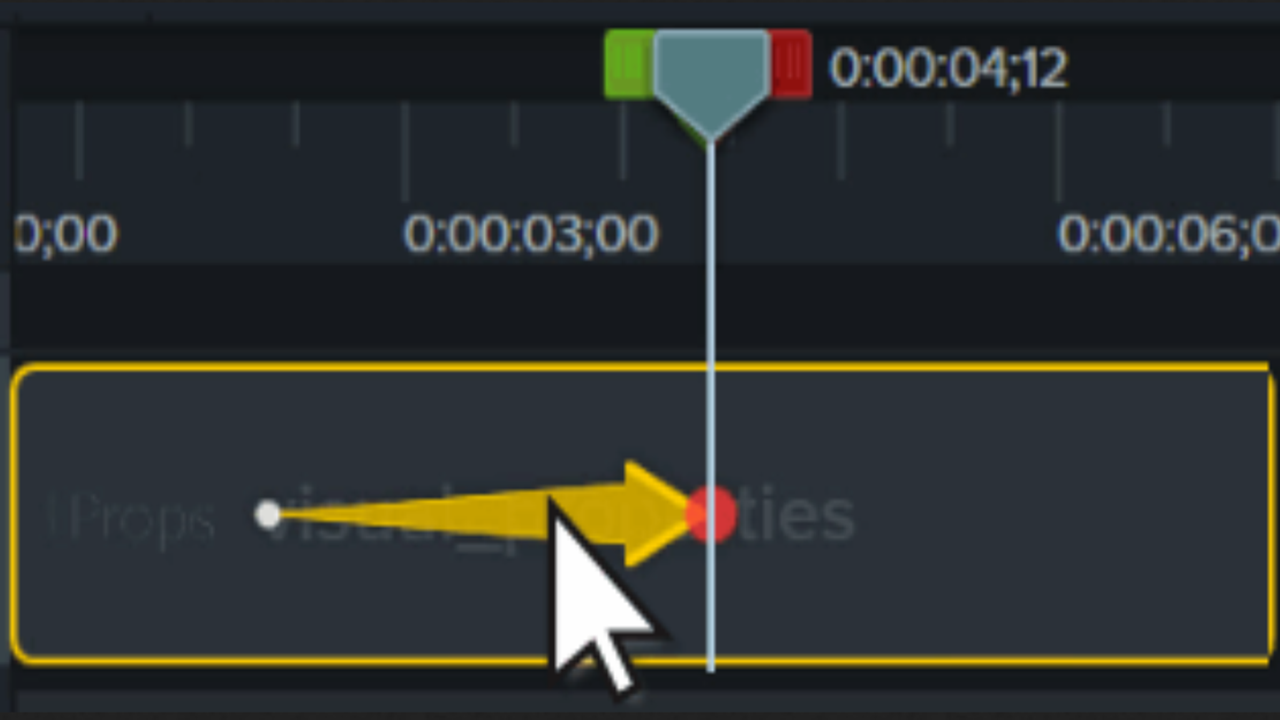
Animations In-Depth
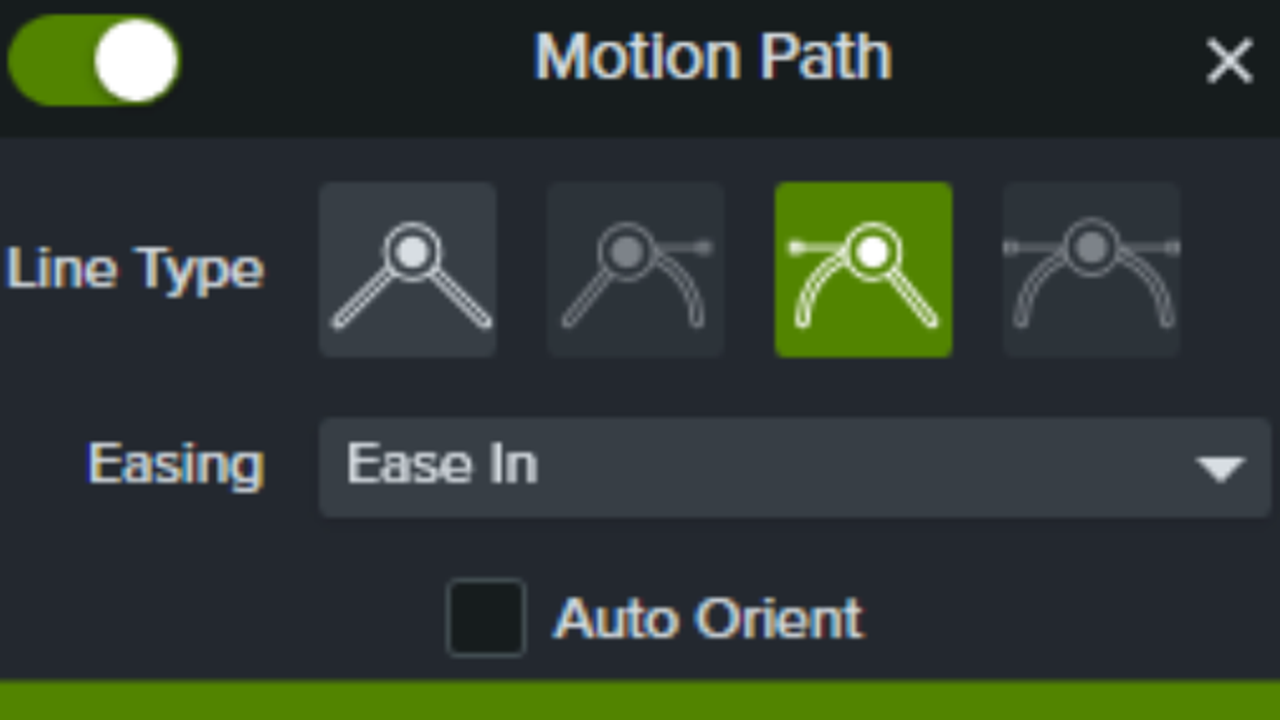
Add Movement to Any Object (Motion Paths)

Blur or Mask a Video
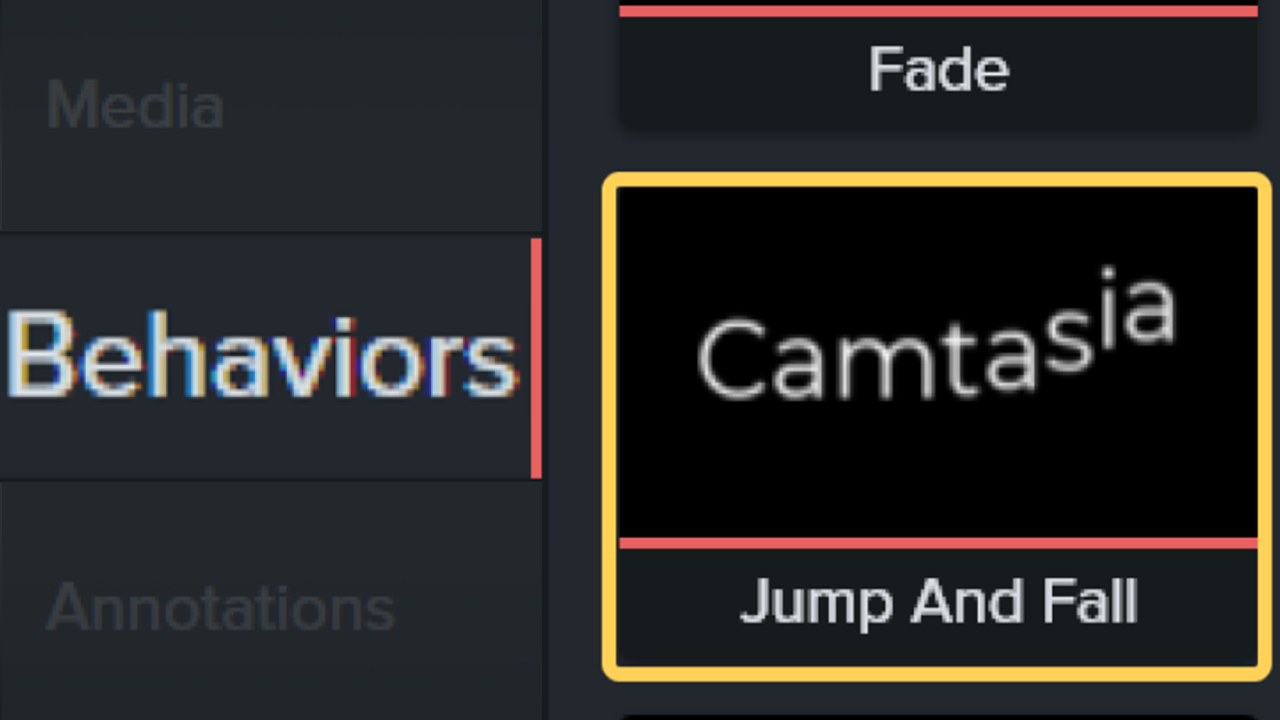
Animate Text & Images with Behaviors
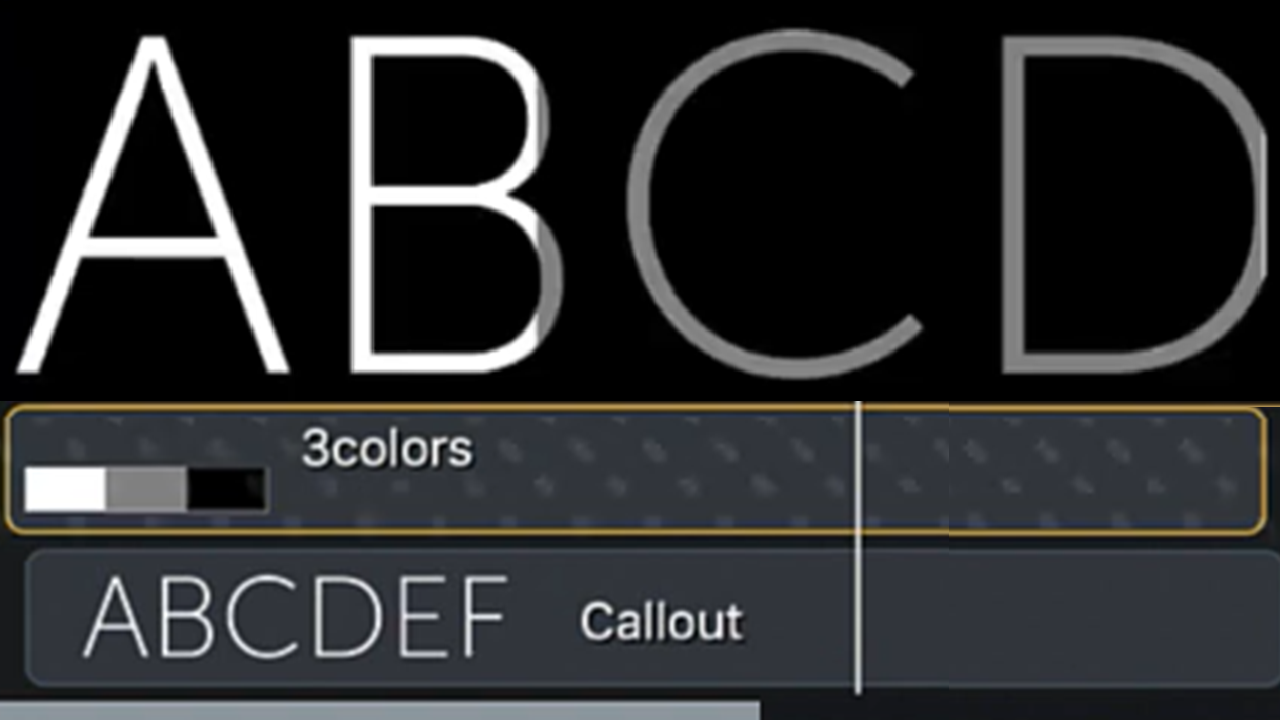
Create Stunning Animations with Media Mattes
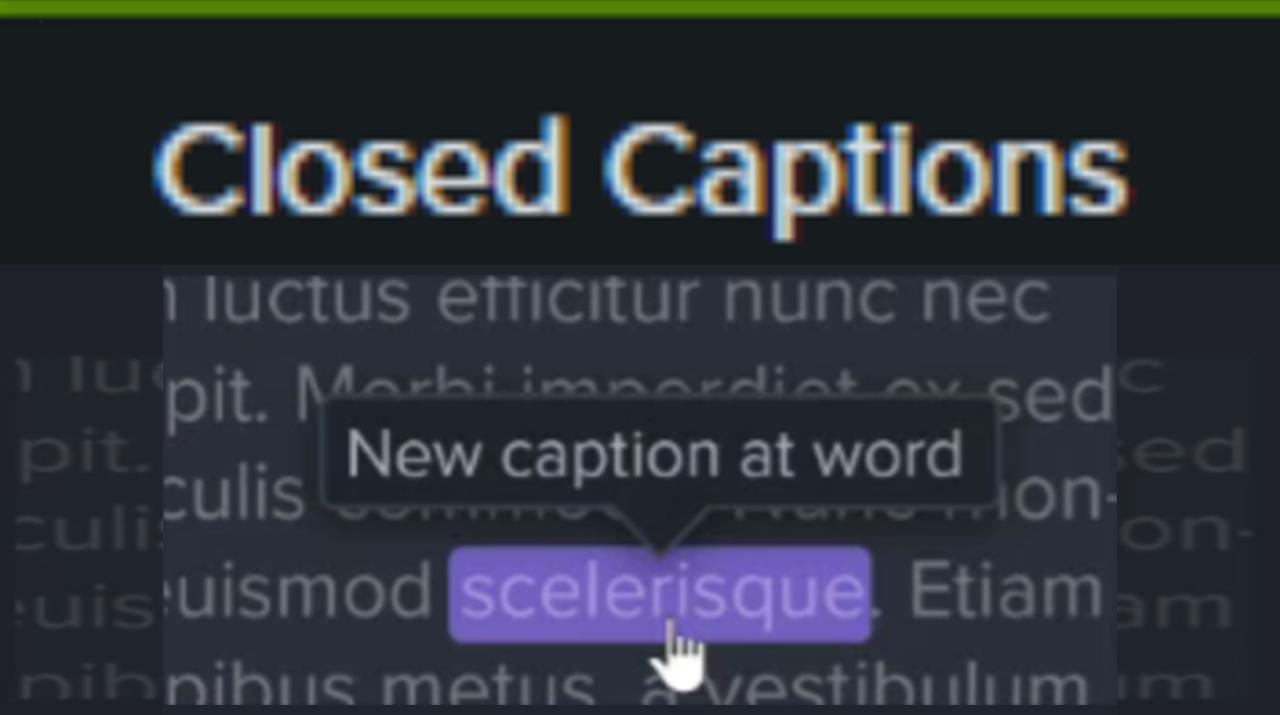
Add Closed Captions to a Video
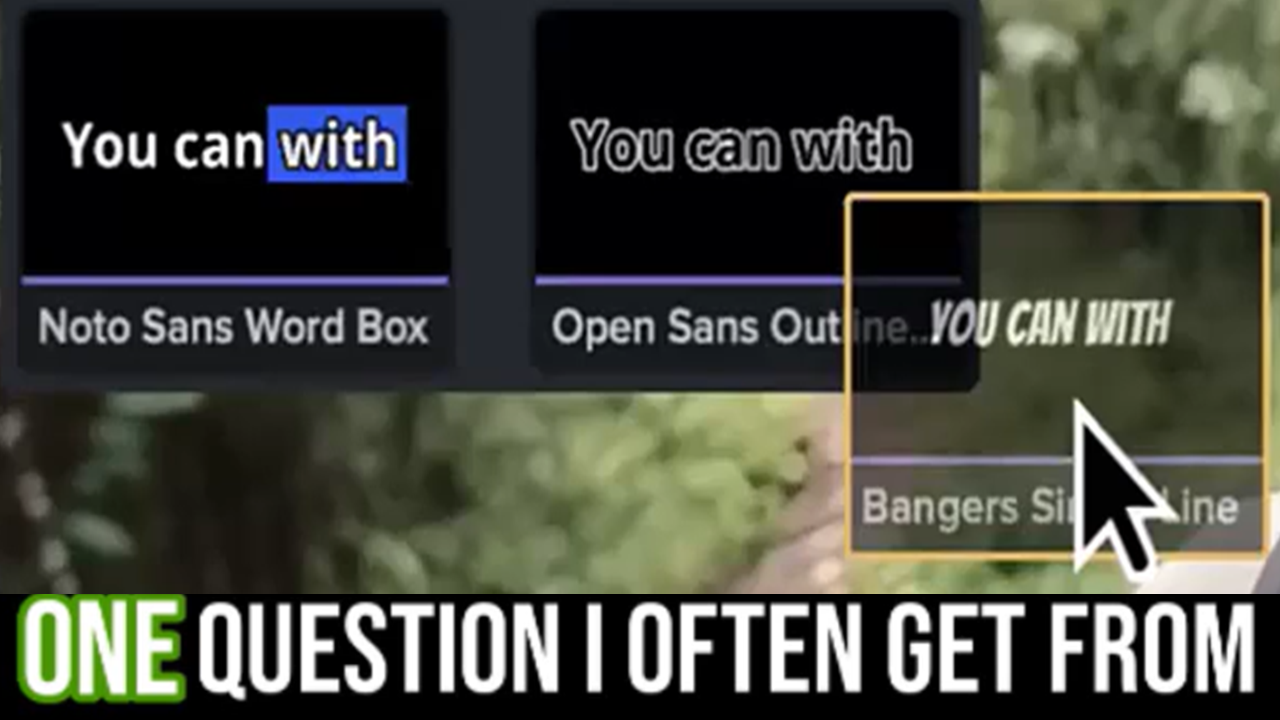
Add Dynamic Captions
Build Quizzes & Surveys
Add Markers & Video Table of Contents
Add Hotspots (Interactive Videos)
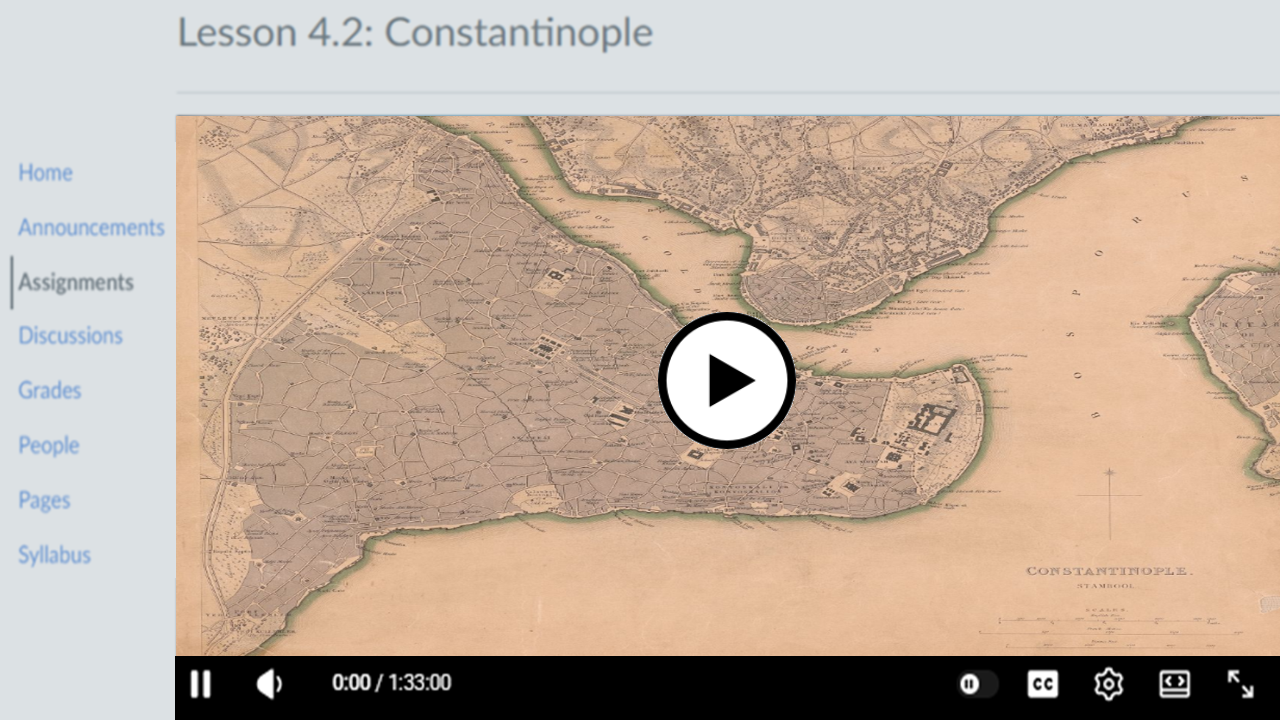
Use Camtasia Videos in Your LMS
Export & Share Your Video
Watermark Your Videos (Windows)
Batch Export Videos
Export an Audio File
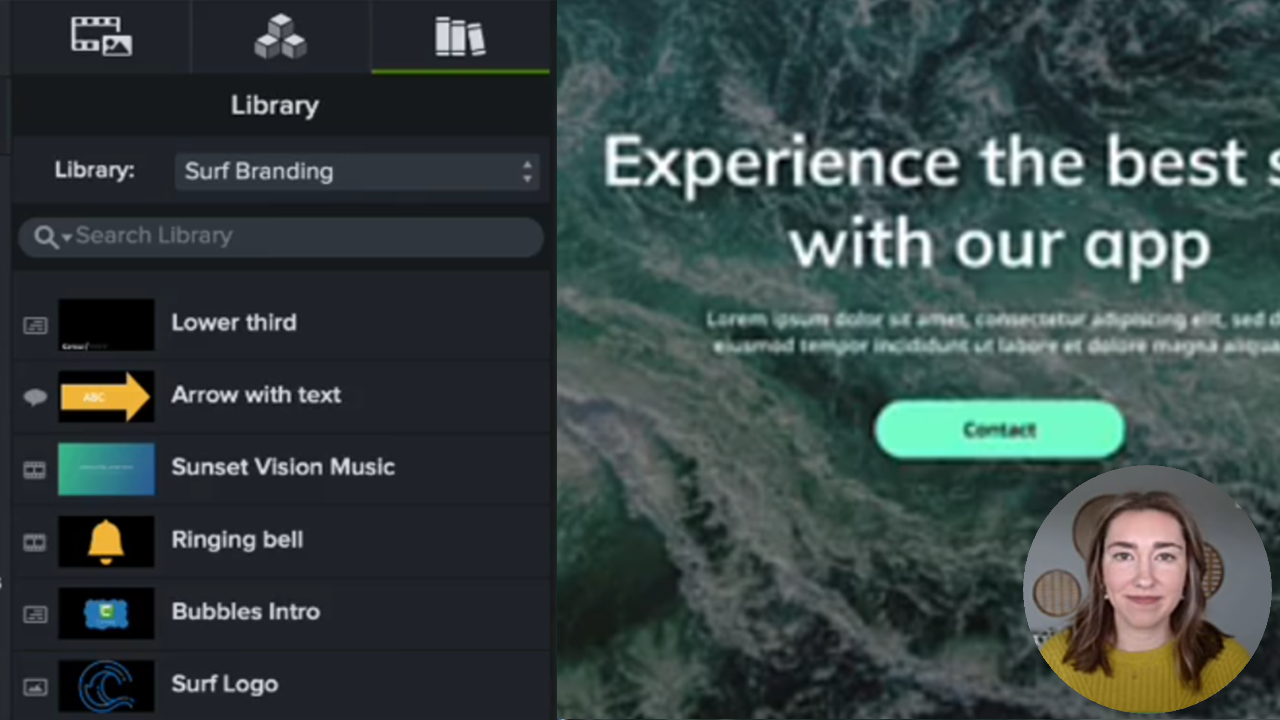
Reuse Media Across Projects (Library)
Customize Camtasia Editor
How to Use a Template
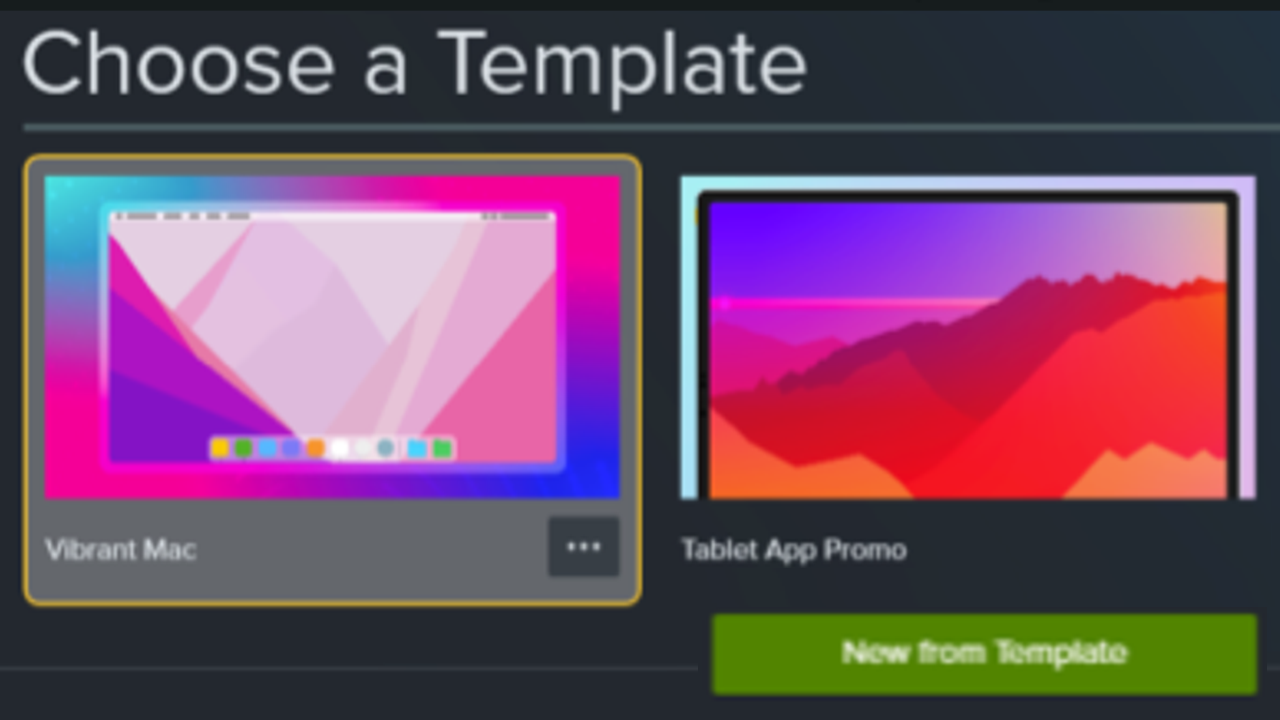
Build a Video Template to Share
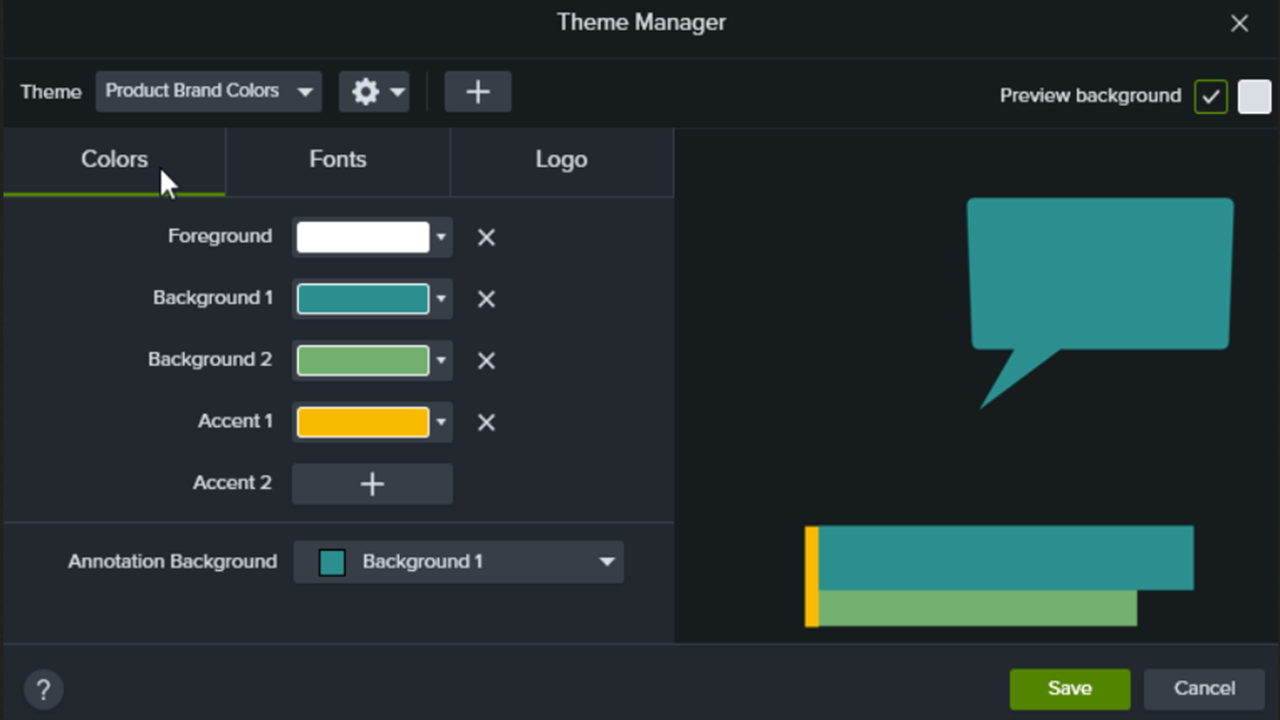
Build Your Color Palette (Themes)
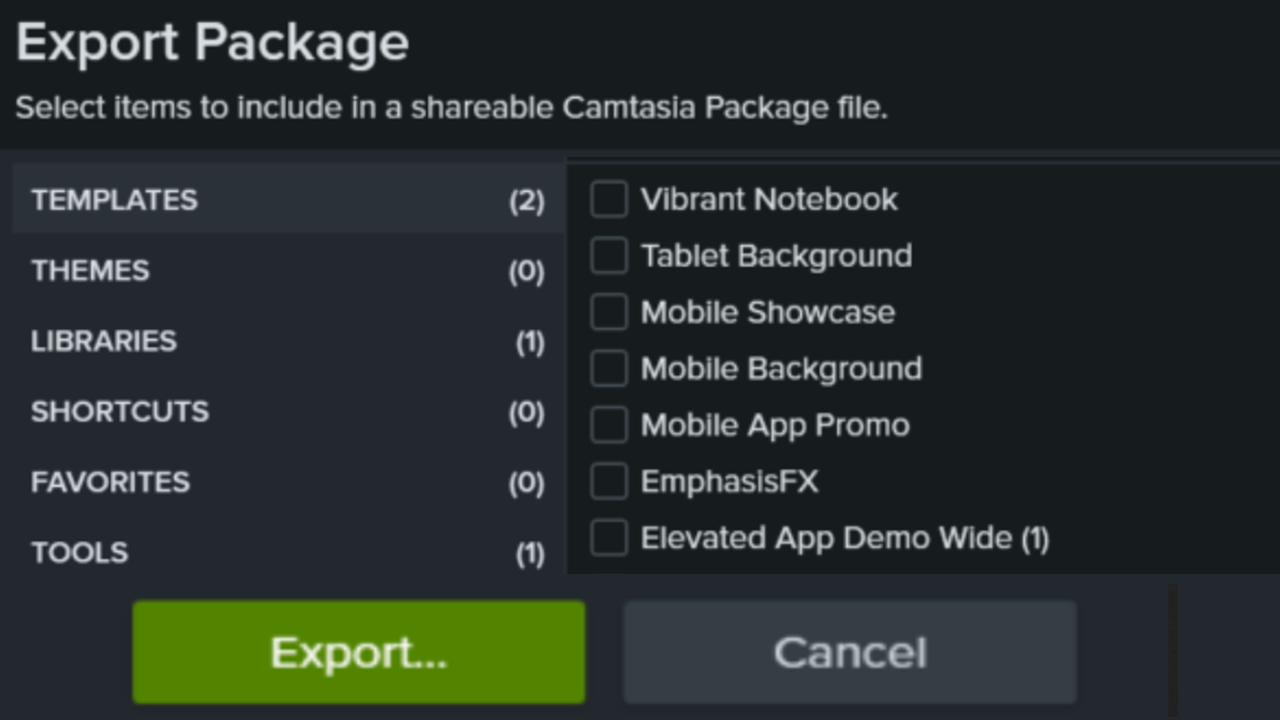
Package & Share Camtasia Editor Resources
Customize Shortcuts
Create Custom Assets
Getting Started in Camtasia Online
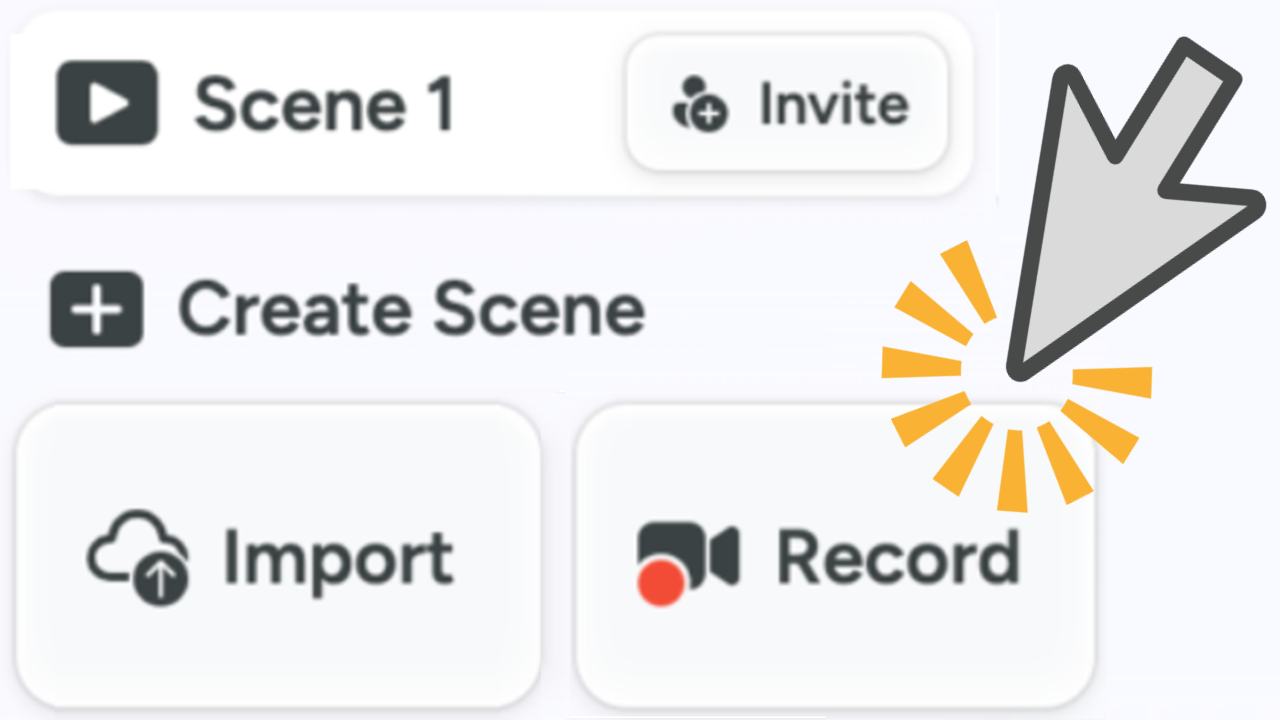
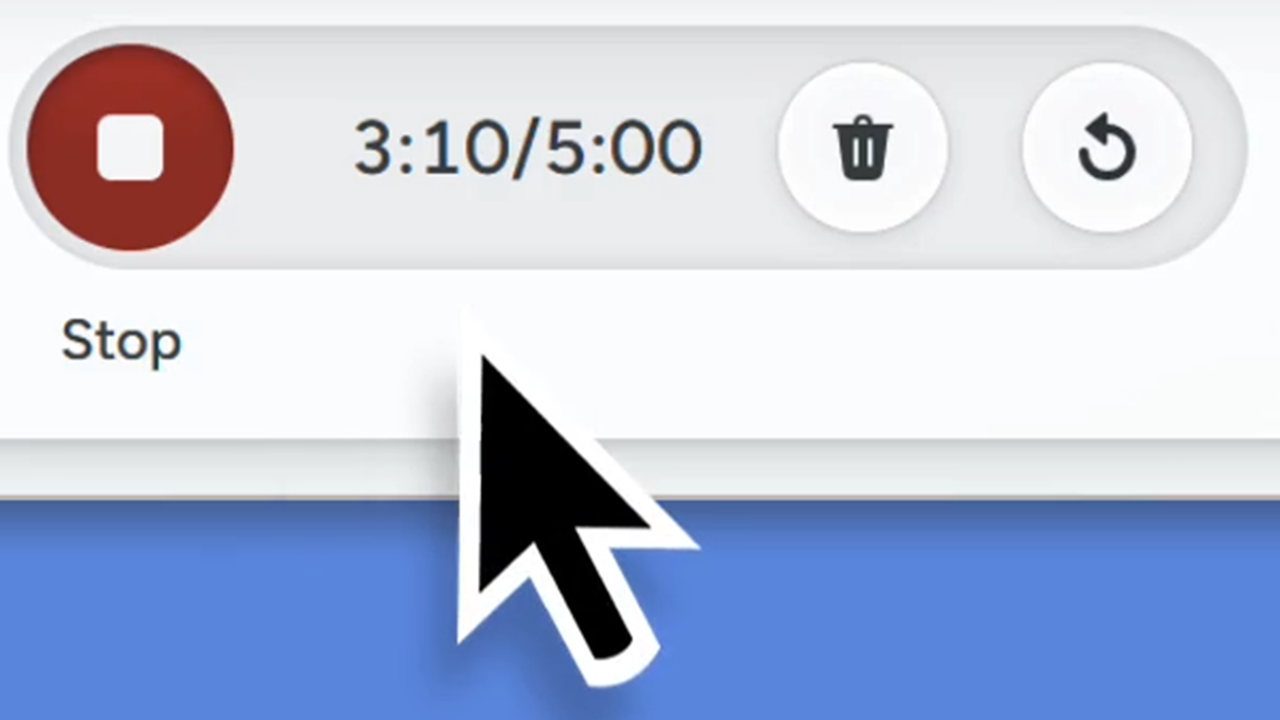
Record a Scene

Customize a Scene
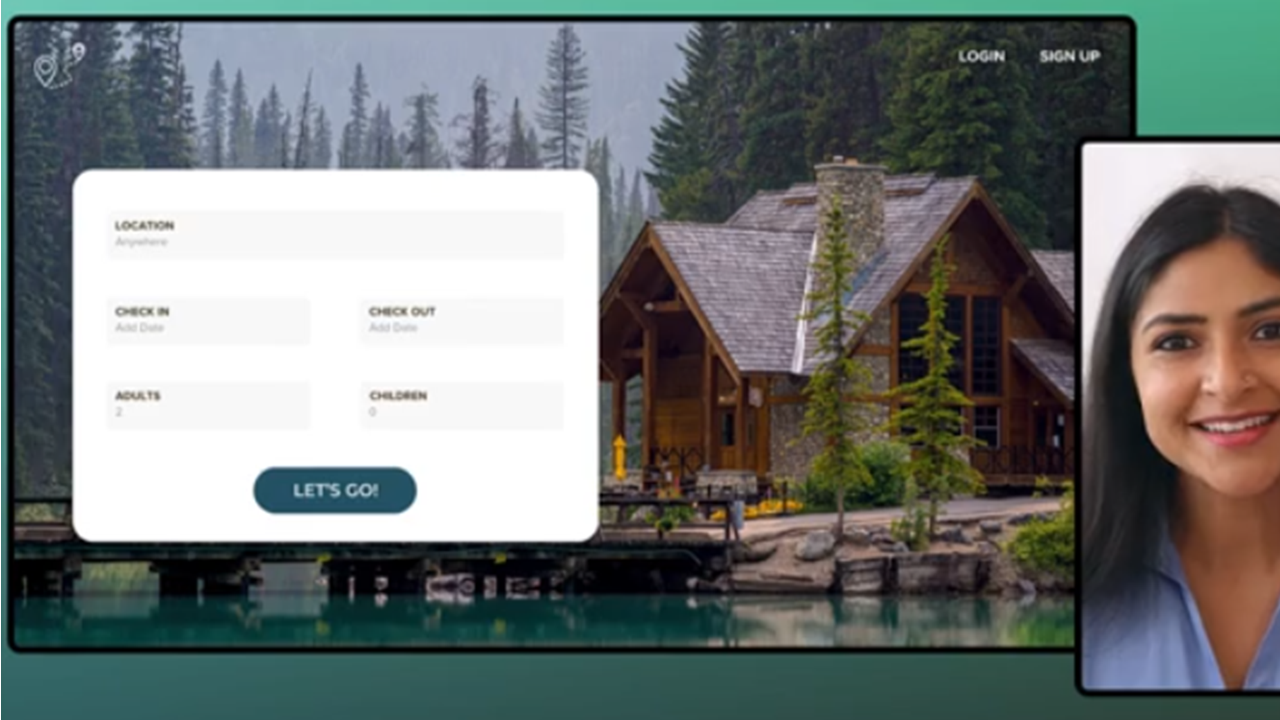
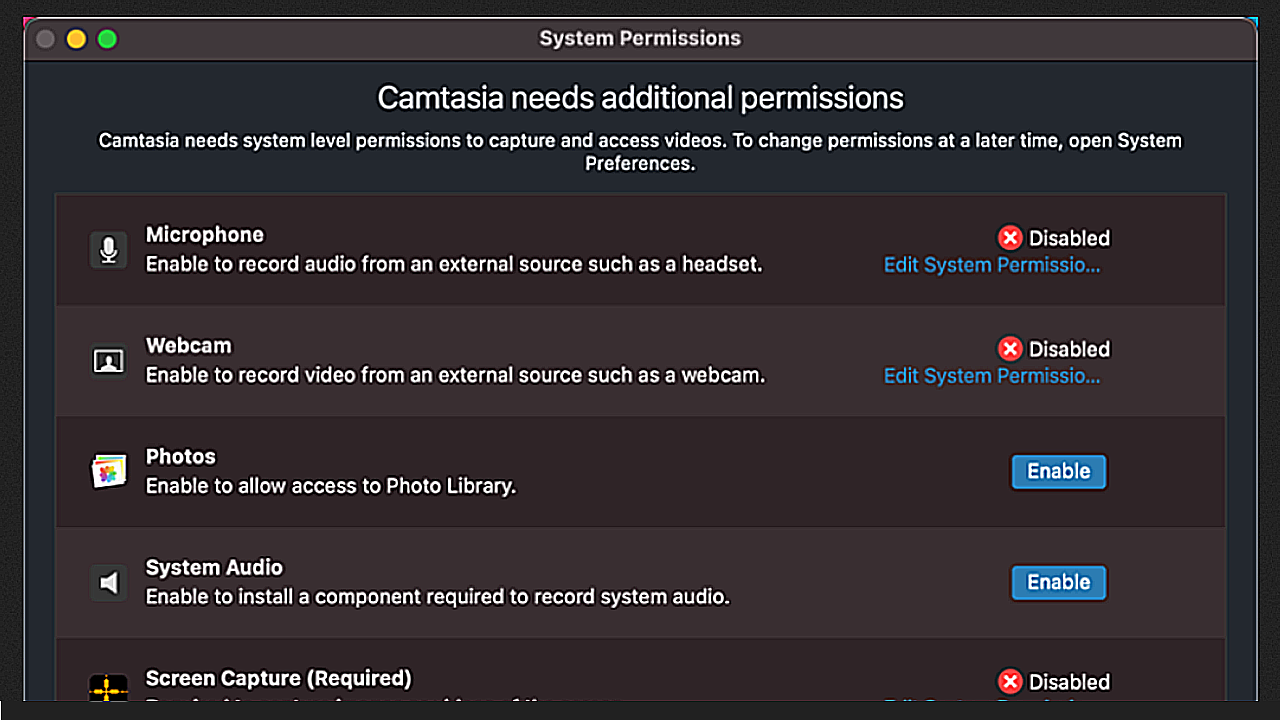
Setup & Permissions
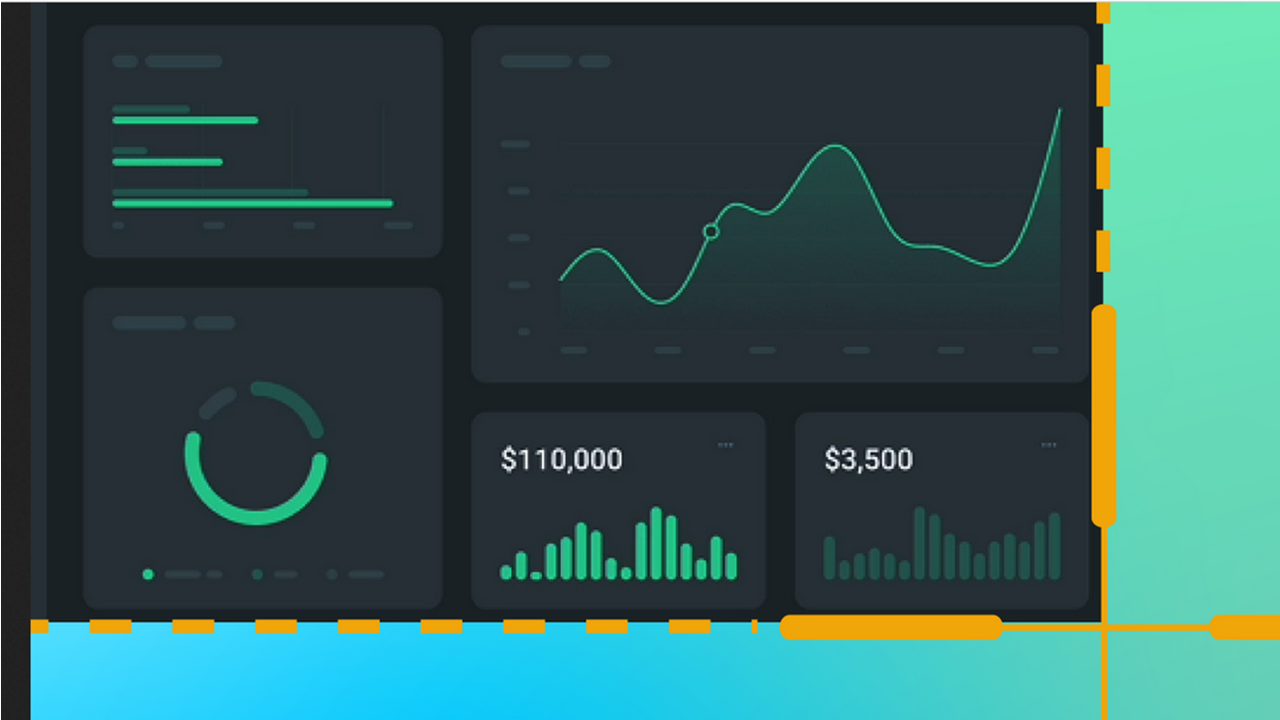
Image to Video Maker with Camtasia Online
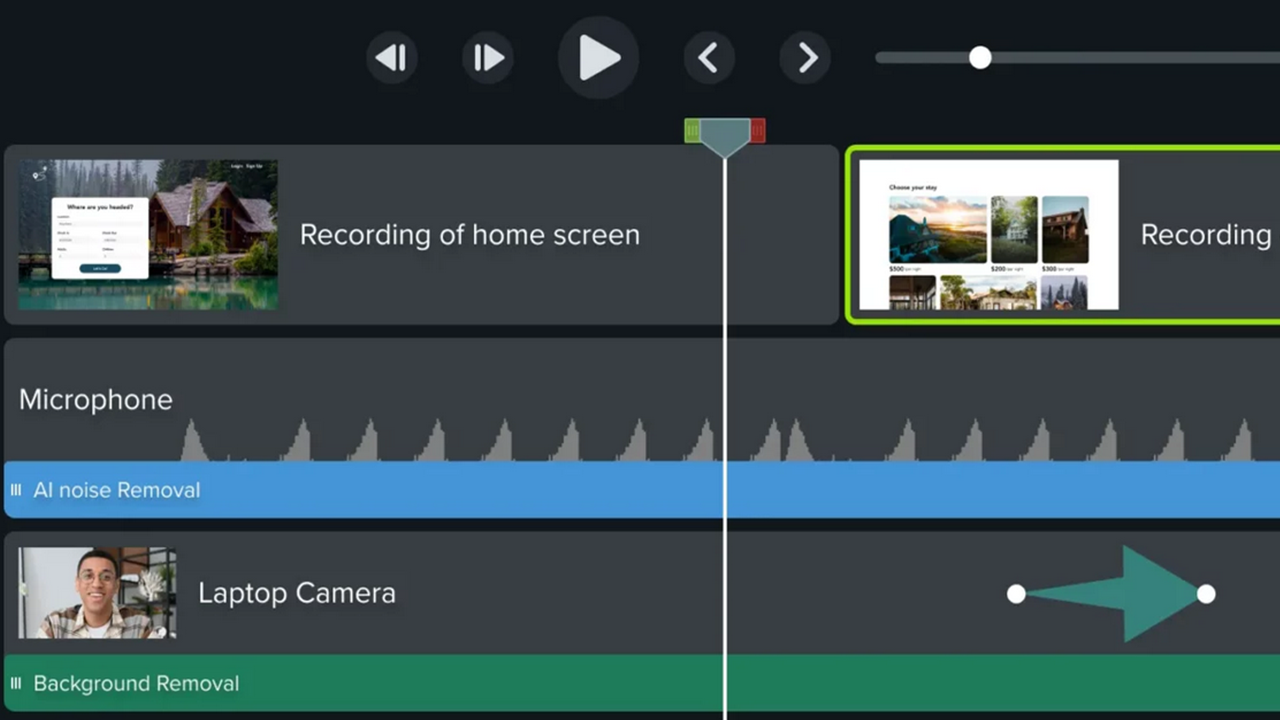
Check for Camtasia Editor Installation
Export & Share Videos from Camtasia Online
Collaborate on a Video Project
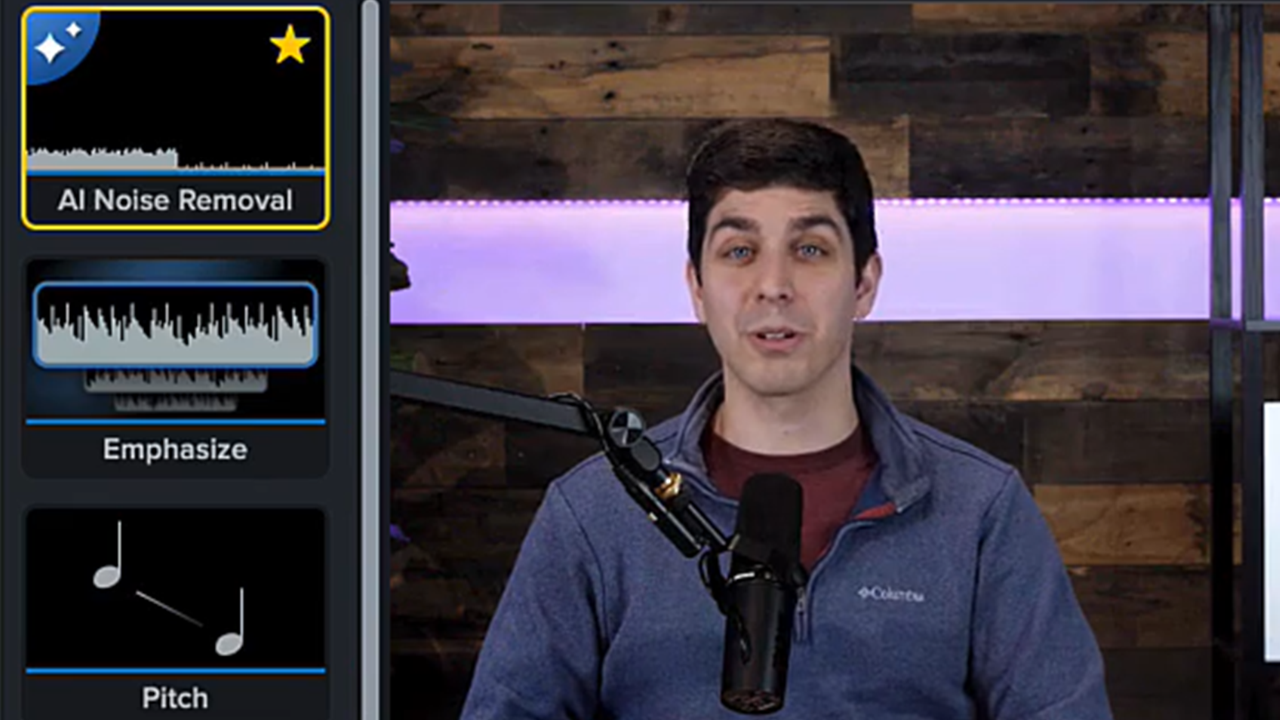
Recommended Edits for Camtasia Online Videos
Import & Manage Your Project Media (Media Bin)
Introduction to Rev Media
Introduction to Camtasia Recorder
Learn About Camtasia Editor Files
Explore the Timeline
Edit Zoom Recordings
Import & Manage Your Project Media (Media Bin)
Edit Microsoft Teams & Other Meeting Recordings
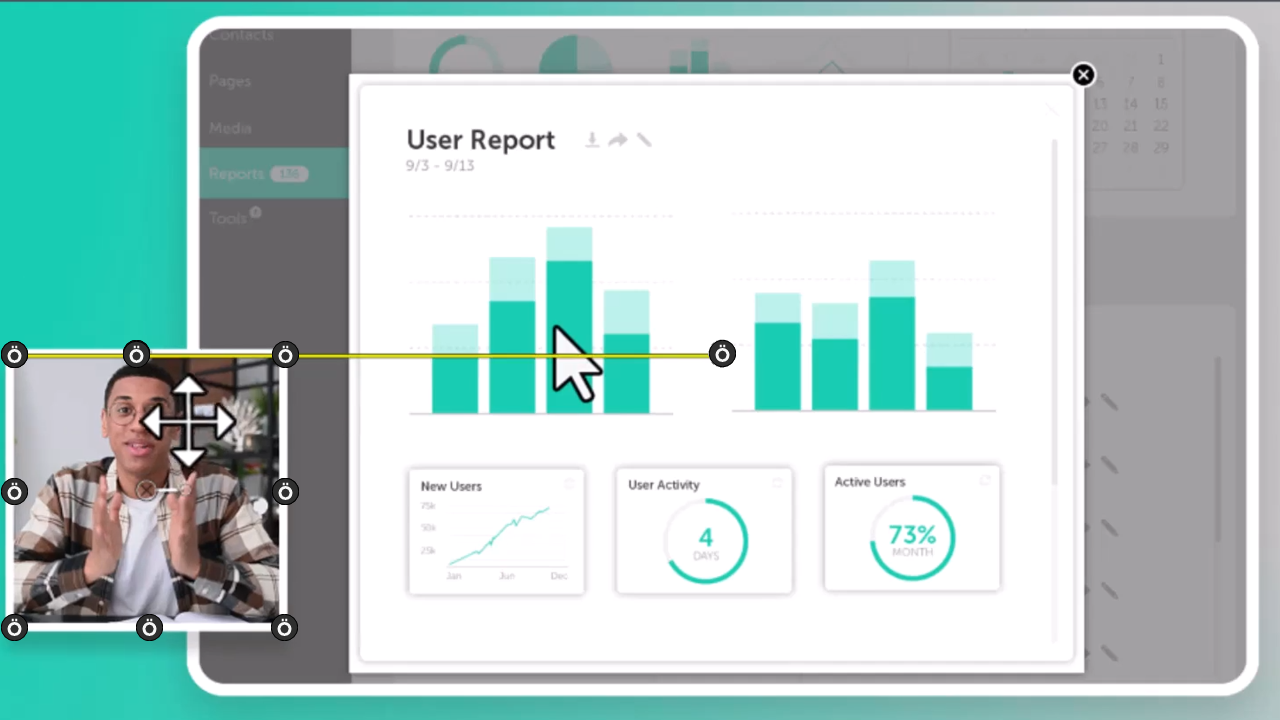
Position Media on the Canvas
Reuse Media Across Projects (Library)
Assemble Your Video
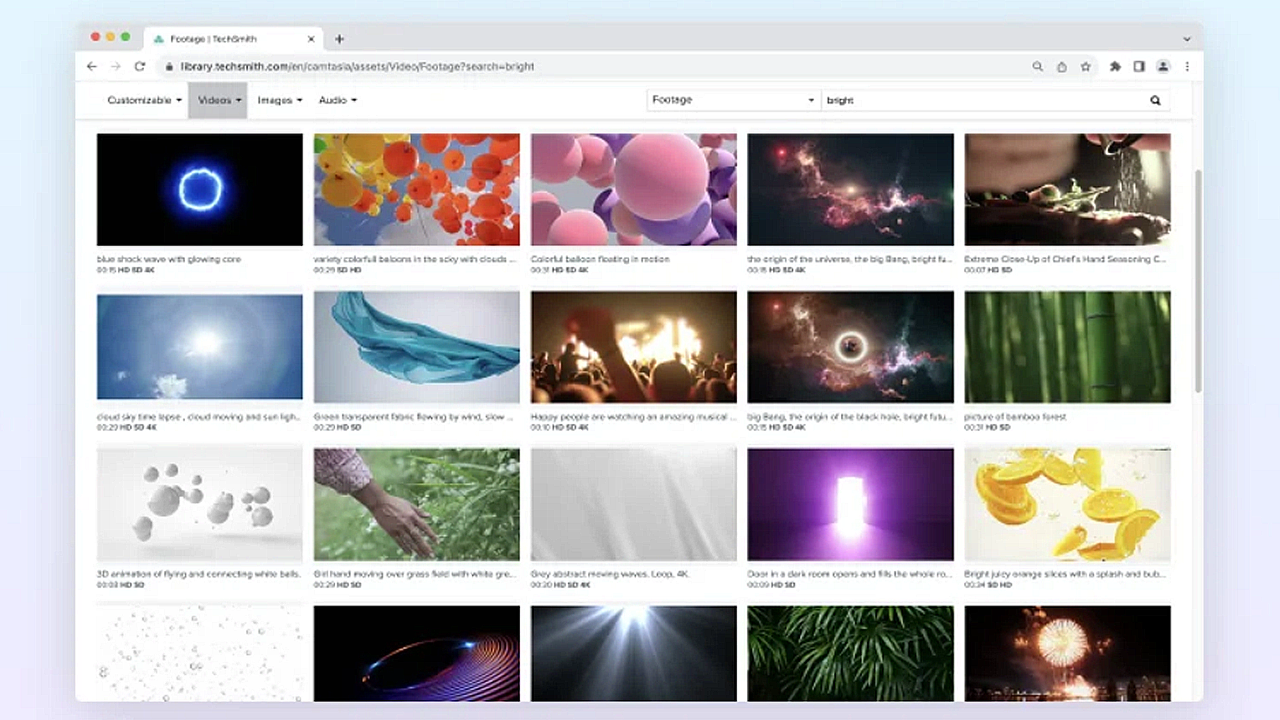
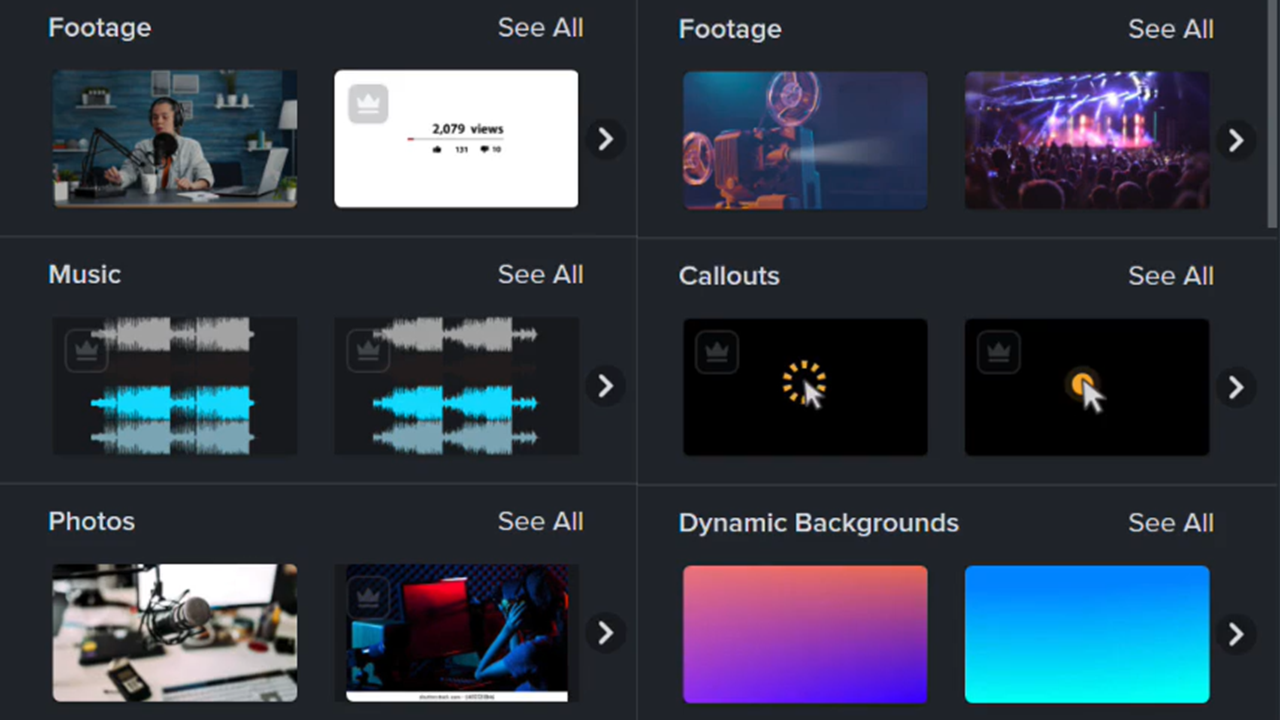
Enhance Your Video with Camtasia Assets
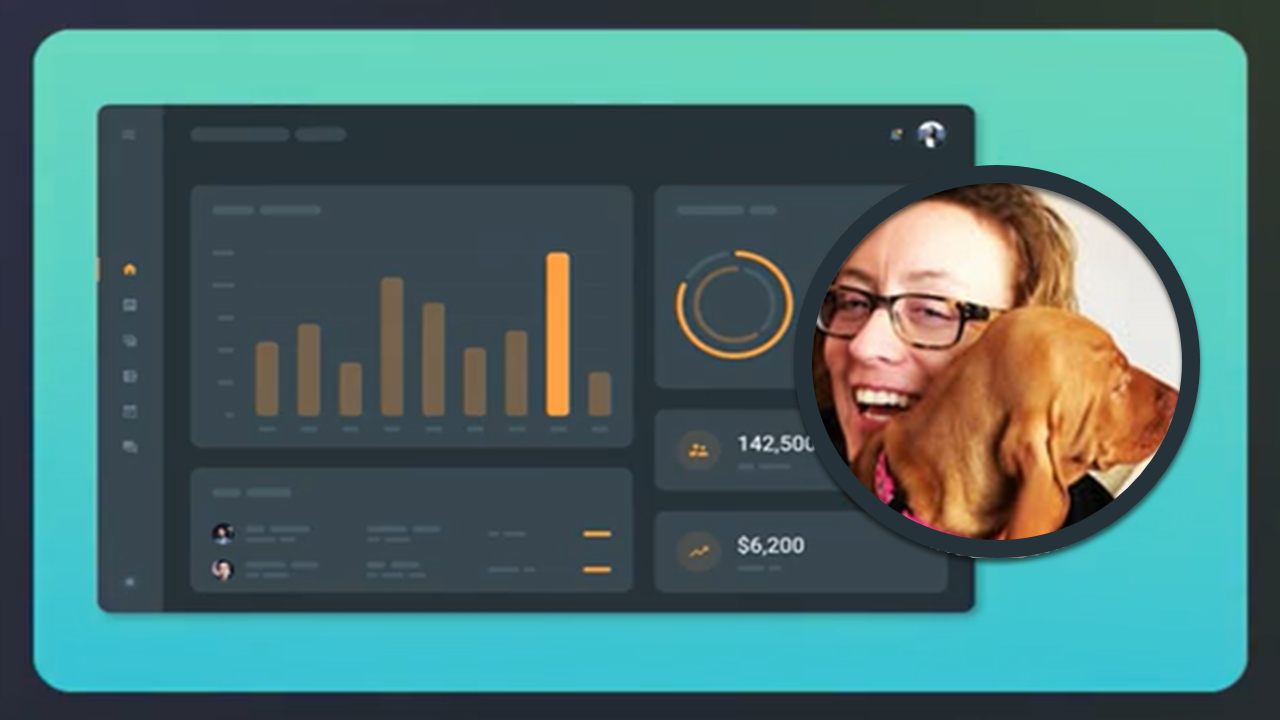
Record & Edit Camera Video (Picture-in-Picture)
Record an iOS Demo or Tutorial
How to Use a Template