Camtasia Snagit
Screenshots are just the start
Camtasia Snagit turns anything on your screen into clear, professional content. Capture, edit, explain, document, and share in one simple workflow—so people move faster and teams communicate consistently. Thirty-plus years and more than 39 million users later, Camtasia Snagit remains the trusted choice for people and teams who need to move work forward faster.
Why organizations choose Camtasia Snagit
Built-in tools can capture a screen. Camtasia Snagit solves the larger challenge: turning individual expertise into clear, reusable knowledge that helps organizations preserve critical processes, equip lean teams, accelerate tool adoption, and reduce repeated questions.

Create professional guides for customers, clients, and partners
Turn product workflows and best practices into polished step-by-step guides, technical documentation, and support content that customers, clients, and partners can follow on their own. Teams can document once, help more people succeed, and deliver a consistent experience at scale.

When people leave, their knowledge shouldn’t leave with them
Capture critical know-how before it walks out the door. A five-minute screen walkthrough becomes a reusable guide that preserves the process through turnover, restructuring, or reorganization.

Accelerate adoption of new tools and AI the right way
Help employees use new tools, AI, and processes correctly from day one. Capture a workflow once and share a clear guide that speeds adoption, standardizes execution, and prevents avoidable rework.

Train distributed teams without adding more meetings
Train distributed teams without coordinating another meeting. Captured guides work across locations and time zones, giving everyone the same clear instructions whenever they need them.

Give your busiest experts (SMEs) their time back
Let experts explain a process once instead of repeating it. Camtasia Snagit turns their know-how into reusable guidance that scales across the team without making them a bottleneck.

Fewer tickets for IT and support to answer
Reduce repetitive IT and support questions with self-service guides employees can find and follow on their own. Document the answer once, then reuse it across the organization.
Trusted by teams at


Voted the best by our happy customers, over and over again.



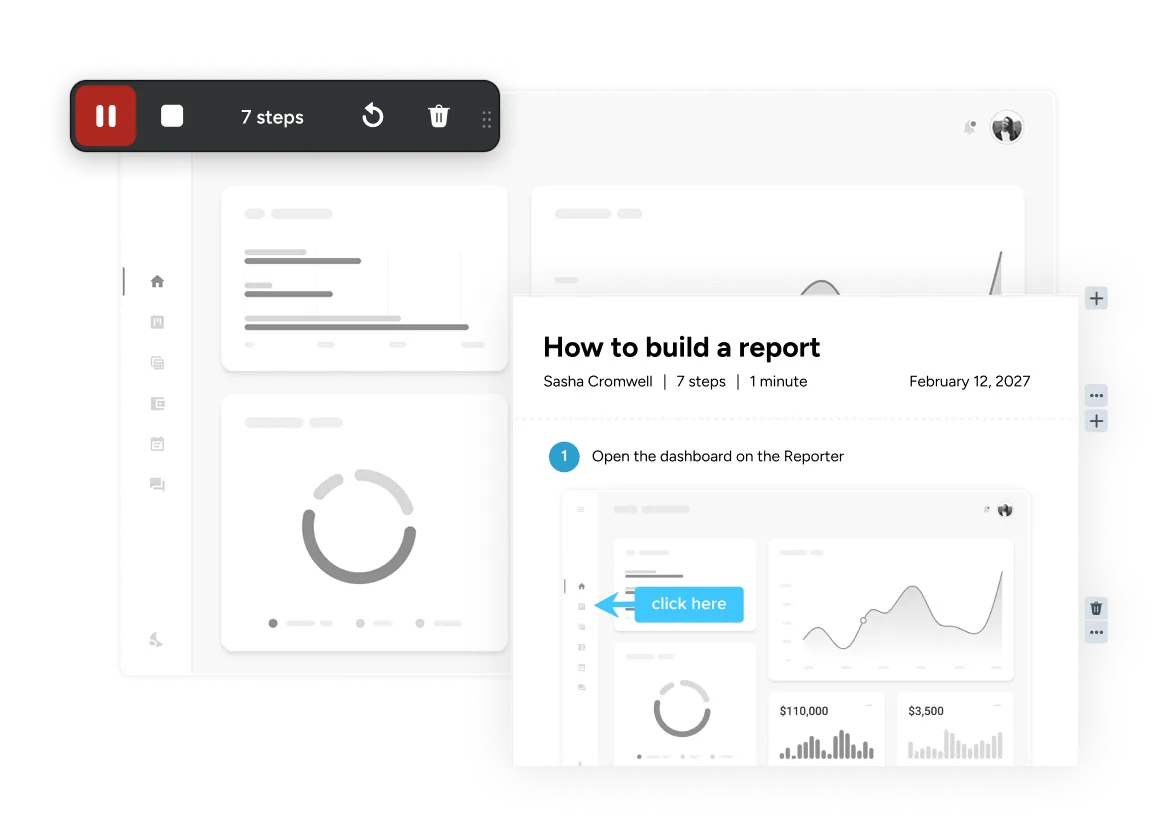
Step Capture
Never explain the same process twice
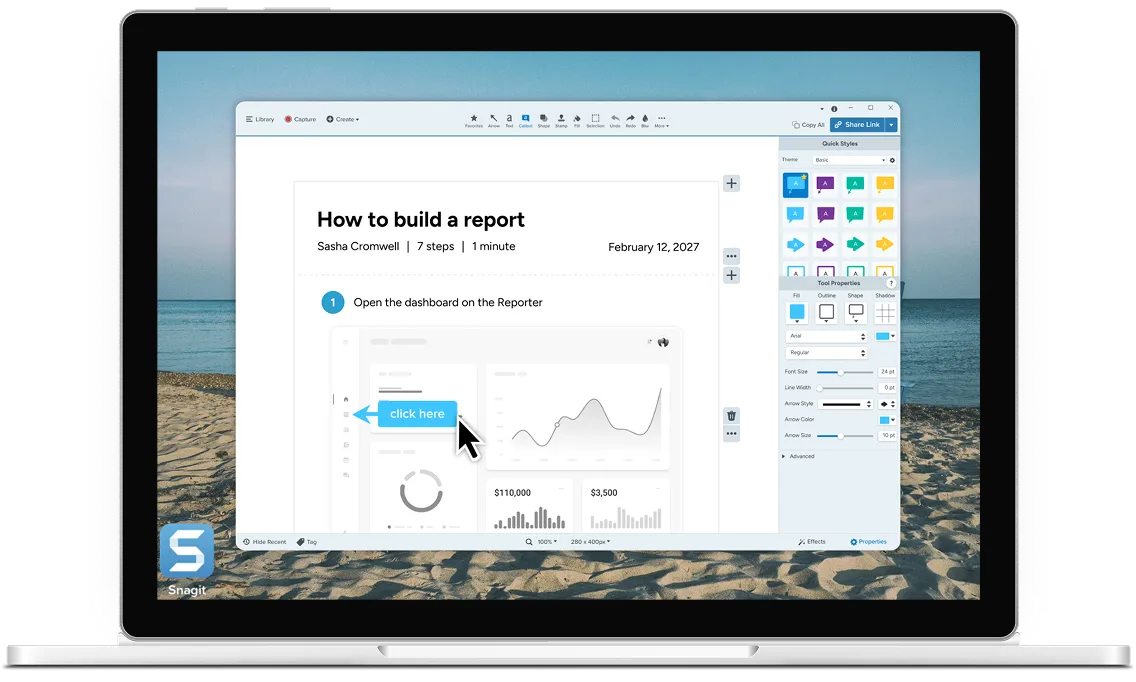
Use Step Capture to walk through a process once and Snagit automatically turns your clicks into a shareable guide your team or customers can follow again and again.

Snagit has definitely improved my day-to-day job. It ties up a whole conversation that would’ve probably been seven or eight emails back and forth.

Snagit stands out for its ease of use, robust image editing tools… These features make it ideal for my company in documentation, tutorials, and everyday communication.

I’ve been using Snagit for many years at startups, Fortune 100 companies, and everything in between. Snagit allows me to create professional-looking materials in minutes so I can deliver high-quality training materials on time.
Enterprise-ready screen capture for modern organizations
Standardize on Camtasia Snagit to give employees one consistent capture workflow and give IT, security, and administrators the control needed to deploy it at scale.
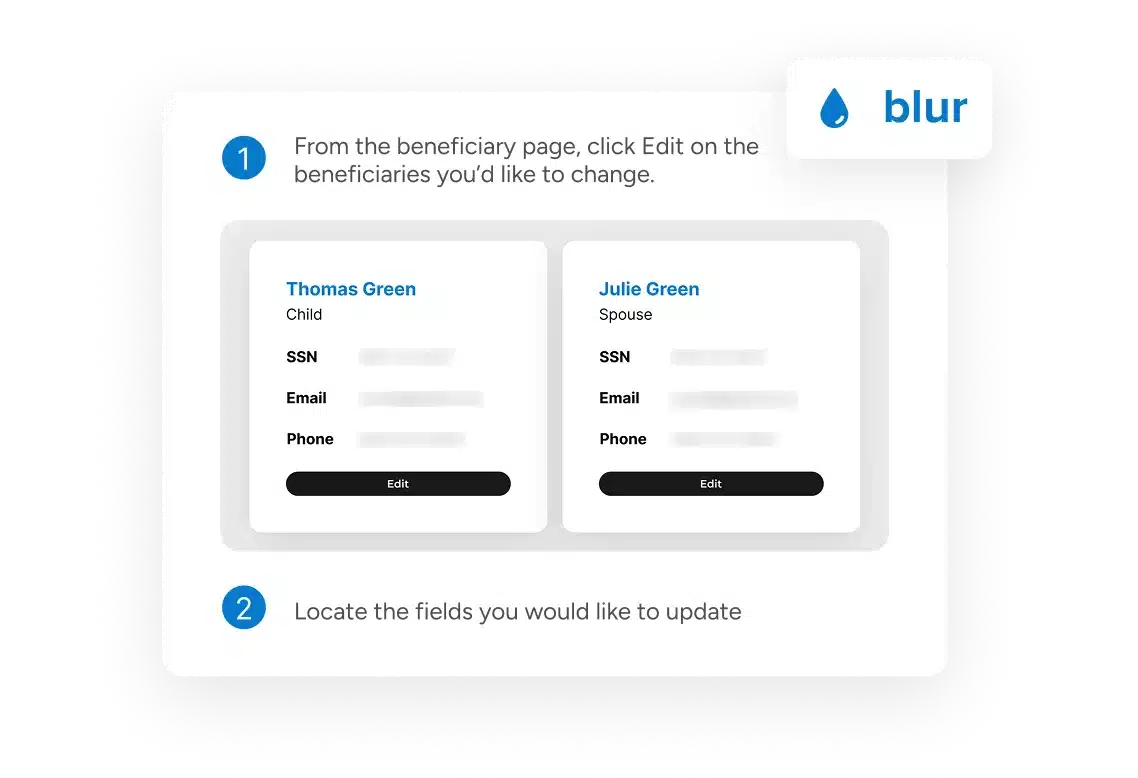
Smart Redact
Instantly protect sensitive information
Protect private information before sharing with Smart Redact, which can blur or completely block emails, phone numbers, and credit card details. Screentelligence® analyzes metadata locally so sensitive data doesn’t leave the user’s device.
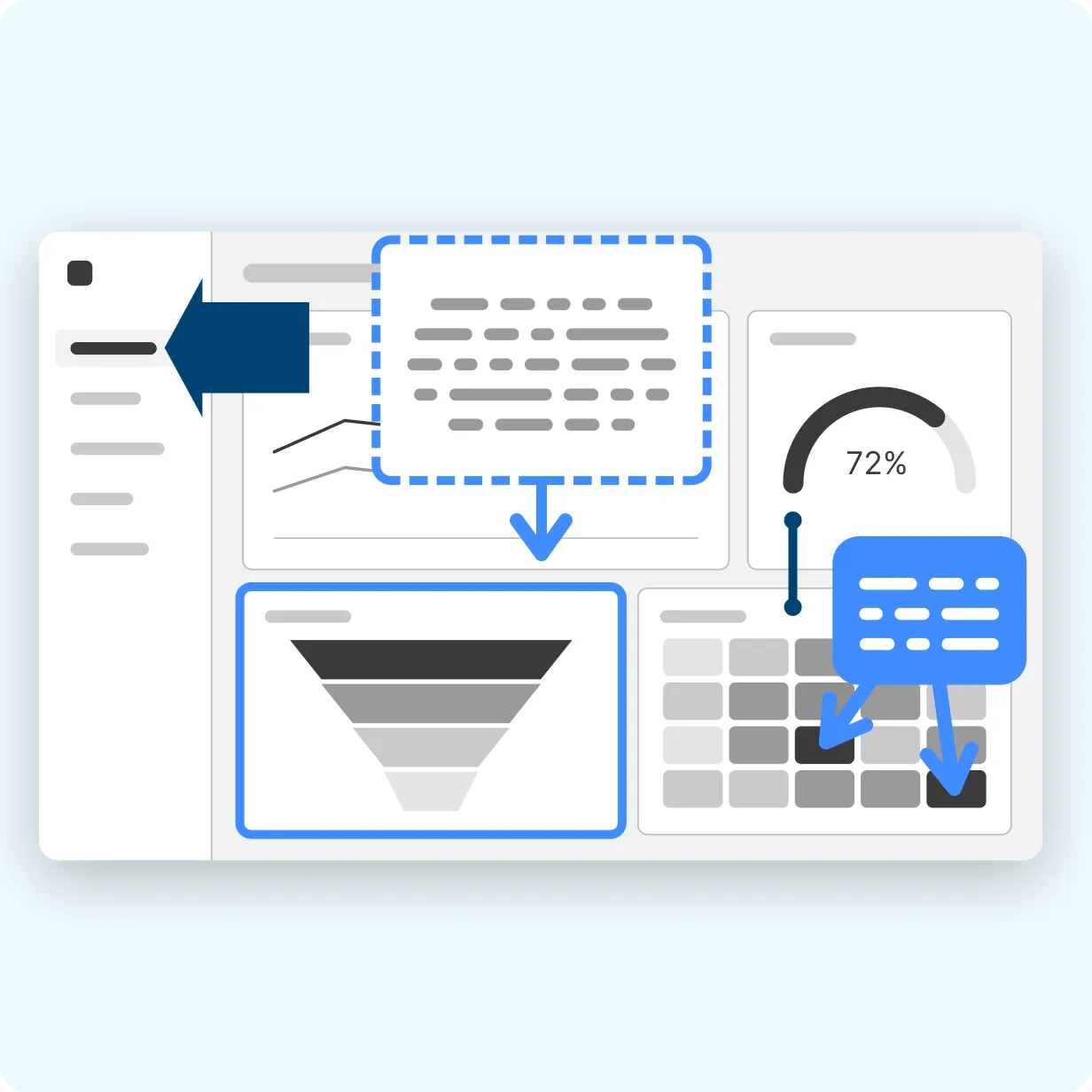
Documentation that looks like it came from one team
Themes apply consistent colors, fonts, and styles across every capture, so documentation stays on-brand no matter who creates it.
Simple to roll out, simple to scale
Deploy Camtasia Snagit across Windows and macOS with volume licensing for teams of five or more, making it straightforward to equip a department or scale across the organization.
Camtasia Product Suite
From quick answers to training programs
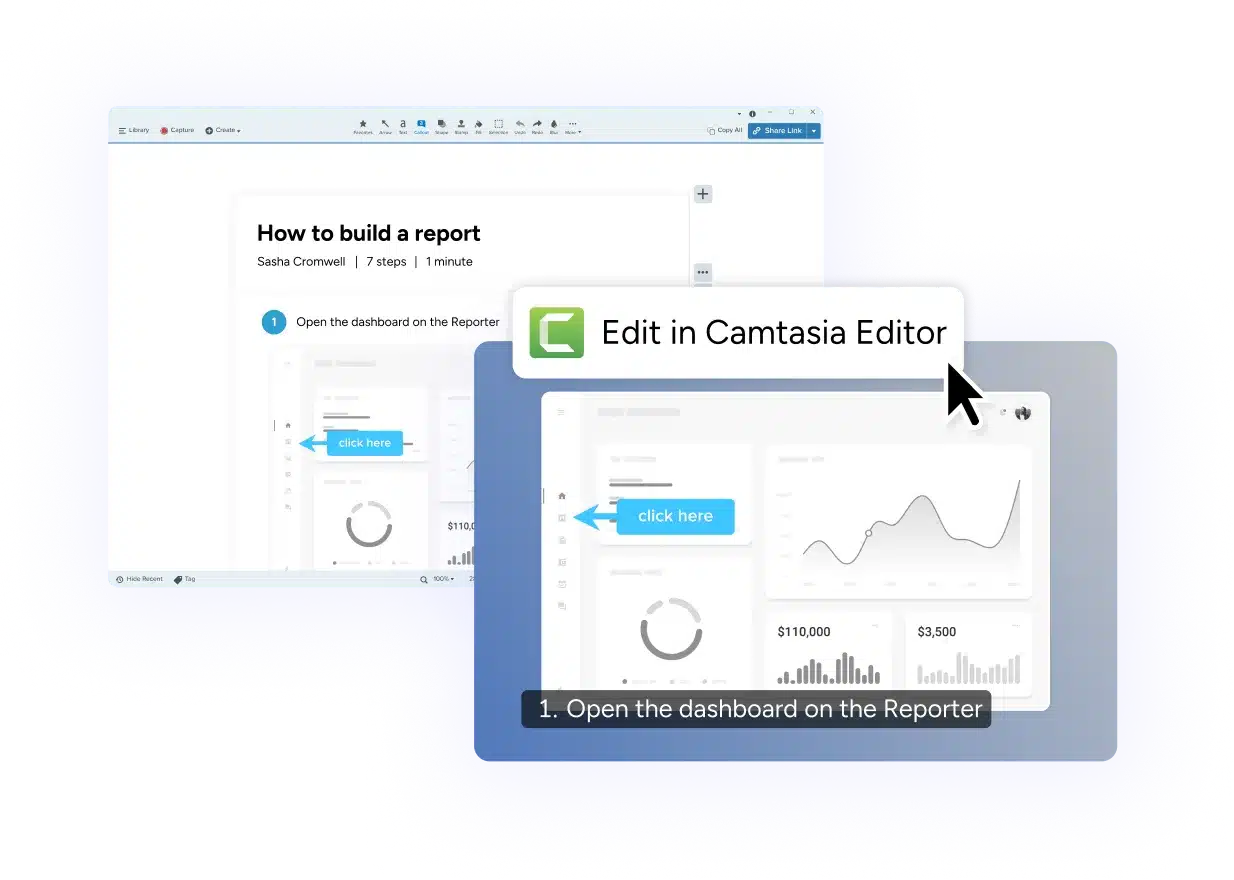
Start with one Step Capture in Camtasia Snagit. Use it as a polished written guide, or open it in Camtasia Editor to automatically add mouse movement, transitions, and animations for a training, tutorial, or onboarding video. The Camtasia Product Suite turns one captured process into both documentation and video—without recreating the work.

Camtasia Editor
Turn screenshots and recordings into polished videos with powerful editing tools for visual communication.

Camtasia Audiate
Record, edit, and refine voiceovers with AI-powered audio tools that help you sound your best without extra effort.

Screencast
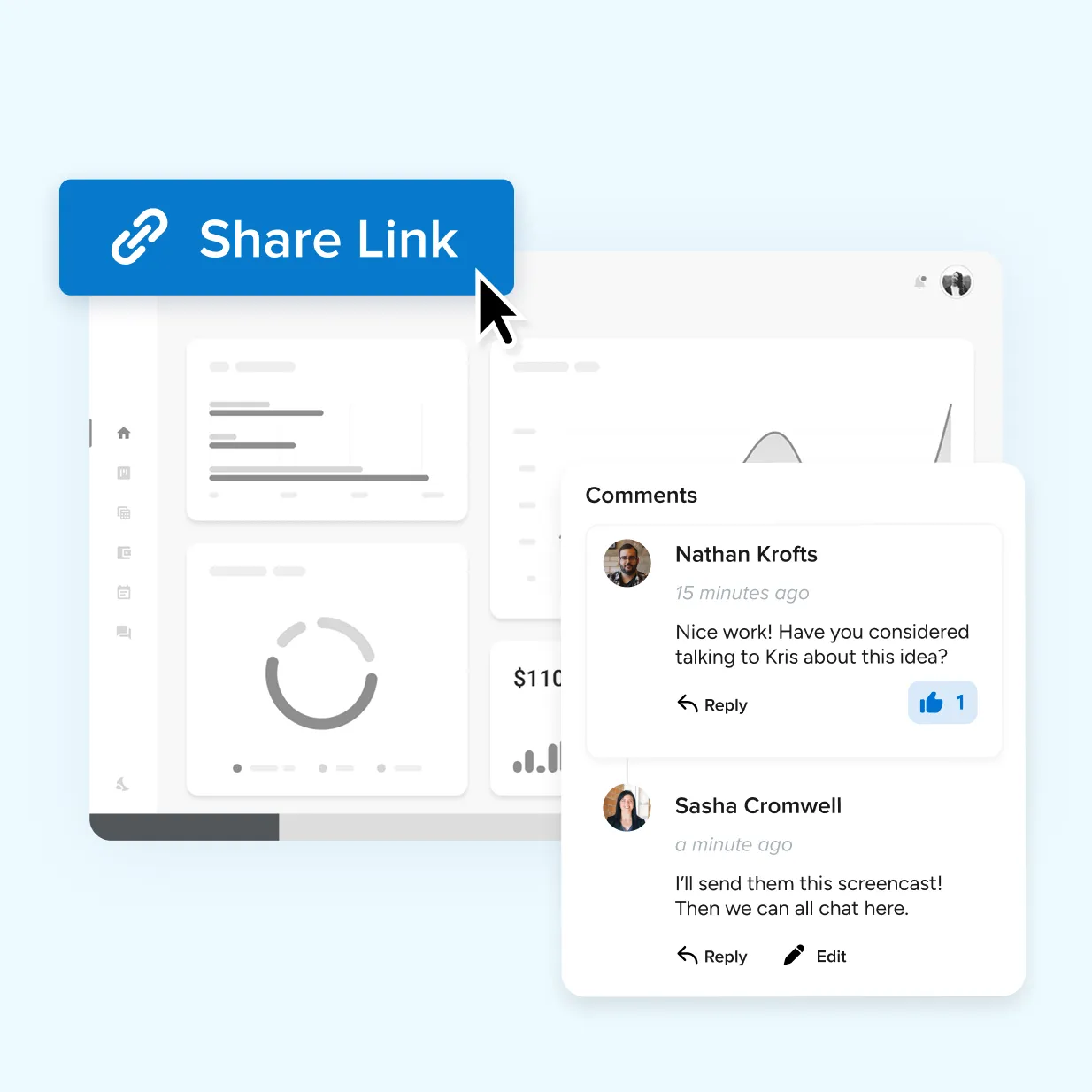
Share videos, screenshots, and guides in one place, making it easy to collect feedback and keep everyone aligned.

Assets
Get started faster with access to professionally designed templates, graphics, music, and visual assets.
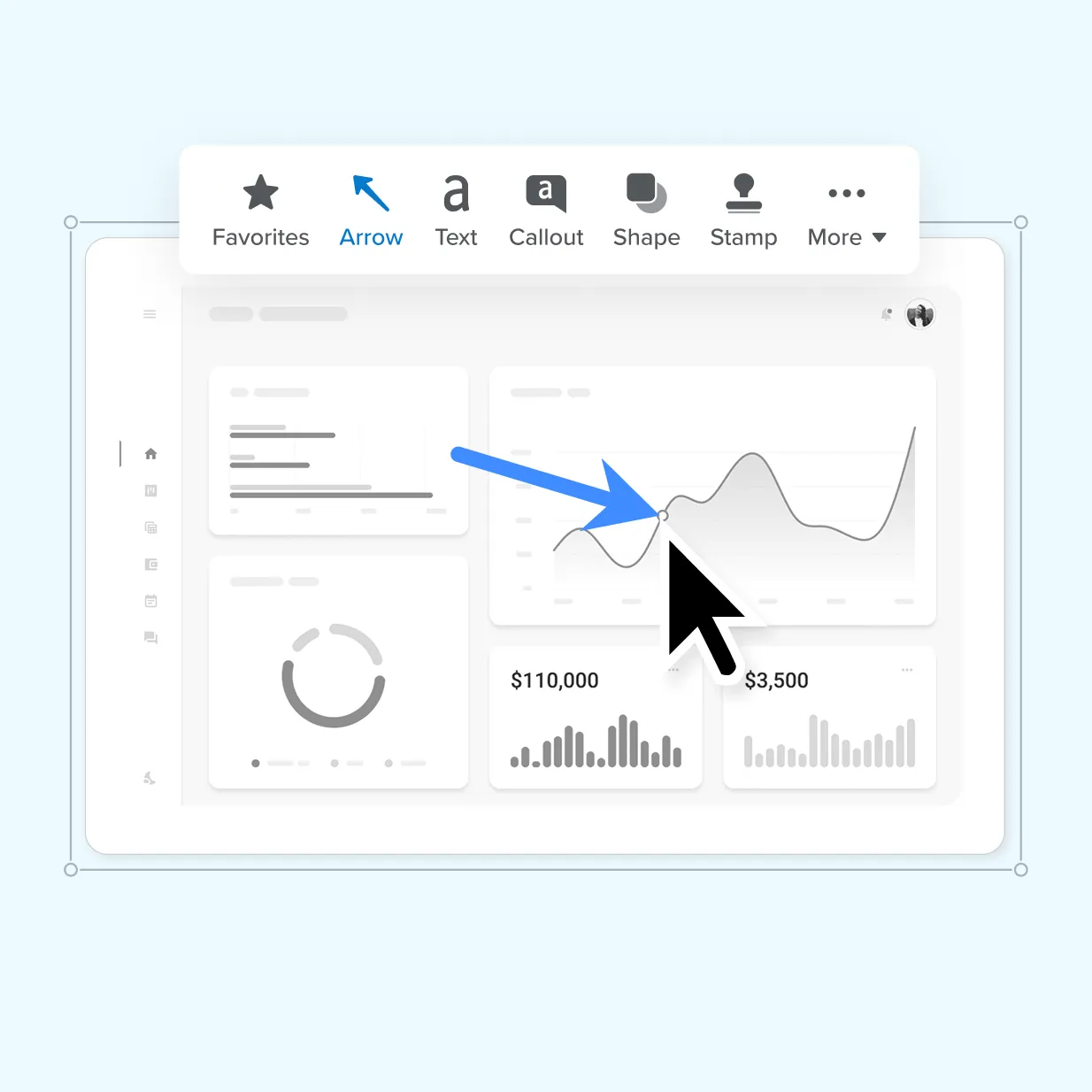
Get more from every screenshot
Turn everyday screenshots into polished, professional communication with Camtasia Snagit.