
TechSmith Language: English Deutsch Français 한국어 日本語
SnagItCamtasia StudioCamtasia RelayScreencast.comMoraeUserVueVideo CodecsDeveloper Tools
Free TrialsJing ProjectVideo CodecsAccessories and Tools
Lost Software KeyLearning CenterSupport Center
Visual Lounge BlogNewslettersUser-to-User ForumsEducator ResourcesCalendar of EventsPresentation Materials
About TechSmithCareer OpportunitiesPress RoomContact UsPartner Resources
Online StoreVolume DiscountsEducation PricingGov/Non-Profit PricingContact SalesResellers

Education Tutorials

Home / Community /

Adding Visuals to PowerPoint Presentations

Videos and screenshots make PowerPoint presentations more memorable and effective.

Camtasia Studio allows you to embed video clips within PowerPoint slides. Create and show a video that lasts as long as you want - from just a few seconds to a few minutes.

SnagIt can also help make your PowerPoint slides more stimulating and informative. Capture images, just as they appear onscreen, from Web sites, scanners, digital cameras, etc. You can also capture an entire Web page or spreadsheet as a single image, instead of copying screen by screen. That way, you can give students a complete, unforgettable view of the pertinent information.

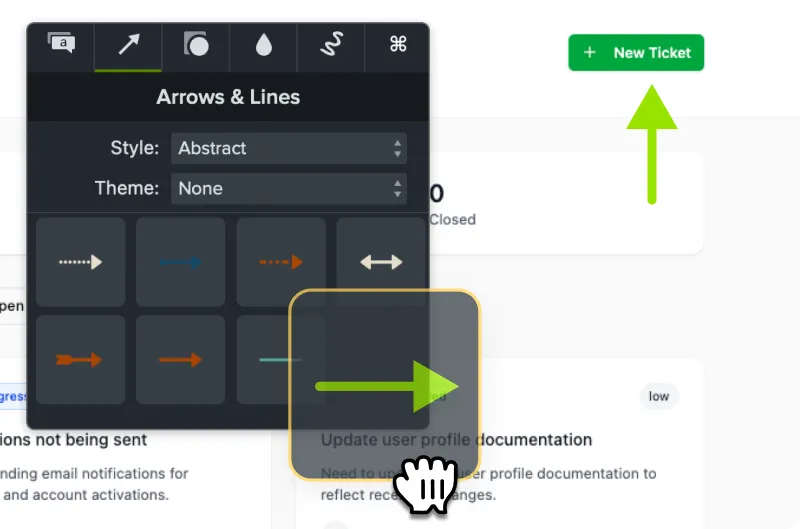
Use SnagIt Editor to make your images even easier to understand. Annotate images with arrows, notes and captions, so students can learn from both the verbal and the visual part of the lecture.

This series of teacher training articles will help you understand how to add video and screenshots to any PowerPoint presentation.

Adding Video to PowerPoint Presentations

Adding Screenshots to PowerPoint Presentations


Adding Video to PowerPoint Presentations

Educators often use Camtasia Studio to combine information from different multimedia sources into their PowerPoint presentations. Integrating real-world video examples with the theories being taught really brings knowledge alive for students.

PowerPoint supports embedded AVI and Windows Media Video (WMV) files. This article will help you successfully add videos to your PowerPoint presentations.

To add a video to a PowerPoint slide:

  1. In PowerPoint, open the presentation into which you would like to embed the video.
  2. Move to the slide where you would like to add your video.
  3. Select menu options Insert > Movies and Sounds > Movie From File. PowerPoint's Insert Movie dialog appears.
  4. Use the Insert Movie dialog to browse through your desktop's files and folders, and locate the video you would like to embed.
  5. Select the video and click OK. A PowerPoint dialog will pop up and ask you how you want the movie to start in the slide show.
    PowerPoint dialog box
  6. Select Automatically if you would like your video to play automatically, or select When Clicked if you want the video to start in the slide show only after you click on it.
  7. The first frame of your Camtasia Studio video should appear on the slide you chose to embed your video on.
  8. To edit play options such as looping and rewind, right-click on your embedded video and select Edit Movie Object.


Adding Screenshots to PowerPoint Presentations

Using the SnagIt Add-In toolbar, you can take a screenshot and add it immediately to a new or existing PowerPoint slide. You can also use the options on the Add-In toolbar to directly insert a screenshot that you have already saved as a graphic file. This article will illustrate both methods.

Using the SnagIt Add-in to capture and add a screenshot to a slide:

  1. In PowerPoint, open the presentation into which you would like to embed the screenshot.
  2. Move to the slide where you would like to add the screenshot. If you are inserting a new slide, move to the slide directly before the desired location of the new one.
  3. Click the Set Up a SnagIt Capture button on the Add-In toolbar.
    SnagIt button
  4. In the SnagIt Add-In Setup dialog, do one of the following:
    • To insert the screenshot as a new slide, check the Insert a new slide option.
    • To insert the screenshot into an existing slide, uncheck the Insert as a new slide option.
    new slide checkbox
  5. Click OK.
  6. Select the type of capture you wish to perform from the Add-in toolbar:
    capture type list
  7. Click the Perform a SnagIt Capture button to start the capture.
    SnagIt button
  8. Use the crosshairs/cursor to select the capture area, and take the capture. When the capture is complete, it is immediately added to the new or existing slide in your presentation.

Using the SnagIt Add-in to insert a saved screenshot into a slide:

If you have a saved screenshot that you wish include on a slide, you can use the SnagIt Add-in toolbar to insert it.

Follow these steps:

  1. Complete Steps 1–5 above.
  2. Select Graphic File from the Add-in toolbar:
    capture types
  3. Click the Perform a SnagIt Capture button:
    SnagIt button
  4. In the Open dialog that appears, select the screenshot you wish to insert, and then click Open.
  5. The screenshot is immediately added to the new or existing slide in your presentation.

How to Add Screenshots without Using the SnagIt Add-In:

If you do not have the SnagIt Add-In toolbar installed, you can still easily capture and include a SnagIt screenshot in a PowerPoint slide.

Follow these steps:

  1. Use SnagIt to capture whatever image you want to use in the presentation, whether it is an icon, a picture from a digital camera, an area of text or a picture from a Web site.
  2. Save the screen capture as a file, or send it to the Clipboard.
  3. Move the image into your PowerPoint presentation either by pasting the image onto the slide or inserting the file using the menu options Insert > Picture > From File.

Educator Resources

Education Home K-12 Education Higher Education
 
Academic Pricing Education Newsletter Research Tutorials Calendar Free Software Accessories
1,691 Users Online
© 1995-2008, TechSmith Corporation, All Rights Reserved