Build Quizzes & Surveys
Gather feedback and learn more about your viewers by using Camtasia quizzes and surveys. Learn how to set up, edit and publish a quiz.



Gather feedback and learn more about your viewers by using Camtasia quizzes and surveys. Learn how to set up, edit and publish a quiz.

Insert a quiz or survey into your video to:
Note: The TechSmith Smart Player is required for table of contents, closed captions, search, quizzing, and hotspots in a video. To include the TechSmith Smart Player, export the video to Local File or Screencast. See Export & Share Your Video.
Note: Add a quiz to media to keep the quiz aligned to that media while editing.
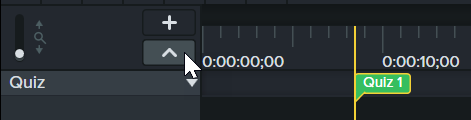

| Option | Description |
|---|---|
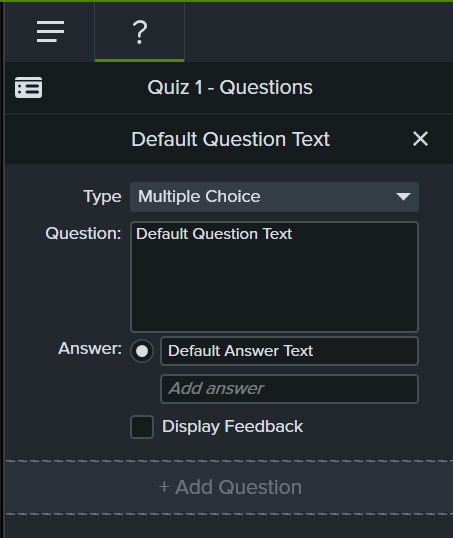
| Create questions | Click the Questions subtab.
|
| Choose a question type | Select a question type from the dropdown.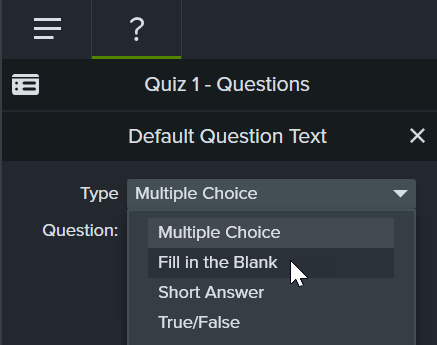 |
| Enter or select answer |
|
| Give feedback for answers | Check the Display Feedback option.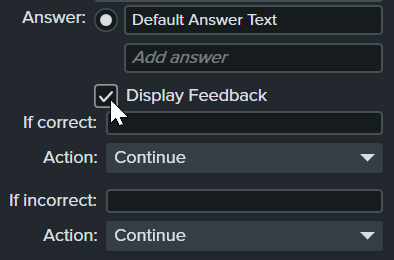
|
| Change question order | Click up and down arrows to change order of the questions in the quiz. |
| Preview how quiz appears to your viewers | Click the Preview button. 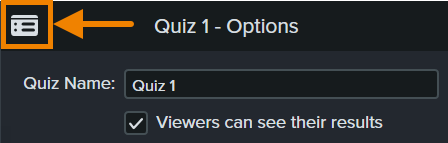 |
| Enter quiz name | Click the Quiz Options subtab. Enter the name in the Quiz Name field. |
| Create survey | Click the Quiz Options subtab. Leave the Score Quiz option unchecked. |
| Allow users to view results | Click the Quiz Options subtab. Click the Viewers can see their results checkbox. |
| Delete quiz | Select a quiz on the timeline or media and press the Delete key. |
| Get scores and information about quiz | You can report the results of the quiz via a SCORM-compliant Learning Management System (LMS). |
To export a video with a quiz, select one of the following options:
Note: To learn how to upload a SCORM package to a Learning Management System (LMS) and view the quiz results, see Use Camtasia Videos in Your LMS.
Unleash the world’s most powerful screen recorder and video editor.
* Already a Camtasia user? Learn how to update to the latest version.