Learn how to add blur or shape annotations to obscure portions of the video containing distracting or confidential content.
Blur an Area
Add a blur effect to cover distracting information in a video or to apply a visual effect.
Note: Some third-party tools can reverse blur or pixelation. To hide sensitive or confidential information, we recommend using other annotations, such as callouts or shapes. See Mask an Area.
Click the Visual Effects tab.
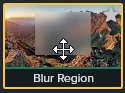
Drag the Blur Region effect onto the canvas or timeline over the object to hide.
Note: Blur Region is applied as an effect on the media so the blur will move and resize as the media is moved or resized.
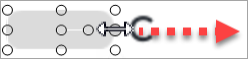
Click and drag the blur shape handles on the canvas to cover the object to hide.
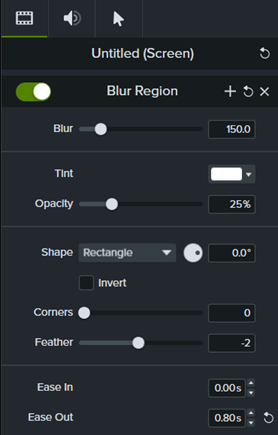
In the Properties Panel, adjust any of the following options:
Drag the Blur slider to adjust the amount to blur.
Select a Tint color from the dropdown.
Drag the Opacity slider to adjust the amount of transparency of the blur.
Select Oval or Rectangle from the Shape dropdown.
Click the Invert checkbox for a blur spotlight effect.
Drag the Corners slider to adjust the corner rounding of the blur shape.
Drag the Feather slider to adjust edge softness of the blur.
Adjust the Ease In control to set how quickly the blur effect appears on the Canvas. When set to 0.00s, the effect appears immediately at the beginning of the media.
Adjust the Ease Out control to set how quickly the blur effect disappears from the Canvas. When set to 0.00s, the effect disappears immediately at the end of the media.
Mask an Area
Add a shape annotation to cover up a pop-up, simplify a video, or hide confidential content.
Click the Annotations > Shapes subtab.
Drag a shape annotation onto the canvas or timeline.
Click and drag the shape annotation on the canvas over the object to hide.
Position the shape annotation on the canvas.
To move the shape, drag the center of the annotation to the desired location.
To resize the shape, drag the handles in any direction.
To change the duration, drag the end of the shape annotation on the timeline in either direction.