Snagit Themes
Maintain a consistent style in the annotations, arrows, text, and other tools used across your images for a project, website, or within your organization.



Maintain a consistent style in the annotations, arrows, text, and other tools used across your images for a project, website, or within your organization.

Create and share a theme based on a selected color palette and fonts for your project, organization, or style guide. Snagit automatically generates Quick Styles based on each theme.

 icon and select the Create New option.
 to add an additional color. Continue until you have added the desired theme colors.
 Tip: Select 4-8 colors.
It is recommended to select 4-8 colors for generating the new theme.


Snagit automatically generates a set of Quick Styles based on the colors selected. The new theme and Quick Styles are available in most tools.
To edit individual Quick Styles in the theme, see Quickly Access Favorite Styles and Tools.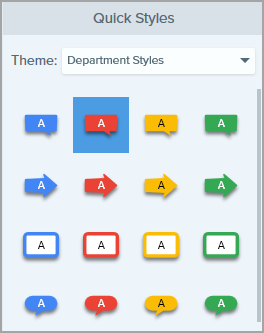
icon next to the theme and select Edit.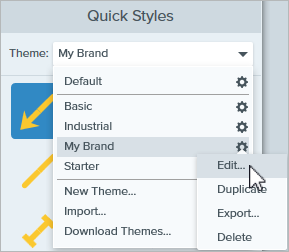 icon and select Edit.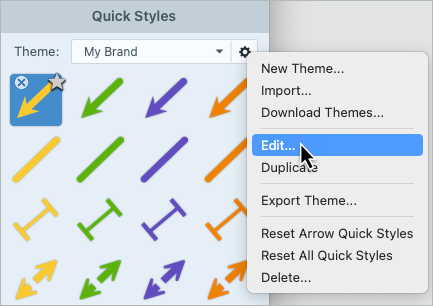
Export and share a theme with colleagues to maintain consistency throughout visuals in a project, website, or throughout your organization.
icon next to the theme and select Export.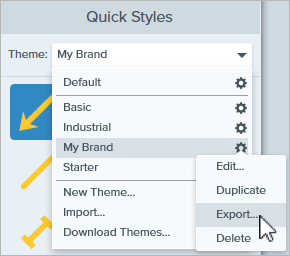 icon and select Export Theme.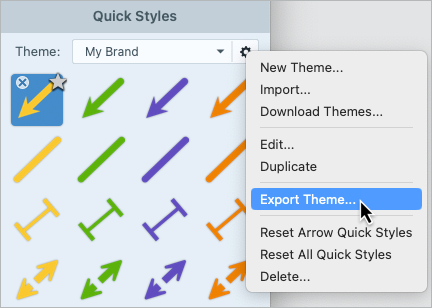
Snagit saves the theme as a SNAGTHEME file. You can send the file to others to import into Snagit.
Note: You must have Snagit Windows version 13.1 or later or Snagit Mac version 4.1 or later installed to import a theme.
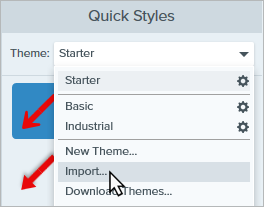
 icon and select Import.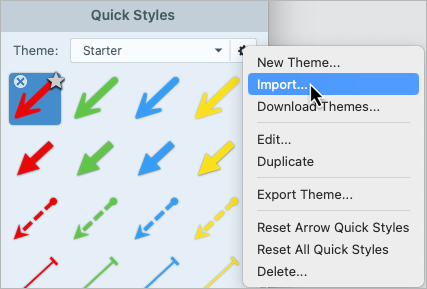
Snagit adds the theme to the list of available themes.
Professionally designed themes are available for download from Snagit Assets. 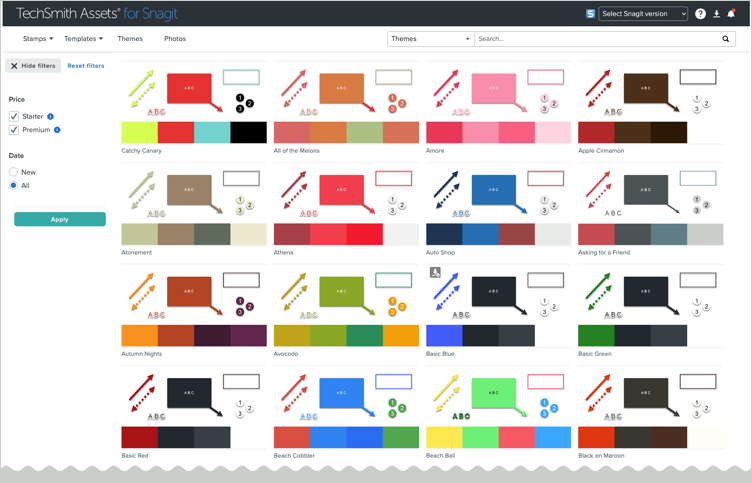
See Download TechSmith Assets for Snagit.
The best screen capture software for professionals
* Have Snagit 2024 or earlier? Check out our previous version help.
All Snagit Tutorials