

August News 2012

August TechSmith Newsletter Header

Letter from the Editor

Your Newsletter Editor Have you given Camtasia Studio 8 a whirl yet? If you have, I hope you're loving it, and if you haven't... what are you waiting for?

Regardless if you've never used Camtasia Studio before or if you're a veteran user, I encourage you to test out Camtasia Studio 8 for free with our 30-day trial.

Already in love with a past version of Camtasia Studio and afraid to make the change? No worries, you don't have to wave goodbye to your current version in order to try Camtasia Studio 8. The free 30-day trial runs separately and won't interfere with your existing version.

If you've already made the switch to the new and improved Camtasia Studio 8, we'd love to hear your feedback. And more importantly, we have some awesome new theme sets for you!

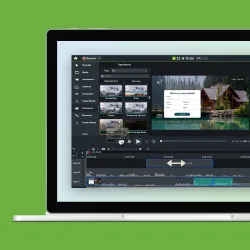
With Camtasia Studio 8, we revamped the media asset library by adding tons of brand new media assets like music tracks, animated backgrounds, graphics, callouts, and more. Our designers constructed a variety of theme sets that include media assets designed to work together, which makes creating more creative and professional videos easier.

To help you continue to spice up your videos, our designers will be creating new theme sets for you each month. Plus, you just might see some new Snagit SuperStamps in next month's newsletter (hint, hint).

Before you skip onto this month's newsletter articles and handy tutorials, I'd like to make a bittersweet announcement. Nikki Wickham, your long-time newsletter editor, will no longer be writing the newsletter. Instead, she will be starting an exciting new role here at TechSmith as the Creative Coordinator for the Search Marketing and Advertising Team. She's a wonderful writer, so I feel honored to be following in her footsteps. Please join me in wishing her the best of luck!

See you next month,

Lauren Buskirk
Newsletter Editor
newsletter@techsmith.com | @TechSmith | contact support


Help My Capture!: Remove a Busy Background

Help My Capture!Thanks to all who have written in requesting help for their Snagit captures. This month, we answer Rolf's question:

"What is the easiest way to make the background of a head shot transparent when the background is not a single solid color?"

Thanks, Rolf for taking the time to write in! We have created a tutorial to show you, and your fellow Snagit users, how to remove a busy background. In this situation, color replacement will not work, so we've outlined how to use the Selection, Erase, and Fill tools in Snagit to easily remove complicated backgrounds.

Check it out on the Tips and Tricks blog!

Do you have a question you'd like us to answer?
Send us an email! While we can't email everyone back directly, we will be choosing one question to highlight per month on the Tips and Tricks blog. So stayed tuned, and keep 'em coming!


Get Snagit Help »


Guess what? YOU'RE creating a new quarterly newsletter for us!

TechSmith will be launching a new quarterly newsletter this fall called TechSmith Learning Lounge. This newsletter will cover trends in education, observations, recommended resources and opinion pieces- all written by our readers- YOU. We are looking for anyone interested in guest writing for future newsletters. We want to help you share your experiences, advice, stories and tips with others. If you are interested in contributing or would like to sign up to receive this newsletter, please email r.parker@techsmith.com.

To Flip or Not To Flip?
This summer, many educators spent time learning about the Flipped Classroom model, using technology in education, and learning about screencasting.

If you didn't get a chance to participate in any of the various conferences covering these and other topics, no worries! We've got your back.

First, we would like to invite you to participate in a webinar TechSmith is hosting on September 19th called 'To Flip or Not To Flip' with Jon Bergman and Aaron Sams from the Flipped Learning Network. They will talk about their perspectives on when flipping a class is appropriate, when it is not, and how to flip your class effectively.

Click here to register for this webinar. And feel free to share this invitation with others you feel would like to participate!

Creating Instructional Videos for the Classroom with Snagit and Camtasia Studio for Windows
TechSmith will be holding a hands-on training session on Snagit and Camtasia Studio for Windows in Chicago on October 11-12, 2012. If you missed our pre-conference training sessions this summer or would like one-to-one help on how to create video lessons for your classroom, this is the training session for you! Register soon- space is being limited so we can provide lots of individual attention! Click here to sign up now!


User Story: Geeks on Tour Attend Screencast
Camp

Geeks on TourMeet Chris Guld and her husband, Jim Guld. The duo has spent the past 9 years traveling the country in their RV with their adorable poodle, Odie, and refer to themselves as "Geeks on Tour". They blog their adventures, provide computer training for travelers, create tutorial videos, and participate in a variety of seminars. We were more than happy to have a couple as passionate about screencasting as we are join us at our headquarters in Okemos, Michigan for Screencast Camp earlier this month.

Screencast Camp is a gathering of screencasters and visual communication aficionados wanting to network, learn, and collaborate on the art of screencasting. Screencast Camp follows the BarCamp model – an unconference born from the desire for people to share and learn in an open environment.

Jim and Chris' Experience at Screencast Camp
The couple happily parked their RV in our parking lot and stayed the weekend. They attended sessions of their choice, enjoyed tasty meals, mingled with fellow screencasters, met and hung out with TechSmith employees, and got to tour the facilities (the picture above is of Chris on the set of TechSmith's live web show, The Forge).

"In our online/digital world, it is such a treat to attend functions like this where we get to meet the actual people behind the software that is so important to us."

Read the Geeks on Tour blog post to find out more about Chris and Jim's experience at Screencast Camp and see awesome pictures of the event.

Weren't able to attend Screencast camp this year? Don't worry. We recorded all the Screencast Camp sessions for your viewing pleasure!

Read the Full Story » 

Like this story? Share yours! We're ready and waiting.


User Story: On Jury Duty, Still Teaching

Rob ZdrojewskiMeet Rob Zdrojewski, a middle school teacher from Amherst, New York, who managed to teach his technology class despite being out on jury duty for a couple of weeks.

While he wasn't physically in class, substitute teachers were able to play screencasts that Rob created for his students using Snagit. He made sure to include webcam video in his screencasts to give his students the impression he was right there alongside them.

Screencasting allowed Rob to give his students instruction directly, which helped eliminate confusion for both the substitute teachers and students.  

Watch the Video »

Like this story? Share yours! We're ready and waiting.


Ask TechSmith: Send Us Your Questions!

Ask TechSmith ImageIf you haven't visited yet, our feedback website allows you to ask questions publicly to get the help you need, while helping others. Asking your questions this way allows you to get feedback from TechSmith staff and users like you, and even engage in helpful conversation.

So, check it out and ask away! You never know what you might learn just by browsing the site, someone may have already asked/answered your question. But if not, TechSmith will be there to help you as soon as possible.

Have a Question? Ask Us! »


The Forge: Stay Tuned

The Forge ImageAs you may already know, The Forge, our live web show, is out on summer vacation. But no worries, The Forge cast will be back with you next month to share tips and tricks, interview great guests, and help you get an insider's look at TechSmith.

Tune in Thursday, September 13th at 2 PM to see
The Forge's extraordinary return!

Did you miss last month's episode of The Forge?
Don't worry. You can always catch up on any episode you miss. Subscribe to the TechSmith YouTube Channel and/or TechSmith Blogs for updates on the latest episodes.
 

View the Forge »


New Blog Posts: Get Up to Date on the Latest
Happenings

Blog ImageSee the latest happenings from the TechSmith blog-o-sphere...


Snagit Tutorial: Capturing Text

Snagit ImageIf you have some experience using Snagit, you're probably familiar with using Snagit to capture images or maybe even videos, but have you ever used Snagit to capture only text? Snagit's ability to capture text comes in handy when you need to capture information that you can't simply copy and paste.

For example, have you ever needed to write down all of the file names in a folder? It's tricky because you can't simply copy and paste this information, but luckily you can use Snagit's text capture to grab text for easy editing, copying, and pasting. Find out how to easily use text capture in this video tutorial.

View the Tutorial »


Have a tutorial idea? Let us know!


Snagit Expert Tutorial: Batch Edit with Snagit's
Convert Images Feature

Snagit Expert ImageHave you ever had a group of images that you needed to edit in the same way? If so, Snagit's Convert Images feature will be a time-saver for you! Use the Convert Images feature to change properties, size, and even the file format of a group of images all at once.

You can easily add effects such as borders, edge effects, or watermarks to multiple images at once. Check out this tutorial to learn how to change all the images you need to edit similarly in just a couple of steps.


View the Tutorial »

Have a tutorial idea? Let us know!


Snagit on Mac Tutorial: Using Gestures with
Snagit on Mac

Snagit on Mac ImageAs a Mac user, you may already be acquainted with using gestures to work faster, but did you know you can use gestures with Snagit on Mac? Speed up your workflow with three simple touch pad gestures that you can use to quickly manipulate the display.

1. Zoom Out
Use a pinch in motion to zoom out to a birds-eye view.  Simply pinch your fingers together and the image zooms out.

2. Zoom In
Need to see the minute detail in an image? Zoom in using a pinch out motion.

3. Browse Images
Using the three-finger swipe you can quickly and easily browse the images in your tray.

Note: In order for three-finger swipe to work, you must have Swipe with three fingers or Swipe with two or three fingers option enabled in system preferences.

Give it a try!

View the Tutorial »

Have a tutorial idea? Let us know!


Camtasia Studio Tutorial: Canvas In-Depth

Camtasia Studio ImageIf you haven't acquainted yourself with Camtasia Studio 8's new canvas, I recommend that you do!

Understanding what the canvas is and how to best use it is essential to producing great screencasts. With more flexibility and power, you'll be able to create engaging screencasts easier than ever.

Similar to a painting canvas, the canvas lets you add or take away content to customize your video. Learn more about the canvas and how to use it in this handy tutorial.

View the Tutorial » 

Have a tutorial idea? Let us know!


Camtasia Studio Expert Tutorial: Create Video
Effects with Visual Properties

Camtasia Expert ImageCamtasia Studio 8 includes a variety of great new features that not only makes creating videos easier and faster, but also makes constructing videos more fun.

The Visual Properties tab, found in Camtasia Studio 8, allows you to animate content and add color, shadow, and opacity effects to most visual media on the timeline like video, callouts, and images.

By animating content using visual properties, you can create more engaging content. Discover more about animation and how to create moving effects in your videos by jumping into this tutorial that provides lots of great video examples.

View the Tutorial » 

Have a tutorial idea? Let us know!


Camtasia for Mac Tutorial: Remove a Color from a
Video

Camtasia for Mac TutorialPut yourself in your video! Use Camtasia for Mac's Remove a Color effect to integrate yourself or others directly into your videos. Make it appear as though you're right in the action of your videos.

Also known as chroma key or the green screen effect, Remove a Color allows you to create more professional and engaging videos without pricey equipment.

Learn more about Camtasia for Mac's Remove a Color and how to create a do-it-yourself green screen video effect inexpensively in this tutorial.


View the Tutorial »
 

Have a tutorial idea? Let us know!


Camtasia Relay Tutorial: Capture System Audio

Camtasia Relay ImageWith Camtasia Relay 4.1 it is now possible to capture audio from your system directly into your videos.

For example, if you were lecturing on the NASA space exploration initiatives and wished to include an example video, enabling the system audio feature in your Camtasia Relay recorder would allow you to capture that video within your video. Then you can send it all to the server for processing.

Watch this video tutorial to learn how to enable system audio in your Camtasia Relay recorder and experience the most seamless process possible.

View the Tutorial »

Have a tutorial idea? Let us know!


Screencast.com Tutorial: Example Case Study

Screencast.com ImageThe uses for Screencast.com are nearly endless. Whether you want to simply share a funny picture with a friend or share an engaging video with a coworker, Screencast.com offers a great solution.

This tutorial helps give you some inspiration on how Screencast.com may be helpful for you. To get a general idea of what is involved in managing, securing, and sharing content, check out this tutorial!


View the Tutorial » 

Have a tutorial idea? Let us know!


Morae Tutorial: Marker Logging

Morae ImageIf you've worked with the Morae Observer, you've probably had some experience with markers within Morae. Markers help you quickly log important points in a recording.

Use markers to easily log points where a participant made an error or write comments that a participant made at a specific point in the study. Then when you go to review your research, you'll have lots of valuable data.

In this tutorial, you'll learn how to log more efficiently and a few more advanced logging tips you may not have known previously.

View the Tutorial » 

Have a tutorial idea? Let us know!