Quickly Smooth Cursor Movements
The Cursor Smoothing effect transforms cursor movements in screen recordings to smooth lines.



The Cursor Smoothing effect transforms cursor movements in screen recordings to smooth lines.

Note: The Cursor Smoothing effect can only be applied to screen recordings captured with Camtasia. Once the recording clip is on the timeline, the effect may be applied.
You can apply quick cursor effects anytime in Camtasia Rev. To customize the cursor in Camtasia Editor, you must unpack Rev media. Right-click (Windows) or Control-click (Mac) the Rev media on the timeline and select Unpack Rev Media. See Introduction to Rev Media.

Tip: Smooth the cursor at multiple points in the clip.
To apply the effect to multiple sections of the same clip, click and drag the effect to the clip again. Then adjust the length and position.
Customize the settings for the Cursor Smoothing effect in the Properties panel.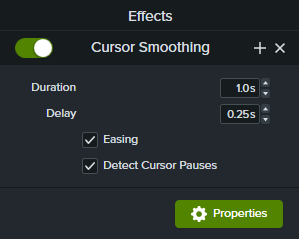
Unleash the world’s most powerful screen recorder and video editor.
* Already a Camtasia user? Learn how to update to the latest version.