Introduction to Rev Media
Learn how to apply looks, layouts, and edit Rev media on the Camtasia Editor timeline.

Learn how to apply looks, layouts, and edit Rev media on the Camtasia Editor timeline.
Transform your original recording from this…
to this with just a few clicks in Camtasia Rev.

Camtasia Rev makes it easy for creators to deliver on-trend and compelling video content. Implement your own personal style with just a few clicks after recording.
Turn on Camtasia Rev in the recorder to automatically open Rev after you stop recording.
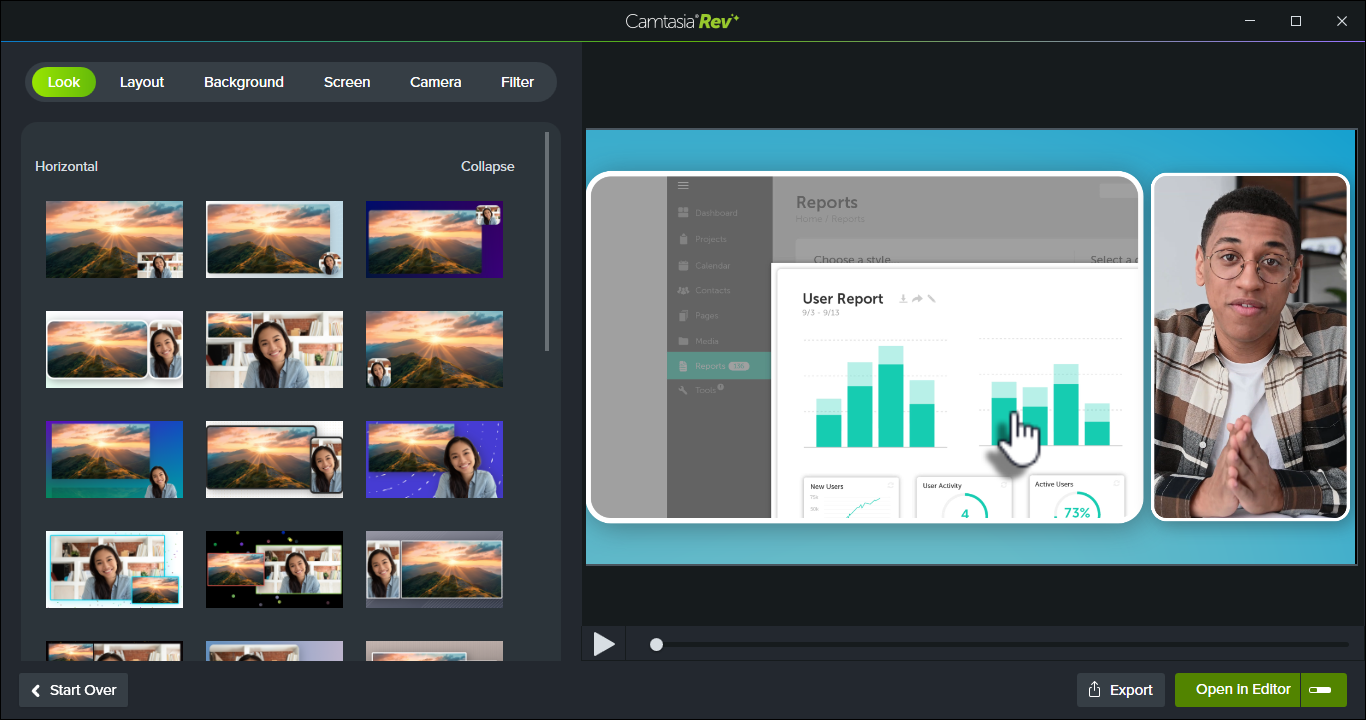
In Rev, apply one of our professionally-designed layouts to best fit your recorded content. Choose from screen focused, camera focused, or balanced layouts. 
On the Background tab, choose from a variety of colors, patterns, and animations for the background to make your content more visually engaging.
Accelerate your video creation by selecting from our recommended preset effects on the Screen and Camera tabs, no editing skills required. You can instantly preview these effects to perfect the look of your video with just a few clicks.
Note: You can turn off some of the automatic selections in Camtasia Rev, such as backgrounds. Click to deselect the option on the Background, Screen, Camera, or Filters tabs.
Camtasia Editor packages your recorded streams (screen, camera, and audio) into Rev media on the timeline. This simplified media package allows you to speed up editing by applying layouts and quick effects in Camtasia Rev.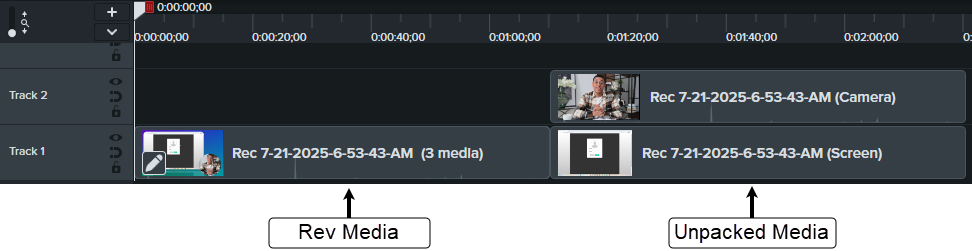
Camtasia Editor’s flexible recording allows you to change the layout or effects anytime.
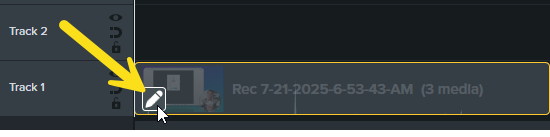
To apply different looks and effects to a section in your video, split the Rev media into separate clips on the timeline. For example, if you want one section of your recording to focus on the screen content and another section to focus on the camera.


To learn how to apply basic edits to Rev media, such as cutting out mistakes, adding transitions, adding annotations, and more, see Basic Edits After Recording.
To learn how to position media within the Rev layouts on the canvas, see Position Media on the Canvas.
To apply advanced edits and customizations not available in Camtasia Rev, unpack the Rev media to edit the recorded streams (screen, camera, and audio) as separate tracks on the timeline.
Consider unpacking the Rev media to:
Note: Once the Rev media is unpacked, you cannot send it back to Camtasia Rev to update the look and layout.
To unpack Rev media, right-click (Windows) or Control-click (Mac) the media on the timeline and select the Unpack Rev Media option. 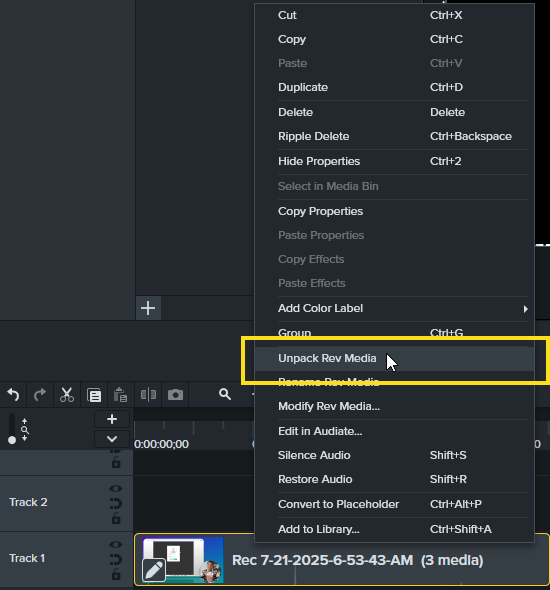
Unleash the world’s most powerful screen recorder and video editor.
* Already a Camtasia Editor user? Learn how to update to the latest version.