Customize Camtasia
Learn how to personalize the Camtasia application and add your frequently-used video enhancements to save time.



Learn how to personalize the Camtasia application and add your frequently-used video enhancements to save time.

Save custom properties for annotations, behaviors, visual effects, cursor effects, and dynamic caption styles.

 button to save the custom properties as a new preset.
Note: Customizing the preset name is not available for annotations.
Camtasia saves the preset to the Annotations, Behaviors, Visual Effects, Cursor Effects, or Dynamic Captions tab. User-saved presets are indicated with the  icon (Windows only).
Note: To view preset annotations (callouts, arrows, shapes, etc.), select Annotations tab > a subtab > Style dropdown > User.
Add frequently-used annotations, transitions, visual effects, behaviors, animations, cursor effects, and audio effects to the Favorites tab.
Package your Favorites to share with others to:
To add to Favorites:
 Favorites icon.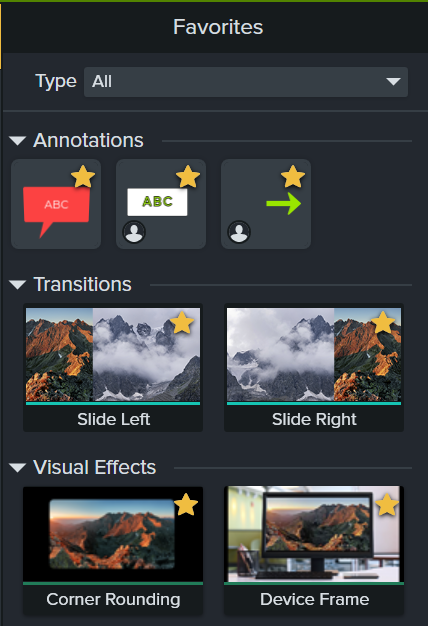
To remove an item from the Favorites tab, click the  icon.
icon.
Quickly move your frequently-used tools to the top in Camtasia Editor.
Click and drag a tool to reposition it within the list of tools.
Tip: Detach the timeline to quickly reorder the entire set of tools.
Tools in the More menu cannot be reordered. To reorder the entire set of tools, select View > Timeline > Detach Timeline or press Ctrl+3 (Windows) or Command+3 (Mac).
Camtasia sets the default tool to the Automatic option, which opens the Media Bin or Camtasia Assets subtab when you open or start a new project.

To change the default startup tool:
In Camtasia Editor, you can switch between a light or a dark application theme.

Assign color labels to media on the timeline to help identify media types or sections while editing.

Right-click (Windows) or Control+click (Mac) on the media and select Add Color Label. Choose the desired color.
Reset default annotations, visual effects, behaviors, cursor effects, audio effects, and dynamic caption styles in the selected tab to the original defaults.
Unleash the world’s most powerful screen recorder and video editor.
* Already a Camtasia user? Learn how to update to the latest version.