Customize the Cursor Path
Learn how to replace or import a cursor, edit a cursor path, or add a new path to your video.



Learn how to replace or import a cursor, edit a cursor path, or add a new path to your video.

Camtasia records the screen and cursor data separately in the Camtasia Recording file format (TREC). This allows you to edit the cursor and eliminates the need to re-record to perfect cursor movement or position.
Camtasia’s cursor editing and effects help to:
To customize the cursor in Camtasia Editor, you must unpack Rev media. Right-click (Windows) or Control-click (Mac) the Rev media on the timeline and select Unpack Rev Media. See Introduction to Rev Media.
In Camtasia Recording files (TREC), you can fix the cursor position when it doesn’t match the narration or smooth out cursor movements post-recording.
Note: You can only edit the cursor path on screen recordings captured with Camtasia (TREC) or after a new cursor path is added. To create a new cursor path in a video or image imported into Camtasia, see Create a New Cursor Path.
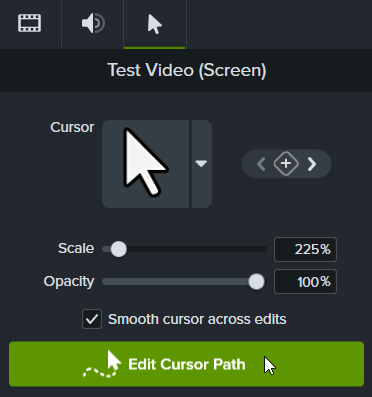

Note: You only need to complete this step the first time that you edit the cursor path.


Note: After selecting a line type, click and drag the handle of the point on the canvas to manually adjust the curve of the cursor movement if desired.

Note: The Extend Cursor Path to Playhead menu option is only available if the playhead is on a cursor keyframe and there is no timeline cursor path in that location.

To customize the cursor in Camtasia Editor, you must unpack Rev media. Right-click (Windows) or Control-click (Mac) the Rev media on the timeline and select Unpack Rev Media. See Introduction to Rev Media.
No need for the perfect recording! You can design your own cursor path and add cursor clicks to simulate cursor movement on any image, video, or TREC recording file.
Note: You cannot add the Cursor Path Creator effect to media recorded with Camtasia. To edit a cursor path in a Camtasia recording (TREC), see Edit a Recorded Cursor Path.


Note: After selecting a line type, click and drag the handle of the point on the canvas to manually adjust the curve of the cursor movement if desired.

Note: The Extend Cursor Path to Playhead is only available if the playhead is on a cursor keyframe and there is no timeline cursor path in that location.
To restore the original cursor path, click Restore Path in the Properties panel.
Unleash the world’s most powerful screen recorder and video editor.
* Already a Camtasia user? Learn how to update to the latest version.