Highlighter Tool
Draw attention to part of an image while keeping text or other objects visible underneath.



Draw attention to part of an image while keeping text or other objects visible underneath.

Note: Highlighter and other tools in the Snagit Editor toolbar are available to annotate images. To draw your viewer’s attention while you record video, try Screen Draw. To enhance video you have already recorded, share your video to TechSmith Camtasia.

Note: If the tool is not visible in the toolbar, click the More dropdown. To customize your toolbar, see Customize the Snagit Toolbar.
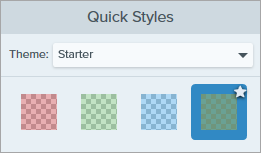

Edit the properties to customize the tool.
Tip: Edit all highlights together (Mac only).
To change all Highlighter objects at the same time, in Tool Properties click Select All Highlights. Then edit the tool properties as needed. You must have Snagit for Mac version 2025.3.0 or later.
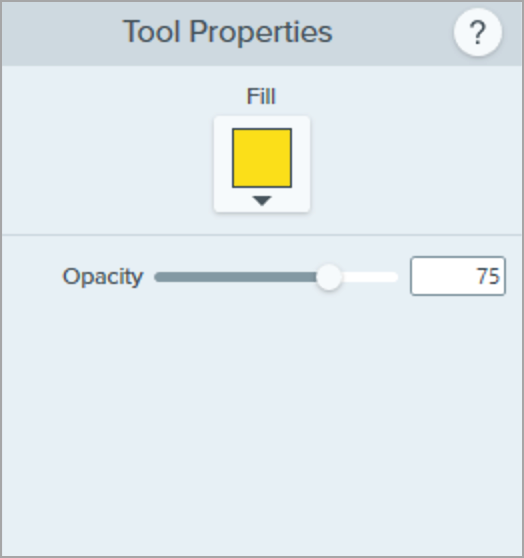
Snagit for Windows
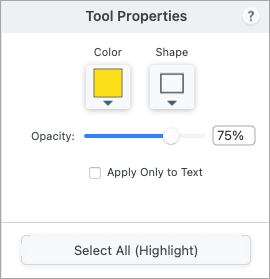
Snagit for Mac
Fill / Color
Click the dropdown and select one of the following to set the color:



Shape (Mac only)
Select a rectangle, rounded corner rectangle, oval, or polygon shape for the spotlight.
To highlight with the polygon shape:


Opacity
Drag the slider to adjust the transparency level.
Apply Only to Text (Mac only)
Select to apply the highlight only to text rather than to the entire selection.


Tip: Save tool customizations as Quick Styles.
After you edit tool properties, save your customization as a Quick Style for future use. See Quickly Access Favorite Styles and Tools.
The best screen capture software for professionals
* Have Snagit 2024 or earlier? Check out our previous version help.
