Library Overview
To access the library from Snagit Editor, click the Library tab at the top of Snagit Editor.

Note: If your library appears empty, you may need to convert your captures from a previous version of Snagit. For more information, see Convert Your Previous Captures.
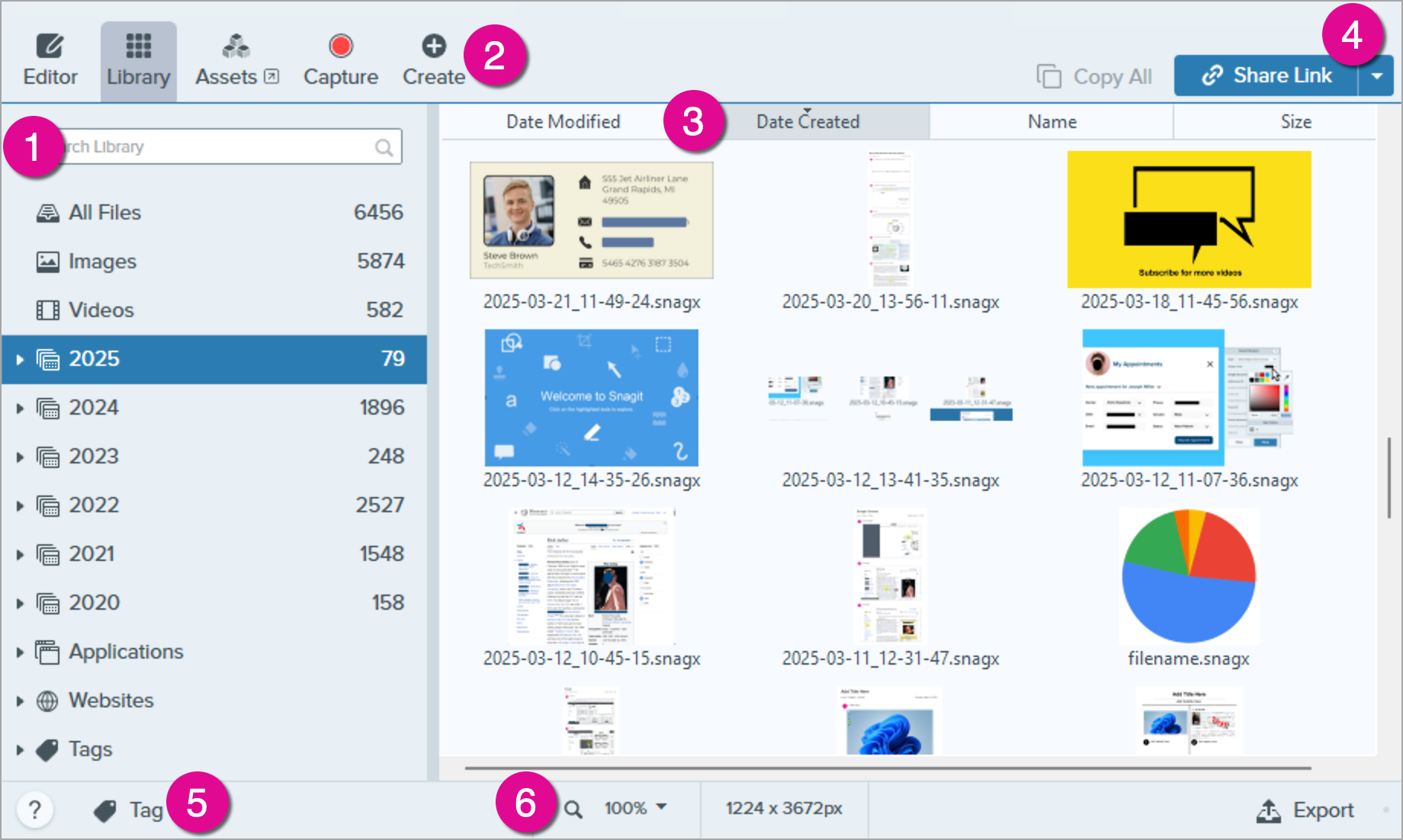
- Search Pane
Search for captures by file name and/or filter by date, tags, application source, or website source. See Search for Captures and Filter Captures.
- Create
Click to select Image from Template or Video from Images option.
- Sort
Sort captures by date modified, date created, name, or size. Click a heading to sort or to reverse the sort order.
- Share
Share captures to common sharing locations such as the cloud, a document, social media, or send a link. See Share Captures.
To quickly copy a capture to paste into another application, click Copy All (Mac only).
- Tag
Add tags to help group or find captures easily at a later time. See Organize Your Captures.
- Thumbnail Size
Change the preview size of thumbnails in the library. Click the percentage (Windows only) and drag the Zoom slider.
Note: Snagit for Windows does not fully support libraries stored to network locations. File counts, tags, and categories such as year, month, and date are not available. For full functionality, store your library on your computer or to a supported cloud service. See Snagit Library Location for more details.
Search for Captures
Search for captures by file name and/or filter by date, tags, application source, or website source.
- Enter a search term in the Search field.
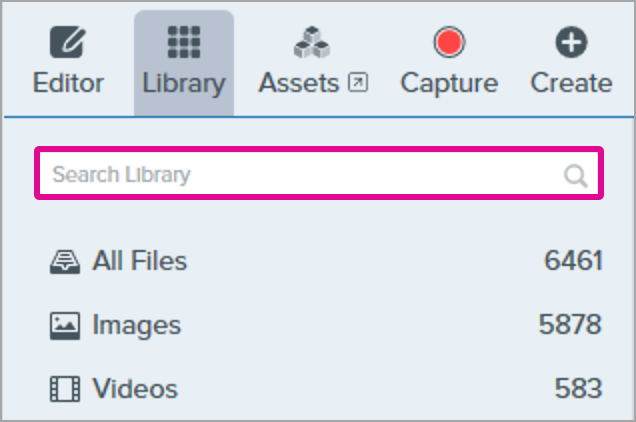
- The search results appear in the library. Click a category in the search pane to filter the search results.
- To open a capture in Snagit Editor, double-click the capture in the library.
Filter Captures
Click a category in the Library search pane to view the captures within that category. Captures are categorized by:
- File type: Images, Videos, Animated GIFs
- Favorites (Mac): All captures manually selected as favorites
- Date: Year, month, and date created
- Applications: All applications Snagit captured
- Websites: All websites Snagit captured
- Tags: List of tags manually assigned to captures in Snagit
Organize Your Captures
Sort Captures
Sort captures displayed in the Library by date modified, date created, name, or size. Click a heading to sort or to reverse the sort order.

Add a Tag
Add tags to captures to help group or find captures easily at a later time. To view a list of all the tags currently applied to captures, click the Tags category in the Search pane
- In Snagit Editor, select a capture in the tray or in the library. To select multiple captures press Control+click (Windows) or Command+click (Mac).
- Click the Tag button.
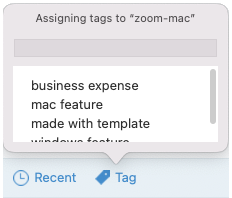
- Enter a new tag or click to select an existing tag from the list.
Note: Tags are only visible in Snagit.
Remove a Tag
- In Snagit Editor, select a capture in the tray or in the library. To select multiple captures press Control+click (Windows) or Command+click (Mac).
- Click the Tag button.
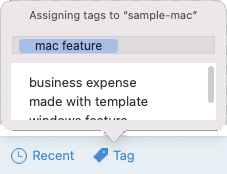
- Click the tag assigned to the capture that you want to delete.
- Right-click the tag and select Delete Tag (Windows) or press the Delete key (Mac).
Delete Captures
To delete individual captures from the Library:
- Windows: Right-click and select Delete.
- Mac: Control+click and select Move to Trash.
To select and delete multiple captures:
- Windows: Control+click each capture, then right-click and select Delete.
- Mac: Command+click each capture, then Control+click and select Move to Trash.
To select and delete a range of captures:
- Click to select a capture.
- Press Shift on the keyboard as you click to select another capture. Snagit selects all captures between the ones you selected.
- Right-click (Windows) or Control+click (Mac) and select Delete (Windows) or Move to Trash (Mac).
Library Tips
- To open a capture in Snagit Editor, double-click the thumbnail in the library.
- Snagit captures other information during capture. To view this metadata:
- Windows: Right-click and select Details.
- Mac: Control+click and select Get Info.
- Apply a change to a group of images, such as changing the file format, applying effects, or changing the filenames. See Batch Convert Images.
- Store your captures to the cloud for automatic backup or to access it from multiple computers. See Snagit Library Location.
- To turn off autosaving SNAGX files (Windows only), in Snagit Editor select Edit menu > Editor Preferences > Library tab and deselect the Automatically save new image captures in the Library option.
Get Snagit
The best screen capture software for professionals
All Snagit Tutorials