


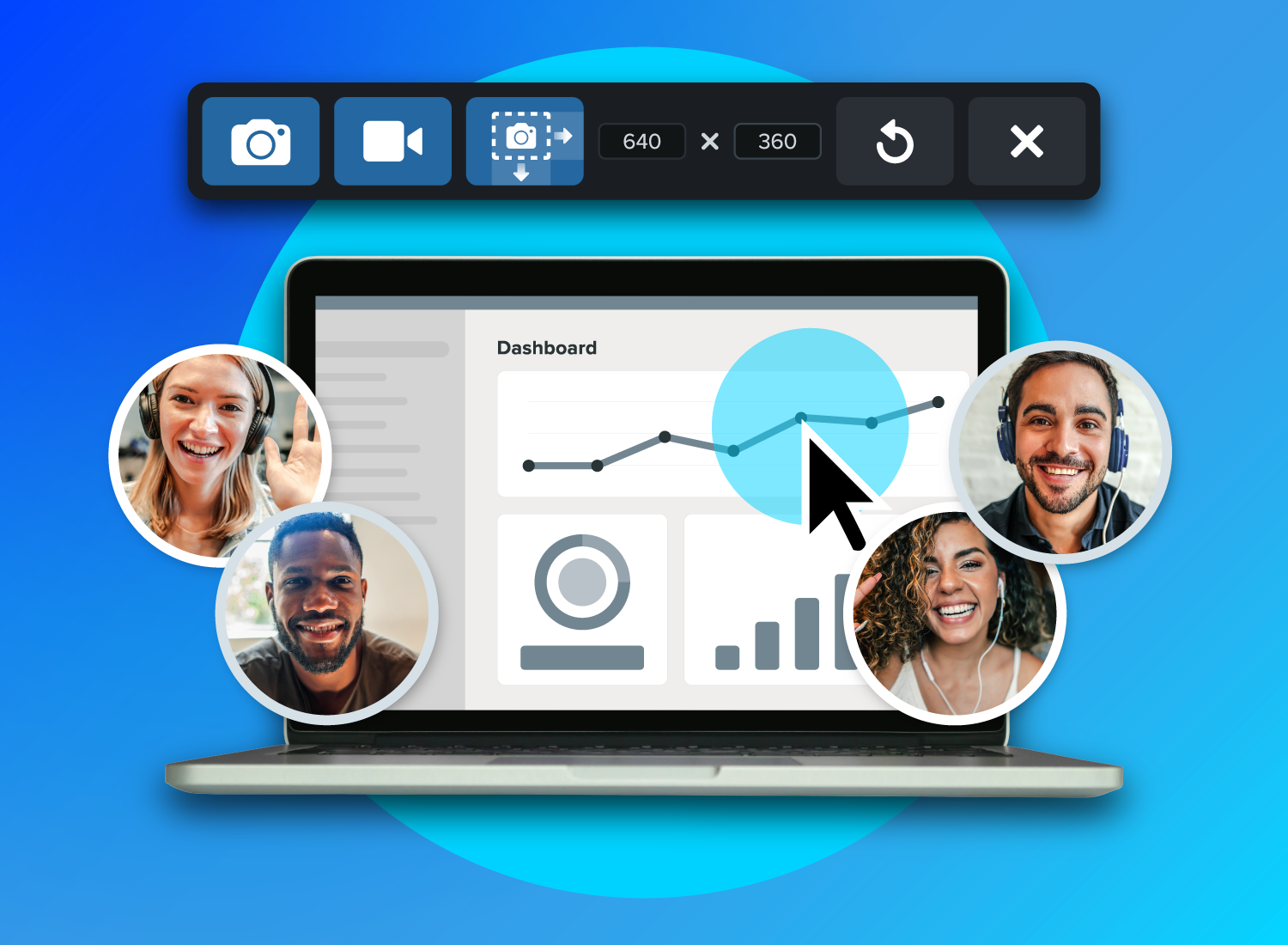
Clear communication is the foundation of productive teamwork, especially when your team spans time zones or locations. That’s why screen capture tools are becoming a must-have — team members can share ideas, report issues, and move projects forward without confusion or delay.
What began as a tool for content creators and tutorial makers has evolved. Screen recording software now plays a central role in internal workflows, asynchronous collaboration, and troubleshooting across functions. Whether you’re onboarding new hires, giving design feedback, or documenting technical steps, a quick screen recording or annotated screenshot can save time and prevent miscommunication.
Below, we explore the specific benefits, practical use cases, and key features to look for in a screen capture tool to maximize team collaboration.
Why screen capture helps teams collaborate more effectively
As more teams engage in remote work, screen capture tools help bridge communication gaps, giving teams a fast, visual way to share context, streamline feedback, and reduce back-and-forth. Let’s break down the core ways it boosts collaboration.
It reduces miscommunication and clarifies intent
Showing what you’re seeing on your computer screen eliminates guesswork. Whether you’re reporting a bug, giving feedback, or explaining a process, a visual communication method captures exactly what you mean.
This is a game-changer for remote teams, where text-based messages on Slack can spiral into long, unclear threads. A quick screenshot or video provides context that words alone can’t, ensuring everyone understands the task or issue at hand.
For instance, instead of describing which part of a page is broken, a screen capture lets you highlight it directly. Something as simple as a quick screenshot on your Mac can save time and cut confusion when you’re pinpointing a UI issue or noting a detail in a design. The result? Fewer follow-up questions, faster alignment, and less frustration across the board.
The best snipping tool for Windows and Mac
Don’t let clumsy built-in tools hold you back. Take and edit screenshots with Snagit!
Get Snagit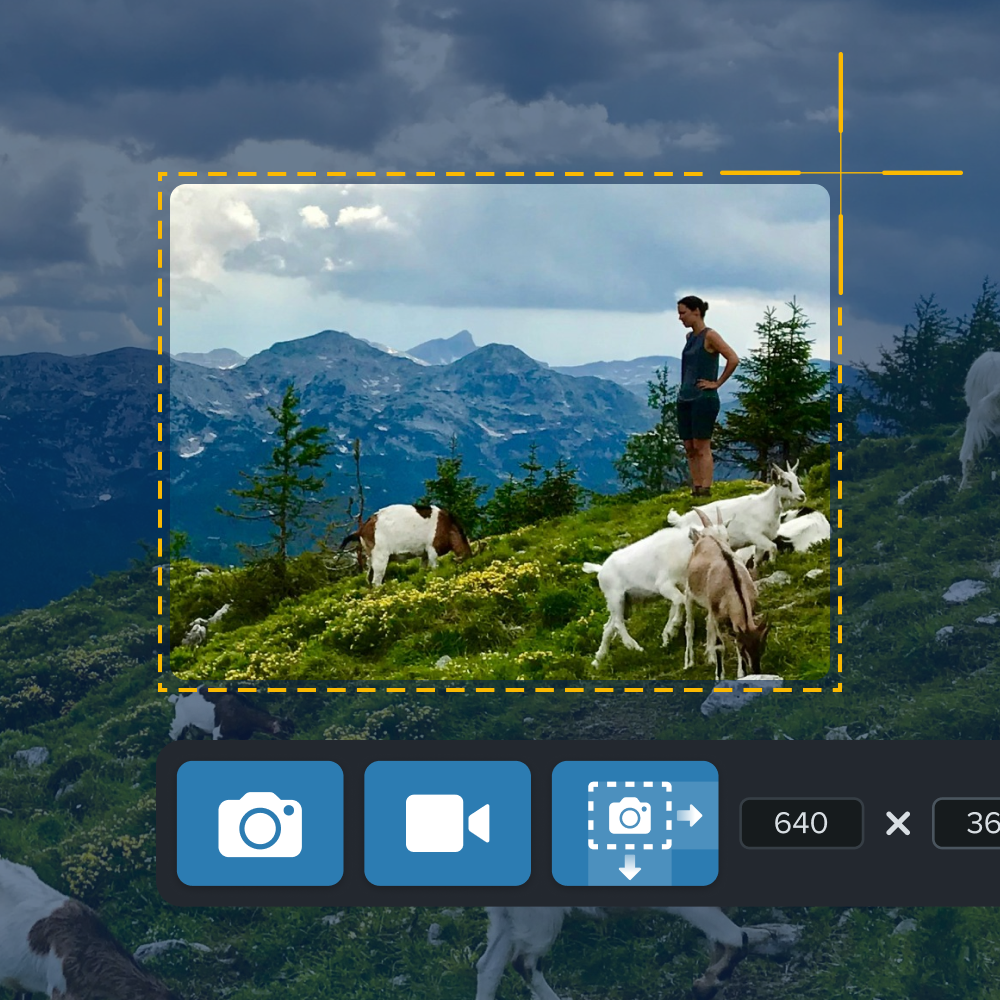
It saves time compared to writing long explanations
Screen recordings let you say more with less. Instead of typing out a lengthy step-by-step guide to explain a workflow, you can share a marked-up screenshot or a short recorded video.
For example, a team member might send an annotated image to highlight a specific dashboard metric or record a 30-second clip to walk through a process. A lot of teams rely on this approach to cut repetition. Got a question that people ask over and over? Send them a quick visual how-to tutorial instead of writing out the answer again.
It cuts down on unnecessary meetings
Not every conversation needs a virtual meeting. With screen capture, you can explain a complex idea or give an update in a quick recording and share it asynchronously. Teammates can watch and respond when it fits their schedule — no need to coordinate a real-time call.
This keeps projects moving without interrupting deep work or juggling calendars. Visuals also improve retention, and recordings can be rewatched any time. A short video is often more effective and far less disruptive than another Zoom invite, especially when walking through a new process or giving detailed feedback.
It works well across roles and tools
Screen recording tools aren’t just for one team or function. They’re useful across the board. Marketers use them to give precise feedback on design assets. Developers record walkthroughs of code or environments. Support teams rely on them to explain fixes or document issues.
Because it’s visual and flexible, screen recording fits into almost any workflow. You can capture a quick clip to explain a process, highlight a bug, or clarify a decision, then drop it into whatever tool your team already uses. That versatility makes screen capture a smart investment across departments.
Common ways teams use screen capture for collaboration
Screen capture tools have a range of practical applications across departments. Here are some of the most common ways teams integrate them into their workflows.
Reporting bugs or feature feedback
Developers and QA teams rely on screen recording to pinpoint issues. Recording the exact steps leading to a bug, down to dropdown menus or specific clicks, makes it easier for teams to reproduce and fix problems.
Tools like Snagit excel here, capturing menus and interactions that built-in tools often miss. This speeds up customer support responses, improving customer satisfaction by resolving issues faster and with fewer back-and-forth exchanges.
Sharing status updates or walkthroughs
Instead of sending lengthy status update emails or jumping into a meeting, team leads or project managers can use screen recordings to walk others through dashboards or task boards.
For remote teams, this asynchronous collaboration provides visibility without interrupting workflows. Quick recorded videos ensure that everyone is on the same page without real-time discussions.
A project manager, for example, could record a short video of a project board, explaining progress, highlighting blockers, and showing the next steps. The video is then shared with the team, and they can review and respond when it’s most convenient.
Providing internal support or instructions
Screen capture is invaluable for teams like IT, HR, or employee training. They can quickly create tutorials to guide new employees or help team members navigate internal tools. The ability to capture either the entire screen or a specific window means they can focus on just what’s needed.
Many teams also use screen recording tools to preserve institutional knowledge. For example, IT teams can record their desktops to create step-by-step videos that walk through how to resolve common issues. Store these visual aids in a centralized knowledge base so anyone can get help on demand, without waiting for IT.
What to look for in a screen capture tool for team use
Choosing the right screen capture software means prioritizing features that streamline collaboration. Here’s what to focus on.
Easy capture and markup features
Speed is everything when it comes to visual communication. A screen capture tool that allows for quick screen captures and instant markup can drastically improve your teams’ workflows.
Look for user-friendly software that lets you capture your screen with minimal effort, whether that’s selecting a specific window, full screen, or a custom region. Once captured, the ability to annotate the screenshot or video immediately, without switching tools, saves a lot of time.
Snagit makes this process seamless with an intuitive interface that lets users add arrows, text boxes, or highlights and even obscure personal or sensitive information in seconds.
Record your screen with Snagit
Snagit makes it easy to share quick updates and how-to’s by capturing exactly what’s happening on your screen.
Get Snagit
By reducing the number of steps required to capture, annotate, and share, teams can streamline their communication, making it faster, clearer, and more efficient.
Ability to record short videos or GIFs
While screenshots are great for static information, video content and GIFs take visual communication a step further. Recording short training sessions, webinar clips, or sales pitch walkthroughs provides dynamic visuals for explaining actions or outcomes. This is particularly valuable for troubleshooting, where showing the exact sequence of events can eliminate ambiguity.
Look for a tool that supports both video recording and GIF creation, as different communication scenarios might require different formats. A short GIF might work for quick troubleshooting steps, but full explanations might need a longer, high-quality video.
With Snagit, you can quickly switch from image capture to video recording or GIF creation from one toolbar—no extra software needed. It’s built for speed and simplicity, so you can capture your screen, record cursor movements or actions, and generate lightweight media without breaking a sweat.
For teams that regularly explain workflows or document technical issues, this flexibility means less time writing instructions and more time sharing clear visual guidance.
Simple sharing and storage
A great screen capture tool should make sharing and storing content just as easy as capturing it. When your team is collaborating remotely or across different time zones, having quick access to visuals and recordings can prevent delays and miscommunication. Look for a tool that integrates seamlessly with your existing collaboration platforms, whether that’s Slack, Microsoft Teams, or email.
The ability to store, tag, and organize visual content is just as important. Teams need to be able to find the right screenshot or video content in a flash, especially for recurring tasks or troubleshooting steps.
Snagit provides built-in options to store content directly in cloud-based platforms or on your local drive. It also lets you copy or share content directly via link with Screencast, making visuals easy to access and view, without clunky file attachments.
Looking for professional screen recording software?
From simple screen captures to polished video editing, TechSmith has everything you need to create professional-quality content.
Learn More
Record, share, collaborate—it’s that simple with TechSmith
Screen capture brings clarity to team communication, helping you explain processes, give feedback, report issues, and share updates without the need for back-and-forth messages or meetings. It saves time, improves user experience, and supports remote collaboration across locations, departments, and time zones.
Snagit is purpose-built to support this kind of fast, visual communication. With intuitive capture, markup, and recording features, it lets teams document and share information clearly and efficiently.
You can create annotated screenshots, step-by-step training sessions, or lightweight GIFs in seconds and share them instantly with tools your team already uses. By cutting virtual meetings, reducing back-and-forth, and supporting both async and synchronous collaboration, Snagit helps your team move faster with less friction.
Get started with Snagit and empower your team to work smarter, one screen capture at a time.
Share