Blur Tool

Blur distracting information to focus your viewer's attention. Or automatically identify and redact sensitive information with the click of a button.


3d Snagit icon

Blur or pixelate areas of an image to cover distracting information and help focus your audience’s attention where you want.


Note: Blur and other tools in the Snagit Editor toolbar are available to edit images. To blur a video, share your video to TechSmith Camtasia.

Add a Blur

  1. Click the Blur tool in the Snagit Editor toolbar.
    Blur tool

    Note: If the tool is not visible in the toolbar, click the More dropdown. To customize your toolbar, see Customize the Snagit Toolbar.

  2. Select a Quick Style or edit the tool properties to customize the tool. See Tool Properties.
  3. Click and drag on the Canvas to draw the blur.
  4. When you are finished with the Blur tool, click the Move tool to select, move, edit, or delete objects you added to your image.
    Move tool

Note: Some third-party tools can reverse blur and pixelation. To secure confidential or sensitive information, select the Solid shapes option from the Type property dropdown and share as a JPG, GIF, PNG, PDF, or other flattened file type.

Tool Properties

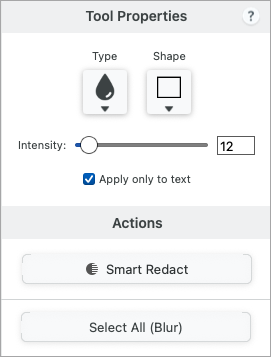
Edit the properties to customize the tool.

Tip: Edit all blurs together (Mac only).

To change all Blur objects at the same time, in Tool Properties click Select All Blurs. Then edit the tool properties as needed. You must have Snagit for Mac version 2025.3.0 or later.
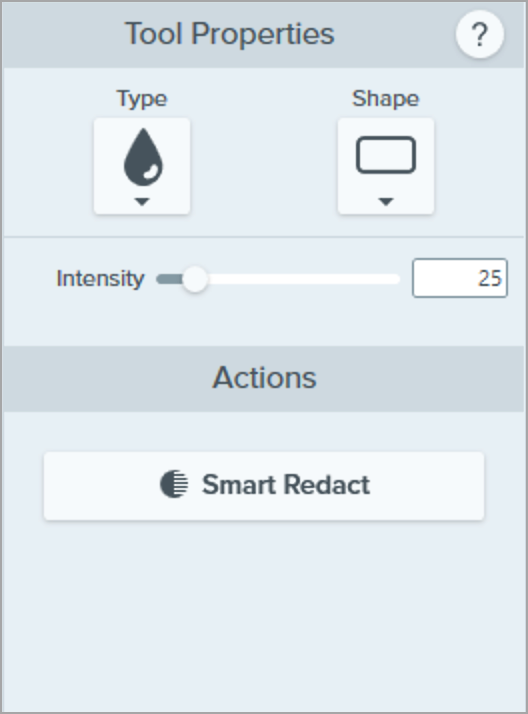
Blur tool properties and actions on Windows
Snagit for Windows

Blur tool properties on Mac
Snagit for Mac

Type
Click the dropdown to select the blur type:
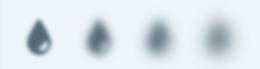
  • Blur: Smooths the details in a capture similar to viewing though an out-of-focus lens. Use to apply depth or to blur the details in sensitive information.
    Smooth blur
  • Pixelate: Covers up an area with a set of large square pixels. Use to mask faces or sensitive information in an image capture.
    Pixelate blur
  • Solid shapes: Covers an area with a fully opaque shape. Use this option to redact confidential information. To ensure security and prevent others from removing the redaction, be sure to flatten the file (right-click and select the Flatten All option) or save to a flattened file type such as JPG, GIF, or PDF before sharing.

Color (Solid shapes only)
Click the dropdown to select the color for solid shape redactions.

Shape
Click the dropdown to select the blur shape.

Intensity
Drag the slider to adjust the blur level.

Smart Redact


Smart Redact identifies and automatically covers sensitive information, such as contact information, credit card numbers, and more.
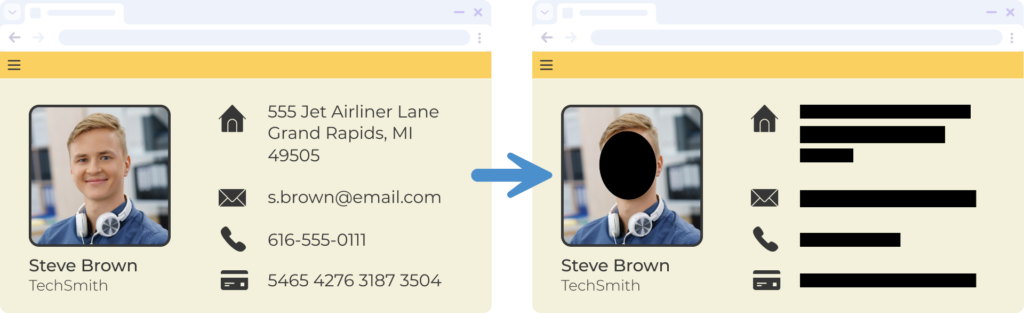
Before and after example of Smart Redact

To automatically redact sensitive information in an image:
  1. Click the Blur tool in the Snagit Editor toolbar, or from the More dropdown in the toolbar.
    Blur tool
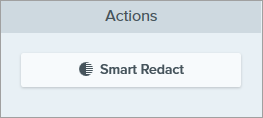
  2. In the Actions panel, click Smart Redact.
    Smart Redact button
    Snagit detects different categories of sensitive information and covers them with black shapes.
  3. Complete any of the following to edit the redactions:
    • Toggle off information categories that you want to keep visible in the image. Snagit removes redactions from those categories.
      Smart Redact information categories
    • In the Type dropdown, select the Blur or Pixelate option to change the appearance of the redactions.
      Smart Redact type dropdown

      Note: Some third-party tools can reverse blur or pixelation. For the most secure option, use the Solid shapes redaction type.
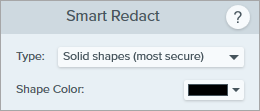
    • For the solid shapes redaction type, click the Shape Color dropdown to choose a different color.
      Shape Color option for Solid redactions on Windows
  4. Click Done to close Smart Redact.
  5. To edit individual redactions or blurs, complete any of the following:
    • To remove a redaction and reveal the information underneath, click to select the redaction and press Delete.
    • To edit the redaction type, color, shape, or intensity, click to select the item, and then adjust the tool properties.
  6. Flatten the image before sharing so that redactions and blurs cannot be removed to reveal the information underneath. Complete any of the following:
    • Right-click (Windows) or Control+click (Mac) and select the Flatten All option.

      Note: With this option, redactions and blurs cannot be edited further.

    • Click Share Link to share the image via Screencast. See Get a Shareable Link.
    • Select File > Save As and save the image in a flattened format such as JPG, PNG, or GIF for sharing.

Note: Smart Redact leverages AI technology, specifically ABBYY and OpenCV Classifier on Windows and Apple OCR and Apple Person Selection on Mac, to identify common patterns of sensitive information in text and images. Neither the image nor the sensitive information in the image is uploaded to TechSmith or to any service provider, so your data remains secure. For more information, see TechSmith and AI.

Snagit Icon Logo

Get Snagit

The best screen capture software for professionals

* Have Snagit 2024 or earlier? Check out our previous version help.
All Snagit Tutorials