









Game recording has become an essential part of modern content creation. And not just for gamers! Professionals record gameplay for tutorials, product demos, and training videos. Recording and sharing your gaming experiences has become almost essential for any modern gamer venturing into the content creator space.
This guide will serve as a straightforward and frustration-free tutorial for recording clear, professional-quality footage. We’ll cover common issues like lagging, corrupted files, and poor audio, and how to avoid or fix them in just a few easy steps. We’ll also discuss the top video editors on the market and the best methods for boosting your visibility and enhancing your gaming experience.
How to choose the right game recording software
The foundation of any solid recording setup begins with the tools you choose.
Define your goals
There are a lot of screen recording tools on the market, so it can be tricky to choose the one that’s right for you. Different tools serve different goals, which is why it’s important to get clarity on what your goals truly are. Ask yourself: Are you recording a tutorial? Capturing gameplay for Twitch? Producing an edited YouTube video?
Clarify whether you need editing tools, live streaming support, or simple, lightweight screen capture. Each of these goals may require a different screen capture software.
Compare popular tools
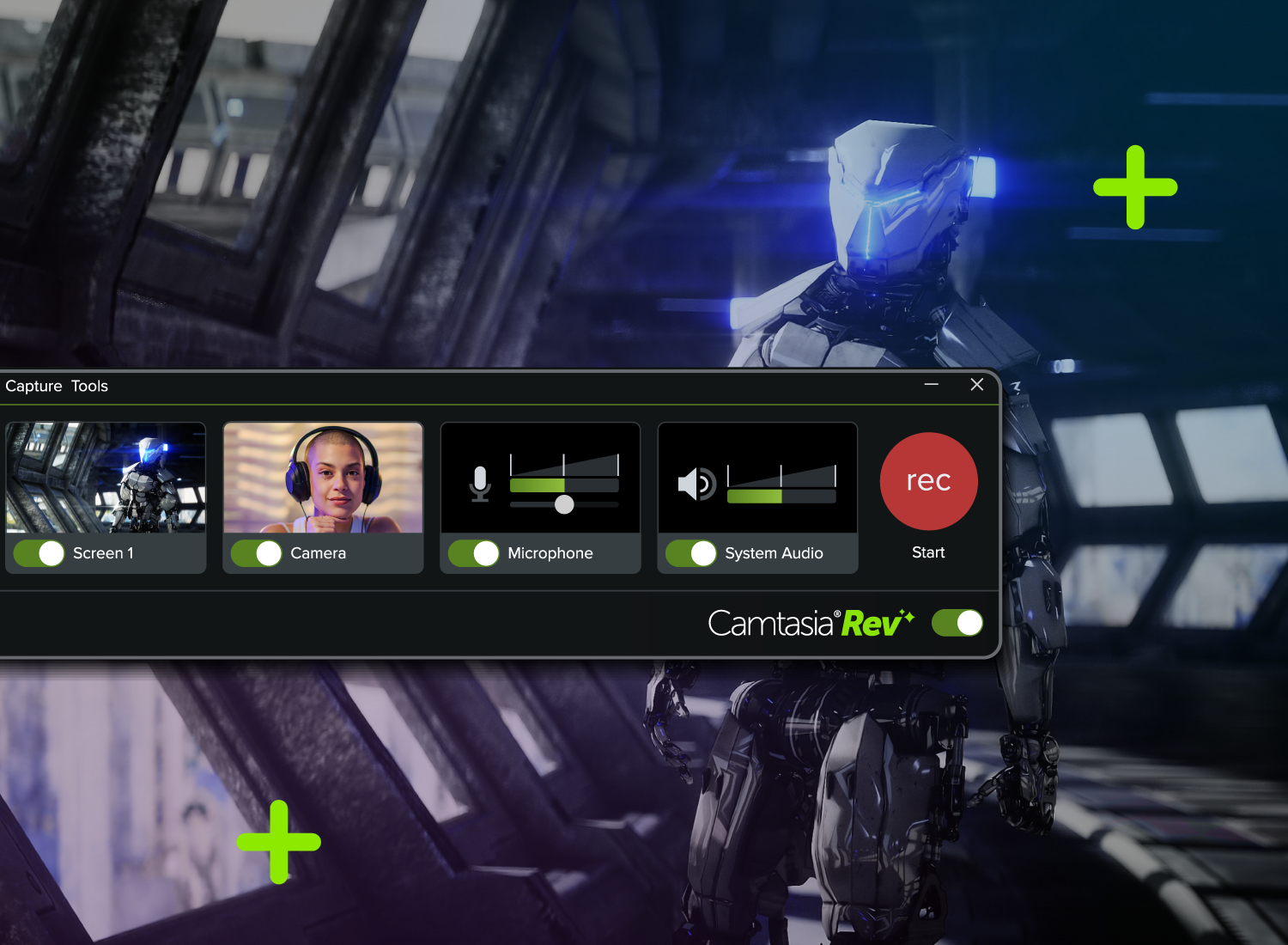
Camtasia is a great tool for almost all game recording needs. Camtasia screen records your content on different tracks, so your screen, audio (microphone and system), camera or webcam, and cursor are all separately editable as you go. You can add text, captions, screenshots, and other elements easily using drag-and-drop technology. This gives you the most flexibility to record and create content that looks exactly like you imagined.
Additionally, Camtasia is ideal if you want narration overlay tools, AI features in Camtasia Audiate like script generation, and audio cleanup. Instead of editing your audio using your video as a guide, you can delete sections of text from an auto-generated transcript, which will then be deleted from your video footage. By editing video using text, you can get rid of hesitations, mistakes, and other issues more quickly than editing video alone.
Go from screen recording to polished video
A screen recording is just the start. Camtasia’s editor helps you add the callouts, animations, and edits you need to create a truly professional video.
Free Download
OBS Studio works well for people who need a live streaming option. It lets streamers broadcast content to platforms like Twitch and YouTube, so you can share your gameplay directly with your viewers. You can control your live stream with scene management, audio editing, and adding multiple sources.
Xbox Game Bar is a built-in tool for Windows users. It works well for quick clips that don’t need much editing, but lacks more robust features.
Prioritize ease of use
Many first-time video creators abandon their projects due to a confusing user interface. And we don’t blame them! Screen recording and video editing can be so confusing if the tool isn’t made with beginners in mind. Intuitive UIs, quick-access settings, and minimal setup times are important factors to look for when finding your tool of choice, especially if you’re a B2B professional who is recording for work.
Look for multi-track audio support
Software with multi-track recording enables easier editing and quick fixes after you record. For example, you can separate your game audio from voice commentary when you edit, so you can adjust for perfect audio timing.
Camtasia allows you to edit audio and video tracks independently, and Audiate features support text-based editing and filler word removal for polished voiceovers. Simply click on the words you want to cut from your video and click the backspace or delete button.
If you can edit a doc, you can edit a video
Stop fearing the timeline. Camtasia Audiate transcribes your recording so you can edit your video just by editing the text.
Free Download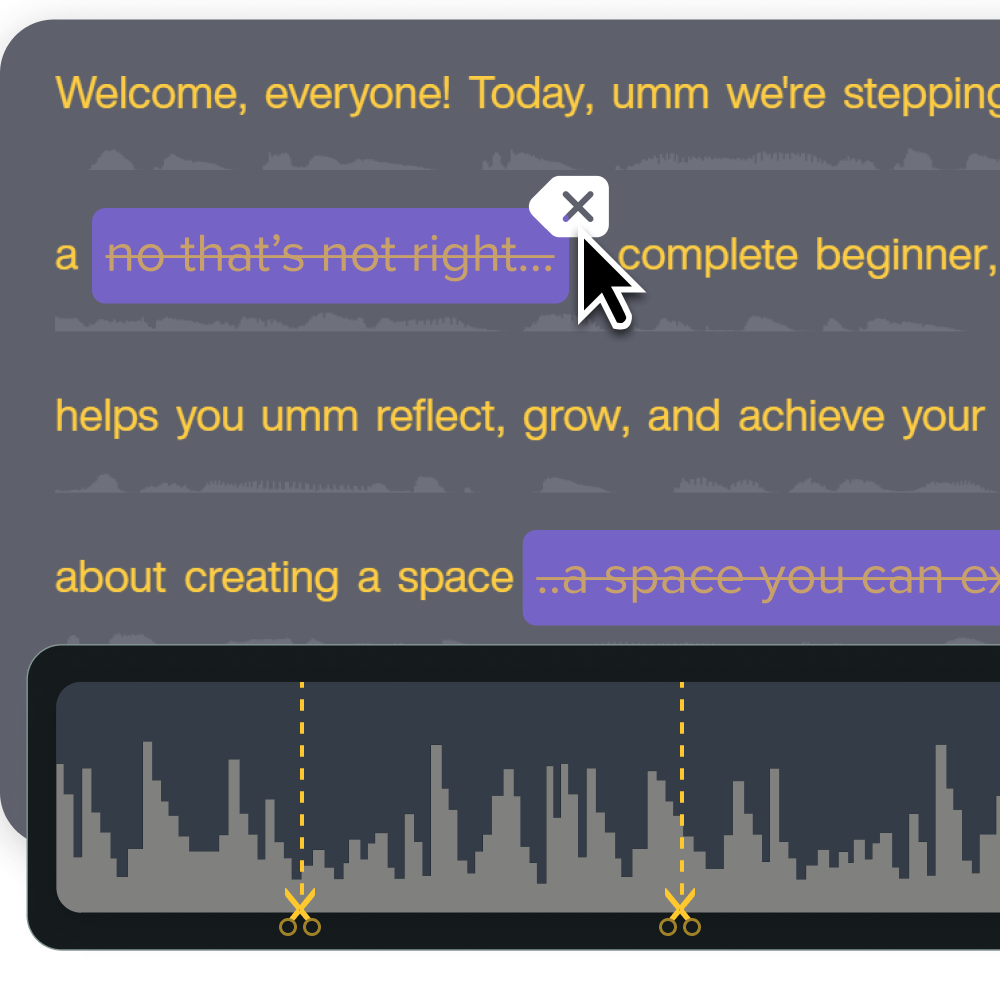
To video capture your PC games quickly, you can set up hotkeys in Camtasia that start recording in seconds. It’ll even keep your settings from your last video recording!
Consider direct upload or sharing tools.
Consider a tool that integrates easily with YouTube, Vimeo, or cloud sharing to speed up the publishing process. Camtasia has a built-in export option to YouTube, so you can easily share your content with your audience without unnecessary steps.
If you’re sharing your video internally, consider using a link-based sharing method like Screencast to make sharing easier for everyone. Screencast also has passphrase access control, view tracking, and the ability for your viewers to leave time-stamped comments and reactions as they watch your video.
Steps to capture high-quality gameplay
In this section, we’ll cover some considerations for setting up an ideal gameplay environment. Believe it or not, video quality depends more on optimization than expensive gear. Ensure your tools are compatible with your computer. For example, Camtasia’s screen recording software works for Windows 10+ and macOS.
Crystal-clear screen recording
Why settle for blurry screen content? Camtasia Editor’s screen recorder captures everything at up to 4K!
Free Download
This will read as a sequence of steps to follow before you hit record. Keep in mind that this isn’t a checklist where you need to check every box, but a helpful outline.
Check system requirements
First, you’ll need to verify if your system can handle gameplay and recording simultaneously. Underpowered systems cause lag, stuttering, and file corruption, which we want to avoid at all costs.
Confirm system specs
Check free storage (we recommend 50GB+)
Monitor CPU/GPU load during test run
Update drivers
Adjust resolution and frame rate
Higher settings mean better visuals, but require more power and produce larger files to edit. A good balance between viewer quality and system performance is imperative.
Resolution refers to the number of pixels displayed on the screen, which influences the clarity and detail of your video. Common resolutions include 1080p (Full HD), 1440p (Quad HD), and 2160p (4K). Higher settings can lead to better-looking videos but require more from your computer.
Frame rate, measured in frames per second (FPS), indicates how smoothly your game plays and is captured in your gameplay recordings. A higher frame rate (such as 60 fps or more) provides a more fluid motion, vital for fast-paced games where precision and clarity are everything. But the balance between frame rate and game performance must be carefully managed, especially on less powerful systems.
You also need to consider the final output medium. Streaming platforms like Twitch have specific recommendations for stream quality, while YouTube favors videos with higher resolutions.
These guidelines are a good outline to check your work against:
- Fast-paced = 1080p/60fps
- Strategy = 1440p/30fps
- Retro = 720p/60fps
We recommend trying out different resolutions and frame rates and doing some playback until you get a balance that works well for you.
Enable in-game audio and commentary
Audio issues are more damaging than video issues for your viewers. This setup will help you record clean game audio and voice commentary so you can keep your viewers engaged with your content.
Game audio at 70–80%
Mic slightly lower
Use push-to-talk or noise gates
Record test clip to check balance
Multi-track recording (highly recommended for easy editing)
Use hardware acceleration where possible
Consider the following best practices to improve the clarity and engagement of your video.
Trim dead space so your viewers only see what’s interesting. We recommend cutting loading screens, failed attempts, or downtime to ensure you maintain viewer attention.
Add annotations or callouts like arrows, circles, or labels to highlight actions or explain steps along the way. This is especially useful for tutorial-style videos where viewers need to follow specific instructions. Camtasia’s editor has countless options for this, and can spotlight or magnify your cursor to make it obvious where you move and click.
Use zoom and pan effects to directly focus on specific parts of the screen during fast-paced gameplay. Camtasia’s AI features include automatic zoom and pan so you can focus on making other edits. Motion path animations are also super helpful here.
Layer in music or ambient sounds as needed to keep from having silent spells. Add royalty-free tracks to boost the game’s energy, but make sure they don’t overpower voiceovers or in-game audio. Camtasia has a library of free-to-use royalty-free music you can easily drag and drop into your project.
Add transitions like fade-ins and fade-outs or cuts to keep the pacing quick and smooth, without jarring the viewer too quickly.
Include intros and outros from branded templates to create a clear brand for your viewers to refer back to. Even a simple title card can make everything feel much more cohesive.
Best ways to share gameplay videos
A good sharing strategy makes it easier to build a loyal audience. From your friends and fellow gamers to potential sponsors, strategic distribution is key. Successful sharing involves three elements: choosing the right platform, optimizing for discovery, and engaging with the community. Since each platform has unique audiences and expectations, you’ll need to cater your content to see success down the road.
Consider the following thoughts on platform selection before you pick one:
- Where does my target audience consume the content?
- What are the technical requirements for each platform?
- How will I need to adapt the content to fit the platform’s culture?
- How will I measure engagement to refine my approach?
This table compares popular social media video platforms to help you pick the best one for you.
| Platform | Best for | Video Specs | Audience expects | Engagement style |
| YouTube | Long-form content | 1080+, any length | Edited and polished videos | Comments, likes |
| Twitch | Live gameplay | 720-1080p streams | Real-time interaction | Chat, follows |
| TikTok | Quick highlights | Vertical, <3 mins | Fast-paced, trending | Shares, duets |
| Discord | Community sharing | Any format | Raw clips, discussions | Direct feedback |
Some video editors have streamlined workflows so you can upload your videos right into your platform of choice within the editing interface. This can be super convenient for quick uploads and minimizes download and storage complications. For example, you can send your videos right from the Camtasia editor to YouTube without hassle.
Confidently capture and share your gameplay
Lucky for us, professional game recordings don’t require expensive gear! Instead, focus on a thoughtful setup and editing that is maximized for your content needs. The biggest difference is often made from the smallest details, so focus on clear audio, balanced settings, and the right software for you.Start small, test your setup, and gradually improve as you build confidence. Game capture can be scary at first, but you’ll get the hang of it quickly with beginner-friendly tools like TechSmith’s Camtasia and other tools. It’s time to record your best game yet!
Share