









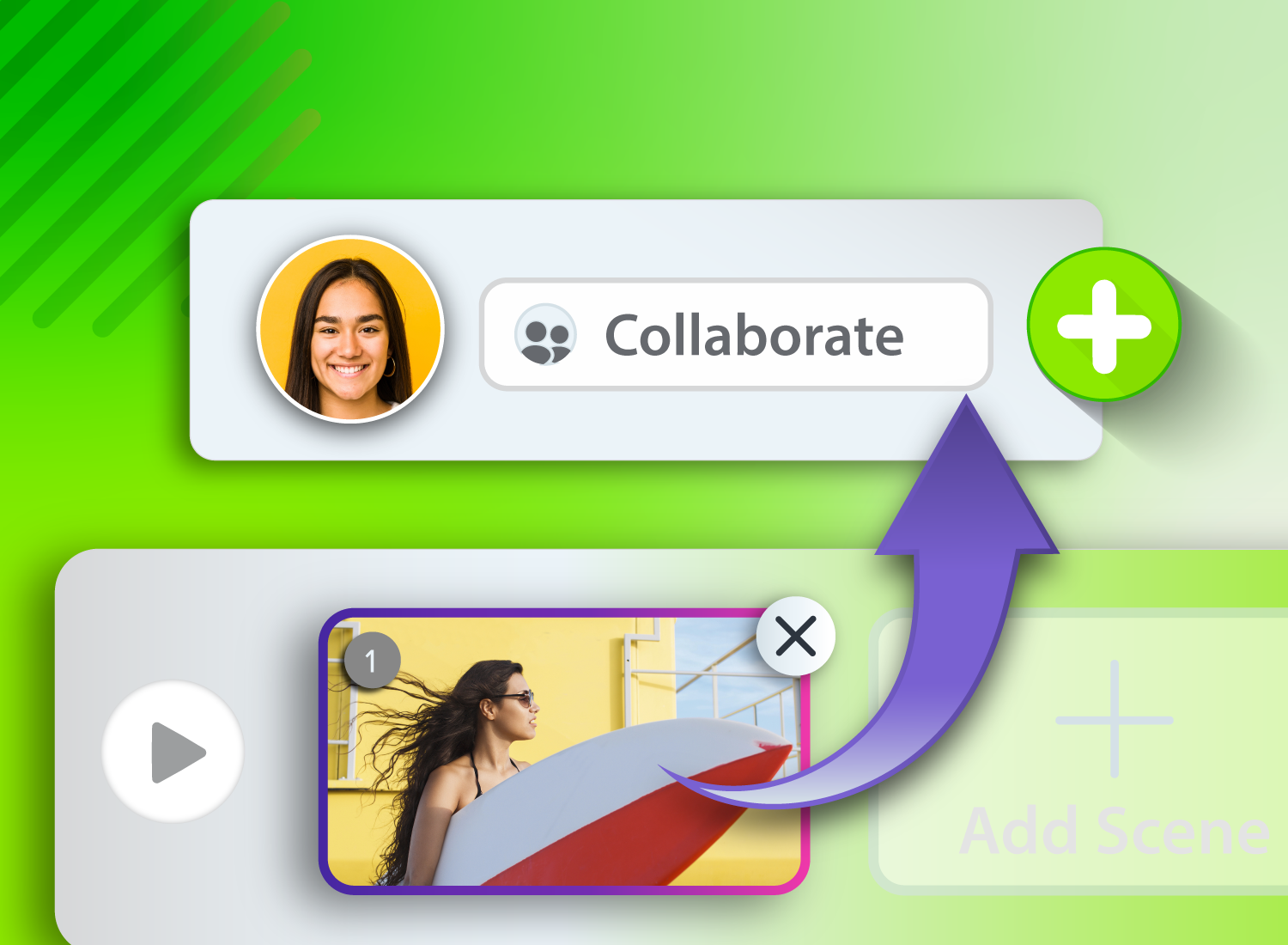
For many businesses and creative teams, video collaboration can feel like controlled chaos. Files live across email threads, network drives, and cloud storage folders; version names multiply; feedback gets buried. Team members spend hours matching the right comments with the right file — time that could be spent creating.
If that sounds familiar, there’s good news: collaborative video editing software streamlines the process, giving your team one place to create, review, and finalize videos without chasing links or losing feedback.
This guide explains what to look for in a collaborative video editing platform, why it matters, and how teams use Camtasia Online and Screencast to simplify every step of creation and review. With AI-powered tools and browser-based editing, these solutions help creators work faster, stay organized, and deliver polished, on-brand videos without downloads, watermarks, or guesswork.
Key Takeaways
- Collaborative video editing software combines editing, sharing, feedback, and version control in one workflow.
- The most useful tools help teams manage reviews, keep files organized, and maintain brand consistency.
- The Camtasia Product Suite supports a practical workflow for recording, reviewing, editing, and sharing video.
- Teams can collaborate in the browser, collect timestamped feedback, and move projects into the desktop editor for advanced edits when needed.
What is collaborative video editing software?
Collaborative video editing software is a type of video tool that helps multiple people create, review, edit, and finalize video projects together. It typically combines editing tools with file sharing, version control, feedback features, and permissions so teams can work from the same source of truth.
By simplifying complex workflows and enabling clear visual feedback, collaborative video editing software helps teams deliver content faster, make fewer errors, and maintain consistent branding across every project.
Camtasia Online is an easy-to-use web-based collaborative video editor that eliminates the frustration of traditional collaboration. Easily create and work together on video projects directly in your browser — no app downloads needed.
Essential features for video editing collaboration
Your business likely already pays for one or more cloud-based file-sharing tools, but they aren’t always built for true team-based video editing.
The best solutions go beyond simple file sharing. They’re designed to help teams manage feedback, control versions, and keep every contributor working from the same source of truth.
Use the capabilities below as a checklist when evaluating your current tools (or comparing new options) to see which solutions actually support efficient, professional video production.
Real-time or async review
Look for a tool that lets you review videos in a way that fits the project. Some situations call for real-time collaboration, where contributors make quick decisions alongside creators and editors. Others benefit from an asynchronous (async) workflow, which allows for sequential approvals or more thoughtful, documented input.
Screencast gives collaborators flexible tools for their async editing workflow, like timestamped comments and centralized video review. Camtasia Online adds dynamic real-time features for tighter teamwork and quicker decisions.
When you use Camtasia to create your video, you can share it via a Screencast link on any platform you’re using to collaborate, like Slack or email. Together, these tools help teams balance immediate discussions with deeper, more deliberate reviews.
Easy sharing and file management
File management is a serious challenge in most video workflows.
Many setups look like this:
- Large files scattered across your network and multiple cloud storage services.
- File names ending in final_final2_cathyfix_reva_v1_012.
- Time wasted reviewing last week’s version of a video instead of today’s.
Good collaborative video editing software makes all of this disappear. Centralized libraries, revision tracking, non-destructive edits, and adjustable permissions keep everyone focused on the right (and only) version of each file. Less time hunting for assets means more time creating content and moving your business forward.
Camtasia Online makes file sharing secure and seamless, so collaborators can open and edit videos instantly. Whether you’re creating training content, internal communications, or materials for external audiences, Camtasia online is a great place to start.
Consistent branding tools
Brand consistency matters because it’s what makes your organization recognizable at a glance. It’s why you enforce logo colors, wordmark fonts, and maybe even maintain a defined visual and editorial house style.
Across teams and departments and both internal and external media, brand consistency keeps your identity clear and cohesive. Collaborative video editing tools help creators uphold those standards through:
- Templates: Ideal for producing series content like async video training
- Locked assets: Keep content teams on brand and prevent improvisation
- Approved sequences: Give creators confidence they’re staying on track
Maintaining brand visuals and formatting is simple with Camtasia Rev (available in Camtasia Editor). Rev lets businesses quickly create templated looks, and you can even produce videos in Camtasia Online and refine them later in Rev.
Integrated audio editing
Poor sound can ruin even the best video. Think about it: when was the last time you watched a video to the end if the audio was weak, garbled, staticky, or full of background noise? If the sound isn’t right, your audience probably won’t stick around or stay engaged.
Look for software with integrated audio tools such as noise reduction, transcript-based editing, and a shared voiceover library. When creators can edit audio alongside video, they collaborate more effectively and produce a higher-quality final product.
Camtasia Audiate adds AI-powered text generation, editing, translation, and AI voices and avatars. This suite unites video, audio, and AI editing in one streamlined workflow, helping teams move from rough cut to finished content faster.
If you can edit a doc, you can edit a video
Stop fearing the timeline. Camtasia Audiate transcribes your recording so you can edit your video just by editing the text.
Free Download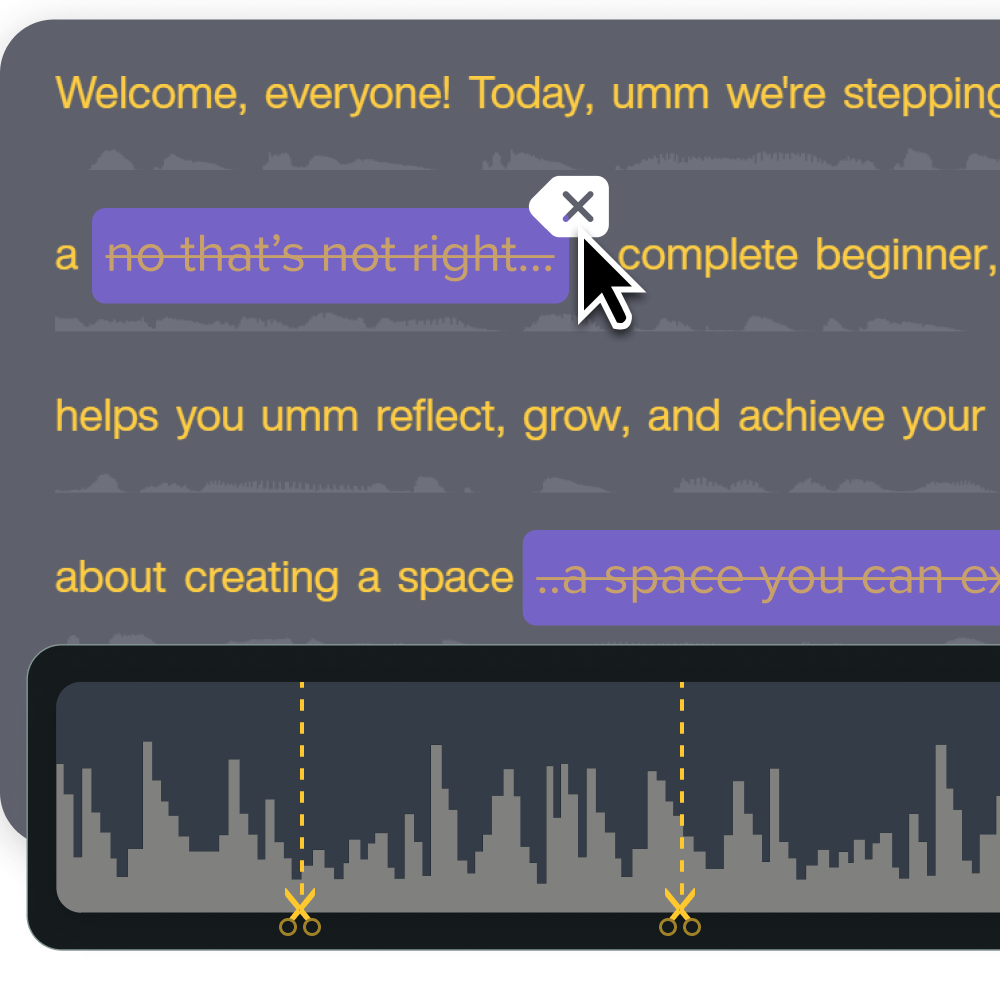
A step-by-step workflow for online video collaboration
We’ve covered the value of collaborative video editing in theory. Now let’s see how it works in practice. Here’s a simple, step-by-step guide to using Camtasia Online for real-world team projects.
1. Invite collaborators
Start by inviting your collaborators. Camtasia Online makes it simple to add people directly to a project.
As you set permissions, note that Camtasia Online offers two levels of access:
- Project access: Grants full editing rights across the entire video
- Scene-only access: Limits editing or recording to specific scenes you assign
For many organizations (especially enterprise organizations), this kind of user access control is crucial. Instead of granting all-or-nothing permissions, project owners can stay in control while gathering contributions from subject matter experts (SMEs), reviewers, or one-time participants.
Invitees don’t need paid accounts to join, so they can accept invitations and start working right away. Despite this ease of access, Camtasia Online keeps every project secure: invitations are tied to the sender’s account, and links only work for approved email addresses.
2. Record and customize scenes
Next, each team member can add or record their scenes directly from their browser, with no application or software download required. They can choose between screen capture, camera video, or a combination of both, then add their content with ease, even without technical experience.
Scenes lock automatically while someone is editing, preventing conflicts and versioning issues by ensuring no one overwrites another person’s work.
3. Review and manage feedback
After recordings are complete, collaborators can make basic edits such as trimming clips or choosing styles. Project owners maintain control over the overall look and feel to keep branding consistent.
Teams that need more detailed async review can use Screencast to organize reviewer comments, add timestamped notes, and keep revisions from getting lost in long email threads.
4. Finalize and distribute
After gathering all scenes and feedback, you’re ready to finalize your video. In Camtasia Online, you have two options:
- Ready to send: Use Camtasia Online’s shareable link (under Export options) to export and share the video. Viewers can comment and react to specific parts if desired.
- Needs advanced edits: If the project needs more polish, open it in the full Camtasia Editor after collaboration wraps up. There, you can add advanced transitions, effects, and styling.
With either option, Camtasia Online helps move from collaboration to distribution faster. Every workflow is secure, scalable, with rendering and export settings handled automatically. That means fewer manual steps and more time to focus on creating great content.
Why teams choose Camtasia for collaborative video editing
Most collaborative video editing tools fall into one of two ditches. Some are too technical for non-experts, forcing teams into complex creative workflows. Others are user-friendly but lack professional-grade tools, limiting quality and scalability.
Collaborative video editing requires a unified ecosystem rather than a collection of scattered tools. The Camtasia suite connects Camtasia Online for browser-based recording, Camtasia Audiate for AI text-based audio editing, and Screencast for time-stamped reviewer feedback. All of these assets sync directly into Camtasia Editor, helping your team build polished training videos without any wasted effort.
Teams choose Camtasia to meet real operational needs:
- Friction-free collaboration: Team members can edit specific scenes or full projects directly in their browser, without downloading or installing anything.
- Organized reviews: Screencast centralizes comments and tracks revisions.
- Seamless audio and video workflows: Teams can use Camtasia Audiate to edit transcripts and audio that sync back into Camtasia Editor, saving time and adding polish.
- Consistency across creators: Camtasia Rev makes it easy to create templates, so videos from different teams and departments share a unified look.
- Integrated AI tools: Boost productivity with practical, built-in features that enhance every stage of video creation.
- Simple exports and sharing: Export in the right format in just a few clicks, with no complicated render settings or file transfers.
Many teams and leaders rely on Camtasia’s suite as both their editing software and collaboration platform. Trainers, marketers, HR pros, IT leads, and more trust Camtasia for quick, secure, and scalable video production.
A closer look at streamlined team workflows
Camtasia Online helps creative departments work faster and stay aligned on every project through its connected workflows. For enterprise teams, though, efficiency alone isn’t enough. They need a platform that scales without compromising quality, control, or brand integrity.
Here’s how Camtasia Online’s collaboration features stack up for enterprise teams.
Consistency across multiple creators
For large organizations with multiple teams producing different types of videos, maintaining visual and brand consistency is an ongoing challenge.
Camtasia Online helps by letting project owners lock templates, looks, and branding within each project. Camtasia Rev then extends that cohesiveness across the organization, automatically recalling brand styles so every department delivers video content with a unified visual identity.
Need to show your screen?
Skip the downloads. Use Camtasia online to record your screen, camera, and microphone right in your browser for free.
Start Recording
Integration with existing platforms
Enterprise teams can’t rebuild their entire tech stack for a new video tool; they need solutions that integrate well with the systems they already use.
Camtasia tools connect with leading cloud storage services like Google Drive, OneDrive, and Dropbox, keeping shared project files synced and secure. Camtasia online uses Screencast for sharing, and Screencast connects with communication platforms such as Slack and Microsoft Teams. Links shared in those workspaces automatically unfurl with details, streamlining feedback and review requests within existing team workflows.
AI-assisted collaboration tools for speed and accuracy
The AI-powered tools in the Camtasia Suite act as true collaborative accelerators, helping teams complete projects faster and with greater precision.
- Script creation: Generate scripts for videos based on prompts and existing resources.
- Text-based editing: Edit video through a text interface that matches your script or dialogue.
- Voice narration: Choose from more than 200 AI-generated voices and styles.
- Translation: Automatically convert scripts and captions into multiple languages.
- Video details: Instantly generate titles, descriptions, and chapter markers.
- Audio cleanup: Reduce background noise and intelligently remove filler words like “uhms” and “aahs.”
- Virtual presenters: Add AI-powered avatars to narrate your scripts.
By reducing manual editing and review cycles, these tools give teams more time to refine their messages and produce additional content.
Go from screen recording to polished video
A screen recording is just the start. Camtasia’s editor helps you add the callouts, animations, and edits you need to create a truly professional video. Free Download
Collaborate smarter and create faster with Camtasia
Between scattered files and complicated review cycles, many creators struggle to keep video projects organized and on schedule. Collaborative editing solves those challenges by bringing every part of the process — recording, editing, sharing, and feedback — into one streamlined workflow.
Camtasia’s connected products make that possible. Camtasia Online connects teams in real time, Screencast centralizes feedback and sharing, and Camtasia Audiate adds professional-quality audio editing and AI enhancements. Together, they help businesses of all sizes produce consistent, polished videos without slowing down.
Discover how Camtasia helps you create, collaborate, and distribute video for faster, higher-quality results.
Go from screen recording to polished video
A screen recording is just the start. Camtasia’s editor helps you add the callouts, animations, and edits you need to create a truly professional video.
Free Download
FAQs
What does collaborative video editing software do?
Collaborative video editing software helps teams create, review, edit, and finalize videos together. It combines editing tools with file sharing, version control, feedback systems, and permissions so contributors can work from the same project without losing track of changes.
What features matter most in collaborative video editing software?
The most important features on this page are review options, easy sharing and file management, branding controls, and integrated audio editing. Together, these features help teams stay organized, keep feedback clear, and produce consistent videos.
How do teams collaborate on videos with Camtasia?
Teams can invite collaborators into a Camtasia Online project, assign project or scene-only access, and let contributors record or edit scenes in the browser. After that, they can review feedback, finalize the video in Camtasia Online, or move it to the Camtasia Editor for advanced edits.
How does Screencast support video collaboration?
Screencast supports async review by centralizing video feedback and allowing timestamped comments. Teams can share a Screencast link in platforms like Slack or email to keep review requests and revisions organized.
When would a team use Camtasia Audiate in this workflow?
Camtasia Audiate is useful when a team needs transcript-based editing, audio cleanup, translation, or AI voices and avatars. It helps teams edit audio and video in a connected workflow so they can move from rough cut to finished content faster.
Share