









The best ways to enhance video are usually simple edits: correct color and lighting, stabilize and crop the frame, clean up audio, improve pacing, and add consistent branding. These changes can make your videos easier to follow and more professional without making the editing process complicated.
Whether it’s a quick screen-share tutorial or a full training series, video quality can make a big difference to your viewer. To establish credibility and professionalism, all-in-one editor tools help you make small adjustments that lead to a much bigger impact.
Intuitive controls, templates, and AI-powered cleanup features don’t just give you more technical control; they give you more creative freedom without having to master complex software. With the right support, even beginners can turn basic footage into high-quality, professional-grade content.
Key Takeaways
- Start with the basics: color, lighting, framing, and audio usually make the biggest difference first.
- Trim footage, improve transitions, and add on-screen cues to make videos easier to follow.
- Use branding, templates, and annotations to create a more polished and consistent video library.
- Review performance, refresh project files, and repurpose clips so each video keeps working longer.
Why video quality and engagement matter
The benefit of videos is that they show people what to do rather than just telling them: two out of three employees perform tasks better when they have an engaging visual guide. People also learn about 7% faster with video.
When engagement is the key to retention, your video quality matters. If you have blurry videos, uneven pacing, or poor sound quality, the viewer’s attention may wander in just a few seconds. Beyond that, the viewer might question an organization’s professionalism.
Stepping up your video quality is a simple way to improve the viewer’s comprehension, completion rates, and brand perception. If you’re looking for a comprehensive suite of editing tools, Camtasia Editor offers what users need to create high-quality videos.
Whether you use the basic editing features of Camtasia Online or the full suite on a desktop Camtasia plan, we can help you polish shaky raw footage, grainy audio clips, and much more. This is a major benefit for companies with younger talent, given that twice as many young workers prefer visual communication.
Essential steps to enhance your video quality
Enhancing video quality doesn’t have to be an endless cinematic debate; instead, it can be a simple, routine task. Once you have the workflow down, you can adapt the steps for each subsequent video. Camtasia Editor puts everything you need right at your fingertips.
Step 1: Correct color and lighting for clarity
Saturation, brightness, color contrast, and white balance all affect the tone and clarity of your video. If colors are washed out or objects appear too bright, it can distract the viewer and blur the visual messaging. Instead, aim for crisp, consistent lighting and color for more professional-quality scenes, allowing the viewer to focus on the core takeaways.
Camtasia Editor lets you overlay filters, making it easy to standardize the visual scheme. From there, you can manually color correct each frame as needed. So, if the saturation of a landscape’s colors is off, you can tone them down for a more visually appealing experience.
Step 2: Stabilize shaky footage and crop distractions
Shaky cams might work for horror movies, but unstable or off-center footage in a professional video can pull viewers out of the story. To keep your audience engaged, make sure your shots are steady and well-focused.
- Manually stabilize your framing.
- Crop out distractions.
- Pan across landscapes to show a broader scope.
Our video editing tools let you quickly refine your videos for a more polished final product.
And stabilizing videos can be especially valuable for organizations where employees need to get up to speed quickly. Instead of relying on hastily produced videos, your employees get clear, to-the-point messaging.
Step 3: Enhance audio for clear, balanced sound
Poor audio can undermine even the most technically brilliant visuals. Background noise, uneven volume, or muffled lines can make it difficult to understand and retain messaging. With Camtasia Audiate, you can use AI-powered noise removal, volume leveling, and equalization tools to control sound quality throughout the video.
With Camtasia Audiate, you can also use text-based audio editing and filler-word removal for quick cleanup. So, just as you’d edit a document by cutting and pasting, you can do the same with audio tracks.
If you can edit a doc, you can edit a video
Stop fearing the timeline. Camtasia Audiate transcribes your recording so you can edit your video just by editing the text.
Free Download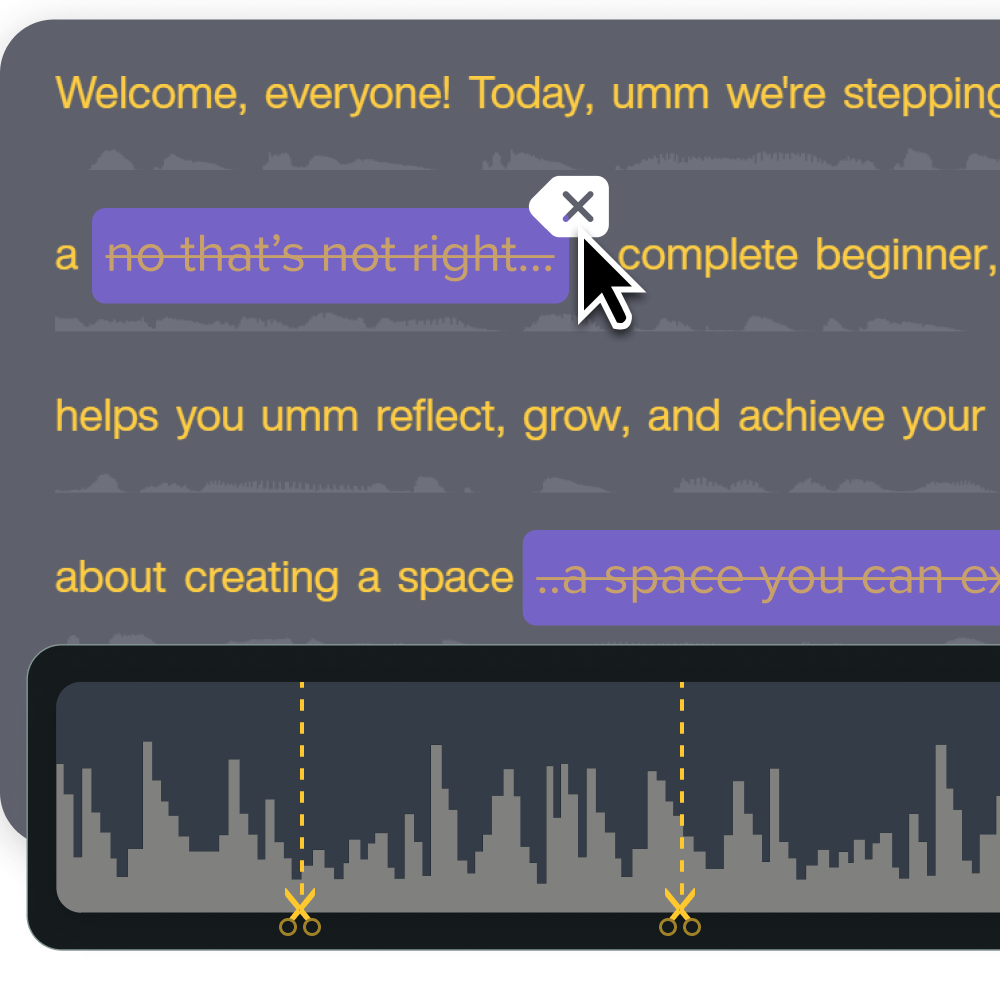
A few common use cases:
- If you want to record tutorial steps out of order, you can rearrange audio clips as needed and pair them with the proper videos.
- If a corporate interview has a lot of “ums” and “ahs,” you can remove them to keep the audience engaged and the core message impactful.
Better audio is one key to keeping people engaged. Camtasia Audiate’s user-friendly audio editing tools work across multiple audio tracks.
Step 4: Improve pacing, transitions, and flow
Your video’s flow is tied to your storytelling pace. Whether the content is technical or informational, it helps to have a clear beginning, middle, and end. Trimming, rearranging, and adding transitions can improve rhythm and engagement.
Camtasia Editor’s timeline, trimming tools, and transition library give editors options for transitioning between sections.
A few pacing changes:
- Use a wiping special effect in a training video.
- Trim down a video montage to focus more on technical features.
Ultimately, pacing adjustments should create more order for the viewer. A more logical flow allows your audience to digest the story, both in parts and as a whole. Every visual and audio enhancement should support the video’s main thesis, whether it’s to encourage teamwork or reinforce a new compliance policy.
Step 5: Add branding and visual polish
Your logos, fonts, and colors can reinforce your brand, add professional finesse, and boost trust and credibility. These extras can punch up your scenes and create consistency across your entire video library.
Camtasia’s Themes, Templates, and Annotations let you add branding details across every project.
You could:
- Place your corporate logo in the bottom-left corner of each video.
- Choose different templates for each type of video (e.g., compliance, tutorials, explainer videos, etc.).
Camtasia Editor makes editing accessible to beginners with easy drag-and-drop tools, giving you simple ways to polish and organize video content without going overboard.
You can also experiment with Camtasia Editor’s special effects library. For example, you might try the Kinetic Cursor effect to trace a dynamic cursor path and show important elements within a frame. This can draw attention within a single video and, when used consistently, signal the viewer to take note.
Techniques to enhance engagement and storytelling
Creative storytelling is a mix of clarity, pacing, and emotion. Entertaining or emotional videos don’t have to undermine your professional credo or policies. Instead, use technical elements like pacing and transitions to foster engagement and loyalty from your audience.
Add music and sound effects thoughtfully
Thoughtfully selected music and sound effects can support emotion and pacing without overpowering your dialogue.
- You might use a (non-blaring) alarm tone before highlighting common errors or misunderstandings about the subject matter.
- Quiet, pleasant background music may make the video more engaging.
Consider that music and effects — whether it’s fast-paced piano or the sound of a door slamming — should be well-balanced with the narration and add depth to the video.
Camtasia’s video editor suite offers a comprehensive library of background tracks and sound effects, making it easy to experiment with different versions.
Incorporate on-screen text, callouts, and animations
Overlaying text and adding animation to a video can keep viewers focused.
One simple example:
- Standard closed captions give viewers a way to hear and read the same information, instantly making their brains engage on two levels.
Text can also reinforce the main points:
- List succinct, quick bullet points at the end of a complicated tutorial or place text at the center of the screen and narrate additional context for each frame.
Animations and callouts can take your storytelling even further. These advanced video enhancements help you tailor content to the audience. So, you might zoom in on the main character to call attention to their actions or use Camtasia Editor’s Behaviors panel to make your title text jump letter by letter.
Use screen recordings and picture-in-picture effects
Mixing screen recordings and picture-in-picture footage can make videos more dynamic.
One common approach:
- You might place an instructor in the corner as they discuss a new product feature. This gives the viewer a friendly touchpoint that can help reinforce instructions.
Camtasia Editor makes it simple to input raw footage as-is or to break up each track — including webcam, screen capture, and audio — so you can adjust and fine-tune each element before layering it together. This makes it possible to correct visual and audio elements on a granular level and block out distractions that interfere with the final product.
Learn more in the Camtasia Rev Media tutorial. With Camtasia Rev Media, you can further experiment with the layout and sizes of your merged screen and camera content, depending on your preferences.
- Do a split screen of your speaker and their screenshare.
- Have the speaker’s webcam take up only a third of the screen.
Faster video creation with Rev
Make videos as easy as click, click, done! Camtasia Rev is so fast it’s like magic!
Learn More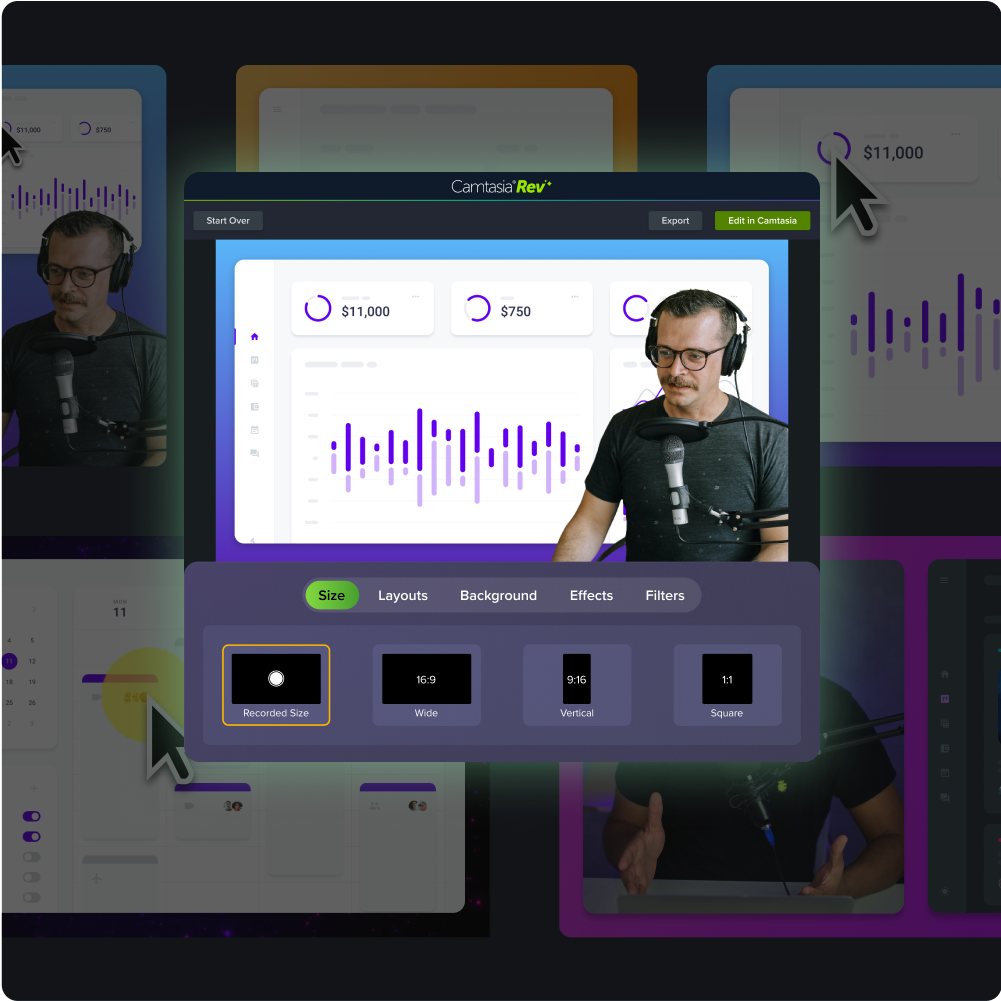
Encourage interaction and viewer engagement
Video elements like quizzes and clickable calls to action invite viewers to engage directly with the video. They also provide additional ways to solidify technical skills or strengthen corporate communications.
With Camtasia Editor, you can add multiple interactive enhancements to your videos without undermining storytelling.
- Add a clickable hotspot to an interactive training video to provide further educational content on a topic.
- Embed a behavior scenario, where viewers can choose from multiple paths for a personalized experience.
Advanced editing features for professional results
Advanced editing features take your videos to the next level. While these features may take a little more practice, Camtasia’s user-friendly and accessible tools can help you create high-quality, engaging videos.
Layer effects and transitions for depth
Layering clips, adding keyframes, and combining transitions create more video depth.
- Add a keyframe at the video’s turning point that gradually desaturates the scene’s colors for a memorable impact on viewers.
- Layer clips of two speakers together to create a conversation.
With Camtasia Editor, you can experiment with different effects and transitions before finalizing your results.
Optimize for multiple platforms
Not all video enhancements translate across all platforms. If you publish on multiple channels — social media like YouTube or TikTok, mobile, or LMS — you should optimize each version based on the platform’s parameters.
Camtasia Editor offers export presets and file-optimization options that can streamline and expedite the process. Just keep in mind that the tools cannot automatically detect and adjust for platforms, so make sure you preview each video and make the appropriate adjustments before posting.
Review, refine, and repurpose your enhanced videos
Review performance and gather feedback
Once you’ve enhanced and exported your videos, there’s still work to be done. Content creators should regularly review video performance, gather feedback, and adjust content as needed. Regular refreshes ensure that your videos stay accurate and engaging for new and returning audiences alike.
Refresh project files without starting over
Camtasia’s flexible suite makes it simple to modularly edit and update each project file. For example, if the music is too loud, you can pull up the audio on a separate track and adjust volume without having to start from scratch.
With Camtasia Audiate, you get advanced capabilities, like automatic AI language translations, which can be extremely useful if you’re refreshing cycles across global audiences or adding new territories.
Repurpose clips for other channels
We also highly recommend repurposing clips into shorter videos or adapting them to different channels using the expert presets. For instance, you might cut down a lengthy tutorial that lives on SharePoint into a key takeaway for your corporate YouTube channel.
Camtasia helps you enhance video with ease
Elevating your videos doesn’t have to be intimidating when you use the right editing tools. Clean audio, clear visuals, consistent branding, and better pacing help to establish trust and encourage engagement.
Camtasia’s editing suite gives creators more control, allowing them to easily deconstruct the video, enhance it individually, and then put it back together.
We operate off a basic principle when it comes to video editing: the more you iterate, the more you improve, and the more confident you’ll be the next time around. Our tools just make the creative journey more accessible.
Ready to enhance your videos? Check out Camtasia’s suite of tools today!
Go from screen recording to polished video
A screen recording is just the start. Camtasia’s editor helps you add the callouts, animations, and edits you need to create a truly professional video.
Free Download
FAQs
What are the most effective ways to enhance video?
The most effective ways to enhance video are to correct color and lighting, stabilize and crop the frame, clean up audio, improve pacing, and add branding. These edits make videos easier to understand and help them look more polished. You can then build on those basics with text, callouts, transitions, and picture-in-picture layouts.
How can I improve audio quality in a video?
Start by removing background noise, leveling volume, and adjusting equalization so speech is clear. If you use Camtasia Audiate, text-based editing and filler-word removal can speed up cleanup. Clear audio helps viewers follow the message and stay engaged, even when the visuals are already strong.
How do I make a video feel smoother and easier to follow?
Trim out delays, rearrange clips, and add transitions where they support the story. A clear beginning, middle, and end helps viewers understand technical or informational content. On-screen text and callouts can also reinforce the main point of each section.
When should I use screen recordings and picture-in-picture?
Use screen recordings when you need to show people exactly what to click, type, or watch on screen. Picture-in-picture can add a speaker or instructor to the corner of the frame, which gives viewers a helpful human touchpoint. In Camtasia Editor, separate tracks for screen capture, webcam, and audio make it easier to adjust each element before you combine them.
Share