









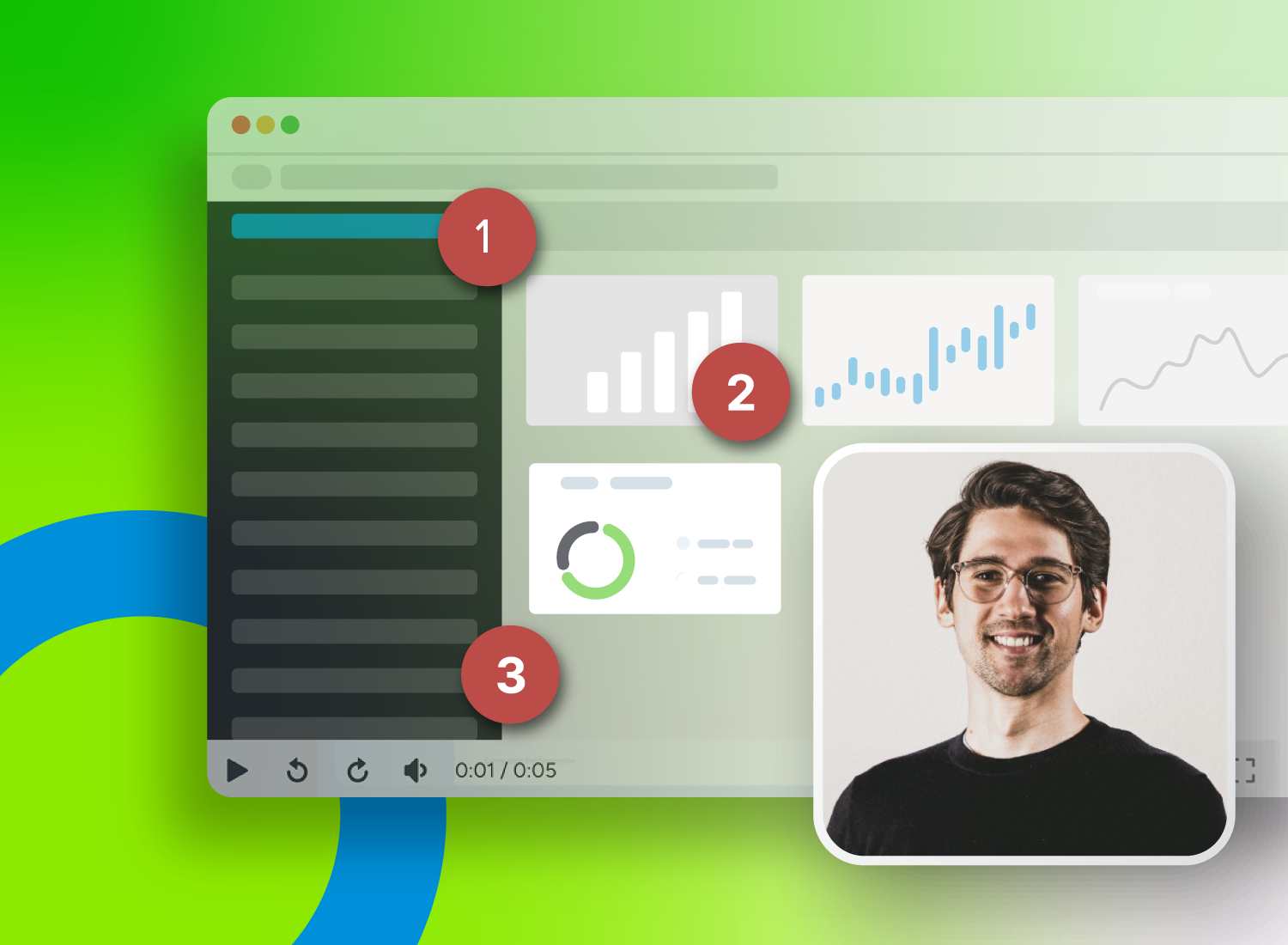
What would you say causes low video engagement rates? Video quality issues? Audio problems? Low-quality content? While these are huge contributors, they’re not the only causes. Sometimes viewers may not engage with video content simply because it’s passive.
Passive videos can feel like a long lecture that keeps going regardless of whether viewers are mentally checked in. That’s why they may not always get desired results.
Luckily, there’s another solution: interactive videos. Rather than simply conveying information, they invite viewers to engage, transforming the video-watching experience into an active one.
If you’re looking to enhance training experiences, reduce time-to-value, and boost learner retention, interactive videos are definitely the way to go.
The best part? With Camtasia’s suite of tools, you can create interactive training videos faster than ever — whether you’re a video pro or not.
Here’s how to create them for maximum engagement.
Interactive training videos are videos that ask learners to do something as they watch, such as answering a question, clicking a hotspot, or choosing a path. Interactive training means learning becomes a two-way experience instead of a one-way presentation.
Key takeaways
- Interactive training videos work best when each interaction supports a clear learning objective.
- Embedded quizzes, branching scenarios, hotspots, polls, and 360° video each fit different training goals.
- Short, modular videos are easier to edit, easier to navigate, and easier for learners to finish.
- Camtasia, Snagit, Audiate, and Screencast can help you record, refine, share, and improve training over time.
Why interactive training outperforms passive video
Video training is quickly replacing other content formats, like webinars and in-person presentations. Why? Because it’s consistent, convenient, and accessible. Viewers can learn whenever and from wherever they want and rewatch content as many times as they need to.
Passive video keeps playing whether a learner is following along or not. Interactive training videos ask viewers to answer, click, or choose, making training more active.
There’s also some science at play here: The Dual Coding theory suggests video is more effective than other forms of learning because it engages both visual and verbal subsystems in the human memory.
Like any other content format, some videos are more effective than others and traditional passive videos fall short in many areas. While they’re still more effective than solo text, they may not always promote learners’ understanding or retention because it’s easy for them to zone out when watching them.
But videos with interactive content ask viewers to answer questions and evaluate their understanding in real time. That active role could lead to:
- Better recall: Interactive content can increase retention by up to 60%.
- Learning personalization: Allowing learners to choose which videos to watch lets them personalize their learning paths.
- Improved focus: Interactive videos require viewers to actively engage with content, reducing the chances of mental drift.
- Visibility into learners’ needs: Interactive videos with analytics can reveal which videos learners clicked on most and how they answered questions, helping you identify where additional resources may be needed.
- A level playing field for different types of learners: Both introverted and extroverted learners can engage with interactive videos with ease.
- Higher completion rates: Learners are more likely to watch to the end of recordings if they’re actively engaged.
Switching to interactive videos also results in real business outcomes. Better focus and recall may help improve job satisfaction and clarity, boosting employees’ productivity and encouraging retention.
It also empowers employees with self-service resources, which may reduce support requests and give team leads more time to focus on high-value work.
Formats that drive engagement in training videos
Convinced about the value of interactive training videos? Here are some formats worth considering:
| Format | Best for | Engagement | Complexity | Pitfall to avoid |
| Embedded quizzes and assessments (Require viewers to answer questions as they watch videos) | Compliance training, knowledge checks during employee training | High | Low | Overly simplistic questions and repetition |
| Branching scenarios (Allow learners to pick from multiple paths, each with a personalized outcome) | Decision-based corporate training, customer service | Very high | Medium | Not allowing viewers to rewind and an overly complicated logic |
| Clickable hotspots (Let viewers click on screens to learn more about specific items or concepts) | Software demos, product tours | Medium | Low | Creating too many clickable areas |
| Surveys and polls (Ask viewers for feedback while watching) | Understanding viewer behavior and preferences | Medium | Low | Asking irrelevant questions |
| 360° video (Allow learners to explore environments or products from different angles by tapping their screens) | Virtual tours, safety training, and equipment walkthroughs | Very high | High | Low-resolution recordings, poor mobile experiences |
Step-by-step: How to create interactive training videos
How you create training videos will determine whether and how your target audience engages with them. Here’s a step-by-step guide to help maximize your engagement:
Step 1: Start with clear learning objectives
Working without clear goals is like taking a shot in the dark. While you could take your chances and shoot in any direction, there’s really no way to tell it’s the right one. So, start by defining the outcomes you hope to achieve. This will guide your decision on format and help you measure video training engagement later on.
Let’s say you’re creating a training video for new employees on how to navigate your internal HR portal. A clear learning objective might be: “By the end of this video, employees will be able to locate and submit a time-off request without assistance.”
With this objective in place, you can focus your script, visuals, and assessment methods around it, ensuring your content stays relevant and measurable.
Step 2: Write a modular, interactive script
Next, you need a script for your video. But not just any script. Instead of following a linear narrative (like you would in traditional passive videos), make it modular, leaving room for viewers to ask questions or take specific actions.
Perhaps you’re creating a customer service training video and want to use a branching path. Your script could look something like:
- Introduction: Introduce the video, outline what it’ll cover, and provide some basic customer service information.
- Decision point: Give viewers the option to choose what type of content to watch. Your branches could be:
- Option 1: How to ask follow-up questions.
- Option 2: How to handle angry customers.
- Option 3: How to escalate issues to team leads or other specialized team members.
With this structure, viewers have more control over their training and can focus on what they struggle with most.
For best results, use a second-person voice in your script so learners feel like you’re talking to them directly.
Step 3: Record screen or video content
The next step is to bring your script to life. Whether you plan to record your screen or stand in front of the camera yourself, you need to make sure your recording is visually appealing and clear. Here’s how:
Record in short segments: Breaking your content into smaller chunks makes it easier to re-record specific parts if needed, simplifies editing, and helps maintain viewer focus. Aim to record one idea or section at a time, which reduces pressure and gives you more control during post-production.
Prepare your recording tools: You don’t need over-the-top equipment, but make sure you capture high-quality video and audio. Use your webcam or phone camera with Camtasia Editor and Camtasia Snagit to record your video. These tools are easy to use and give you plenty of flexibility for screen, webcam, and audio capture.
Go from screen recording to polished video
A screen recording is just the start. Camtasia’s editor helps you add the callouts, animations, and edits you need to create a truly professional video.
Free Download
Step 4: Add interactive elements
When you’re done creating your recording, it’s time to add the interactive elements. The type of video will determine which elements may be most effective.
For example, is it a customer service training video? Use decision points to ask viewers to choose how to handle a tough customer interaction. If it’s software training, use the Camtasia Hotspots feature to direct viewers to supplemental resources or even another spot in the video.
A few things to keep in mind for the best results:
- Match interactive elements to your script. For example, add branching paths only if your script creates a logical opportunity. Otherwise, the element may feel distracting or confusing.
- Avoid overloading your video with too many interactive elements—too much of anything can be overwhelming.
- Time interactive moments just right. Every 60–90 seconds can keep learners engaged and on track.
Step 5: Add quizzes and feedback
Quizzes help reinforce key concepts and keep viewers engaged. Instead of saving all your questions for the end, try placing them before and throughout the video to check understanding and highlight important points along the way.
Here’s how to make sure your quizzes are effective:
- Provide quick feedback to help correct misconceptions.
- Use encouraging language in your on-screen or verbal feedback to keep learners motivated.
- Allow viewers to retry quizzes, especially for more complex concepts.
Step 6: Edit, review, and launch
Once everything is set, fine-tune your audio, visuals, and interactive elements to ensure a smooth flow. To do this:
- Edit for clarity and flow: Trim out pauses, filler words, or off-topic tangents that might distract viewers. Camtasia Audiate, which lets you edit audio like text, cleans up background noise and automatically removes filler words.
- Guide viewer focus: Use Camtasia Editor’s annotation and cursor features (such as arrows and cursor resizing) to draw viewers’ attention to key information.
- Add supporting visuals: Use Camtasia Snagit’s step capture or Camtasia Editor’s cursor animations to insert screenshots or quick recordings that reinforce your message.
- Test interactivity: Make sure all clickable elements and quizzes work as intended.
- Check accessibility and compatibility: Confirm that captions and subtitles are accurate, that contrast is high enough, that hotspots or buttons have clear labels, and that you test the video on the devices your audience actually uses.
- Do a soft launch: Share the video with a small group, then use their feedback (including drop-off points or questions) to make final tweaks.
Build your next training video with Camtasia
Record your screen or camera. Then, use the video editor to add polish and clarity.
Learn More
Tips to improve engagement and results
Creating an interactive video is a strong first step, but how you refine and present it can make all the difference. To keep your viewers engaged and ensure your training delivers results, here are some practical tips to optimize your content.
Keep videos short and modular
The average human attention span is 47 seconds. So skip lengthy videos. Even with the most engaging interactive elements, you may lose viewers’ attention if the video is too long.
Keep videos as short as possible while remaining long enough to offer value. Remember, employees are looking at training materials during work time. They’re busy. Get to the point quickly and concisely and use a modular (or chapter-based) setup for easier navigation.
Aim for around three minutes per concept and five to seven minutes for more in-depth process or product walkthroughs. To keep things shorter, consider breaking up lengthy courses into multiple videos.
Offer immediate, useful feedback
When viewers answer questions, give them instant feedback so they know how they’re doing. Keep the tone positive, even when they get it wrong, and consider offering helpful hints for more complex topics.
You can also use branching paths to tailor the experience: If someone gets an answer right, let them move ahead. If not, give them a quick on-screen explanation before continuing.
Use branding and consistency
Beyond just “looking nice,” consistent branding helps build trust and fosters a feeling of familiarity for viewers. There are a few ways to keep video training visually consistent across your brand:
- Add your logo to the intro or as a corner watermark.
- Stick to brand colors in backgrounds and buttons.
- Use the same fonts and button placements across videos.
Track engagement to optimize over time
Measure video training engagement to determine whether your current tactic is working. Tools like Screencast can help you monitor views, drop-off points, replay moments, and quiz performance.
Once you spot trends (like sections that get rewatched a lot), use that insight to refine your videos. If people keep replaying a certain part, consider expanding on it in future versions — or even creating a separate supplemental resource.
Real examples to inspire your next training
Ready to start recording? Here are some interactive video examples to get your creative juices flowing:
Software use instructional video with clickable explanations
Walk viewers through your solution and allow them to click on different elements for more detailed explanations.
Why this works
- Mimics hands-on practice, which is great for onboarding
- Allows viewers to seek additional guidance for tricky steps
360° safety training
Provide a 360° view of your equipment or factory floor and allow viewers to click through the video to identify potential safety hazards.
Why this works
- Replicates the real-world environment
- Encourages active exploration instead of basic observation
Compliance training videos with embedded quizzes
Ask scenario-based questions after discussing different compliance elements.
Why this works
- Reinforces understanding
- Shows you problem areas, which can inform future videos
Why Camtasia tools support interactive training videos
Camtasia Editor and Camtasia Snagit are designed to make it easier, faster, and more effective to create and share training content. Whether you’re an educator, trainer, or technical communicator, you can scale your knowledge and support different learning styles without needing a background in video production.
Here’s how each tool helps you create standout training content:
How Camtasia Editor helps you create training videos
- Record your screen, camera, mic, and system audio on separate tracks, so editing is easy and flexible.
- Control every detail of your cursor: resize it, add motion blur, or apply click effects to focus attention where it matters.
- Add professional polish with annotations like arrows and highlights to emphasize key points.
- Save time with AI-powered narration and automated script generation.
- Access Camtasia Audiate to edit audio like text, remove filler words, and clean up your sound fast.
How Camtasia Snagit supports training visuals
- Capture scrolling screens or snap multiple steps quickly with step capture.
- Rearrange or remove elements in your screenshots to focus on what matters.
- Record short screen videos, add quick edits, and share instantly.
- Create GIFs of your videos for social media or static documents.
- Annotate images and recordings to clarify complex ideas or instructions.
How to scale interactive training with video
Passive, one-size-fits-all training videos just don’t cut it anymore. Today’s learners are looking for interactive, personalized content that’s effective and easy to engage with.
If you’re not sure where to start, start small. Try adding interactive elements to an existing video or test a single interactive module. Watch how your audience responds, and build from there. With a few wins, it becomes easier to scale your interactive training efforts: create reusable templates, gather feedback through quizzes and surveys, and keep improving as you go.
Camtasia can help you build a culture of learning that’s flexible, engaging, and built to last. Whether you’re just getting started or ready to level up your training program, our tools make it easy to create content your team will want to learn from.
Check out Camtasia’s products today to enhance your video training program!
FAQs
What are interactive training videos?
Interactive training videos ask learners to take action as they watch. That action might be answering a quiz question, clicking a hotspot, choosing a branch, or responding to a poll. Instead of playing like a lecture, interactive training videos make learning a more active experience.
How are interactive training videos different from passive videos?
Passive videos keep moving whether viewers are following along or not. Interactive training videos create checkpoints that ask learners to respond, which can improve focus and show where they need more help. They also make it easier to personalize training with choices, quizzes, and branching paths.
Which interactive elements work best in training videos?
The best interactive elements depend on the job the video needs to do. Embedded quizzes work well for knowledge checks, branching scenarios fit decision-based training, and clickable hotspots help with software demos and product tours. Surveys, polls, and 360° video can also be useful when you want feedback, exploration, or environment-based practice.
Which Camtasia tools help create interactive training videos?
Camtasia Editor helps with recording, editing, and focus cues such as annotations and cursor effects. Camtasia and Snagit support the visuals around the video by capturing steps, recording short screen recordings, and annotating screenshots. Camtasia Audiate can speed up audio cleanup and text-based editing, while Screencast can help you track viewer engagement, drop-off points, replay moments, and quiz performance.
The best snipping tool for Windows and Mac
Don’t let clumsy built-in tools hold you back. Take and edit screenshots with Snagit!
Get Snagit
Share