


Crop a video
Cropping your videos is a powerful way to remove unwanted sections, focus on key content, and adapt your videos to various formats. Camtasia Editor provides the perfect toolkit for cropping videos with precision and ease, making it the best video editor available.
CROP A VIDEO IN CAMTASIA
How to crop a video with Camtasia Editor
Cropping videos with Editor is quick and straightforward. Follow these three steps to crop your videos to perfection:
1
Step 1: Import your video
Drag and drop your video onto the timeline or canvas from the media bin to begin editing.
2
Step 2 Select the crop tool
Make sure your media is selected and go to the canvas toolbar and hit the crop tool. Handles will appear around the edges of your video.
3
Step 3 Adjust to perfection
Click and drag the corners of the crop box to remove unwanted parts of the video. You can also reposition and scale the content within the frame to ensure your video fits perfectly within the selected layout.
Benefits of using Camtasia Editor for cropping videos
Editor offers unparalleled flexibility and precision when it comes to cropping videos, making it an essential tool for content creators.
Focus your viewers’ attention
Cropping allows you to zoom in on key parts of your screen recording or center the speaker in a camera shot. By directing your viewers’ focus to the most important content, you reinforce your video’s message and improve viewer comprehension.
Adapt content for multiple platforms
Cropping your videos with Editor makes it easy to repurpose content for various platforms. Whether you need your aspect ratio to fit your video into a vertical format for social media or create a square version for another use, Editor provides the tools to quickly scale, move, and frame your content as needed.
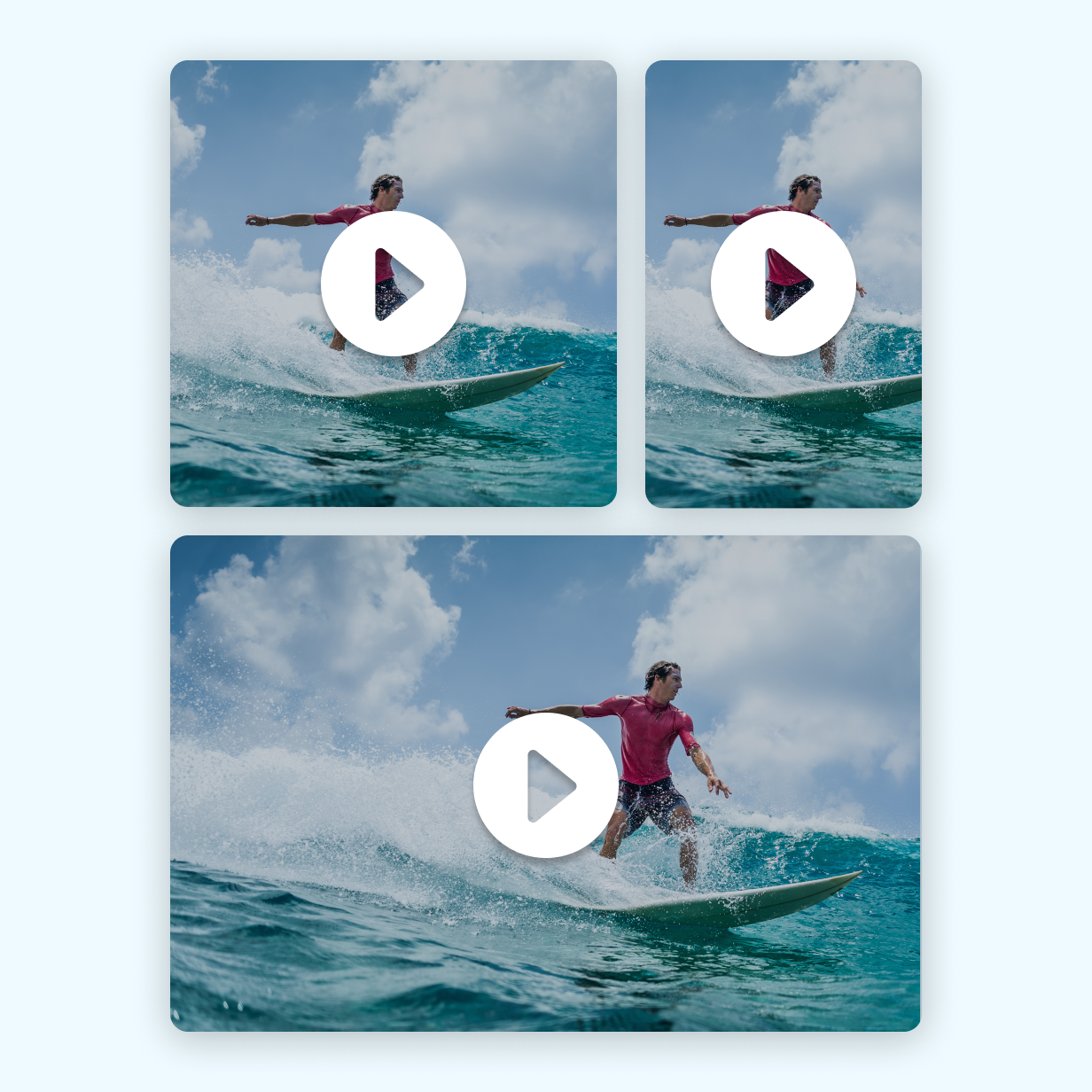
Create more with Rev
Editor’s quick-editing Rev workflow makes it easy to fit your content in different formats. Use dynamic backgrounds, crops, and aspect ratios to create your perfect video. Rev makes your content easily repurposable and editable.
Get started with Camtasia Editor

FAQ
Yes! Editor makes it easy to crop your videos to fit any platform’s requirements, whether it’s vertical, square, or another format.
No problem! Editor’s non-destructive editing allows you to readjust your crop at any time, so you never have to worry about losing important content.
Absolutely! Editor allows you to combine cropping with animations, effects, and dynamic backgrounds to create engaging and visually appealing content.
Yes, Editor lets you crop videos to exact dimensions or aspect ratios, making it quick and easy to tailor your content for different platforms or specific project requirements so you always have the perfect video.
While you can crop different sections of a video by splitting the clip on the timeline and applying individual crops to each segment, Camtasia’s intuitive interface makes it easy to manage these edits seamlessly.
After using Editor’s video cropper tool, you can share your video with your team or upload your video file to your computer and other sharing outputs.
Check out our tutorial that will walk you through everything you need to know.
Still can’t find what you need? Contact us and we’ll help you out.