


Quick-share screen recorder
Need to quickly show a co-worker how to do something or document a bug? With Snagit, you can record your screen and webcam in seconds and easily share it—no complicated tools or long processes are required.
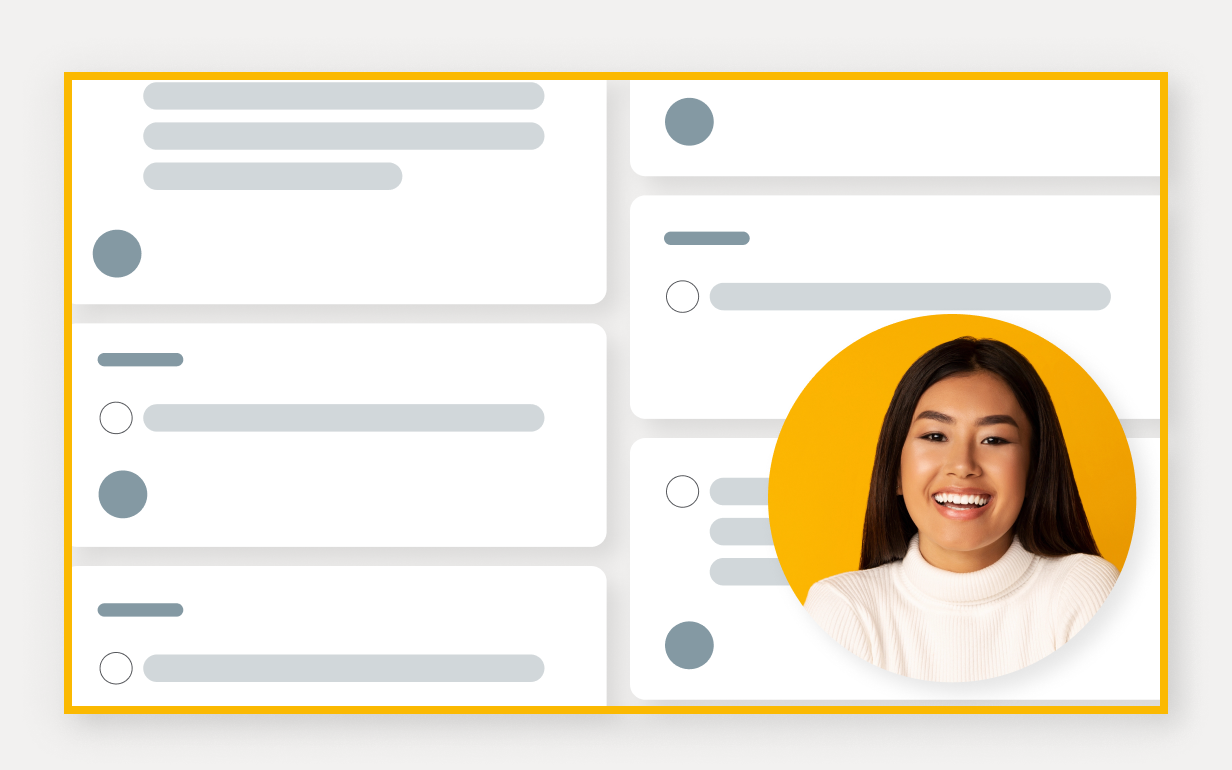
How to record your screen with Snagit
Creating a video with Snagit is as easy as 1, 2, 3. No need for technical expertise—just follow these simple steps:
1
Step 1: Select the area to record
Choose the part of your screen you want to capture, whether it’s a single window, the entire screen, or a custom selection.
2
Step 2: Hit record
Click the record button and start walking through your process, explaining steps, or documenting a bug.
3
Step 3: Edit and share
Once you’re done recording, you can trim out any mistakes with Snagit’s simple video editor. Then, generate a link to your video in a single click.
Why use Snagit’s simple screen recorder?
Snagit’s simple screen recorder is more than just a tool—it’s a smarter way to communicate visually. Here’s why you’ll love it.
Draw on your screen while you record
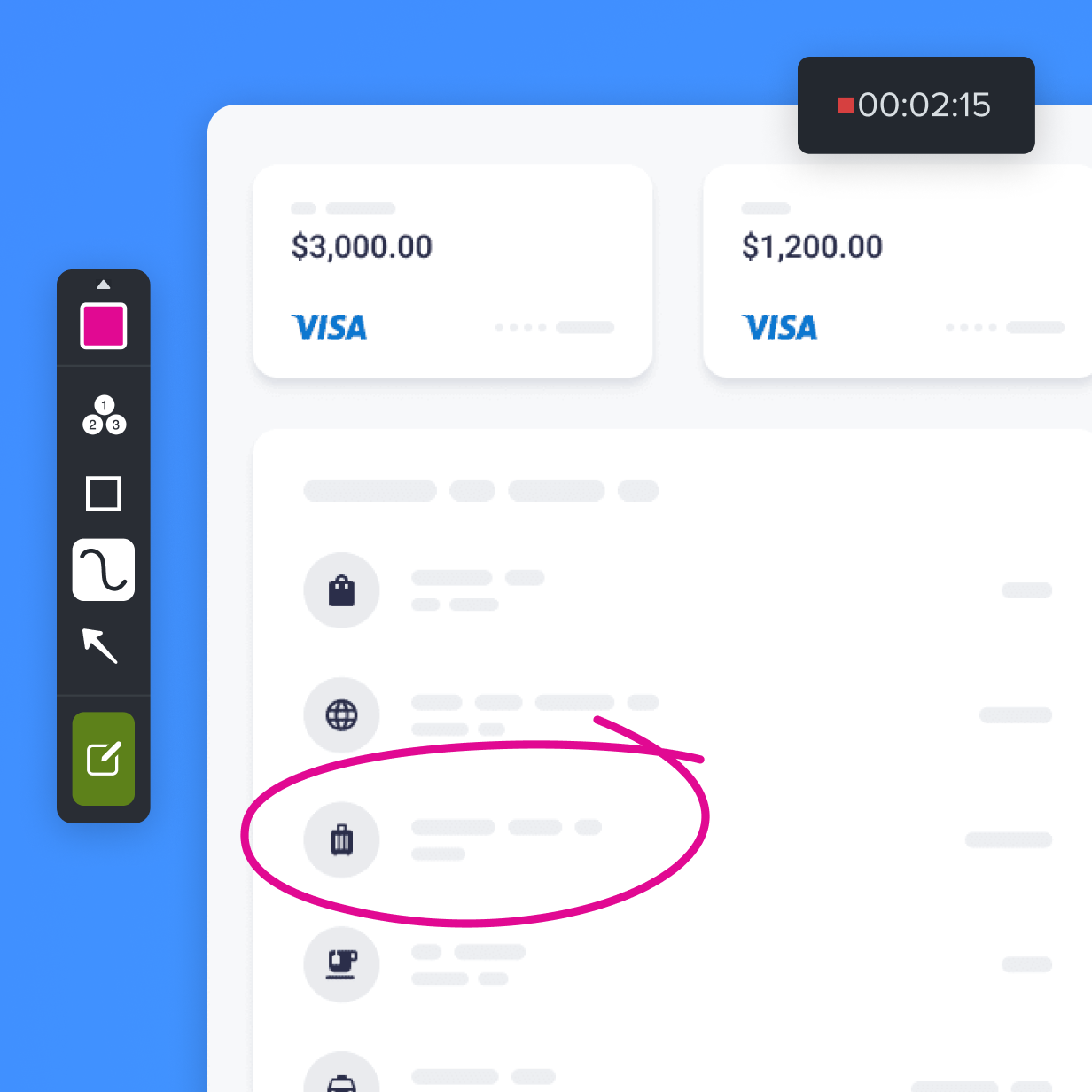
Highlight important details with Snagit’s screen draw tool. Add shapes, arrows, or step numbers in real time, ensuring your audience never misses a beat.
Share instantly
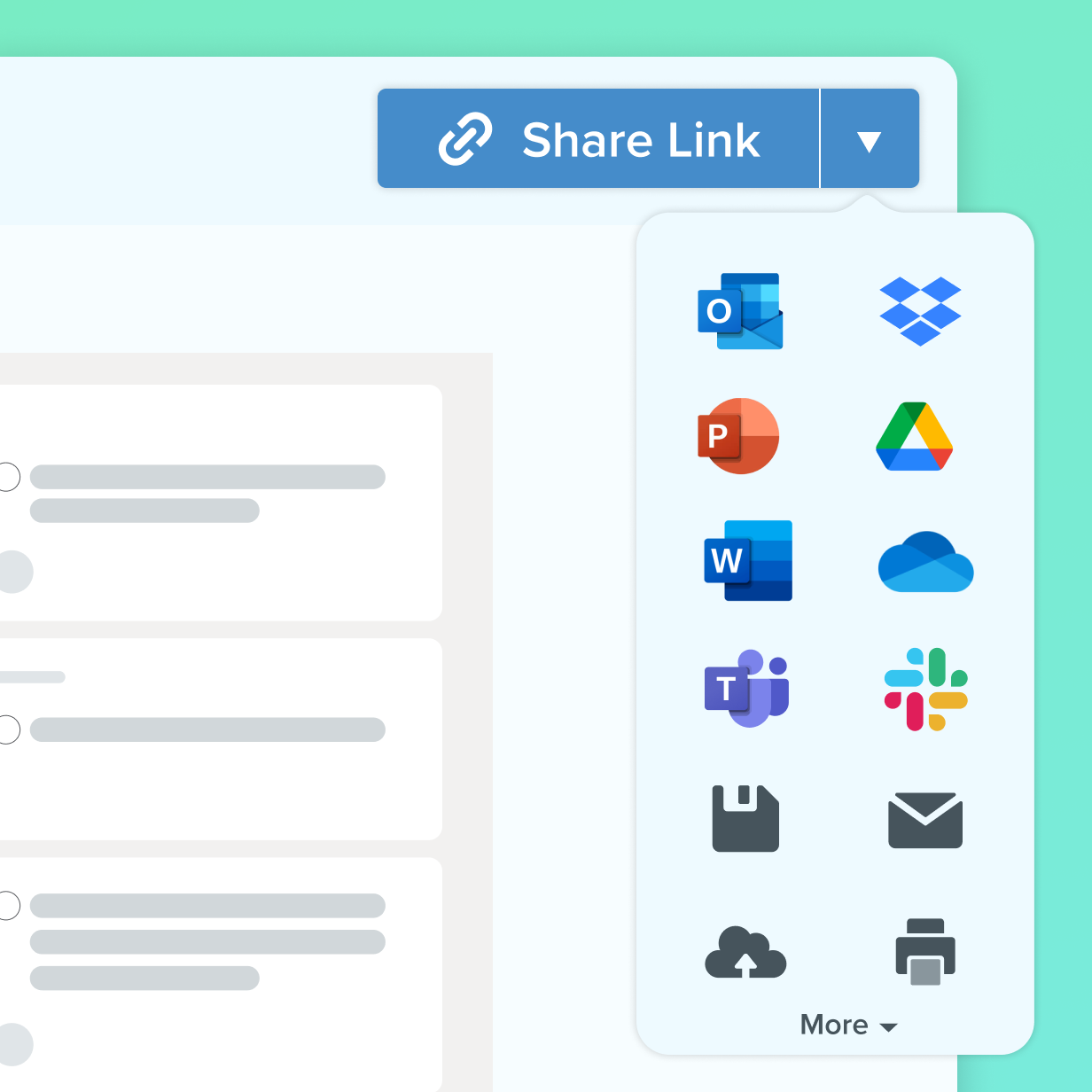
Share your video anywhere with a link or send it directly to the apps you use every day. Snagit makes collaboration with video fast and frustration-free.
Screenshots and video in one tool
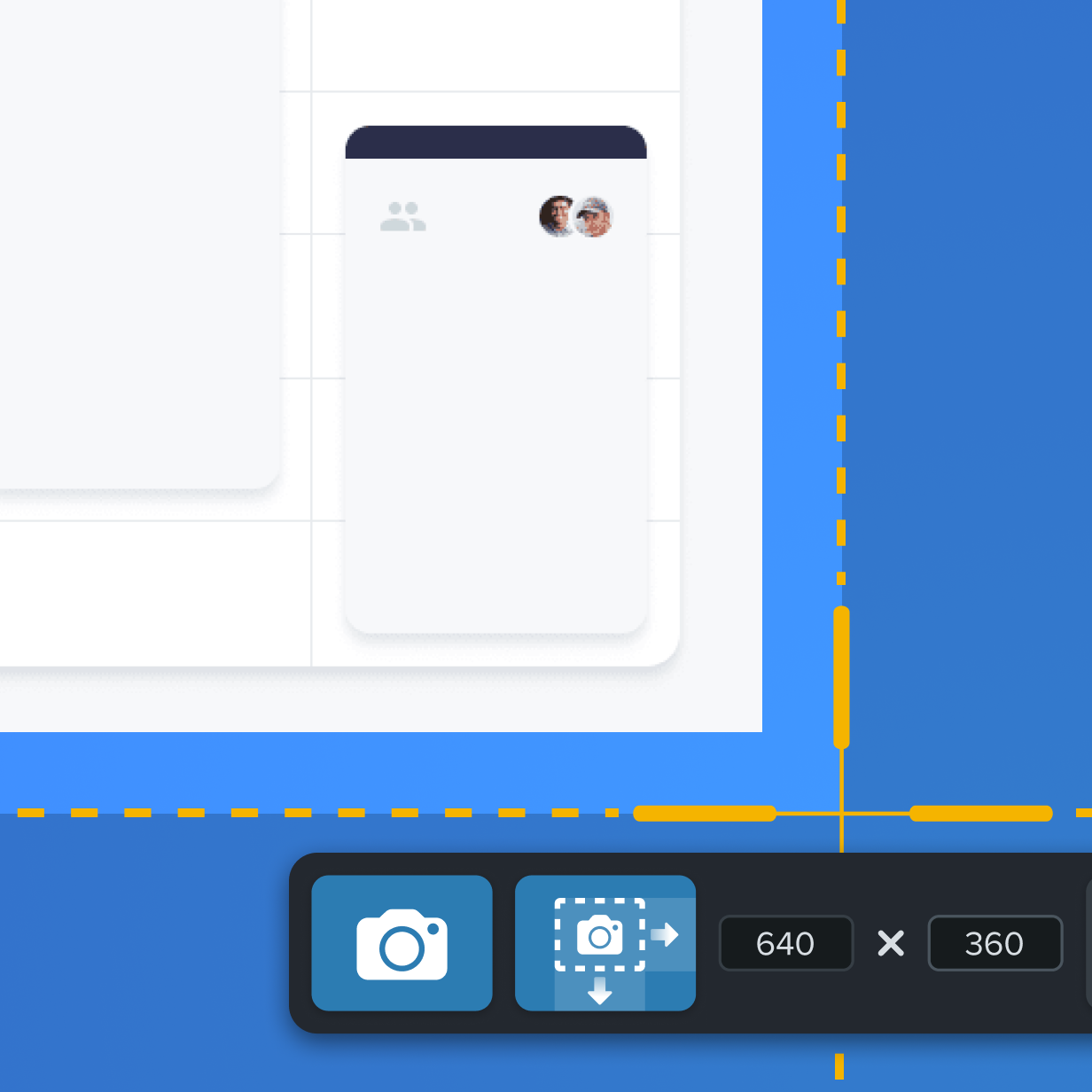
Snagit isn’t just a screen recorder—it’s also a versatile and powerful screenshot tool. With the same ease as recording video, you can capture high-quality images of your entire screen, a specific window, or even a scrolling webpage.
Get started with Camtasia Snagit
FAQ
Yes! Snagit allows you to record both your screen and your webcam simultaneously. You can toggle between the two while recording or display them together with a picture-in-picture format, making it easy to personalize your videos.
Snagit supports multiple formats for video exports, including MP4, making it easy to share your screen recordings across various platforms. You can also save your recordings as animated GIFs if you prefer something shorter and more engaging for quick demos.
Absolutely! Snagit comes with built-in editing tools that allow you to trim your videos, cut out unwanted parts, and even combine multiple video clips. You can also add annotations like arrows, text, or callouts as you record to make your videos more informative.
The screen draw tool allows you to draw directly on your screen in real-time while recording a video. This is great for emphasizing specific points, highlighting important details, or directing attention during walkthroughs or tutorials.
Yes, with Snagit you can select the specific area of your screen that you want to capture. You can record an entire screen, a single window, or a custom region, giving you complete control over what gets recorded.
Yes, Snagit lets you record both system audio and microphone audio. Whether you want to capture a video’s sound, a notification alert, or your voiceover, Snagit ensures all the audio is included.
Snagit makes sharing easy with built-in options to upload directly to cloud services like Google Drive, Dropbox, or Screencast. You can also generate a shareable link to send to colleagues or embed the video directly in an email or document. From that link, your team will be able to collaborate on the video by leaving comments and reactions as they watch.
Snagit is available for both Windows and Mac, making it versatile and compatible with most modern computer systems.
Check out our tutorial that will walk you through everything you need to know.
Still can’t find what you need? Contact us and we’ll help you out.