









If you need to communicate a message to your audience, video is tough to beat. It has the potential to engage eyes and ears in a way other content forms can’t.
In the days of 30-second reels, video podcasts, and white noise loops, viewers are accustomed to listening or watching passively, not fully focused on what they’re taking in.
This is a problem if you’re creating corporate training materials, online courses, or product tutorials — the sorts of videos where you need viewers to stay engaged start to finish.
Interactive quizzes are a fun, approachable, and even enjoyable way for your audience to learn. Done the right way, quizzes can boost engagement, retention, and learning outcomes in video content.
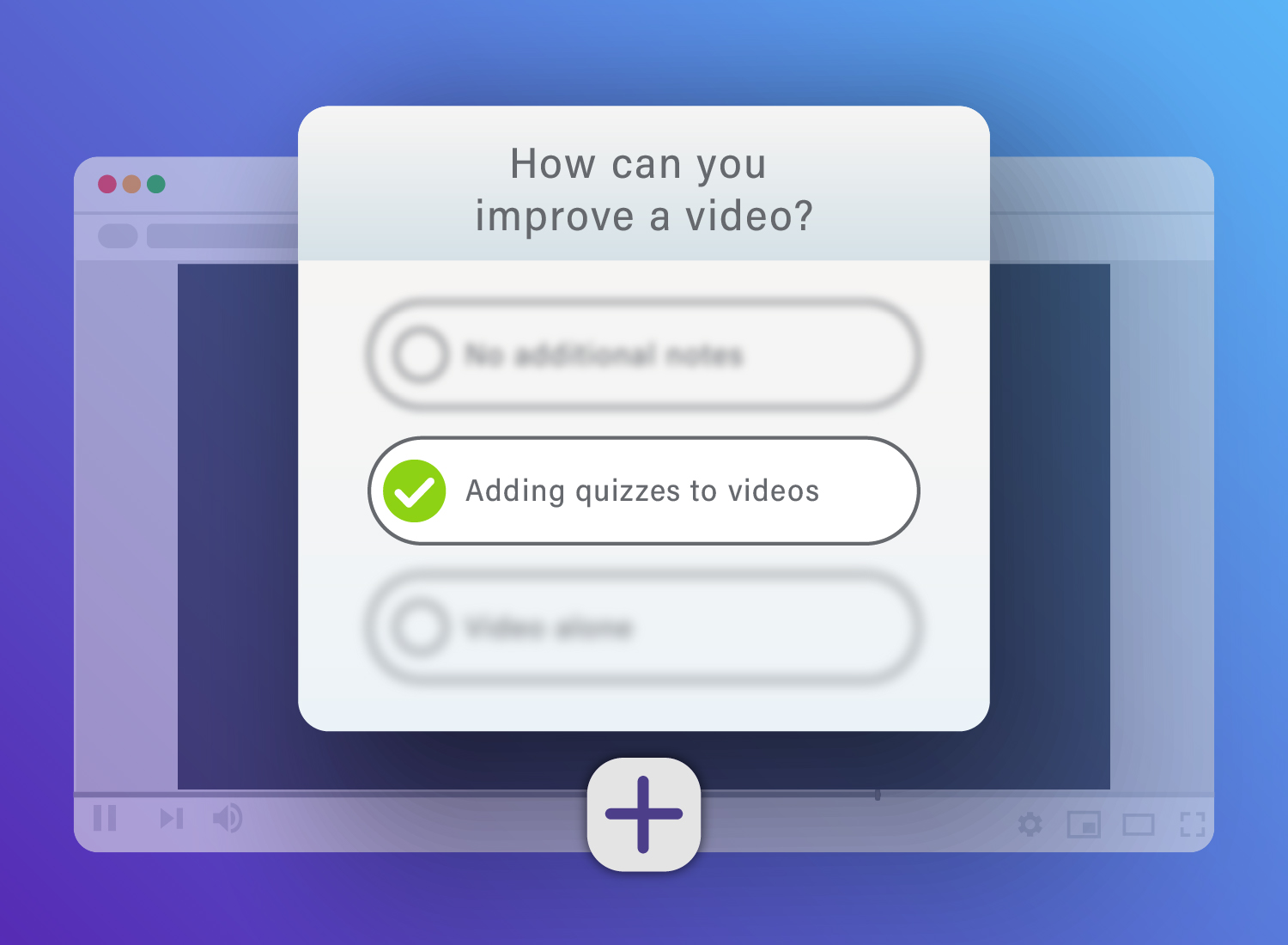
Adding quizzes to videos means inserting timed questions into a video so viewers pause, answer, and continue at key moments. It’s a practical fit for training, education, and tutorials because it supports engagement, comprehension, and retention while helping teams track viewer progress.
Our practical guide to adding quizzes to videos gives you everything you need to start strong. We’ll equip you with the tools you need, tips on how to set them up, and smart strategies on how to implement video quizzes in a way that helps everybody win.
Key Takeaways
- Adding quizzes to videos turns passive viewing into active learning by prompting viewers to stop, reflect, and respond.
- The best quiz questions appear at natural checkpoints, such as section changes, new concepts, and demonstrations.
- Strong video quizzes start with clear learning objectives, precise timing, and feedback prepared in advance.
- Before you publish, test clarity, timing, accessibility, mobile usability, and audio sync.
What is video quizzing?
Video quizzing is technology that embeds questions into video content. Most video quizzing solutions automatically pause the video and prompt viewers to answer a question before continuing.
Via this real-time interaction, video quizzes can greatly improve engagement and attention because viewers have to pause, reflect, and answer before they keep watching.
It’s a great way to turn passive viewers into active learners, and it helps those viewers retain more of your video’s core messages. Organizations can also capture analytics and engagement data from video quizzes with a learning management system (LMS) or other similar tool.
Video quizzes look different depending on the platform you use to create, host, and view them, but a well-built video quiz should include these key components:
- Timed questions: Have questions appear at specific points in the video where they’re most relevant to the content just covered.
- Multiple formats: Use a variety of question types: multiple choice, true/false, fill-in-the-blank, and open-ended.
- Instant feedback: Give quiz-takers immediate confirmation or correction, along with explanations to boost confidence and reinforce the right concepts.
- Progress tracking: Leverage analytics to see viewers’ completion rates and reveal knowledge gaps.
- Conditional branching: Adapt videos and quizzes in real time based on responses, routing viewers to the most applicable content.
If you need to create video quizzes for education, training, marketing, or anything else, Camtasia’s tools can make your life a whole lot easier. With solutions like CamtasiaEditor, you can edit videos effortlessly, place quiz questions with precision, and gain a clearer picture of viewer progress. Plus, viewers get an easy-to-use interface with intuitive controls for pausing and resuming.
Go from screen recording to polished video
A screen recording is just the start. Camtasia’s editor helps you add the callouts, animations, and edits you need to create a truly professional video.
Free Download
Key benefits of adding quizzes to videos
Quizzes aren’t just a way to check if someone’s paying attention — they actively improve learning.
One reason for this is the testing effect: a psychological concept that explains why being tested on information helps people remember it better than simply studying.
Studying puts the knowledge into your brain, but only for the short term. The test itself actually helps you retain knowledge.
Beyond the testing effect, adding quizzes to videos can help in several practical ways:
- Active processing: Viewers have to engage with the content to answer questions, not just passively consume it.
- Immediate application: They get tested on concepts right away, before they have time to forget.
- Personalized pacing: Videos pause automatically and allow for plenty of thinking time, accommodating different learning speeds.
- Gamification elements: In a broader LMS context, you can use points and progress indicators to tap into achievement motivation.
Preparing your video and quiz requirements
We’re big believers in videos and the power of video quizzes, but they do take some time and effort. Tossing a few random questions into a video and calling it a day isn’t going to produce the results you’re after. A little investment will make your video that much more impactful. Ready to start? Here’s what you need to do, step by step.
Analyze the content of the video
First up, evaluate the video’s content:
- A good training video should have a limited number of core learning objectives or key messages. Identify the top three to five in your video.
- Does the video have any natural pause points or significant shifts from one section to another? Flag these times for comprehension checks.
- Consider your audience and what level of question difficulty or complexity is right for them.
Meet technical requirements to incorporate quizzes
We’d love to say “don’t sweat the small stuff,” but the small stuff matters here. Your videos need to meet specific requirements based on the platform you plan to use for video quizzes.
Some platforms limit you to specific video file formats, like MP4, MOV, or direct recording. They may also have requirements or limitations around aspect ratio, captions, and other technical elements.
It’s good to think through video length too — 5–15-minute videos are usually just right for quiz integration.
Also, you can’t always control the internet connections people use when viewing your content, so be sure to encode videos efficiently. An MP4 using H.264 offers the best overall balance of quality and size.
Create a pre-flight checklist
Now it’s time to start making more specific decisions and creating your quiz content.
- Script review: Mark the best spots for questions to go. Bonus tip: Flag potential quiz points even sooner, during video planning.
- Objective alignment: Whether it’s a classroom resource or employee training program, each question should test a specific learning goal.
- Question variety: Mix it up and use a range of question types to maintain interest.
- Timing map: Note the exact timestamps where you’ll insert each question for easy placement later.
- Feedback preparation: Write explanations for both correct and incorrect answers to help viewers fully understand the material.
With all of this prep work out of the way, implementing your video quiz will be that much simpler.
Want to make your life even easier? Use Camtasia to record videos right from your computer screen. Camtasia records each layer separately — audio, screen, cursor — making edits, updates, and quiz placement a breeze later on.
Faster video creation with Rev
Make videos as easy as click, click, done! Camtasia Rev is so fast it’s like magic!
Learn More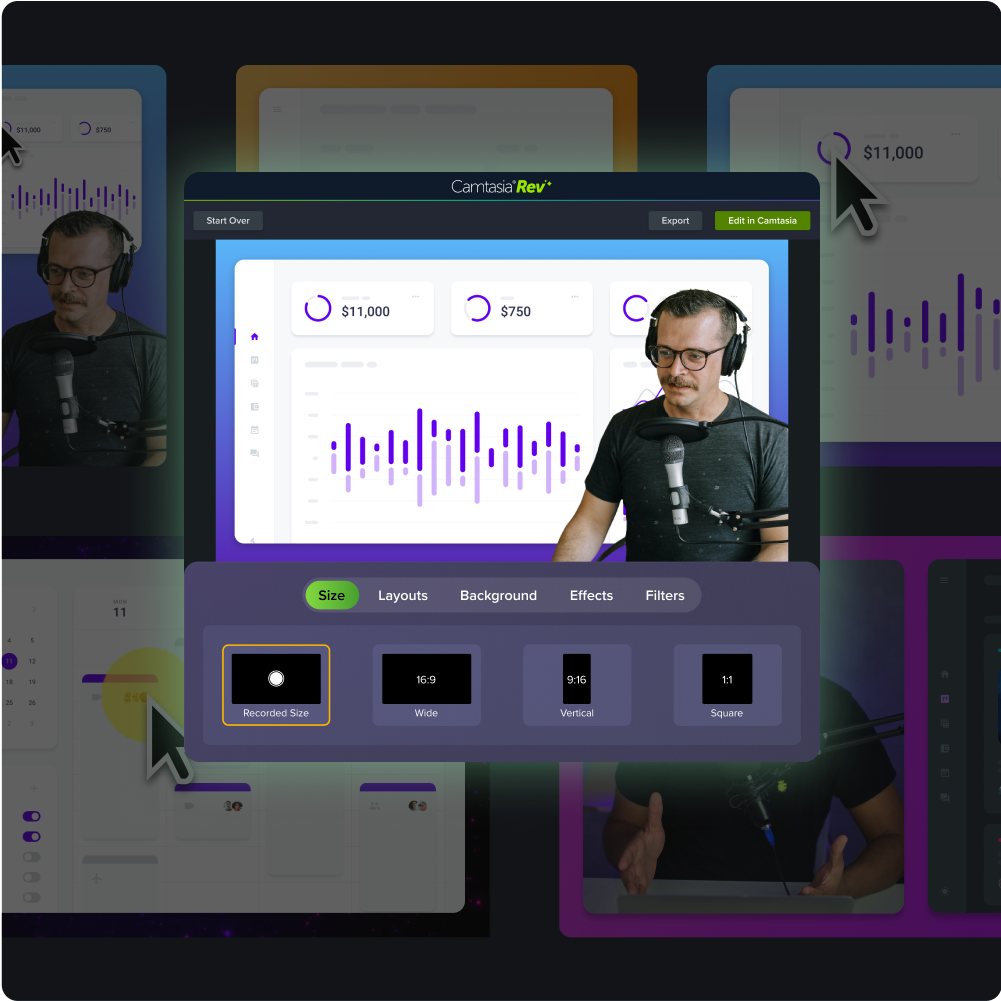
Optimize for accessibility and mobile use
Not every quiz taker has the same abilities, and some small adjustments can make your quizzes much more accessible.
- Keep your instructions clear but concise.
- Don’t limit response time more than necessary.
- Use captions, transcripts, and high contrast to support visual accessibility.
- Allow keyboard navigation and size up your tap targets.
- Make sure both captions and quizzes are screen-reader friendly.
Screencast Pro can auto-generate captions and summaries for you.
If you use Camtasia, it’s automatic.
It’s also a good idea to think about technical accessibility. Make sure your quizzes are optimized for mobile, and include low-bandwidth options or even offline capability if possible.
Determine feedback delivery structure
Next up, decide how you’ll give feedback, along with what that feedback will look like. The strategy you use here depends on what your video and quiz need to accomplish.
| Quiz purpose | Retry settings | Feedback style | Results display |
| Employee training | Unlimited, with hints | Detailed explanations | Show all answers |
| Certification | One attempt only | Pass/fail, with score | Hide correct answers |
| Diagnostic assessment | No retries; conditional branching | Encouraging, detailed, and simple | Varies |
| Educational tutorial | 3 attempts | Progressive hints | Full review available |
Step-by-step guide to embedding a video quiz
This all might sound like a lot of work, but getting started with video quizzes is easier than you might think! Use this practical roadmap to create your first video quiz in 30 minutes or less.
1. Choose a video quizzing tool
The number of tools out there for creating video quizzes may feel overwhelming, but you can narrow down that list pretty quickly based on your needs and your technical capabilities.
- Integration requirements: Does the tool allow for website embedding? Is it compatible with your LMS or video hosting platform?
- Question type variety: Does it include enough options to cover your needs (e.g., multiple choice, fill-in-the-blank, matching)?
- Analytics depth: Do you need to see users’ individual responses? What level of detail is available in the platform’s aggregate data?
- Budget constraints: Is there a free trial? Enterprise pricing? Does the relevant tier or package fit your budget?
- User experience: Is the tool enjoyable and intuitive to use?
You’ll probably run across some tools that just don’t fit, typically because they weren’t made for the kind of audience you’re addressing. So take a look at the platform’s primary focus, which will affect the kinds of features you’ll find:
- Educational focus: Tools built for learning (in classrooms or business training)
- Marketing-oriented: Platforms that prioritize lead generation and conversion
- Enterprise solutions: Scalable systems with advanced security and analytics
Camtasia is a powerful yet easy-to-use screen recorder and video editor, and you can try it free right now!
2. Upload or record your video
To encourage higher completion rates, make sure your video is clear and optimized. Before you upload, verify that you’ve checked off these best practices:
- Optimized file size: Use H.264 to compress without sacrificing quality
- Optimized resolution: 1080p for desktop, 720p minimum for mobile
- Clear, well-balanced audio: Clear narration is essential for comprehension
- Chapter markers: To organize quiz sections where supported
These tools can help you create clear, perfectly optimized videos that keep viewers engaged.
- Camtasia Snagit is the best way to capture screenshots of complex steps or software elements.
- Camtasia Editor lets you animate and narrate the screenshots you took in Snagit. You can also guide viewer attention before quiz moments with cursor effects and callouts.
- Screencast gives you a simple but powerful cloud solution for sharing videos with internal teams.
3. Insert quiz questions at key timestamps
It’s helpful to think of quiz questions as learning checkpoints, not just tests of knowledge. When you add questions strategically — like after introducing new concepts, before moving on to a new topic, or after demonstrating or showing examples — you’ll create moments of valuable interaction, rather than interruptions.
4. Configure video and quiz settings
Next, decide on settings for your video quizzes, based on your goals and audience.
| Category | Feature | Recommendation/use case |
| Question behavior | Allow retries | Yes – supports learning over testing |
| Show correct answers | After completion or immediately, depending on use | |
| Enable hints | Recommended for complex content | |
| Time limits | Use only when necessary (e.g., certifications) | |
| Navigation | Prevent skipping | Yes – ensures full content engagement |
| Enable question review | Yes – supports reflection and self-correction | |
| Allow pause | Recommended for accessibility | |
| Playback speed control | Recommended | |
| Scoring & Feedback | Point values | Use full or partial credit, or hide results |
| Pass threshold | 70–80% is standard | |
| Feedback timing | Immediate or end of quiz | |
| Certificate generation | Required for compliance tracking |
Pass threshold: 70–80% is standard
5. Preview and test your quiz video
Now’s your final chance to catch issues before your audience sees them. Follow this testing checklist to make sure your video quiz is the best it can be:
- Question clarity: Will testers understand what’s being asked?
- Timing appropriateness: Will they have enough time to read and respond?
- Technical function: Do all interactive elements work smoothly?
- Mobile experience: Are both questions and answers legible and buttons easily tappable on small screens?
- Audio sync: Does every question align with the correct video content?
6. Distribute your quiz video to your audiences
Now that you’ve finished up those final checks, it’s time for the quiz to go live. You have a few options on how, depending on your audience and how you’ll reach them.
- Use embed codes (generated in your quiz tool) to add quizzes to an LMS, intranet, or landing page.
- For some quiz videos, a direct link is better (think email campaigns or quick shares in internal comms).
- If you’re building training videos for internal teams, Screencast is a great solution that makes sharing effortless.
Generally, you want to choose the option that makes it easiest for both non-tech-savvy users and those with accessibility challenges to access. But don’t forget to consider trackability — some sharing options offer more analytics capabilities than others.
Looking for professional screen recording software?
From simple screen captures to polished video editing, TechSmith has everything you need to create professional-quality content.
Learn More
Use video quizzes to improve engagement and retention
If you create video-based training or educational content, you know how effective it can be. But it can be tough to compete for attention, and long-term retention really depends on how engaged your viewers are.
Adding quizzes to videos is a proven way to drive up that engagement (and the retention that comes with it). By following our step-by-step guide, you’ll get to witness passive viewers turn into active learners who retain more knowledge from your training materials.
Camtasia offers tools that trainers, educators, and instructional designers use to create accessible video quizzes that enhance learning in thoughtful ways. Plus, its tools provide the analytics you need to understand learning patterns and keep improving your training materials to ensure no learner gets left behind.
Start creating video quizzes for free today with Camtasia’s full suite of tools.
FAQs
Where should quiz questions appear in a video?
Quiz questions work best at natural pause points in the video. Good placements include after a new concept is introduced, before the video moves to a new topic, or right after a demonstration or example. When you map those timestamps in advance, question placement is easier and the quiz feels more helpful than disruptive.
How do you make video quizzes accessible and mobile-friendly?
Start with clear instructions, reasonable response timing, and quiz elements that support keyboard navigation. Use captions, transcripts, high contrast, and screen-reader-friendly quiz components, and make sure tap targets are large enough on smaller screens. It’s also smart to optimize for mobile viewing and consider low-bandwidth or offline options when possible.
What should you test before publishing a quiz video?
Before you publish, test whether each question is clear and whether viewers have enough time to read and answer it. You should also check that interactive elements work smoothly, that the mobile experience stays legible and easy to tap, and that every question appears at the right moment. A final audio sync check helps confirm the quiz still matches the video content viewers just watched.
Share