









Choosing between a browser screen recorder and a desktop screen recorder feels straightforward until you’re three weeks into a new onboarding program and realize your LMS won’t accept the files your tool exports by default.
That’s the situation many L&D teams hit after they’ve already standardized on a recording workflow. The browser tool was fast. The SMEs loved it. Then the LMS administrator asked for an MP4 with captions, and the conversion work started eating into every update cycle.
The browser screen recorder vs. desktop question isn’t really about which one records better. It’s about what happens after the recording ends: how you edit the file, add captions, package it, and maintain it within a training library that needs to stay consistent and accessible over time.
This comparison gives you a practical decision framework with specific criteria you can apply right now to figure out which tool fits which job, and where using both saves the most time.
Key takeaways
- A browser recorder is often enough for quick walkthroughs, SME captures, and microlearning clips where speed beats polish.
- Desktop recorders usually fit better when training videos need multi-track editing, annotations, quizzes, or LMS-ready export.
- The browser-versus-desktop decision isn’t just about recording quality: format compatibility, accessibility, and branded consistency matter too.
- Enterprise L&D teams often face additional governance questions because permissions, extensions, and managed browser policies affect capture tools.
- The strongest workflow often uses Camtasia Online for fast capture, then Camtasia Editor and Camtasia Audiate for polished production.
Is a browser-based screen recorder good enough for professional training videos?
For a quick SME walkthrough or a one-off process clip, yes. For a reusable onboarding module that lives in an LMS, usually not.
Apply this litmus test before you record: does the asset need captions, quiz interactions, SCORM packaging, or long-term reuse? If any answer is yes, a browser tool will likely create rework rather than save time.
Browser recorders typically lack:
- Closed-caption editing and accessibility compliance
- LMS-ready export formats
- Consistent branded templates
- Audio cleanup for clean narration
Camtasia Editor and Camtasia Audiate handle all four in a single connected workflow, keeping professional training programs on track without extra tools.
Need to show your screen?
Skip the downloads. Use Camtasia online to record your screen, camera, and microphone right in your browser for free.
Start Recording
What L&D teams need from a screen recorder
L&D teams evaluate recording tools by workflow outcome rather than capture quality alone. An instructional designer building a software training library across departments needs consistent branding, easy updates, LMS-compatible exports, and minimal re-records when the software changes.
Use this checklist during any pilot test:
- SME input speed
- Re-record frequency
- Brand consistency controls
- LMS format compatibility
- Accessibility support
How browser-based screen recorders work
Modern browsers can request permission to capture your screen and microphone directly without requiring installation. That convenience is real, but it comes with limits set by the browser itself.
Those limits affect training workflows in three concrete ways:
- Permissions reset in managed IT environments
- Output defaults to WebM, which some LMS platforms reject
- Editing options before export are minimal
Before committing, record a short Chrome-based microlearning update in your actual managed environment. If the permissions prompt appears repeatedly or the export fails, that’s your answer.
The Screen Capture API and MediaRecorder API explained
Browser-based recording tools rely on two browser APIs: the Screen Capture API to request access, and the MediaRecorder API to capture the stream. Both trigger a permission prompt every session.
That prompt asks you to choose a browser tab, app window, or full screen. An SME recording a quick software walkthrough must reselect the correct window each time, which is easy to get wrong under pressure.
Default output format: Why WebM matters for LMS compatibility
Many browser-based recorders export WebM by default. If your LMS expects MP4, that means you’ll need to convert the file every time you update a module.
Here’s a common scenario: a team records weekly compliance updates in a browser tool, then converts each file before uploading to their Cornerstone portal. That friction adds up fast.
Before committing to any browser recorder, ask your LMS admin which formats are accepted for upload and playback.
How desktop screen recorders work
Desktop recorders reach deeper into the operating system, which produces steadier capture, cleaner motion, and separate audio and video tracks — all of which matter when you’re building assets meant to last.
That OS-level access also lets Camtasia Editor capture cursor movement during recording, so you can add effects like motion blur or cursor elevation in post-production without re-recording anything.
Where this pays off: a 30-minute software onboarding lesson recorded once in Camtasia Editor works across multiple new-hire cohorts. When the software UI changes, you update individual clips rather than re-recording the entire course.
Go from screen recording to polished video
A screen recording is just the start. Camtasia’s editor helps you add the callouts, animations, and edits you need to create a truly professional video.
Free Download
OS-level integration and hardware-accelerated encoding
Desktop recording tools access your GPU directly, offloading encoding from your CPU. That matters during long, multi-source sessions — think of an instructor recording a live ERP walkthrough with a webcam, microphone, and system audio all running simultaneously.
Browser-based tools can’t tap that hardware layer. Test this yourself: run a complex demo with multiple apps open and watch for dropped frames or audio drift.
Multi-track capture and post-production depth
Camtasia Editor records your screen, webcam, microphone, and system audio on separate tracks. That separation means a single mistake rarely requires a full re-record.
Consider a compliance course where narration is clear, but the cursor skips past a critical button. Because Camtasia Editor captures cursor movement during recording, you can add motion blur or elevate the cursor above callouts and annotations in post-production with no reshoot needed.
Quick fix: Replace only the noisy audio clip in the timeline, leaving video tracks untouched.
When a browser recorder is the right tool
Browser recording works best when speed, access, and low friction matter most.
Use it when:
- An SME needs to capture a process without installing software
- A product UI changed overnight, and training must ship the same day
- A short internal explainer doesn’t justify a full editing session
In those moments, faster publishing improves relevance. A polished video delivered next week helps no one if learners need guidance today.
Quick SME captures and raw content handoffs
Treat the browser recorder as a capture intake tool, not a production requirement. A sales ops SME can record a new CRM workflow directly in the browser, share the link, and hand it off immediately. The instructional designer reviews it and decides what needs full production in Camtasia Editor. SMEs contribute without having to learn a new tool. Designers work from real source material instead of meeting notes.
Async walkthroughs and internal communications
Browser-based recording removes the friction of file attachments from internal review workflows. Instead of emailing video files, share a Screencast link where teammates leave timestamped comments directly on the video.
Example: A training manager records a quick process-change explainer in Camtasia Online, shares the Screencast link with a distributed trainer group, and collects feedback in one thread without inbox clutter or version confusion.
Microlearning clips where speed matters more than polish
When a system field changes, employees need the update today, not after a full editing pass. Build each clip around one learning objective only, like a 90-second walkthrough showing where a renamed expense category now lives in your finance system. That narrow focus makes browser-based capture the right tool: record, review, publish. No timeline editing required.
When a desktop recorder is required
Desktop recording becomes necessary when a training asset must teach, comply, and scale. Those jobs need more than capture and basic trimming.
Consider an annual safety certification reused across 12 locations and for every new-hire cohort. That module needs SCORM packaging for your LMS, closed captions for accessibility compliance, and locked branding so every version looks identical. A browser-based tool can’t reliably deliver all three.
Before procurement, confirm your downstream requirements:
- LMS delivery and SCORM export
- Closed captions and accessibility standards
- Consistent templates across course authors
- Version control for annual updates
If your checklist has more than one item checked, Camtasia Editor is the right starting point.
LMS-ready export and SCORM compliance
Browser recorders often output formats that need to be converted before your LMS will accept them. Desktop authoring better supports MP4 delivery, quizzes, and SCORM-compliant export, all in a single workflow.
Consider a new-hire onboarding module that requires a knowledge check and SCORM package so your LMS can track completion. Camtasia Editor handles that end-to-end without extra tools.
Before committing to any workflow, confirm your LMS’s exact export, quiz, and packaging requirements with your administrator.
Multi-track editing, callouts, and annotations for pedagogical clarity
Each edit type in Camtasia Editor should serve a specific learning outcome. Zoom to the exact menu path a learner must click. Add a callout to label the correct field. Use cursor emphasis to prevent missed clicks.
In an ERP workflow, zooming in on the “Submit for Approval” button during a purchase order walkthrough removes ambiguity and reduces support tickets from confused learners.
Branded, consistent output and accessibility compliance at scale
Large training libraries break down when every department uses different fonts, colors, and caption styles. Define one reusable Camtasia template that includes standard intro/outro slides, brand colors, and embedded captions, and every video your team produces stays consistent from day one.
A company rolling out compliance training across five departments, for example, can apply that single template library-wide. Browser recorders rarely offer this level of repeatability. Desktop tools do.
Security and governance considerations for enterprise L&D teams
Security can decide this purchase before quality does. If IT blocks a tool or flags it as a risk, it never reaches production.
Consider recording a customer-facing workflow inside a sensitive CRM. Browser extensions with broad permissions can expose that data. Bring these questions to IT early:
- What browser permissions does this tool request?
- Where is recorded data stored, and for how long?
- Is it approved for managed devices?
- Does it require extensions that violate policy?
Surfacing these questions during evaluation prevents later rollouts from stalling.
Browser extension risks and data governance in managed environments
Browser-based recorders often rely on extensions that request broad capture permissions, and in managed environments, IT teams frequently block or restrict them via Chrome or Edge policy controls.
Before committing to any browser recorder, confirm three things:
- Whether it requires an extension
- What permissions it requests
- Whether your organization’s managed-browser policy allows deployment
A Chrome extension that works on personal devices may be unavailable on company-issued machines.
Why locally installed desktop tools offer a stronger governance posture
Installed tools like Camtasia Editor fit naturally into endpoint management frameworks IT already uses: software inventory, deployment policies, and approved device lists. That alignment often shortens security reviews.
Loop in your endpoint and security teams early. Ask specifically about local storage requirements and device approval workflows.
For example, regulated onboarding content that contains proprietary screenshots must remain on approved endpoints, a clear fit for desktop deployment.
Crystal-clear screen recording
Why settle for blurry screen content? Camtasia Editor’s screen recorder captures everything at up to 4K!
Free Download
Combine browser capture with desktop editing for stronger results
Many L&D teams capture fast in the browser and finish professionally on the desktop. This split works well when subject matter experts (SMEs) are distributed across locations.
A practical handoff looks like this: SMEs record process walkthroughs in Camtasia Online, then share files directly with a central instructional design team, who refine, brand, and publish using Camtasia Editor. Each person does what they do best, without slowing the other down.
Using Camtasia Online for zero-friction SME and team recording
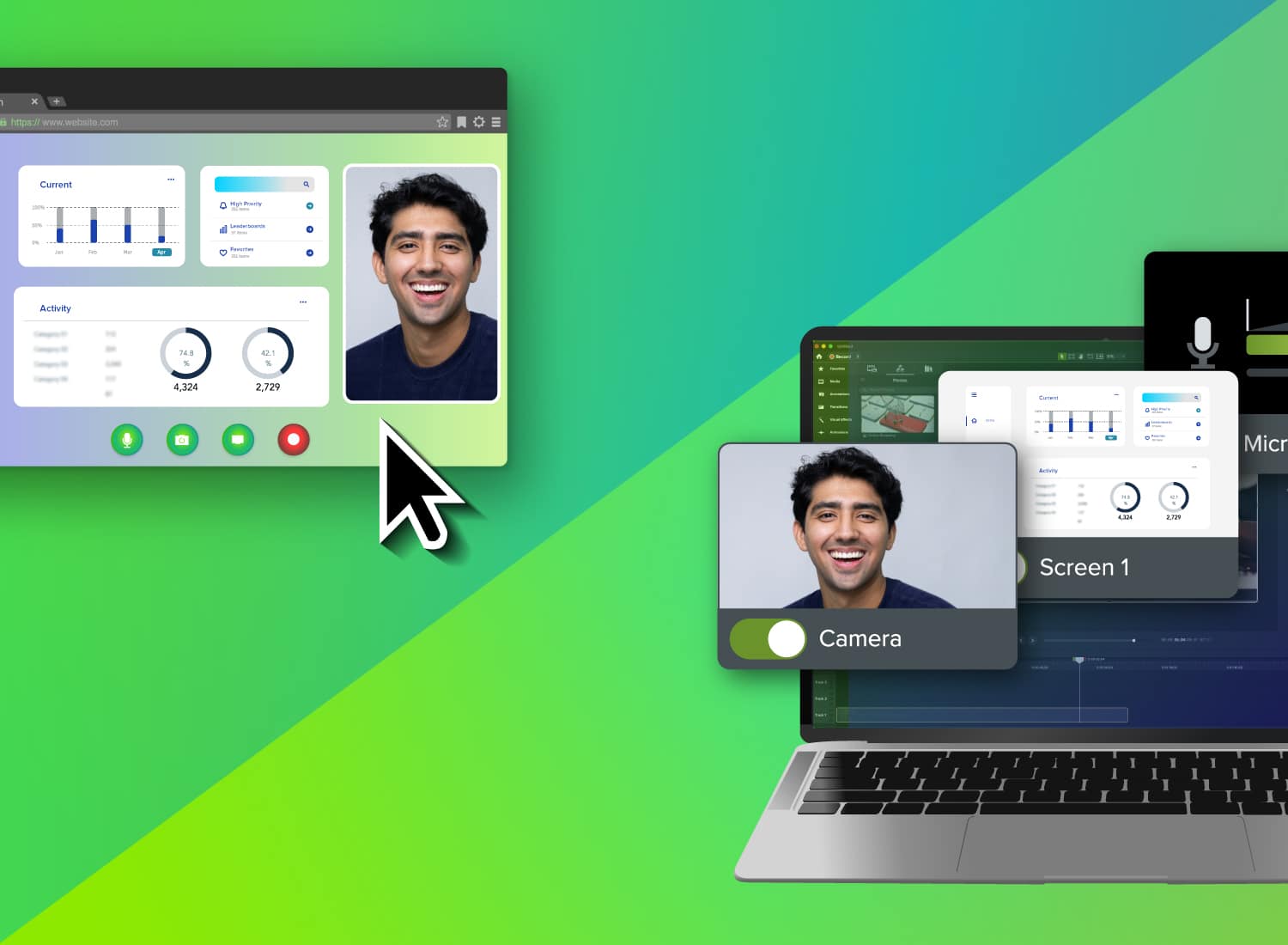
Camtasia Online lets contributors record directly in a browser with no installation and no IT ticket. Its one-click layout feature automatically arranges camera and screen recordings into a clean, professional look, so even first-time contributors get a usable result without manual editing. For a software rollout, department leads across locations can submit 1080p clips in minutes and share a link instantly.
Use it when SMEs need to capture a quick walkthrough or process change without touching Camtasia Editor. It removes the setup barrier entirely.
Handing off to Camtasia Editor and Camtasia Audiate for professional post-production
Once your browser capture is done, open it in Camtasia Editor to trim clips, add callouts, and build a logical flow. Then send the project to Camtasia Audiate to remove filler words and clean up narration without needing to re-record anything.
For example, raw SME interview clips become a captioned onboarding module in one pass. Note: Camtasia Audiate voices and transcriptions are AI-generated.
Choose the right tool for each stage of your training workflow
- One-off updates: Use Camtasia Online, no install, instant share.
- LMS course assets: Use Camtasia Editor for polished, branded output with captions and quiz interactions.
- L&D teams collecting SME input: Use both: SMEs record in the browser, your team refines in the desktop editor.
If you’re weighing other options, this comparison between Camtasia and Clipchamp clearly breaks down the trade-offs.
The right choice depends on the job, not a fixed preference. Match the tool to what the training asset needs to do, and let your team move between both as the work demands.
Start your free trial of the Camtasia Suite and take your next training project from capture to finished course.
Frequently asked questions
Is a browser-based screen recorder good enough for professional training videos?
For quick walkthroughs, a browser recorder is often enough. For polished training, most teams need desktop editing for annotations, multi-track timing, captions, and consistent export settings. Camtasia Online works well for fast capture, while Camtasia Editor handles the production work that makes training easier to follow.
What’s the difference between a browser screen recorder and a desktop screen recorder?
The main difference is access and control. Browser tools rely on browser permissions and web media APIs, so quality, format, and performance have limits during longer recordings. Desktop apps integrate more deeply with your operating system, which may help with stability, hardware acceleration, and post-production flexibility.
Can I record my full desktop with a browser-based tool?
Usually, yes, if the browser lets users choose the entire screen during the permission step. Browser capture stays inside browser security rules, and some managed environments restrict screen capture through policy controls. If your team records sensitive workflows, confirm governance requirements before standardizing on a browser-first setup.
What screen recorder works best for creating LMS-ready training content?
For LMS-ready training, a desktop workflow is usually the safer choice. Browser recorders often create WebM files, which may add conversion steps when your platform expects MP4 and tighter publishing control. Camtasia Editor is a better fit when you need polished exports, interactive elements, or repeatable standards across a training library.
Should L&D teams choose a browser recorder, a desktop app, or both?
Most L&D teams do better with both, used at different stages of the job. Use Camtasia Online for fast SME capture, then move into Camtasia Editor for polished editing and Screencast for feedback and sharing. If narration needs cleanup, Camtasia Audiate can speed that step. Note that any generated voice over is AI-generated.
Share