


Add text to image
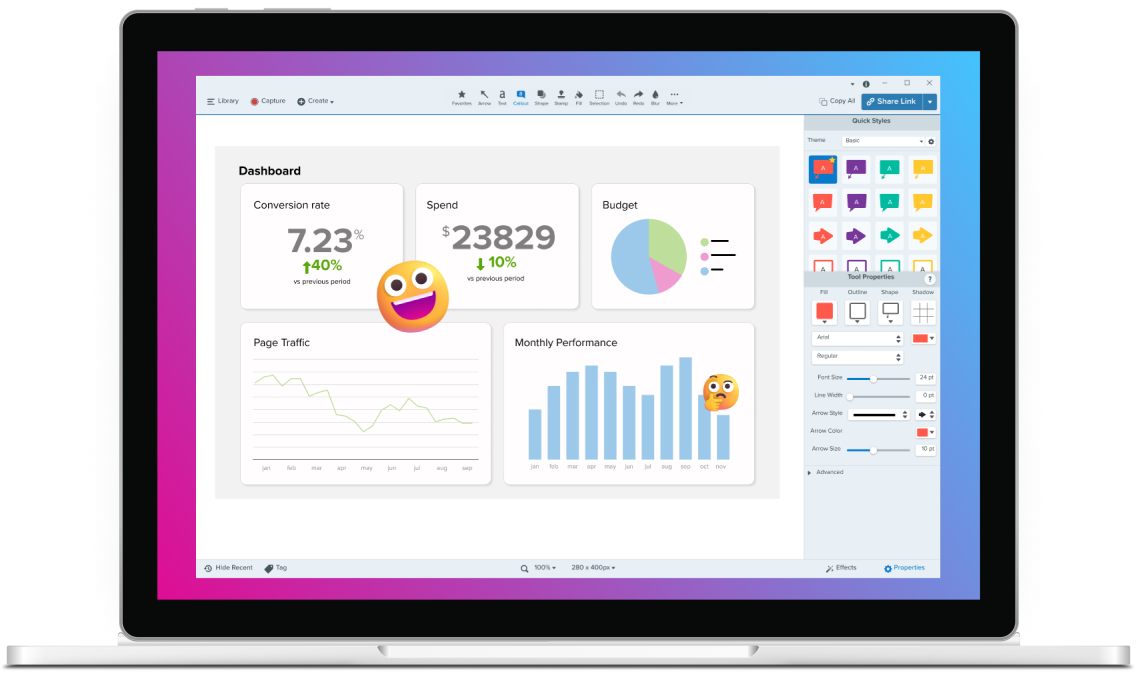
Adding text to an image can transform a simple screenshot or photo into a professional-looking, informative visual. With Snagit, it’s easy to add crisp, legible text to any image and customize it to match your brand’s style. Whether you need to annotate screenshots, create step-by-step guides, or simply add captions, Snagit’s text and callout tools make it simple and intuitive.
DO ADD TEXT TO IMAGE IN SNAGIT
How to add text to an image in Snagit
Adding text to an image in Snagit is a simple process. Follow these three steps to get started:
1
Step 1: Open your image in Snagit’s editor
Begin by importing or capturing your image in Snagit. Once it’s open in the editor, select the Text tool from the toolbar to begin adding text to your image.
2
Step 2: Add and customize your text
Click on the area where you want to add text and start typing. You can then customize the font, size, color, and style of the text to fit your needs. For more impact, use the Callout tool to add a professional, visually appealing frame around your text.
3
Step 3: Save and share your image
After adding and styling your text, simply save your image or export it for use in your project. Snagit allows you to share it directly to platforms like email, social media, or cloud storage.
Why use Snagit to add text to images?
Snagit provides several unique benefits that make it the best tool for adding text to images.
Easy-to-use text and callout tools
Snagit’s Text and Callout tools are user-friendly, allowing you to easily add and customize text. Whether you need basic text or something more visually striking, Snagit provides the flexibility to create on-brand, professional-looking images.
Instantly professional results
The combination of Snagit’s crisp image quality and high-quality text ensures that your visuals always look polished. With customizable fonts, colors, and styles, your text can match the tone of your brand or project effortlessly.
Perfect for annotations and guides
Whether you’re creating tutorials, guides, or presentations, Snagit’s ability to add clear, legible text to images ensures that your audience understands your message. The callouts and annotations make it easy to highlight key points and enhance comprehension.
Get started with Camtasia Snagit
FAQ
Yes, Snagit allows you to customize text by changing the font, size, color, and style. You can create on-brand text that matches your project’s look and feel. You can save your customized text boxes or callouts as Quick Styles for easy future reference.
Absolutely! Snagit’s Callout tool is perfect for adding text inside a visually appealing callout, helping your text stand out and enhancing the image’s overall design. Multi-tail callouts allow you to point out multiple parts of one document with the same comment for easily understandable and quick feedback.
Yes, if you save your project in Snagit’s editable format (.snagx), you can reopen it later to edit the text or make other adjustments to the image. This way, you can update comments and add new text whenever you need.
Yes! Snagit is perfect for adding text and annotations to screenshots, making it easy to create clear, step-by-step guides and tutorials. Snagit’s free templates also make it easy to quickly create step-by-step guides that your viewers can follow with ease.
Yes, Snagit ensures that text remains crisp and clear when you export the image, regardless of the format or resolution. This means that you never have to worry about too much text – there is nothing holding you back.
While Snagit focuses on single-image edits, you can quickly switch between images and add text to each individually, making the process efficient when working on multiple images. With the batch edit feature, you can apply effects and filters to your images at once, which makes editing easier and more efficient than focusing on single images.
Yes! With Snagit, you can upload any photo to the editor and add text. It does not have to be a screenshot or a document. Most image file types work, such as .png, .jpeg, and more. Upload your personal photos to Snagit to edit them with ease.
Check out our tutorial that will walk you through everything you need to know.
Still can’t find what you need? Contact us and we’ll help you out.