


Convert your video to GIF
Looking for a way to easily convert your videos into eye-catching GIFs? Snagit has you covered. Snagit simplifies the process, letting you capture, trim, and even combine videos into the perfect GIF.
VIDEO TO GIF IN SNAGIT
Transform video to GIF effortlessly
Turning your video into animated GIFs has never been easier. With Snagit, you can record any part of your screen and instantly transform it into a high-quality GIF.
1
Step 1: Record or upload your video
Start by using Snagit’s powerful screen recorder to capture the action you want to turn into a GIF. If you already have a video, simply upload it in Snagit editor.
2
Step 2: Edit your video
Next, fine-tune your footage by trimming it down to just the right length or adding additional videos. Snagit’s intuitive editing tools let you edit easily, making sure your GIF is the length you want.
3
Step 3: Choose a GIF preset
Snagit offers optimized presets for different types of GIFs. Whether you’re working with high-motion videos, screen recordings, or you need a smaller file size, Snagit has a preset to make sure your GIF looks great.
Why Snagit is the best tool for video-to-GIF conversion
Whether you’re using GIFs for training documentation, fun social media snippets, or to share with your coworkers, Snagit is the GIF maker for you.
Combine multiple videos
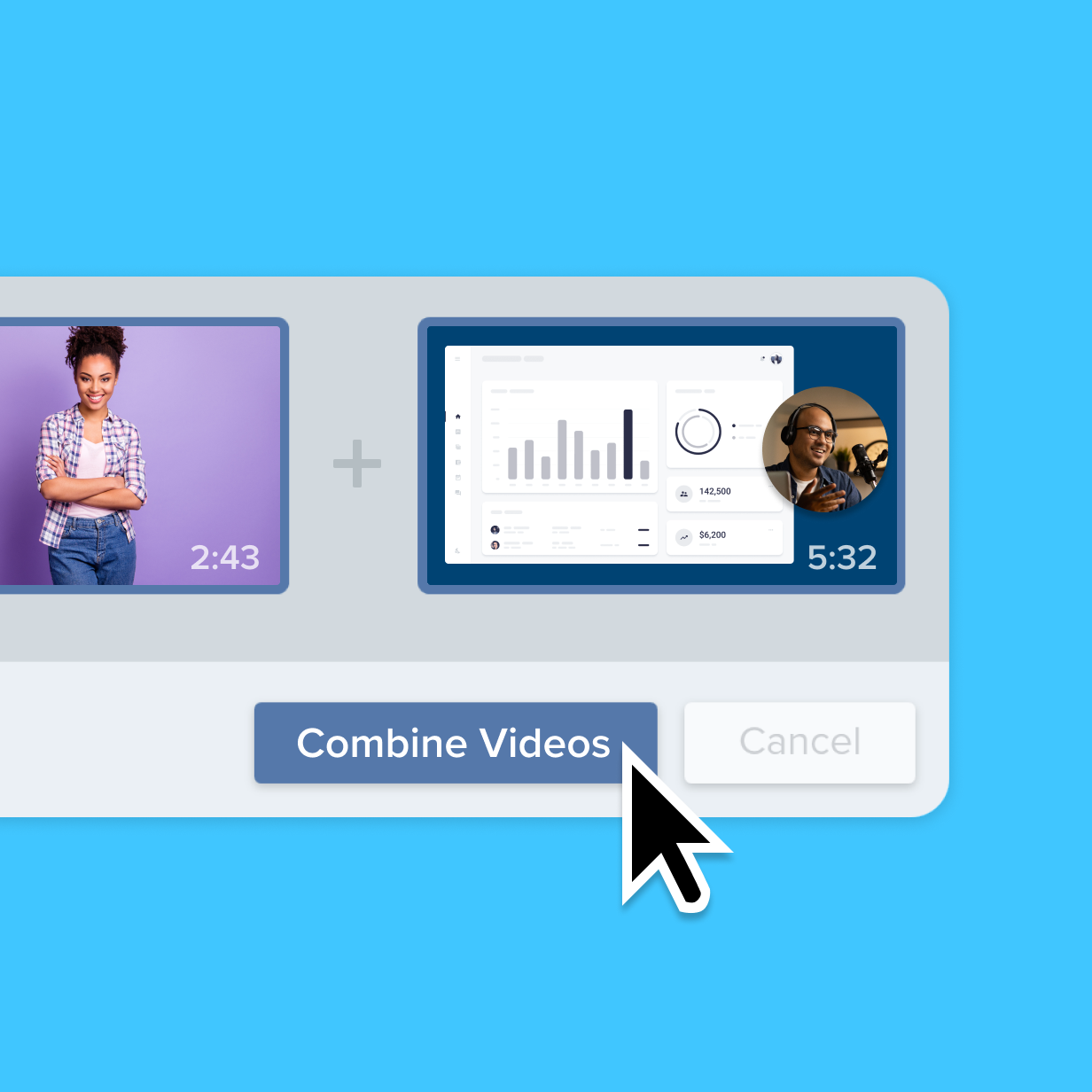
Unlike other tools, Snagit allows you to merge several clips into a single GIF, making it perfect for creating comprehensive tutorials or fun, multi-scene social media posts.
Trim to perfection
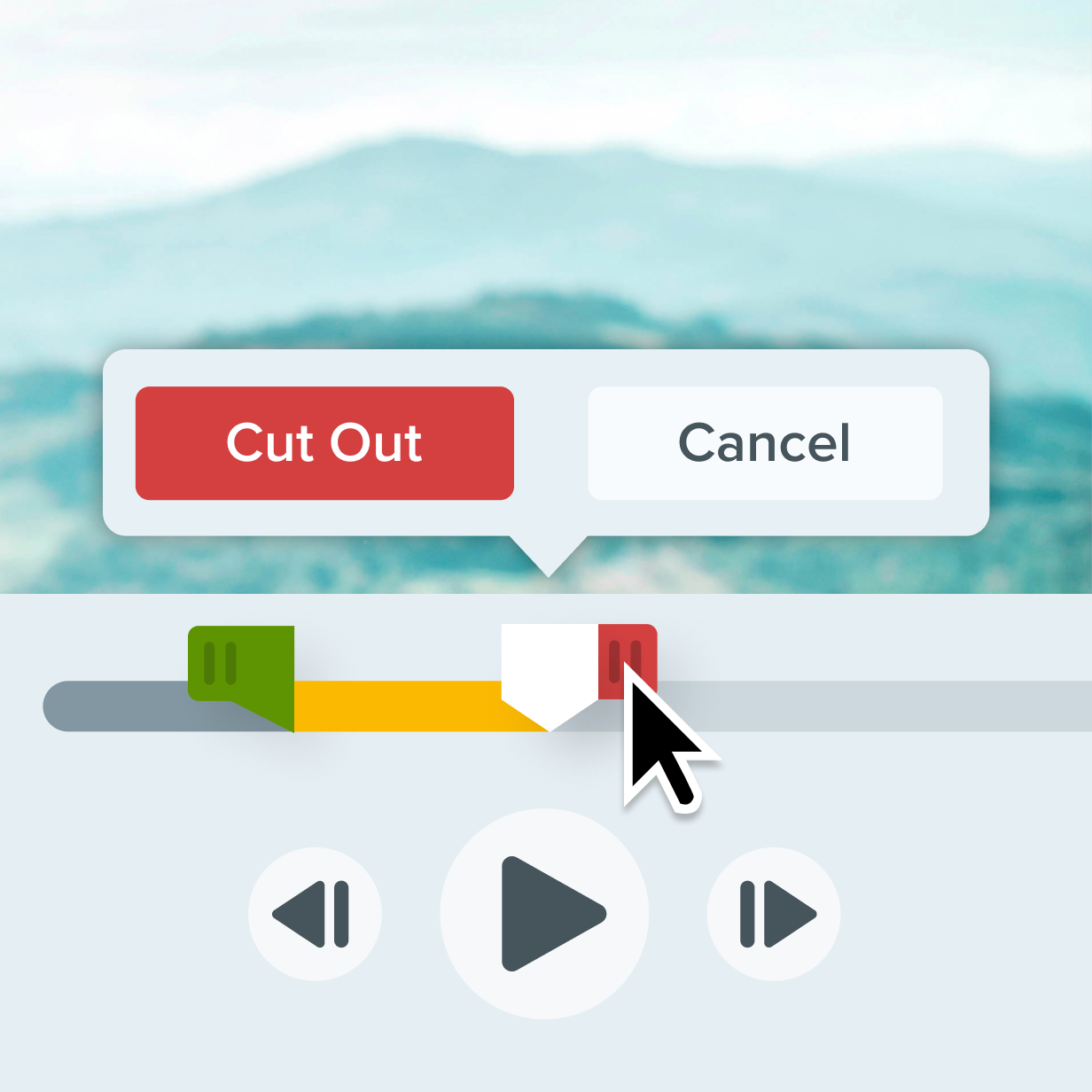
Snagit’s trimming feature lets you cut your video to the exact length needed for a compelling GIF. No more extra frames—just the action you want.
Share with ease
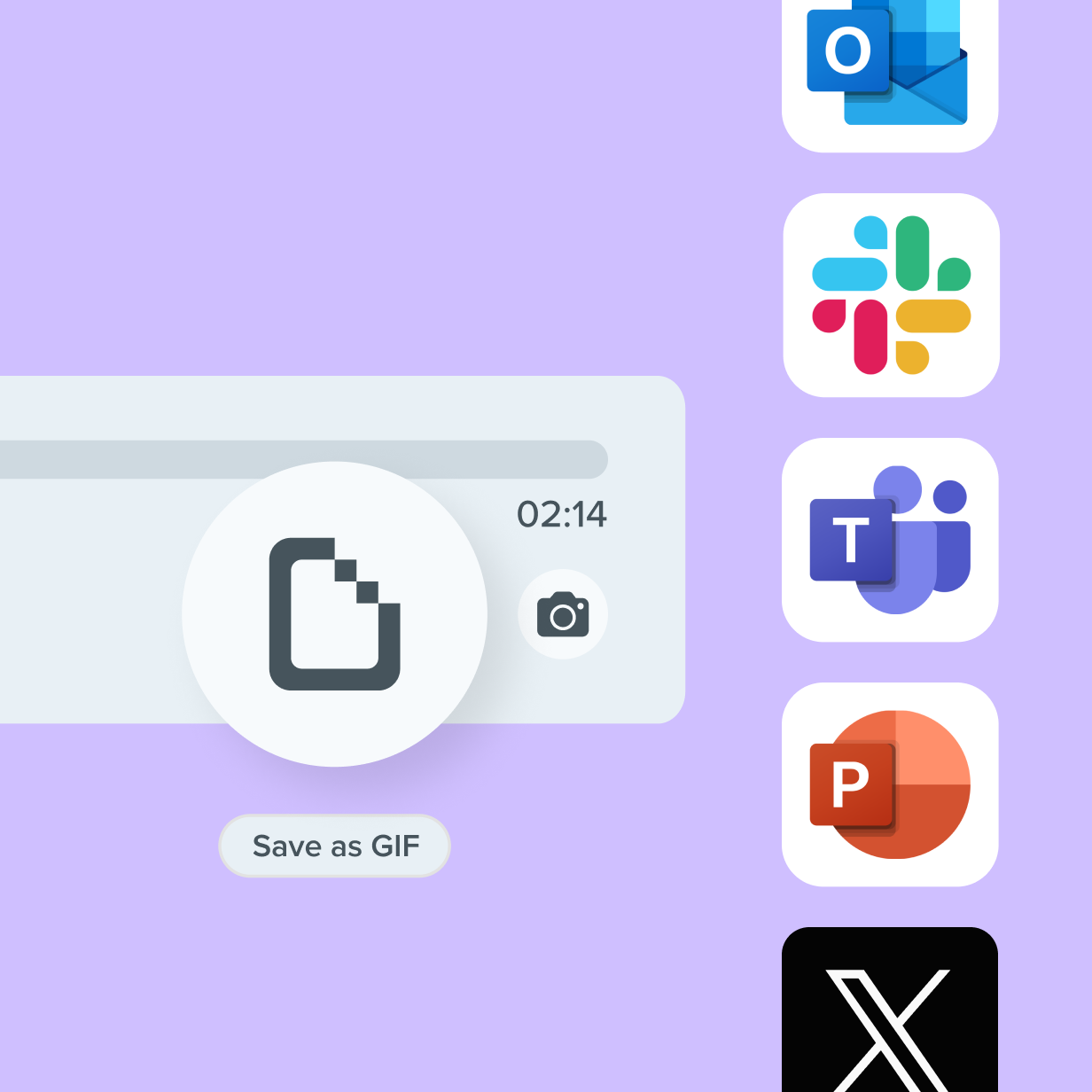
Snagit’s efficient exporting options ensure that your GIF maintains quality while staying within size limits for easy sharing. Turn your GIFs into videos everyone will want to watch.
Get started with Camtasia Snagit
FAQ
Yes, Snagit allows you to combine multiple video clips into a single GIF, making it easy to create complex or multi-part animations.
Simply drag the green and red handles on Snagit’s video editor to select the segment you want to trim out. This lets you cut down your video to the exact frames you need for a concise and engaging GIF.
Absolutely. Snagit provides presets optimized for high-motion videos (such as live action), screen recordings, and reduced file sizes to ensure your GIF looks its best no matter the content.
Snagit is the ultimate tool for turning your videos into GIFs, combining power and simplicity to help you create engaging, shareable content in no time.
Yes, Snagit lets loop your GIF infinitely or for a specific number of times.
Check out our tutorial that will walk you through everything you need to know.
Still can’t find what you need? Contact us and we’ll help you out.