


Editor is the go-to for anyone looking to create engaging videos, whether you’re a beginner or an experienced content creator. From screen recordings to educational videos, Editor is the perfect all-in-one tool for creating high-quality content on both Windows and Mac platforms.
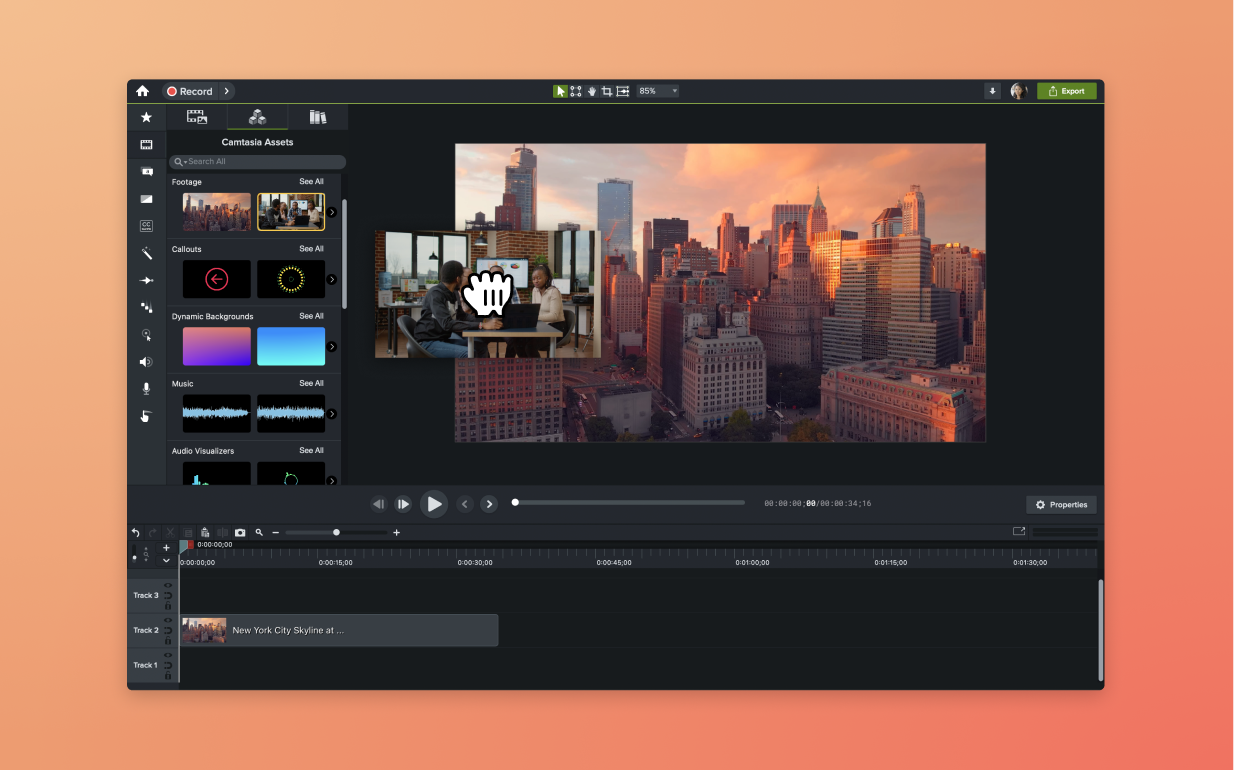
Editing videos in Editor is simple and efficient. Follow these three steps to create professional-looking videos:
1
Step 1: Record or import your media files
Start by importing your video clips, audio, and images into Editor. Or, record your videos with Editor’s high-quality screen recorder. Once your files are on the timeline, you can begin trimming, cutting, and rearranging them. Editor’s multi-track editor makes it easy to work with multiple layers of media at once.
2
Step 2: Add transitions, effects, and assets
Use Editor’s drag-and-drop tools to enhance your video. Choose from hundreds of transitions, add animations, and use built-in assets like callouts and titles to bring your video to life. You can also adjust the cursor and add animations to screen recordings with ease.
3
Step 3: Preview and export
After editing, use the preview feature to see how your video looks in real time. When you’re satisfied, export your video in the desired format, ready to be shared on platforms like YouTube, social media, or your website.
Camtasia Editor: The video editor for beginners and professionals
Editor provides a host of benefits, making it the best tool for editing videos across a range of content types.
Beginner-friendly with professional results
Editor’s intuitive interface and easy-to-use tools make it perfect for beginners, while its powerful features ensure you can produce professional-quality videos. You don’t need to be an expert to create videos that look like they were made with pro tools.
Cross-platform and all-in-one solution
Editor is the only all-in-one video editor that works seamlessly across both Windows and Mac. It combines video editing with a multi-track screen recorder, making it ideal for creating content for everything from social media platforms to internal onboarding.
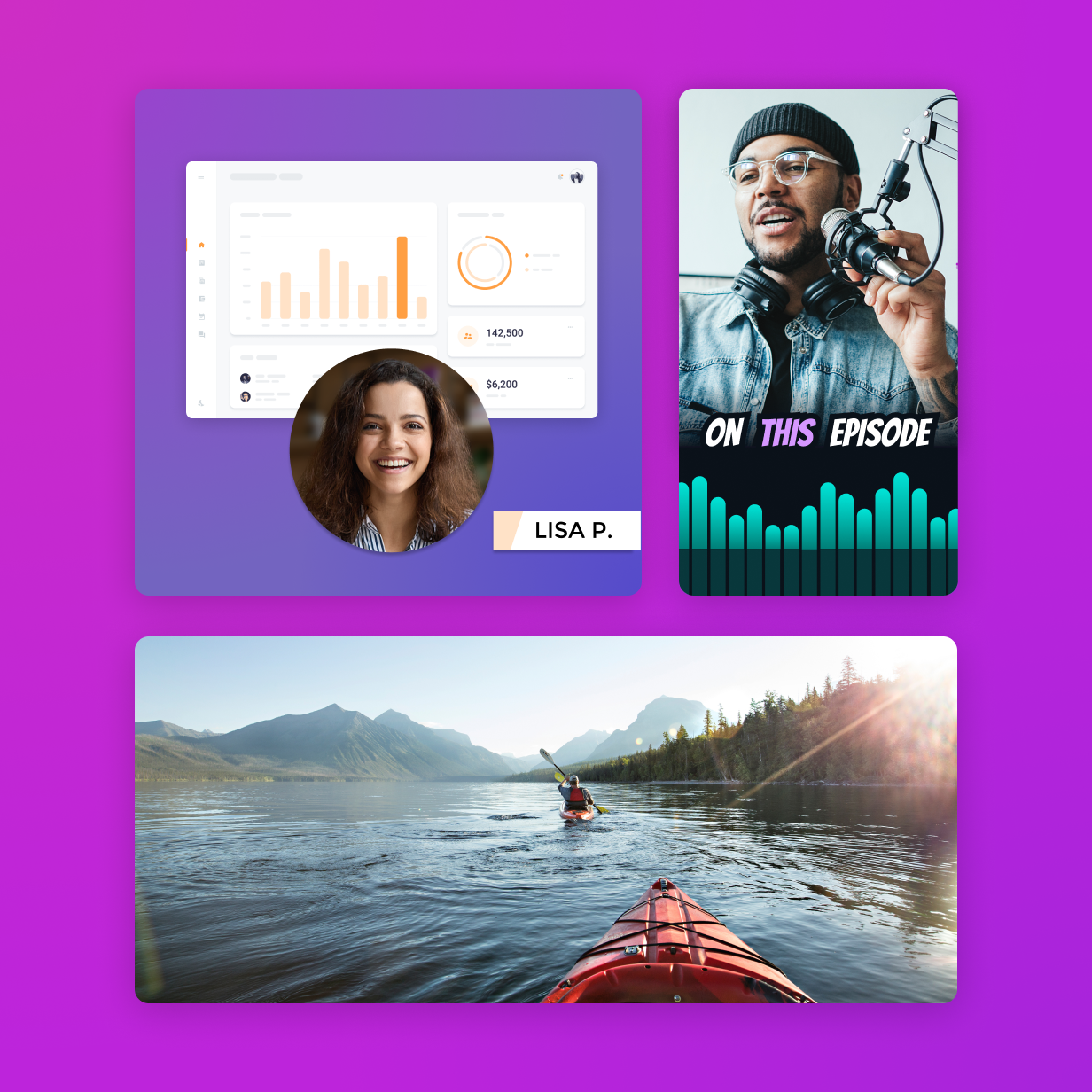
Pro-quality assets and effects
Editor includes thousands of free, customizable assets like animations, dynamic backgrounds, and b-roll footage, as well as drag-and-drop transitions and effects. These tools help you create high-quality, amazing videos quickly, reducing production time and cost.
Yes, Editor includes easy-to-use animation tools that let you animate text, create motion paths, and zoom in on important content.
Editor comes with thousands of free, customizable assets such as callouts, titles, and animations, along with hundreds of drag-and-drop transitions and effects.
Yes, Editor allows you to modify or replace the cursor in your recordings. You can adjust its size, path, and even choose a custom cursor for post-editing.
With Editor, you can crop, trim, and split video tracks. It works for anyone, no matter their expertise level so you are ready to publish your videos online!
