In today’s fast-paced world, video viewers expect content that is both engaging and efficient. With Camtasia Editor’s intuitive drag-and-drop interface, you can quickly adjust the speed of any video without guesswork.
Speeding up your videos in Editor is incredibly simple. Just follow these three steps to adjust your clip’s speed and save time in the editing process:
1
Step 1: Add your video and effect to the timeline
Start by importing your video into Editor. Drag your video file onto the timeline. Then, drag and drop the clip speed effect onto the media to start editing.
2
Step 2: Drag to adjust the speed
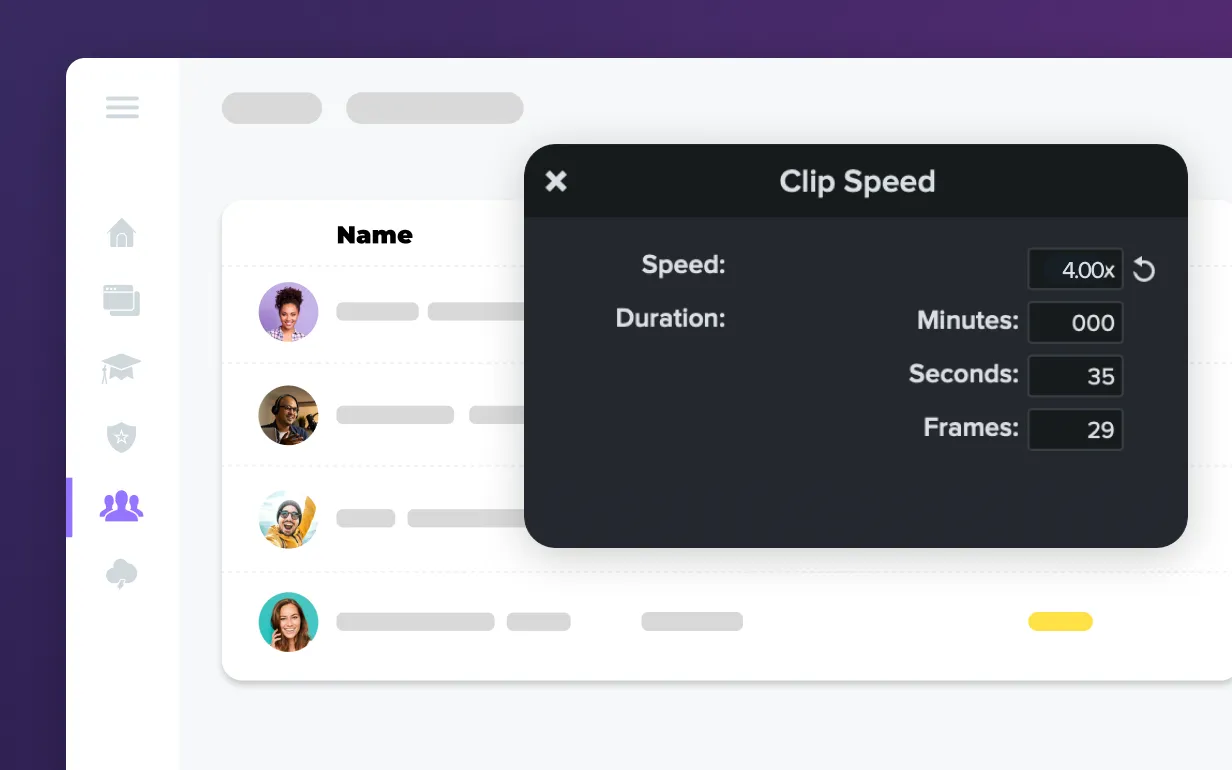
Select the media with the clip speed applied and click the arrow on the bottom of the clip to open the Effects tray. Select Clip Speed in the Effects tray, and Drag the clip speed handles to adjust the clip speed. Or, adjust the clip speed in the Properties panel, which allows you to adjust the speed and duration of the video.
3
Step 3: Set the desired duration
If you need your video to fit a specific time length, Editor lets you specify exactly how long you want the clip to be. The software will automatically adjust the speed to meet your specified duration, ensuring precision and convenience.
Camtasia Editor makes it easy to speed up your videos
Editor isn’t just about making edits quickly—it’s about providing powerful, easy-to-use tools that save you time and enhance your content.
Drag-and-drop simplicity
With Editor’s intuitive drag-and-drop speed adjustment, there’s no need to guess or test different speed settings. You can visually adjust the speed by dragging the video clip, ensuring it perfectly matches your needs without any guesswork.
Engaging and time-saving content
Speeding up your videos can help deliver information faster and keep your audience engaged. Whether you’re cutting out slow parts of a tutorial or shortening a lengthy presentation, speeding up the video helps your audience reach the content they want more quickly.
Efficient video creation
Knowing you can speed up or slow down a video in post-production means you don’t have to worry about filming everything at the perfect pace. Whether you’re working with screen recordings or live footage, Editor allows you to focus on content rather than timing.
Yes! In Editor, you can split your video into sections and adjust the speed of individual clips, allowing you to speed up only specific parts while keeping other sections at their original pace.
Editor allows you to specify the exact duration you want for your video. The software will automatically adjust the speed to make the clip fit the specified time.
Yes, when you speed up a video, the audio will also speed up. However, you can adjust or mute the audio separately to ensure it sounds natural, or you can replace it with a new audio track.