


Remove text from image
Removing text from an image can be essential for creating cleaner visuals, protecting sensitive information, or updating outdated content. With Snagit’s precise selection tools and Auto-fill feature, removing text is quick and easy, allowing you to seamlessly edit your images.
REMOVE TEXT FROM AN IMAGE IN SNAGIT
How to remove text from an image with Snagit
Removing text from an image in Snagit is a straightforward process. Follow these three steps to get started:
1
Step 1: Open your image and select the text
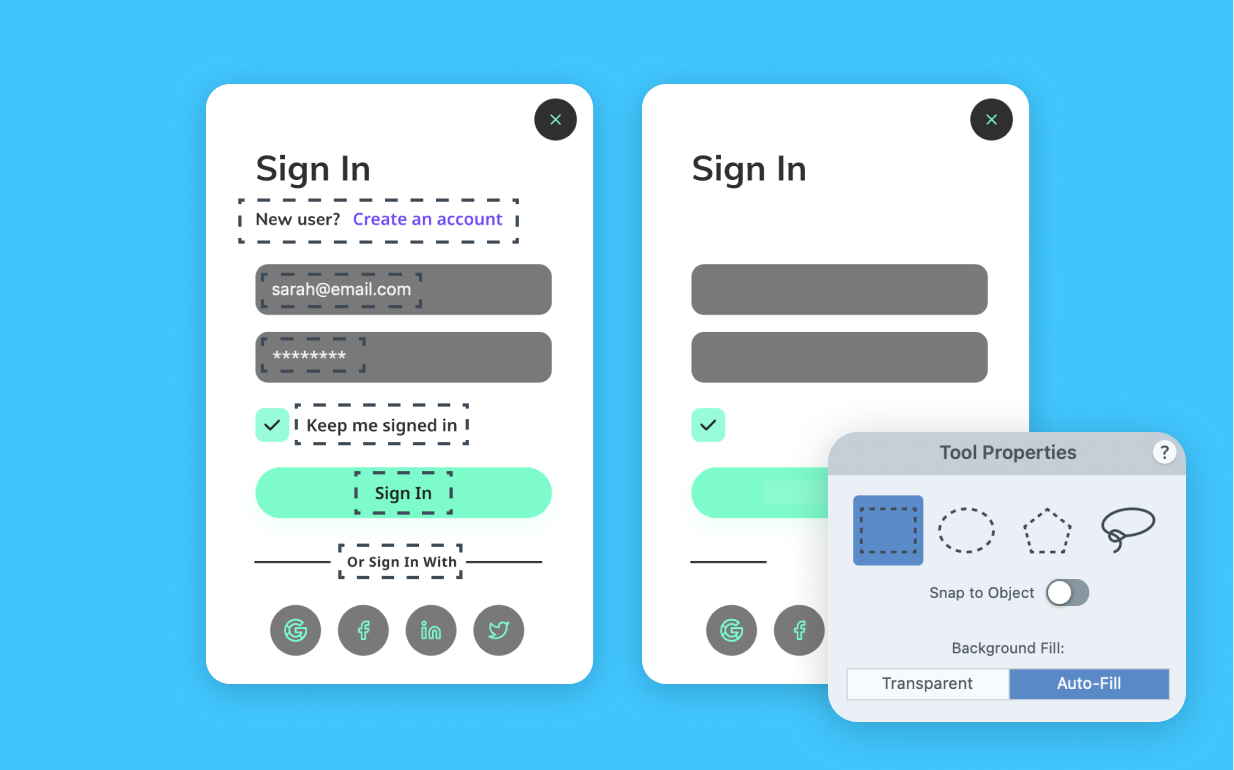
Import your image into Snagit’s Editor and use the Selection tool to highlight the text you want to remove. You can choose from various selection shapes, including freehand, to ensure precision when selecting text.
2
Step 2: Use the Auto-fill feature
Once the text is selected, select the Auto-fill option and press Delete to automatically replace the area with the surrounding background or color. This ensures that the area where the text was removed blends seamlessly with the rest of the image.
3
Step 3: Review and update your image
After removing unwanted text, review the image to ensure everything looks perfect. Snagit’s editing tools allow you to further adjust the image or add new elements, ensuring your final product is clean and professional.
The best text remover from images
Snagit provides several key benefits that make it the best tool for removing text from images.
Precise selection tools
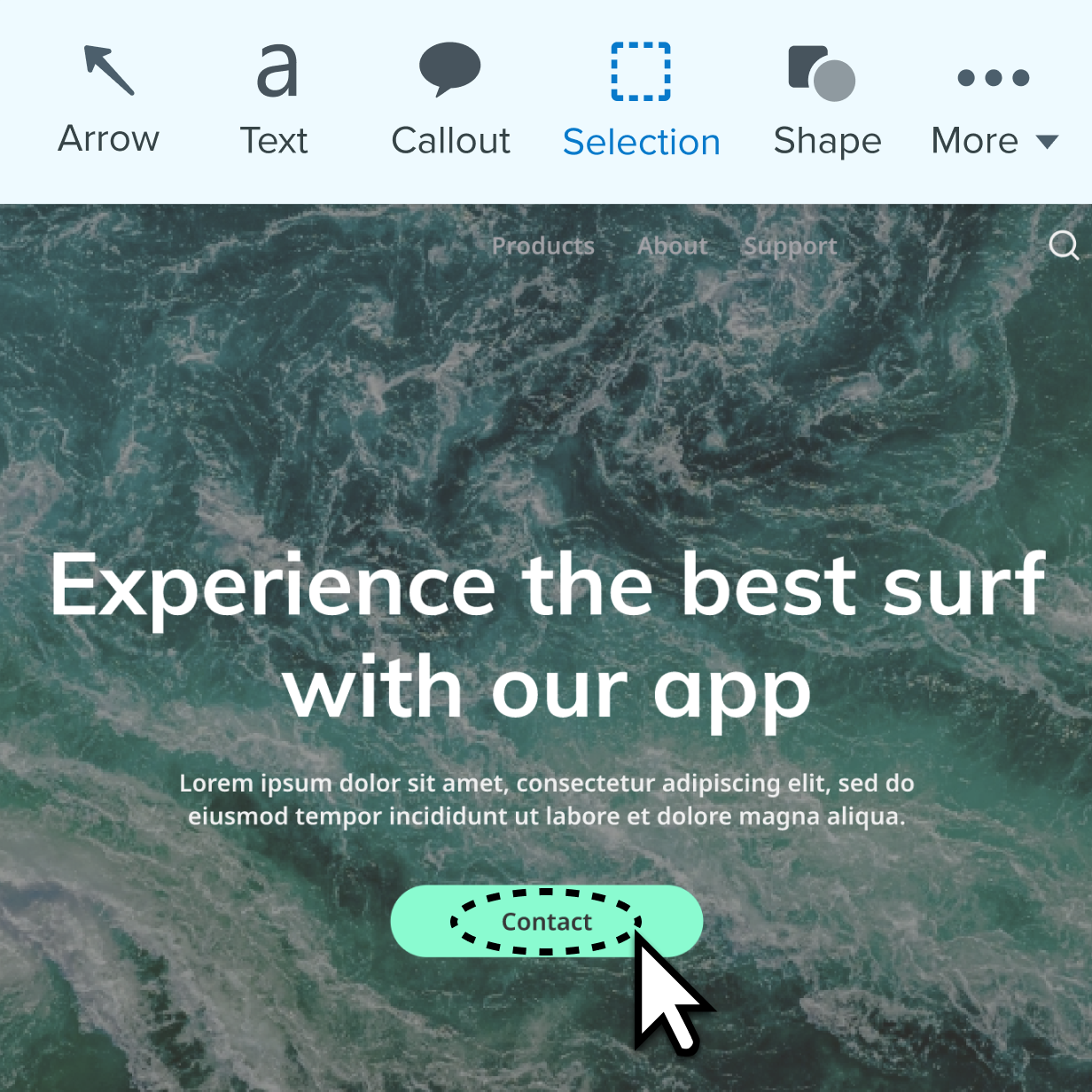
Snagit’s selection tools allow you to choose from a variety of shapes, including freehand, to accurately target the text you want to remove. This level of precision ensures that only the text is removed, leaving the rest of your image intact.
Auto-fill for seamless edits
With Snagit’s Auto-fill feature, the area where text is removed is automatically replaced with the surrounding colors or patterns. This results in smooth, seamless edits that make it look like the text was never there in the first place.
Protect sensitive information
Removing text from images is crucial for protecting private or proprietary information before sharing images. Snagit makes it easy to remove sensitive details without leaving any trace, ensuring your images are safe to distribute.
Get started with Camtasia Snagit
FAQ
Yes, Snagit’s Auto-fill feature automatically blends the area where text is removed with the surrounding background, ensuring the image looks clean and seamless.
Snagit offers various selection tools, including rectangle, oval, and freehand, giving you precise control over which areas of the image you want to edit.
Absolutely! Snagit is ideal for removing sensitive or proprietary information from images before sharing, ensuring that private data is not visible in your final image. Remove unwanted objects with Snagit’s easy-to-use tools.
No, Snagit’s Auto-fill feature ensures that the area where text is removed is replaced with the surrounding color, making the edit blend perfectly into the image.
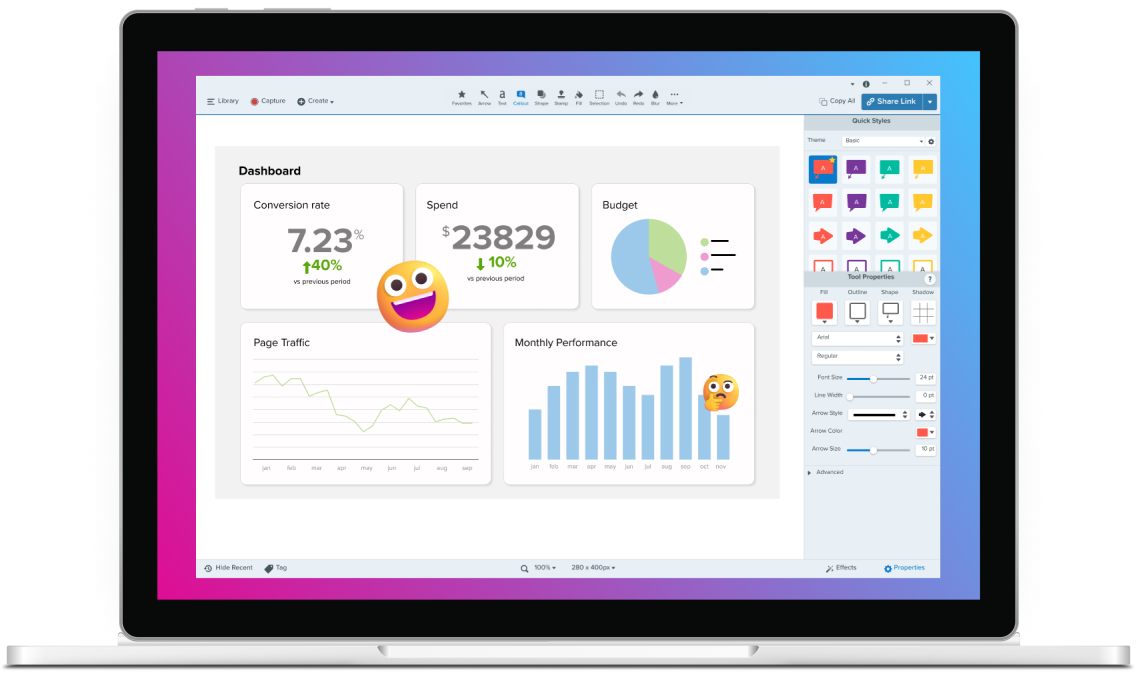
Yes, after removing the text, you can continue editing the image with Snagit’s other tools, such as adding new text, annotations, or additional graphics.
Super easy! With just a few clicks, you can remove text from any image, and Snagit’s intuitive interface makes the process simple for beginners and advanced users alike.
Yes! For example, you can remove profile pictures from account screenshots or cover other objects with Snagit’s Simplify feature.
Check out our tutorial that will walk you through everything you need to know.
Still can’t find what you need? Contact us and we’ll help you out.