Basic Edits After Recording
Learn how to apply our recommended edits after completing your recording and enhancements in Camtasia Rev.



Learn how to apply our recommended edits after completing your recording and enhancements in Camtasia Rev.

After applying the desired look, layout, and effects in Camtasia Rev, click the Edit in Camtasia button to continue editing your recording in Camtasia Editor.
Rev offers two options for displaying media on the timeline in Camtasia Editor.

Select how you want to edit media in Camtasia:
 Rev Media (Recommended): Combines the recorded streams (screen, camera, and audio) into a single media package. This option allows you to quickly apply automated enhancements, layouts, and basic edits. See Introduction to Rev Media.
 Unpacked Media: Edit the recorded streams (screen, camera, and audio) as separate tracks. This option provides more editing control.
Try these quick edits after recording to remove mistakes or to enhance your video.
Camtasia’s flexible recording allows you to change the layout or effects anytime.
Click the Modify button on the Rev media to reopen Camtasia Rev to quickly edit the look, layout, or effects.
To apply different looks and effects to a section in your video, split the Rev media into separate clips on the timeline. For example, if you want one section of your recording to focus on the screen content and another section to focus on the camera.


To make adjustments to your content within a layout in Camtasia Editor, select the media stream (screen, camera, or background) in the Properties pane or edit its position directly on the canvas.

For example, center the speaker within the frame. 
Or, adjust the layout if the camera covers important areas of the screen recording. 
Trim
Remove any extra content at the beginning or end of a recording.
Customize an Effect or Background
Customize the effects applied in Camtasia Rev. For example, change the background color to match your brand or adjust the border width. See Customize Media & Effect Properties.


Add an Annotation
Annotations are visual elements and text to emphasize, direct viewers’ attention, provide additional information, or cover up areas in your video.

Add a Transition
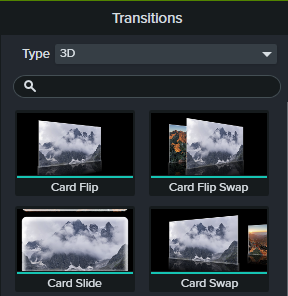
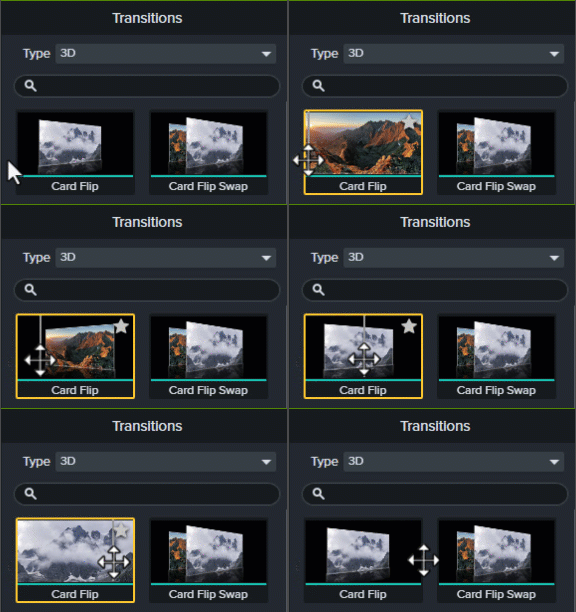
Create a smooth visual transition between media. See Add a Transition.






Remove Mistakes in Camtasia Audiate
Click the Edit as Text button to quickly remove mistakes with AI and text-based editing.

Add a Title
Add a title or lower-third from Camtasia assets to introduce your video, a speaker, or scene.
When you are ready to export or share your video, click the Export button in the upper-right corner of Camtasia Editor, then select a destination. See Export & Share Your Video.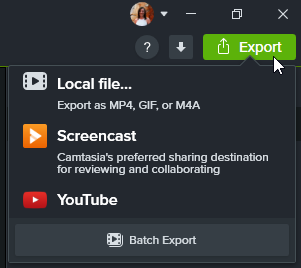
Unleash the world’s most powerful screen recorder and video editor.
* Already a Camtasia user? Learn how to update to the latest version.