Download TechSmith Assets for Snagit

Learn how to find and download Assets, including stamps, photos, themes, and templates, to enhance Snagit images.


3d Snagit icon
 

Explore and download royalty-free Snagit Assets to enhance your images and projects.

Asset Types

The following types of assets are available to send directly to Snagit from the TechSmith Assets for Snagit website, or via the Assets tab on Snagit for Mac:

  • Stamps: Emojis, icons, symbols, characters, and other illustrations specifically designed to annotate images.
  • Photos: Royalty-free photographs to enhance your images in Snagit.
  • Themes: Preselected color palettes for Quick Styles in Snagit.
  • Templates: Pre-made layouts to create step-by-step guides, timelines, image comparison, and other visual documentation.
  • AI-Generated Images: A new way to create incredible images in just a few clicks. The AI generator is only available with a subscription to premium assets.

Assets are also categorized as:

  • Starter: Available for free to Snagit users.
  • Premium: Require an annual Assets for Snagit subscription to download.

Download Assets to Snagit

Windows

  1. In Snagit Editor, click Assets.
    Assets button on Snagit for Windows
  2. The TechSmith Assets website opens. Sign in with your TechSmith account.
  3. Select an asset type and category. Hover your cursor over an asset to preview it.
  4. Click the Send to Snagit button to send the asset to Snagit.
    Send to Snagit button
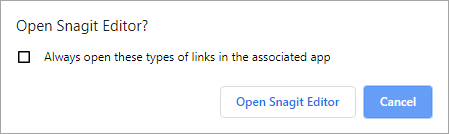
  5. Click the Open Snagit button in the message prompt.
    Open in Snagit Editor message
    The asset downloads into Snagit.
      • For stamps, select Stamp tool > Stamp dropdown and select the stamp category. See Stamp Tool.
      • For photos, the image opens in the Recent Captures Tray and is added to the Snagit Library.
      • For themes, the theme appears in the Quick Styles panel for annotations, arrows, text, and other tools. See Snagit Themes.
      • For templates, the Create Image from Template dialog opens automatically in the Snagit Editor and includes the downloaded asset. See Create Visual Guides with Templates.
      • For AI-generated images, the image is added to the Snagit Library. Double-click the thumbnail to open the image in the Editor.

    Mac

    1. In Snagit Editor, click Assets.
      Assets tab on Snagit for Mac
    2. Complete any of the following to find Assets:
      • Click to select and browse a category.
        Asset categories in Snagit for Mac

        Note: For photos and AI-generated images, go to the TechSmith Assets website. Photos and images generated on the website and sent to Snagit are imported to the Snagit Library.

      • Enter a search term and press Return. Optional: Click to select a category to filter search results by asset type.
        Search for assets in Snagit for Mac
    3. Hover over an asset and click the Download button in Snagit Assets on Mac download icon.
      Example assets with download button
    4. To view the downloaded asset:
      • Stamp: Hover over the downloaded stamp set and click the Open button. Snagit Editor opens with the Stamp tool selected. The downloaded stamps appear in the Quick Styles pane. See Stamp Tool.
        Downloaded stamps with Open button
      • Template: Hover over the downloaded template and click the Open button. The Create Image from Template dialog opens and includes the downloaded asset. See Create Visual Guides with Templates.
        Template asset with Open button
      • Theme: In the Editor, select a tool that supports Quick Styles, such as Arrow, Text, or Callout. The downloaded theme appears in the Themes menu in the Quick Styles panel. See Snagit Themes.
        Theme dropdown in Quick Styles
    Snagit Icon Logo

    Get Snagit

    The best screen capture software for professionals

    * Have Snagit 2024 or earlier? Check out our previous version help.

    All Snagit Tutorials