Automatically Create a Step-by-Step Guide (Step Capture)
Learn how Snagit can automatically create a step-by-step guide of your process or workflow.
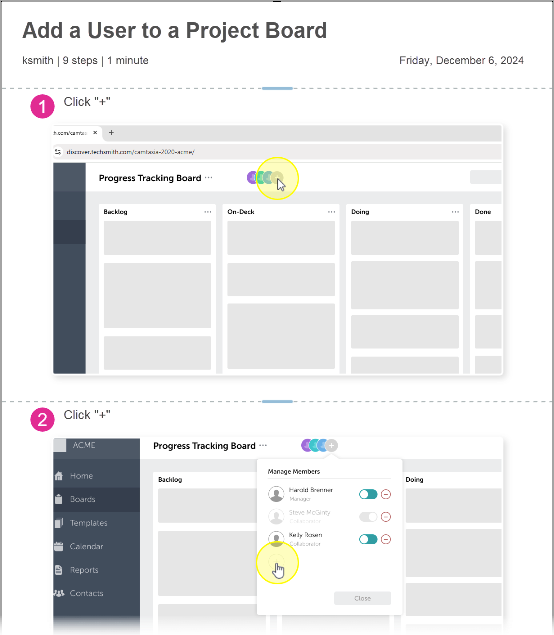
With Step Capture, Snagit automatically grabs screenshots as you click through a process on the screen. Snagit then quickly turns the screenshots into an editable visual guide with numbered steps. For example:
Help your staff get started with a new process or software.
Show a customer how to submit a claim or make a change to their account.
Provide informal training to address repeated questions.
Document a software bug for developers to reproduce.
1. Capture Your Onscreen Steps
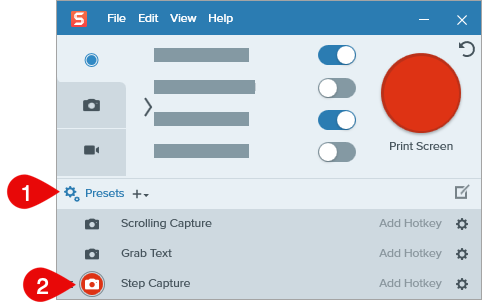
In the Capture window, click Presets.
In the Presets menu, click the capture button next to Step Capture. A message indicates that Snagit is now capturing your steps.
Complete the onscreen actions you want to document. As you click, the Step Capture toolbar shows the number of steps recorded.
Tip: Reposition the Step Capture toolbar.
By default, the Step Capture toolbar appears in the lower-left corner of your screen. Drag the toolbar to reposition it elsewhere. Snagit does not capture clicks on the toolbar.
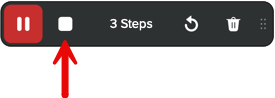
When you are finished with the actions, click the Stop button.
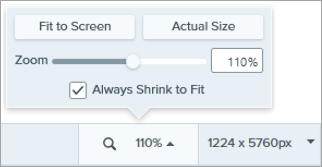
The resulting step-by-step guide opens in Snagit Editor. Adjust the Editor zoom options to zoom in or out on the guide.
2. Edit the Step-by-Step Guide
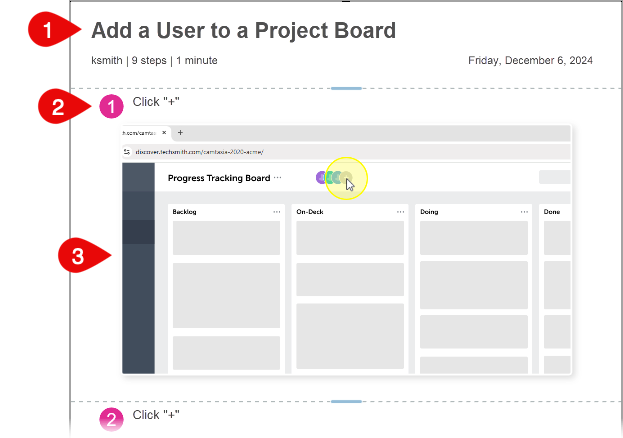
Snagit automatically creates a basic guide with the following elements which can be edited:
Title and header
Numbered step for each click and, where possible, the name of the item clicked.
Screenshot of each click, including the highlighted cursor.
Edit Text
Edit text in the header or step descriptions.
View Details
Click to select a text field.
Complete any of the following:
Edit text: Enter desired text in the text field.
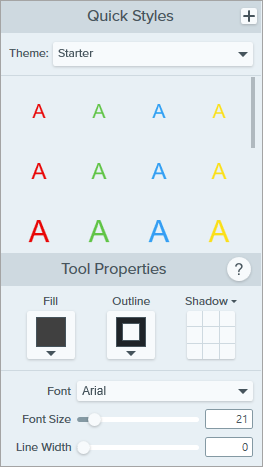
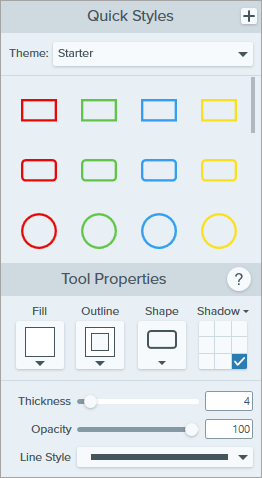
Edit text properties: In the sidebar, select a Quick Style or edit the tool properties.
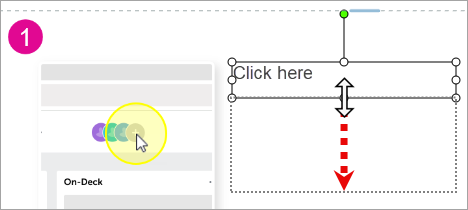
Edit text field size or position: Consider changing the size or position of the text field if you need to add more descriptive text to the step.
Note: On Mac, click the icon in the upper-right corner of the field to allow editing.
Reposition: Click and drag the text field to the new position.
Resize: Click and drag handles.
Delete text: Drag to highlight text, then press the Delete key.
Delete the text field: Press the Delete key.
When you are finished editing, click another location in the guide to deselect the text field.
Change the Step Color
Change the color of the numbered steps.
Windows
Shift+click to select the steps to change.
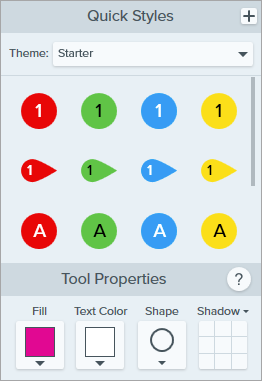
In the sidebar, select a Quick Style or edit the tool properties.
Mac
Click to select a step number.
In Tool Properties, click Select All Steps to select all step numbers in the image.
Select a Quick Style or edit the tool properties.
Note: You can also use this method to update all text, image borders, or other objects of the same type at once. You must have Snagit for Mac version 2025.3.0 or later.
Adjust Screenshots
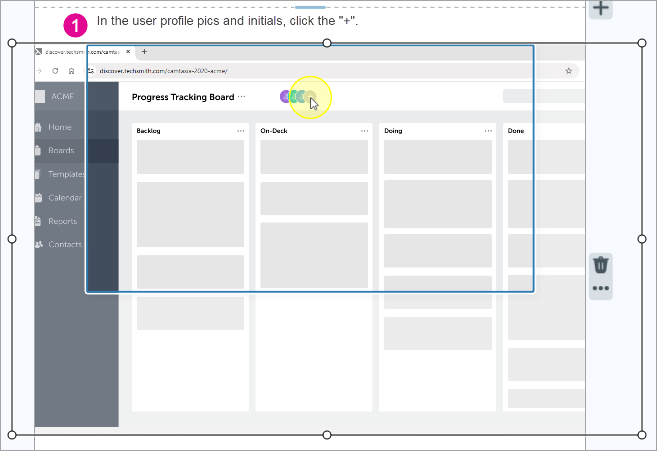
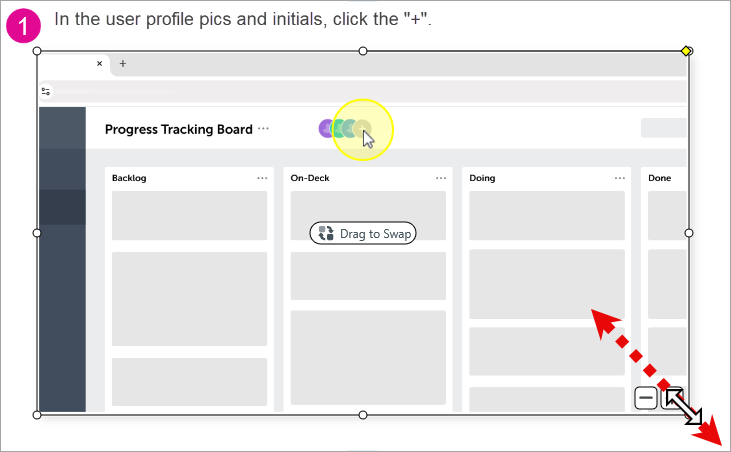
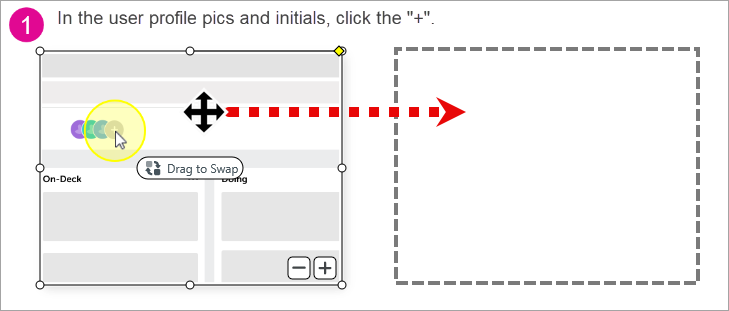
Snagit automatically zooms in and centers the screenshots within the image frames, also called drop zones, based on where you clicked. You can resize and reposition the screenshot within the image frame, such as to provide more context for where you clicked.
Zoom In or Out Incrementally
Hover over the image to show and buttons in the bottom-right corner of the image frame.
Click to zoom out.
Click to zoom in.
Manually Adjust Zoom Level and Position
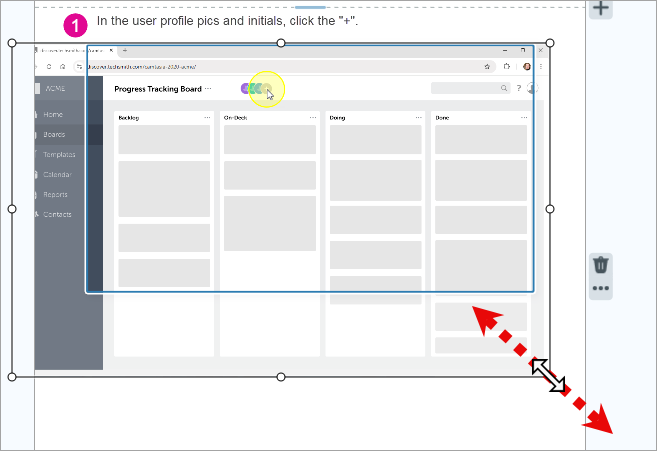
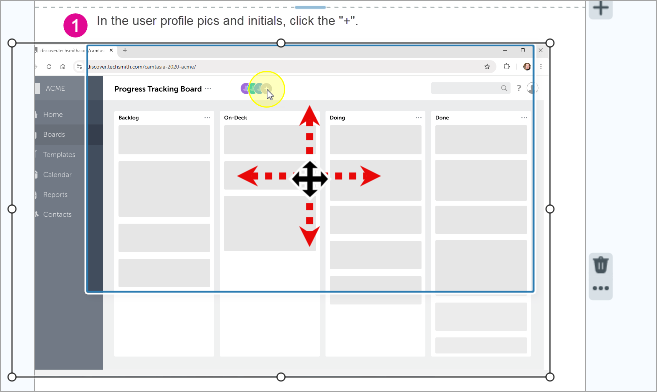
Double-click a screenshot to select it within the image frame. The entire capture appears, including areas outside of the frame.
Complete any of the following:
Zoom in or out: Click and drag a corner handle of the screenshot to increase or decrease the size of the capture within the image frame.
Reposition: Click and drag on the screenshot to reposition it within the image frame.
When you are finished editing, click another location in the guide to deselect the screenshot.
Replace a Screenshot
You may want to replace a screenshot, for example if you clicked the wrong on-screen element or need to replace an old image with a newer version.
Drag a New Image onto the Guide
Click and drag an image from the recent captures tray or your computer’s file browser onto the drop zone or image frame. Snagit replaces the old image with the new one.
Make sure you are signed in with your TechSmith account.
Click Send to Snagit.
In the prompt, click Open Snagit Editor (Windows) or Open Snagit (Mac).
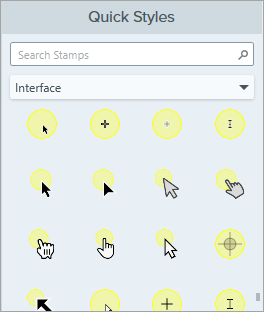
The Stamp tool opens in Snagit Editor and shows the downloaded stamp pack. Click to select a cursor stamp.
Click an image in the step-by-step guide to add the cursor stamp.
Click and drag the stamp to reposition it.
Click and drag a corner handle to resize the stamp.
Edit the Image Frame
You can edit the image frame, for example to add a border or resize to make space for more descriptive text.
View Details
Click to select the image.
Complete any of the following:
Edit properties: In the sidebar, select a Quick Style or edit the properties.
Edit size: Drag handles on the corners or sides of the frame to resize it.
Note: On Mac, click the icon in the upper-right corner of the image frame to allow editing.
Edit position: Click and drag the image to reposition it on the guide.
Note: On Mac, click the icon in the upper-right corner of the image frame to allow editing.
When you are finished editing, click another location in the guide to deselect the image.
Delete a Step or Section
To remove a step or section, click the Delete Section icon.
Note: When you delete, add, or reorder steps in the guide, Snagit automatically renumbers the steps for you and updates the total step count at the top of the guide.
Add a Step or Section
View Details
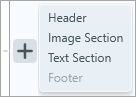
Add a header, image section with a numbered step, text section, or footer to the guide. Click the Add Section icon and select the type of section.
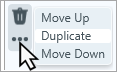
To duplicate an existing section, click the Section options icon and select Duplicate.
Change the Step Order
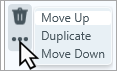
To change the order of a step in the guide, click the Section options icon and select the Move Up or Move Down option.
Note: If you change the step order, any annotations added to the image, such as arrows, callouts, or text, move with the image. You must have version 2025.2.0 or later on Windows, or version 2025.0 or later on Mac.
Resize a Step or Section
To increase or decrease the size of a step or section, click and drag the blue section divider up or down.
Edit the Cursor
Adjust the position, remove the highlight, or delete the cursor from an image.
View Details
Click the Move tool in the Snagit Editor toolbar.
Complete one of the following options:
Move the cursor and highlight: Click and drag to the desired location.
Delete the cursor and highlight: Click to select and press Delete.
Delete the highlight: Right-click the cursor and highlight and select the Ungroup option. Click to select only the highlight and press Delete.
Resize the cursor: Right-click the cursor and highlight and select the Ungroup option. Click to select only the cursor, then click and drag a resize handle.
Resize the highlight (Mac only): Right-click the cursor and highlight and select the Ungroup option. Click to select only the highlight, then click and drag a resize handle.
Note: These options require Snagit for Windows version 2025.3.0 or later, or Snagit for Mac version 2025.2.0 or later.
3. Share or Export Your Guide
When you are finished with the guide, complete any of the following to share it with your audience:
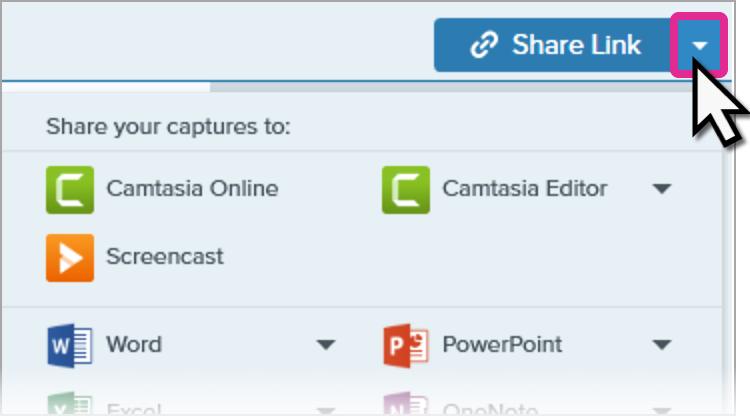
Get a link to share: Click Share Link to copy a link to your clipboard to paste in an email or message. Recipients can view your guide on Screencast, ask questions, and give feedback even without a TechSmith account. See Get a Shareable Link.
Save as a PDF: Select File > Save As and select the PDF file type.
Print: Select File > Print to print the guide.
Export as Markdown (Mac only): Select File > Export > Markdown and select a location to save a folder that includes the markdown file and images. Requires Snagit for Mac version 2025.3.0 or later.
Share as Editable Text and Images
When sharing to the following applications, Snagit sends each step as a separate image with editable text, rather than a single image of the entire guide. This allows for more flexible editing and presentation.
Application
Snagit for Windows
Snagit for Mac
Microsoft Word
Version 2025.3.0 or later
Version 2025.1.0 or later
Microsoft PowerPoint
—
Version 2026.0.0 or later
Keynote
—
Version 2026.0.0 or later
Apple Pages
—
Version 2025.2.0 or later
Best Practices
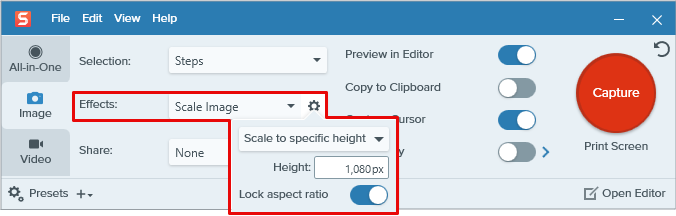
If using a 4K monitor, consider scaling down the images to reduce capture and file size. In the Effects dropdown, select Scale Image (Windows only).
When you launch Step Capture, wait for the “Capturing steps” message to disappear to ensure your first click is captured.
Click the Pause button in the Step Capture toolbar to prepare for the next step. Click Record to restart the capture.
There is no limit to the number of steps that can be captured. However, captures over 50 steps on Windows or 100 steps on Mac may impact performance.
In the resulting guide, consider removing steps that seem redundant or obvious. Keep in mind your audience and their familiarity with the context.
Tips
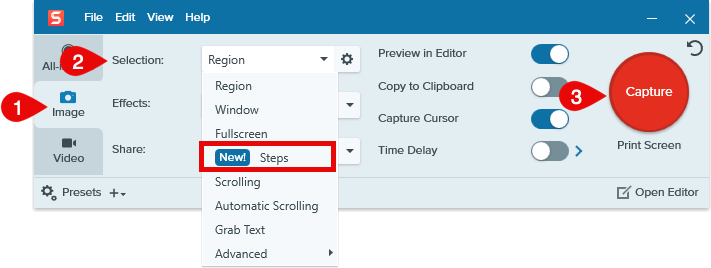
You can also access Step Capture from the Image tab of the Capture window. In the Selection dropdown, select Steps and then click the Capture button.
When you delete, add, or reorder steps in the guide, Snagit automatically renumbers the steps for you and updates the total step count at the top of the guide.
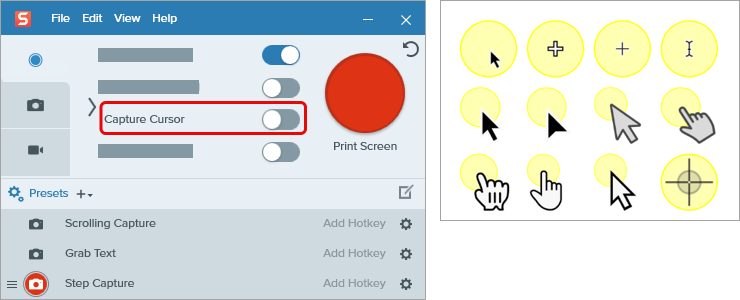
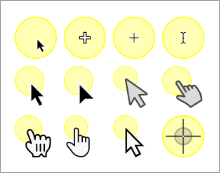
Want to use a different cursor style or fine-tune cursor placement in your step-by-step guide? Record your Step Capture with Capture Cursor toggled off. Then download the Step Capture Cursors or other cursor stamp pack from the Snagit Assets website and add cursor stamps to your guide. To learn more, see Stamp Tool and Download TechSmith Assets for Snagit.
Get Snagit
The best screen capture software for professionals








 icon in the upper-right corner of the field to allow editing.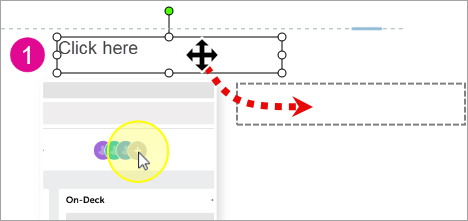


 and
and  buttons in the bottom-right corner of the image frame.

 and select the Capture option.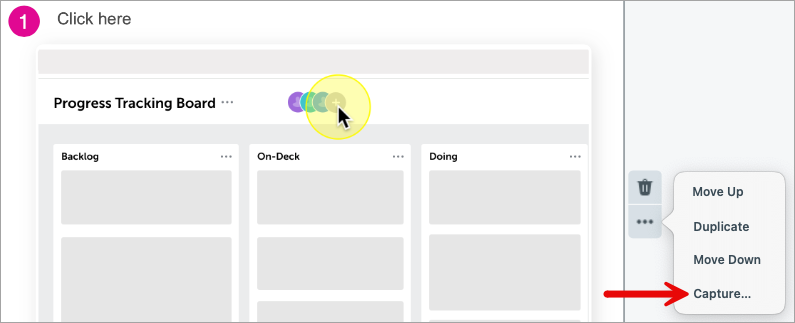

 .
. and select the type of section.