Build Your First Video

Learn how to set up a recording, complete basic video edits, and share your video.

Camtasia product icon
 

1. Record Your Screen & Camera

Camtasia Recorder captures your screen, camera, and audio.

Set Up Your Recording
  1. From the Camtasia Home window, click New Recording, or click Record from an open project.
    Record button in Camtasia project
  2. In the Camtasia Recorder, click the Screen Recording, Camera, Microphone, and System Audio (optional) toggle buttons to turn them on.
    Camtasia Recorder
  3. Camtasia highlights the selected recording area on the screen. To edit the recording area:
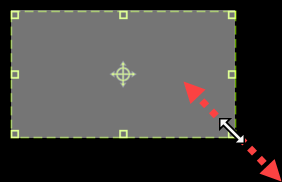
    • Drag the handles to adjust the selection.
      Drag handles to resize recording area
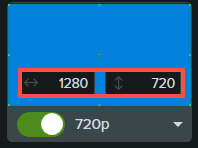
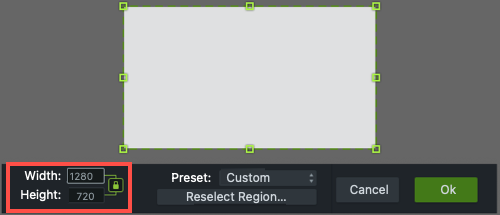
    • To enter a specific size, type the dimensions in pixels into the Width and Height fields.
      Screen recording dimensions on WindowsScreen recording dimensions on Mac
    • To move the selected area on the screen, click the center handle (Windows) or within the selected area (Mac) and drag to the desired location.
      Drag center handle to move recording area
      If your computer is connected to multiple displays, you can drag the selected area from one screen to another.
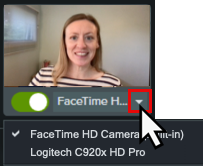
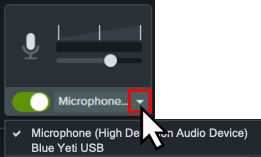
  4. Click the Camera and Microphone dropdowns to select specific devices.
    Select camera device Select microphone device
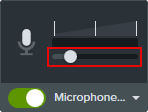
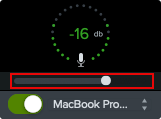
  5. Drag the microphone slider to increase or decrease the audio level.
    Microphone slider on Camtasia Windows Microphone slider on Camtasia Mac
  6. Turn system audio on or off. System audio captures the sound from your computer such as application alerts or audio playing from your computer speakers.
  7. Click the Camtasia Rev toggle to turn on Camtasia Rev.
    Camtasia Rev toggle
  8. Click the Record button or press the F9 key (Windows) or Command+Shift+2 (Mac).
  9. When you are finished recording, complete one of the following:
    • Click the Stop button
    • Press the F10 key (Windows) or Command+Option+2 (Mac).
    • On Windows, click the Camtasia Recorder icon in the taskbar and then click the Stop button.
      Camtasia Recorder icon in Windows taskbar
    • On Mac, click the Camtasia icon in the menu bar and select Stop Recording.
      Camtasia icon in the Mac menu bar

To learn more about Camtasia Recorder and additional recording options, see Introduction to Camtasia Recorder.

2. Accelerate Video Creation with Camtasia Rev

Transform your original recording from this…

to this with just a few clicks in Camtasia Rev.

Original recording and video with Rev styles applied

Rev makes it easy for creators to deliver on-trend and compelling video content. Implement your own personal style with just a few clicks.

If you have the Camtasia Rev option turned on in the recorder, Rev opens after you stop the recording.
Camtasia Rev option in Camtasia Recorder

Camtasia Rev

In Rev, apply one of our professionally-designed layouts to best fit your recorded content. Choose from screen focused, camera focused, or balanced layouts.
example Rev layouts

On the Background tab, choose from a variety of colors, patterns, and animations for the background to make your content more visually engaging.

Accelerate your video creation by selecting from our recommended preset effects on the Screen and Camera tabs, no editing skills required. You can instantly preview these effects to perfect the look of your video with just a few clicks.

  • Apply multiple effects to the cursor and screen recording to draw attention.
  • Apply effects to the camera recording to set the tone and remove distracting background noise and visuals.
  • Apply the AI Noise Removal effect if you recorded in a noisy environment.

Note: You can turn off some of the automatic selections in Camtasia Rev, such as backgrounds. Click to deselect the option on the Background, Screen, Camera, or Filters tabs.

Camtasia’s flexible recording allows you to change the layout or effects anytime. See Introduction to Rev Media.

3. Apply Basic Edits & Enhancements

Click Edit in Camtasia to continue editing and adding enhancements to your video, such as:

4. Export Your Video

You can export your video directly from Camtasia Rev or after editing in Camtasia. Choose to export a MP4 to upload to a video hosting site or send directly to YouTube or Screencast.
Export menu in Camtasia Rev

See Export & Share Your Video.

Explore Video Creation in Camtasia

Now that you have created your first video, explore some other common ways to create videos in Camtasia.

Camtasia Icon Logo

Get Camtasia

Unleash the world’s most powerful screen recorder and video editor.

* Already a Camtasia user? Learn how to update to the latest version.

All Camtasia Tutorials