Position Media on the Canvas
Learn how to preview and arrange media on the canvas for your video.



Learn how to preview and arrange media on the canvas for your video.

The canvas is the area to preview and arrange media in your video. Drag and drop media or assets onto the canvas or timeline to add it to a video. 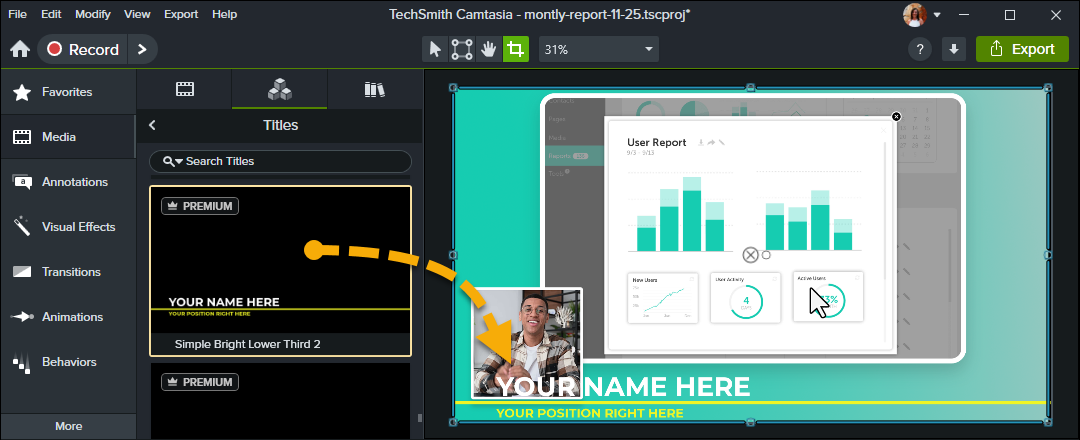
The canvas shows a preview of your video. Drag the playhead along the timeline to change the point in time in the video that is shown. 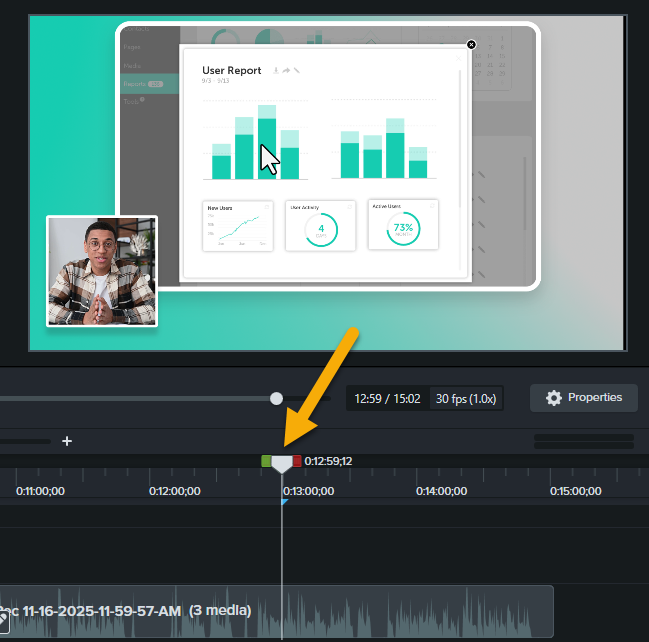
To learn how the timeline and canvas work together to build your video content, see the 3 Keys to the Timeline video series.
Complete any of the following to edit the position of media in your video:
Move
Resize
Scale Media within a Rev Layout
For Rev media, zoom in to focus viewers’ attention on an area of the screen recording or scale the camera stream to fill the layout frame.
Reposition within a Layout Frame
For Rev media, center or adjust the focus of content within a layout frame.
Crop
Hide parts of the media from showing in the final video.
Align
The canvas offers guides to help you snap media to the edge, center, or align with other media.

Arrange – Timeline Z-Order
To reorder media on the canvas, right-click (Windows) or Control-click (Mac) and select Arrange.
The z-order position of media on the canvas is set by the placement of media on the timeline tracks. Media on the top track appears in front of media on lower tracks.
Rotate
Click to select media on canvas. Drag the center green handle in the media to rotate around the anchor point.
Change the Rev Media Layout
Click the Modify button on the Rev media on the timeline to change the layout.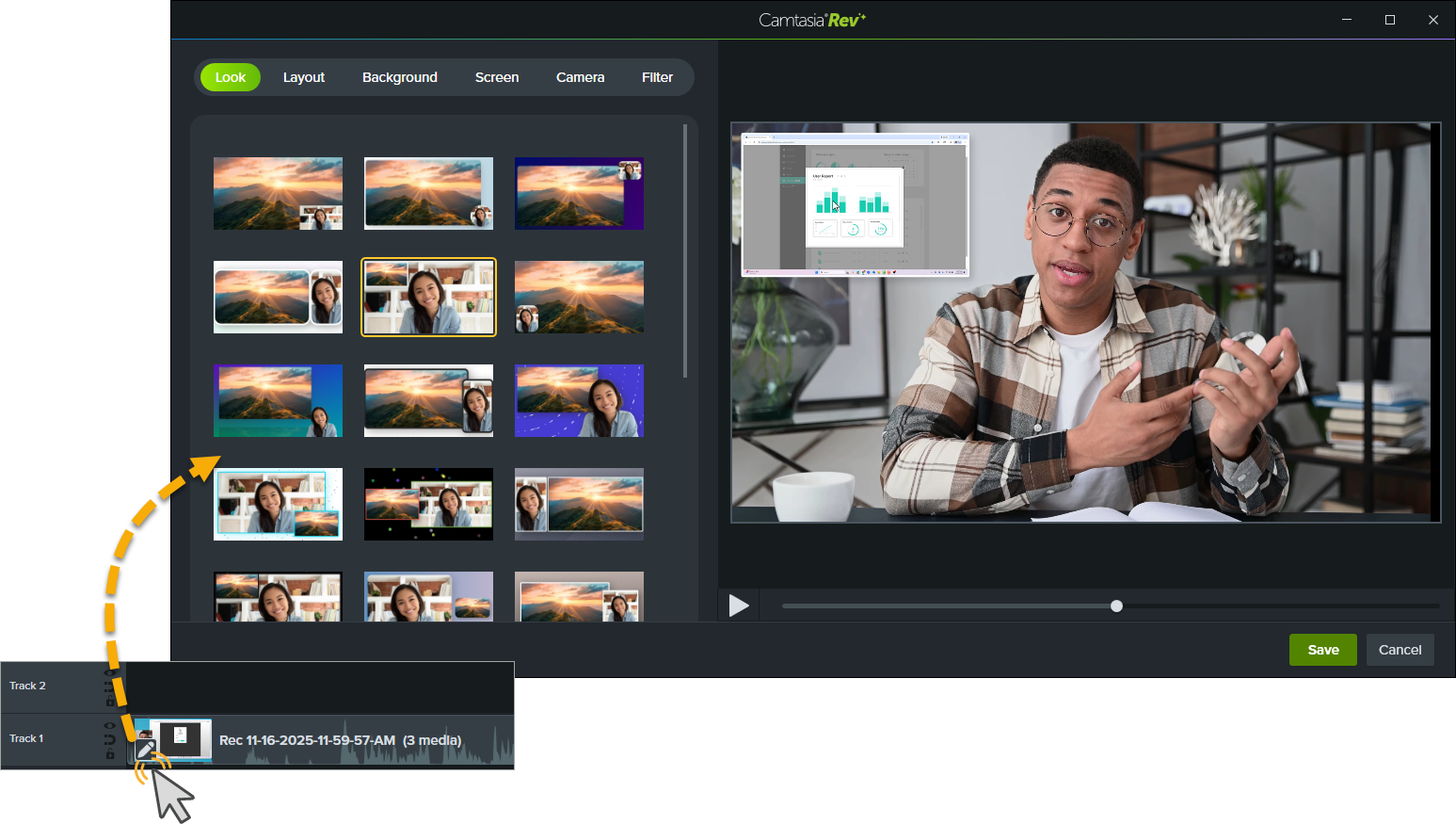
The canvas and the properties both provide ways to adjust the appearance of media in a video.

See Customize Media & Effect Properties.
The canvas toolbar is located above the canvas and offers various editing modes. 
| Tool | Description |
|---|---|
Edit mode (Default) | Select this mode to move, resize, and rotate media on the canvas. |
Corner Pin mode | Select this mode to create a 3D perspective or to pin the corners of the media to fit within the boundaries of another object, such as a device frame. For example, replace what’s shown on a computer display with your own screen recording or simulate text on a whiteboard. See Create the Illusion of 3D Perspective (Corner Pinning).   |
Pan mode | If you are zoomed in and the entire canvas is not visible, select this mode or hold the Spacebar and drag to change the visible area on the canvas. Camtasia keeps the original position and size when panning. Canvas editing is disabled in Pan mode. |
Crop mode | Select this mode to trim the unwanted areas from media.
|
| Detach / Attach Canvas | To view the video preview in full screen mode or for better viewing, detach the canvas from the Camtasia application window and move it to another location, such as onto another monitor. To detach the canvas: Right-click (Windows) or Control-click (Mac) an empty area on the canvas and select Detach Canvas. Drag the detached canvas to the desired location on your screen. To reattach the canvas: Right-click (Windows) or Control-click (Mac) an empty area on the canvas and select Attach Canvas. |
Full Screen mode Windows Windows Mac Mac | If the canvas is detached from the Camtasia application window, you can expand the canvas to full screen mode. Press ESC to exit. |
Change the canvas magnification | To help preview or edit media in your video, you can adjust the canvas zoom level. Click the Canvas Options dropdown menu to select the zoom level.
|
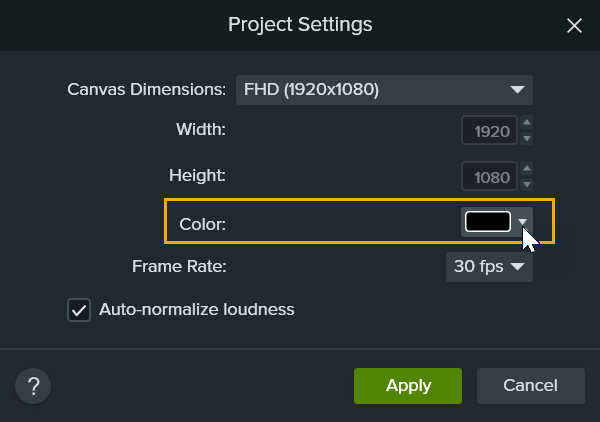
| Project Settings | Set the canvas dimensions, editing frame rate, and audio level for your project. See Crisp and Clear Screen Recordings. |
If media or assets do not cover the entire canvas, the canvas background displays in the final video.

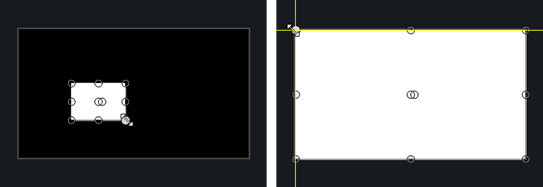
Tip: For more contrast while editing, you can change the application theme color.
Unleash the world’s most powerful screen recorder and video editor.
* Already a Camtasia user? Learn how to update to the latest version.
