



Training videos are one of the most popular ways to help your employees or customers learn new information.
In fact, we found that the top two instructional videos people watch are informal and formal training videos. But for many corporate trainers, customer education teams, and HR professionals, the challenge isn’t just knowing how to make a great training video—it’s figuring out how to do it efficiently.
When you’re short on time and juggling competing priorities, producing high-quality training content at scale can feel out of reach. But with the right tools and a few simple strategies, you can create valuable training videos that save time for you and your learners.
Below, we’ll show you how to simplify video creation and make every minute count.
What makes a great training video?
Not all training videos are created equal. If you want to create an effective employee training video, you have to make sure it’s memorable, easy to understand, and follows a logical structure. And don’t shy away from making updates as needed to maintain its relevance.
1. Learning outcomes are identified
To save time when creating a training video, start with clear learning outcomes. What point do you really need to get across? What is the main message? Once you’ve identified that goal, make sure everything in the video content supports the chosen outcome.
Avoid adding too much information or irrelevant contextualization. This only creates confusion and lowers retention. Staying focused on your learning outcomes streamlines your video production and ensures your learners can easily follow along.
A solid video script or storyboard can help you visualize this flow before you hit record.
2. They’re tailored to your audience
Understanding your audience’s needs is essential for creating efficient training videos that don’t waste anyone’s time.
Instead of guessing their needs, research and adapt the video to match their specific requirements. This prevents unnecessary rework and keeps you from wasting time on training materials that don’t click with the viewers.
For example, a payroll process educational video might include basic system details for new employees to provide context. But for finance or HR staff already familiar with the system, those details could feel redundant, causing disengagement.
Tailoring content to specific audiences boosts engagement, improves retention, and keeps your training sessions efficient. It also saves time on follow-up training.
It’s a good idea to consult with your team or subject matter experts about how you can best meet your audience’s needs. They might have a helpful perspective to improve content quality or cut out unneeded material.
3. The format and style fit the goals
In time-saving training videos, it’s not just about what you say but how you say it. Choosing the right format and style for your training video makes it more effective and also saves time in the production process.
For instance, if you’re explaining complex concepts, use 3D animations or whiteboard visuals to simplify the message. When you’re covering topics that need empathy or human connection, a talking head or interview-style approach works well.
Select the format that fits your goal and your timeline to minimize video production time while maximizing engagement.
4. They’re not too short (or too long)
Forget the myth that short videos are always better due to limited attention spans. The content should determine the length of your video. Cutting a video short just to meet a time limit can disrupt the flow and confuse learners, wasting their time.
Segmented, longer videos work well for complex topics like onboarding, provided they’re well-organized. Video lengths can range from 30 seconds for quick tutorials to 15 minutes for in-depth training — the key is ensuring every second delivers value.
Common types of training videos (and examples)
Training videos don’t come in just one shape and size. There are all kinds of different ways to get your message across, and choosing the right style can save time in both production and learning outcomes.
Below are some of the most effective types of training videos, along with tips on which work best for different scenarios.
Presenter-style training videos
Presenter-style training videos (also known as “live-action” videos) feature a speaker on screen and often include supporting visuals like animations or graphics. They’re especially useful for demonstrations, such as walking beginners through using a piece of equipment. This format humanizes the training, making it more relatable and engaging.
When to use presenter-style training videos:
- Your training needs to build an emotional connection
- For interview-style content
- For product demonstrations
Screencast training videos
Screencast training videos are screen recordings enhanced with voiceover narration. They take minimal resources to produce compared to other training video formats.
Video editing software like Camtasia and Snagit make it simple and seamless to create screencast-style trainings. You can get started with Camtasia for free here and Snagit here — download them now and try your hand at this type of training video!
Is your screen capture tool still in its Dial Up era?
Snagit is built for the modern office, and helps you do it all.
Learn More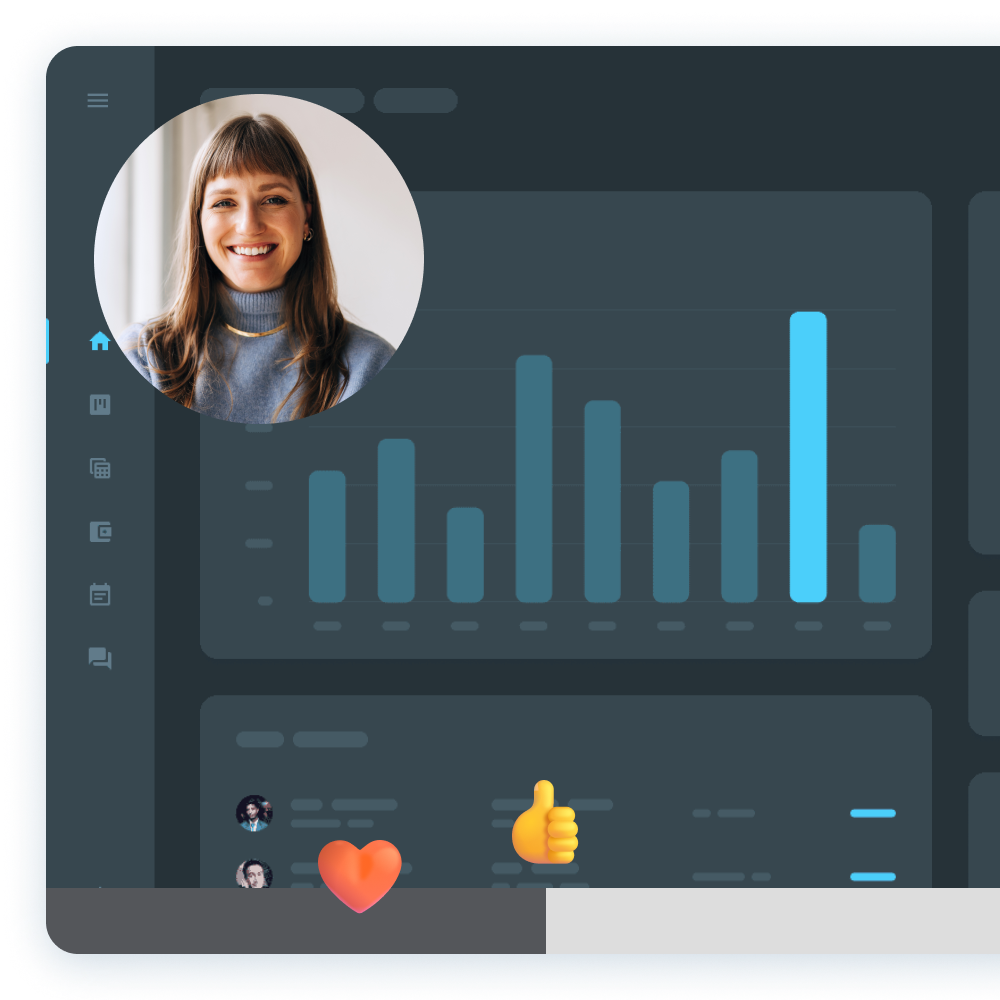
When to use screencast training videos:
- Introducing employees to a specific software
- There’s minimal budget available
- You want to provide efficient answers to process FAQs
Tutorials
Tutorial videos are step-by-step walkthroughs of a particular process. They typically follow the main character through the actions they are describing, but they can also be filmed from a first-person point of view. Tutorials may also incorporate interactive elements like quizzes to reinforce retention.
When to use tutorial training videos:
- For step-by-step instructions
- For hands-on video training
- When learners need hybrid presenter- and screencast-style training videos
Corporate training videos
Corporate training videos explain very specific aspects of a workplace, like customer service, shifts and schedules, sexual harassment policies, and other similarly repeatable concepts. They’re ideal for standardizing information delivery and scaling training across teams without repeated live sessions.
When to use corporate training videos:
- Introducing new employees to policies or expectations
- Rolling out updates to workplace norms
- Training on safety, scheduling, or compliance topics
- Virtual walkthroughs of facilities
- Offering behind-the-scenes insights
Motion graphics training videos
Motion graphics training videos use computer simulations or animations instead of human actors or presenters. These often come in handy for scenarios that are too dangerous or expensive for real-life demonstration, or when you’re presenting on a sensitive topic and don’t want to use real humans.
When to use motion graphics training videos:
- You need to bring a lighter mood or anonymity to heavy material
- For showing hazardous situations in safety training
- For walkthroughs of emergency procedures
Interactive training videos
Interactive training videos let learners participate in the experience. Viewers might choose their learning path, answer questions, or solve problems along the way. These videos are great for boosting retention and tracking engagement.
When to use interactive training videos:
- You want to incorporate virtual reality (VR) or augmented reality (AR) in your training program
- You want to be able to track learners’ progress
- For situations where active learning works better than passive learning
How to make a time-saving training video
Creating effective training videos doesn’t just save time for your viewers — it also frees up your time as a content creator. Well-structured, reusable video content can cut down on repetitive explanations and give trainers, team leads, and support staff more time to focus on other priorities. Here’s how to do it:
Plan your training video with speed in mind
Effective planning is your greatest ally when it comes to creating time-saving training videos. When you know what you’re creating before you hit record, the entire process — from scripting to editing — moves faster.
Start by keeping your videos focused on a single task or topic. This minimizes complexity and reduces viewer fatigue, which leads to more engagement and better retention. When you stay on topic, you also make your videos easier to update and reuse down the line.
Tools like Camtasia Audiate can help speed things up. The generate script feature, for example, helps you quickly create a starting script, saving you the time and effort of writing one from scratch.
Let Audiate write your script!
No more blank pages! Instantly generate amazing, customizable scripts in any length, tone, and style!
Get Audiate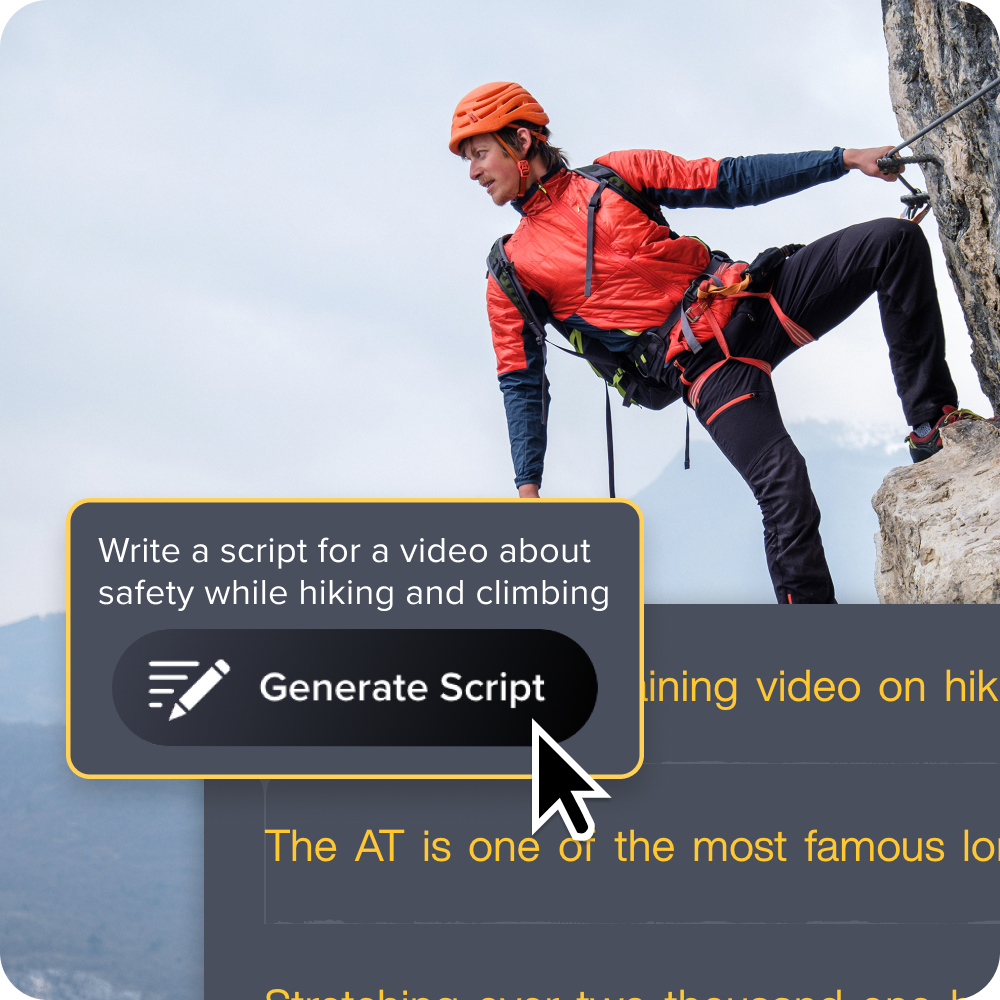
While you don’t need to script every word, having a loose outline gives your recording structure and clarity, speeding up the process. And when it’s time to revise, a well-planned, focused video takes much less effort to update, so you can keep content relevant without starting from zero.
Use a screen recording tool that saves you time
Time is your most valuable resource when creating training videos. Why waste it switching between different tools when you can simplify the process? The right screen recording tool can save you hours, and Camtasia is perfect for this.
It allows you to capture everything you need — your computer screen, webcam, and audio — simultaneously, in one seamless recording. This means you won’t have to stop and start to switch between different platforms, adding unnecessary time to your workflow.
But what really makes Camtasia stand out is its ability to record all the elements you need, like screen, mic, system audio, and cursor actions, on separate tracks. This setup makes editing a breeze, as you can easily manipulate each element independently.
Want to trim dead space? Tweak audio? Move a cursor path? With Camtasia, you can do it all in a few clicks. Instead of piecing footage together across apps, you get everything in one clean timeline, speeding up production and getting your content ready faster.
Work from a customizable template to skip the heavy lifting
Templates are a serious time saver for anyone building consistent training content at scale. Instead of spending hours setting up every video from scratch, templates let you get started quickly with a framework that’s already set up for success.
Camtasia comes with built-in templates for all kinds of different video types, and even more are available through TechSmith Assets. These give you a head start, especially when you’re aiming for a consistent look and feel across multiple training videos.
Build your next training video with Camtasia
Record your screen or camera. Then, use the video editor to add polish and clarity.
Learn More
Once you’ve set a template up, you can reuse it again and again, skipping the heavy lifting and speeding up the production process. You’ll spend less time formatting and more time fine-tuning your message. Plus, a cohesive style reinforces your brand and helps learners stay focused on the material, not distracted by visual inconsistencies.
Import your visuals and audio in one go
Having everything in place before you begin editing will keep your workflows fast and frustration-free. Instead of digging for assets mid-edit, gather all your recorded clips, background music, intros, or graphics up front.
Camtasia’s Media Bin makes this process super easy. Just drag your assets in and get started. TechSmith’s free asset library also gives you easy access to stock images, music, lower-thirds, and more, so you don’t have to pause to track down design elements elsewhere.
If you’re using Snagit too, you can pull screenshots or screen captures directly into Camtasia. This seamless integration eliminates unnecessary app-switching and saves you even more time during production.
Edit efficiently with built-in tools
Editing can feel like a time sink, but the right tools make it fast and intuitive. Camtasia comes packed with smart editing features designed to speed things up.
Tools like ripple replace let you swap out clips without disrupting your entire timeline, while drag-to-trim allows you to instantly cut out unwanted footage, saving you from endless fine-tuning. Meanwhile, in-canvas text editing means you can add and adjust text directly in the preview window — no need to flip between menus.
When it comes to audio, Camtasia’s Audiate integration is a huge time-saver. It lets you edit your audio tracks directly from the transcript, so if you need to correct a mistake or tighten up your narration, you can do it in a fraction of the time. Forget endlessly scrubbing through clips to find where a mistake was made. Just edit the text, and your audio automatically updates (this also syncs with Camtasia to edit the accompanying video footage).
If you can edit a doc, you can edit a video
Stop fearing the timeline. Camtasia Audiate transcribes your recording so you can edit your video just by editing the text.
Free Download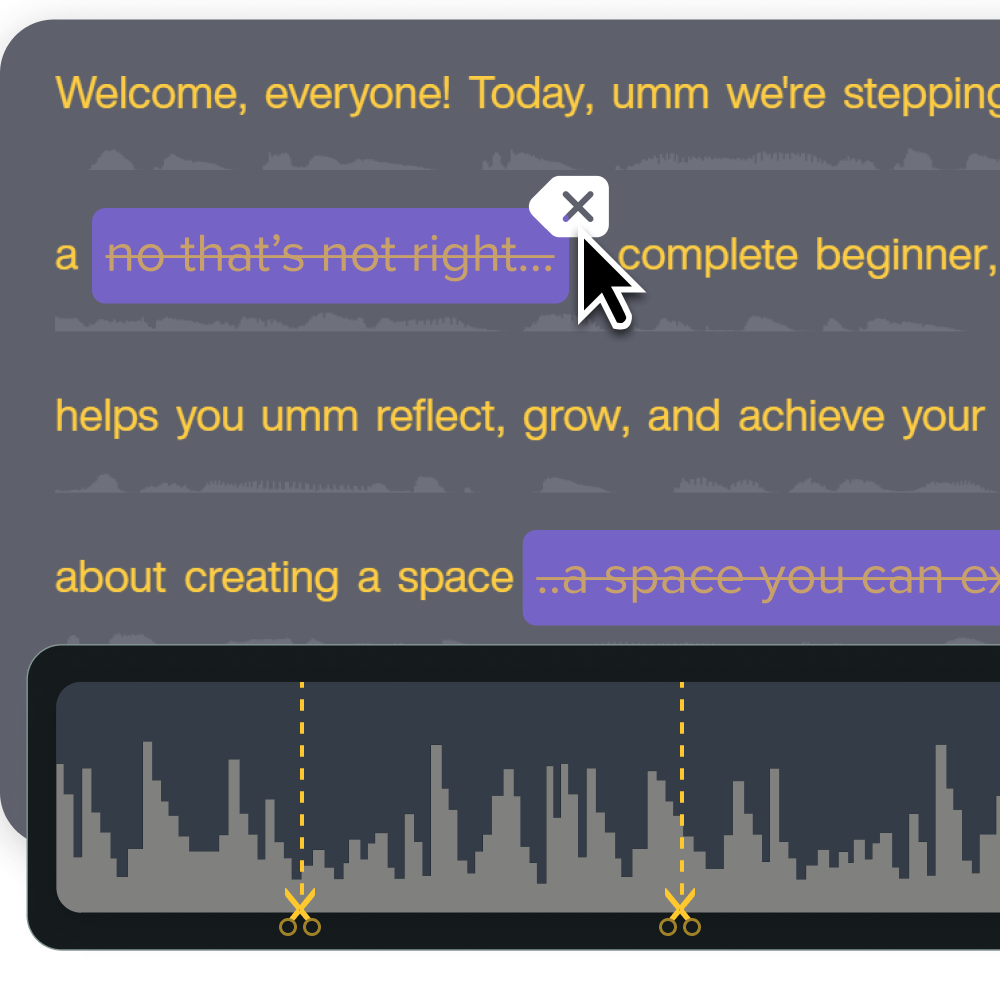
And for those moments when you need to sync visuals with your narration, Camtasia makes it simple to adjust clip speed, extend frames, or apply overlays to quickly match the pacing.
These tools eliminate hours of manual tweaking while still giving you precise control over the final result. Remember, perfection isn’t the goal here. Clarity and completeness are what matter most.
Export and share your video in minutes
Once your video is polished and ready to go, the last thing you want is for exporting to drag out the process. Stick to the .mp4 format. It’s fast, reliable, and works across most devices and platforms.
With TechSmith’s Screencast tool, you can upload your video instantly and share it with your team. You also get engagement insights that show the number of views.
Screencast is also perfect for asynchronous training, eliminating the delay that comes with uploading to multiple platforms. Thanks to the comments feature, team members can respond directly on the video, streamlining feedback and reducing follow-up messages. Everyone stays in sync without the inbox clutter.
Create better training videos in less time with TechSmith
You don’t need to be a video pro to create clear, time-saving training content that’s both efficient for creators and engaging for viewers. By focusing on effective planning, streamlined editing, and the right tools, you can create training videos faster without sacrificing quality.
A well-organized approach makes content easier to produce and more enjoyable for your audience to absorb, ultimately saving everyone valuable time.
Camtasia’s Pro Plan offers a complete toolkit to plan, record, edit, and share videos all in one place, making the process quicker and more seamless. With features like customizable templates, screen recording, and easy editing, you can produce professional training videos in less time, leaving you more bandwidth to focus on your message.
Get faster, more efficient training video creation with TechSmith’s full suite of tools.
Share