









You’ve built a 25-minute walkthrough of your new onboarding process, and halfway through the recording, you realize you’re not sure anyone will watch the whole thing. Ideal video training length is the shortest runtime that fully teaches one learning objective without rushing the lesson or padding it with filler. Get that balance wrong, and you either bore or confuse them because you cut too much.
Instructional designers and trainers ask this question before every new module: how long is too long, and how short is too short? The answer changes with format, learner skill level, and how people are actually watching your training.
You’ll leave with concrete runtime benchmarks for different training formats, plus a framework for adjusting those numbers to fit your specific audience.
Key takeaways
- Ideal video training length has no fixed answer since content complexity and audience needs vary widely.
- Ideal video training length shifts by format, with microlearning running short and course modules stretching longer.
- Matching video length to learner skill level can help avoid overwhelming beginners or boring advanced users.
- Splitting long training topics into shorter, focused videos often improves clarity better than one lengthy recording.
- Editing tools that trim narration and tighten pacing can help teams hit their ideal video training length.
How long should training videos be?
Most training videos should start with a target of six to 12 minutes, then adjust based on the complexity of the lesson and the needs of your audience.
That range holds up against the available research. MIT’s analysis of 6.9 million viewing sessions found stronger engagement with videos under six minutes, and also cites an under-15-minute preference. Together, those findings point to a practical middle ground: videos should be long enough to cover a topic, but short enough to hold the audience’s attention.
Treat six to 12 minutes as a starting benchmark, not a rule you have to hit every time. Some lessons need less. A single software step might only need two minutes. Others need more structure to cover a full process without leaving out steps a learner needs. Video length should follow your instructional goal, not the other way around. If you want a closer look at how video trends are shifting across formats and platforms, this roundup of video statistics offers useful context for setting expectations before you start scripting.
Why there’s no single perfect length
No single runtime works for every training video. Learner intent, content demands, and platform context all pull in different directions, and a benchmark from one study rarely transfers cleanly to another because populations and definitions of engagement vary.
Runtime alone doesn’t predict whether learners finish a video. A large-scale study of online course videos found no correlation between video length and dropout rate, which means a longer video isn’t automatically riskier and a shorter one isn’t automatically safer.
That finding shifts the question from “how long should this be?” to “what structure fits how learners will use the content?” A quick reference clip and a multi-module compliance course serve different intents, and length should follow the learner’s task, not precede it.
Let content and audience drive length
Before you script a single word, answer three questions: Who’s watching this? What problem are they trying to solve? What’s their current skill level with the task?
New hires learning a tool for the first time need different support than experienced staff picking up one new feature. A quick troubleshooting fix for a specific error code needs less setup than a full process someone has never touched.
Once you have those answers, cut anything that doesn’t serve them.
- Drop background information the audience already has.
- Cut examples that repeat a point you’ve already made clearly.
- Remove steps that don’t apply to this audience’s version of the task.
What’s left is the content that moves your specific audience toward the specific outcome you’re training them for.
Match video length to training format
Training format should change your target runtime, because a quick reference clip, a process walkthrough, and a course module ask learners for different levels of attention and structure.
The three formats below each get their own benchmark: microlearning, walkthroughs and demos, and longer compliance or course content.
Microlearning and quick reference videos
Microlearning and quick-reference videos should usually run two to six minutes and cover one focused task or concept. That range gives you enough room to show a process clearly without padding the recording with context your viewer already has.
The upper end of that range lines up with research from Philip Guo, whose original edX analysis of several million video-watching sessions found an engagement plateau at about six minutes. Past that point, attention tends to drop off even in well-produced videos.
Keep this range in mind for just-in-time learning: a quick lookup between meetings, a refresher before a task, or a single-question answer someone needs mid-workday. If your topic can’t fit in six minutes, it’s likely covering more than one task. Split it instead of stretching the runtime.
If you can edit a doc, you can edit a video
Stop fearing the timeline. Camtasia Audiate transcribes your recording so you can edit your video just by editing the text.
Free Download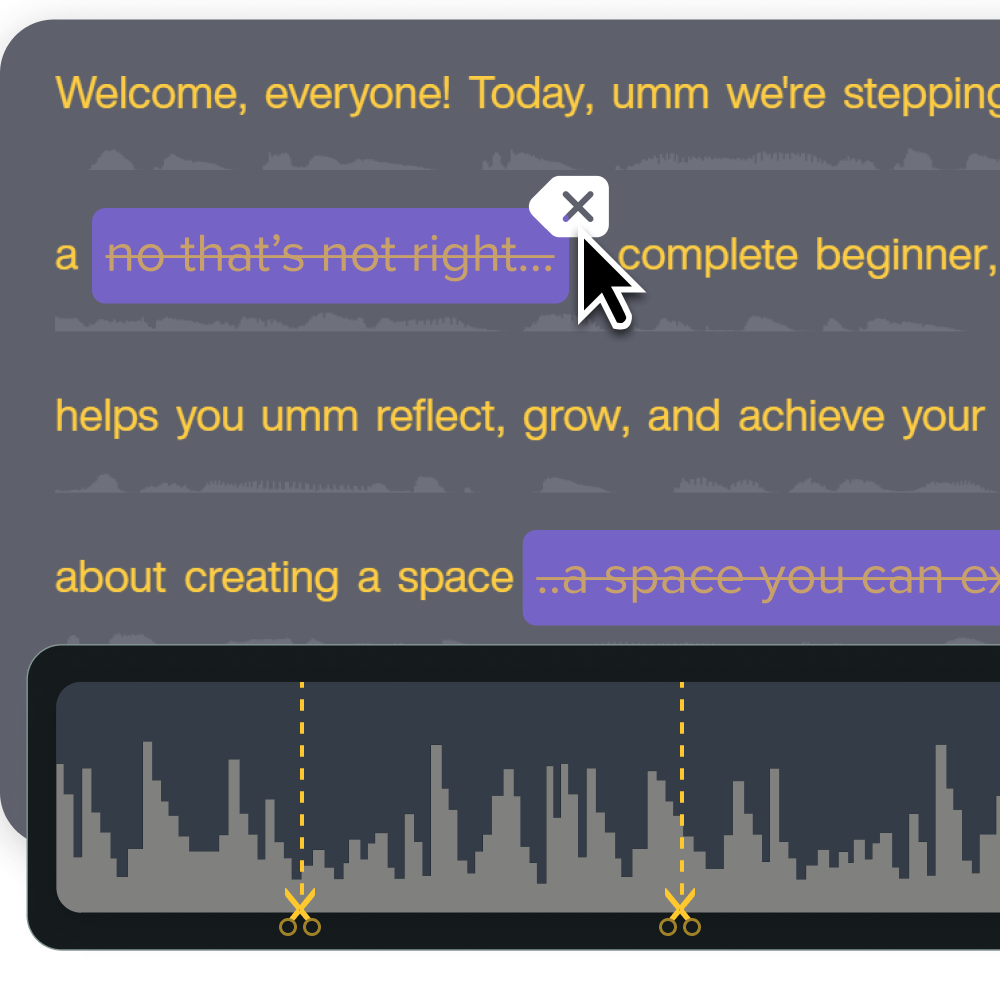
Onboarding, demos, and process documentation
Onboarding walkthroughs, software demos, and process documentation videos work best between five and 10 minutes.
That window leaves room for a bit of context up front, like what the tool is for or when someone would use this process, before you jump into the walkthrough itself. A complete workflow, shown start to finish, usually fits comfortably inside it.
Treat 10 minutes as a hard ceiling, not a suggestion. Shorthand’s platform guidance recommends keeping videos under 10 minutes, which lines up well with how much a viewer can follow in one sitting.
If you’re documenting a full software workflow and notice partway through recording that it naturally splits into two distinct tasks, stop and record two videos instead of folding the second process into the same recording.
Compliance training and course modules
Compliance modules and multi-topic courses can run longer than quick-reference videos, as long as the extra length stays organized.
A required policy update, a certification course, or an onboarding module covering legal requirements often needs more context than a single how-to task. That context might include background on why a rule exists, examples of what compliance looks like in practice, or a sequence of related topics that build on each other.
Longer runtimes only work when you divide the content into clear segments:
- Break the video into chapters.
- Use on-screen titles to mark each new topic.
- Let learners see how much material remains.
A 15-minute compliance course structured as five three-minute segments feels different than one unbroken 15-minute recording, even though the total time is identical.
Treat 12 minutes as your preferred ceiling for a single module. UC San Diego’s guidance on video length recommends staying under 12 minutes when possible and not exceeding 20 minutes even with strong segmentation. Push past 12 only when the content genuinely requires it.
Go from screen recording to polished video
A screen recording is just the start. Camtasia’s editor helps you add the callouts, animations, and edits you need to create a truly professional video.
Free Download
Turn audience answers into length rules
Each audience answer should shape your video’s length and its tone or script.
Novices need more context, but that doesn’t mean one long video. Break the extra explanation into focused modules, each covering a single concept, so beginners get depth without sitting through material they can’t yet absorb in one sitting.
Advanced users need the opposite treatment. Cut baseline explanations entirely and get straight to the task, since experienced viewers disengage when a video repeats what they already know. For urgent tasks, keep support videos brief regardless of skill level. Someone searching for help mid-workflow wants the answer, not a lesson.
These rules matter more once you account for how little formal learning time your audience actually has. Industry analyst Josh Bersin found that employees have an average of 24 minutes per week for formal learning. That limit is a reason to protect relevance aggressively: cut any section that doesn’t serve the stated objective, and treat every added minute as a cost against a shrinking budget.
Split long topics into shorter videos
Split a training video whenever the instruction moves to a new learning objective, workflow stage, or decision point. Don’t wait until the video runs long. Stop the moment one complete idea has landed.
Here’s a repeatable way to find those split points before you record:
- List every learning objective the topic covers.
- Mark each place where the content shifts to a new objective or a new stage in the workflow.
- Cut at those marks.
- Name each resulting module after the specific task it teaches, like “Reset a Password” instead of “Account Basics, Part 2.”
Chunking by objective, rather than by a fixed runtime, makes videos easier to navigate, update, and reuse. If your billing system changes next quarter, you only need to re-record the billing module, not the whole course.
This approach matches where the industry is already headed. ATD found that microlearning use among talent development professionals grew 28% since 2017, suggesting that shorter, chunked training is becoming the working standard, not the exception.
Prioritize clarity over runtime alone
Clear audio, readable visuals, relevant instruction, and accurate captions matter more than hitting a runtime target. A video can hit your target length and still fail if the audience can’t follow it, and a video that runs a little longer can outperform a shorter one that skips context to save time.
A three-minute video with rushed narration, cramped on-screen text, and no captions leaves learners rewinding, guessing at steps, or giving up. A five-minute version of that same lesson, with clean audio, readable visuals, and accurate captions, gets the point across on the first watch. The extra two minutes is the difference between a learner finishing the module and a learner closing the tab.
Three checks catch most clarity problems before you publish:
- Audio: No background hum, consistent volume, and no clipping.
- Visuals: Text large enough to read on a laptop screen, one idea per slide or frame.
- Captions: Accurate, synced, and reviewed for auto-generated errors.
Production quality should serve the instruction. Skip transitions, effects, or music that don’t help the learner understand the task in front of them.
To build engagement further, structured on-screen prompts and check-ins can do more for retention than length ever will. For a deeper look at that approach, see this guide to interactive training videos.
Create how-to guides in seconds with Snagit
Document any internal process as you do it. Step capture organizes the screenshots, numbers, and steps into a clear, shareable visual.
Learn More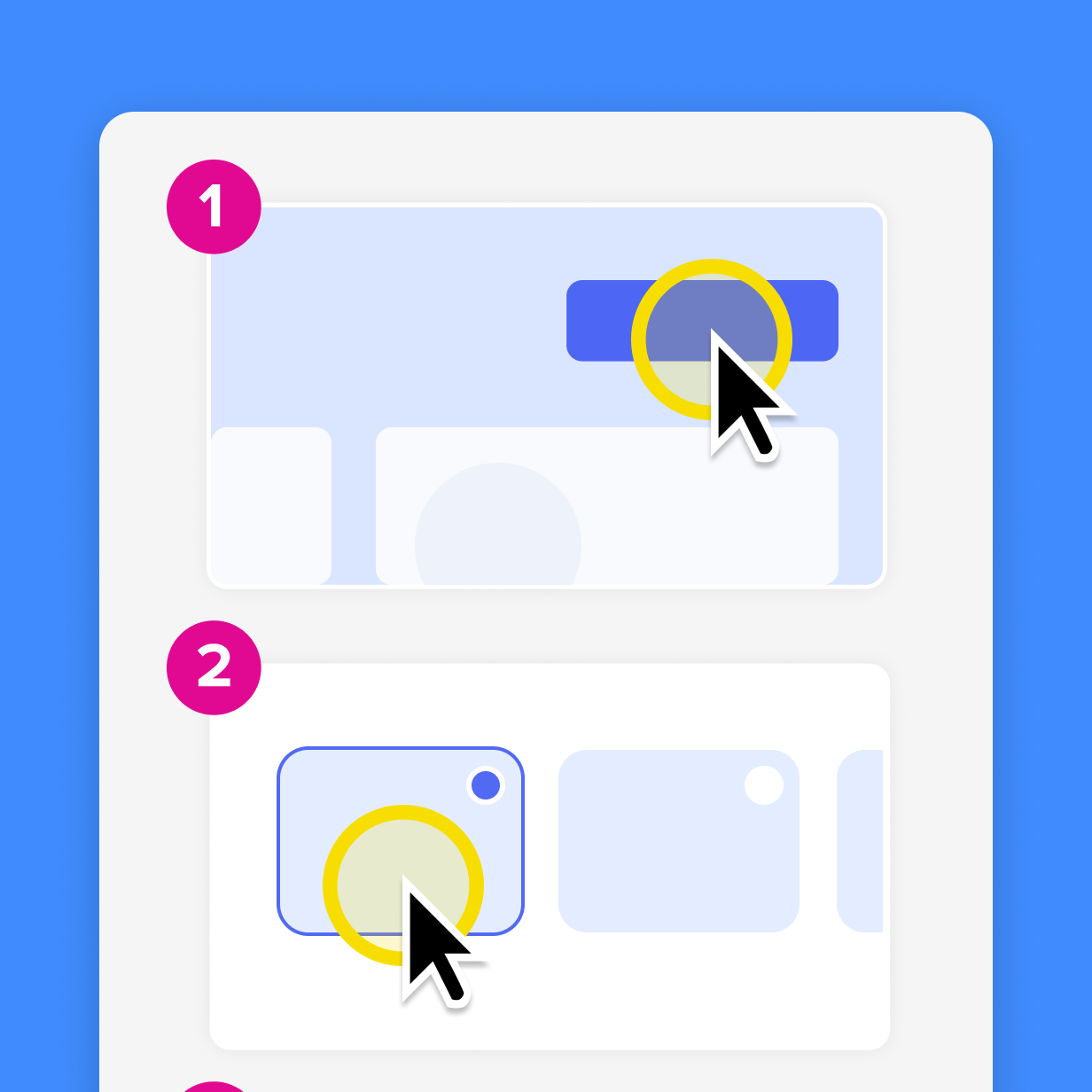
Use Camtasia to hit target length
Hitting a target runtime is a production and editing problem. The Camtasia Suite addresses it without forcing you to cut instruction short:
- Camtasia Audiate’s text-based editing turns your recording into an editable transcript, so you tighten a script by deleting words instead of scrubbing a timeline, and one click removes filler words and stumbled retakes that pad your runtime for no instructional reason.
- Camtasia Editor gives you screen, camera, system audio, and microphone recordings in a single session, and they all land on separate tracks. You can cut a slow screen segment without touching your voiceover, or shorten a camera intro without disturbing the demo underneath.
- Camtasia Snagit’s Step Capture turns linear processes into a numbered visual guide, keeping the topic out of your video’s runtime and giving learners a faster reference for a task that doesn’t warrant a full recording.
- Camtasia Screencast lets you share training videos easily, so reviewers can leave time-stamped, frame-specific comments. That tells you exactly which section runs long or short instead of leaving you to guess from a general note.
For a closer look at building an efficient production workflow from script to final export, check out this guide to creating time-saving training videos.
Focus on training value, not runtime
That five-minute walkthrough beating out the 20-minute version shows the pattern playing out across every training library that gets this right. Length never mattered. What mattered was whether the objective landed cleanly on the first watch, without forcing anyone to hunt for the useful part.
Pull one of your longer training videos this week, the one people skip around in or stop watching halfway through, and ask what single objective it’s actually trying to teach. Cut everything that doesn’t serve that objective, even if the runtime drops in half.
Camtasia Editor makes that kind of trimming fast, and Camtasia Audiate speeds up the audio cleanup that usually eats the most revision time. Once you’ve felt how much faster that revision cycle becomes, shorter, sharper training tends to make its own case, especially once you see how video training improves time to value.
If you’re ready to see how much cleaner a tightly scoped video feels once it’s edited with the right tools, Download Camtasia today.
Crystal-clear screen recording
Why settle for blurry screen content? Camtasia Editor’s screen recorder captures everything at up to 4K!
Free Download
Frequently asked questions
Are shorter training videos always more effective than longer ones?
No, shorter training videos aren’t always more effective than longer ones. Shorter videos often see higher completion rates, but length alone doesn’t guarantee better learning outcomes. A well-structured 10-minute video that fully explains a process can outperform a rushed three-minute clip that leaves gaps. Effectiveness depends on whether the video matches the learner’s needs and clearly teaches the objective.
How can I tell if a training video is running too long?
A training video is probably running too long when viewers drop off partway through, repeatedly rewatch confusing sections, or ask questions the video was meant to answer. A recording that covers more than one learning objective, workflow stage, or decision point should usually be split. Review watch-time data when available, or share the video with a small test group and ask where the pace slowed or the focus became unclear.
Does training video length affect completion rates or retention?
Video length can affect completion rates because longer videos give viewers more opportunities to leave before the end. Retention and comprehension, however, depend more on structure, relevance, pacing, and clarity than on runtime alone. A short video that rushes through a complex process may earn a high completion rate while still failing to help learners remember or apply the steps.
What’s the best way to trim a training video without losing important content?
Start by removing filler words, long pauses, repeated explanations, and screen footage that doesn’t support the learning objective. Camtasia Audiate lets you edit a transcript by deleting words, which trims the corresponding narration and video without requiring timeline expertise. Then use Camtasia Editor to cut redundant screen segments and tighten the pacing while keeping every step learners need to complete the task.
Can a training video be too short to be effective?
Yes, a training video can be too short when it leaves out context, examples, or steps learners need to complete the task successfully. Cutting solely to meet a time target can create confusion and lead to more support questions later. Aim for the shortest runtime that still teaches one objective completely rather than the shortest runtime possible.
Share