Setup & Permissions
Learn how to set up your camera and audio devices and accept the browser permissions to record your first scene in Camtasia Online.

Learn how to set up your camera and audio devices and accept the browser permissions to record your first scene in Camtasia Online.
Camtasia Online supports the following web browsers:
Note: Camtasia Online may work in Chromium-based web browsers (Arc and Opera), but these are not fully supported.
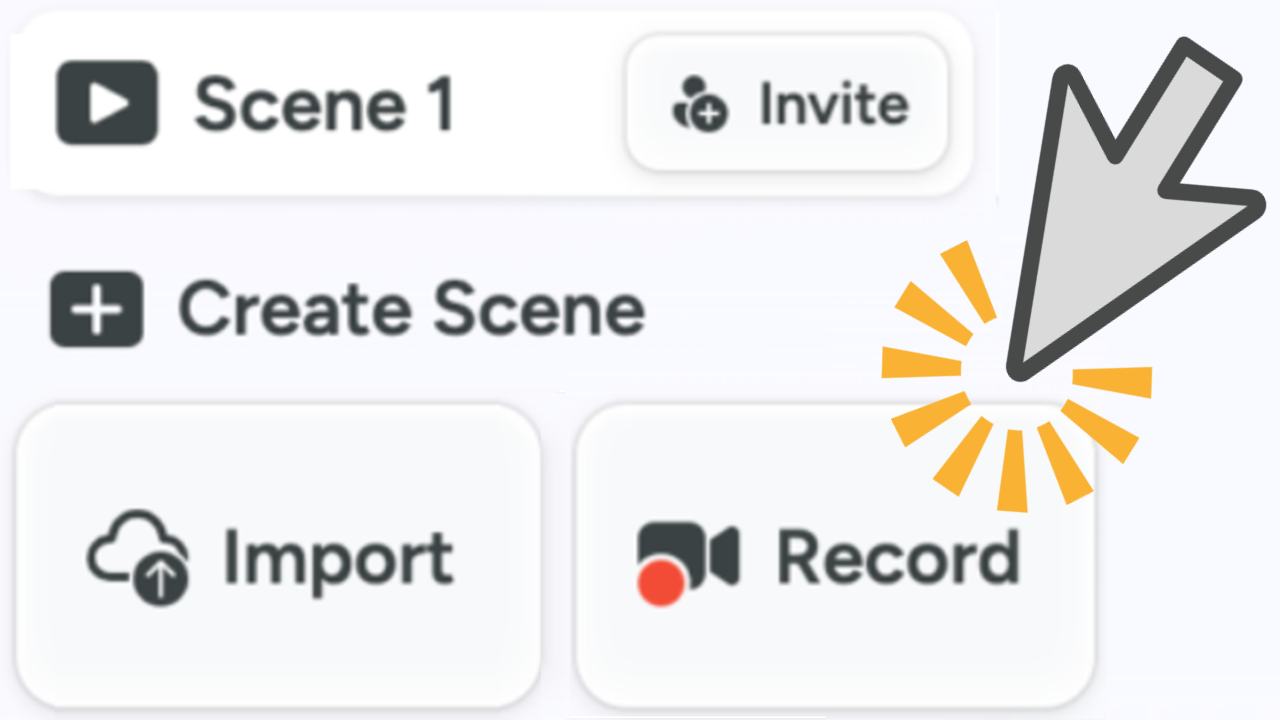
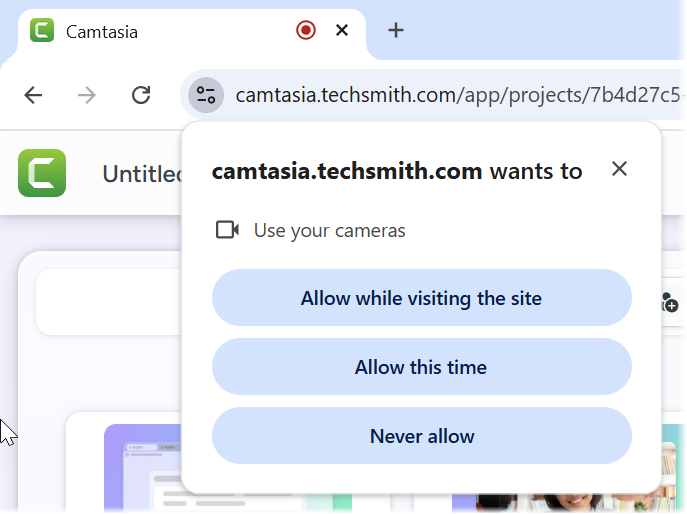
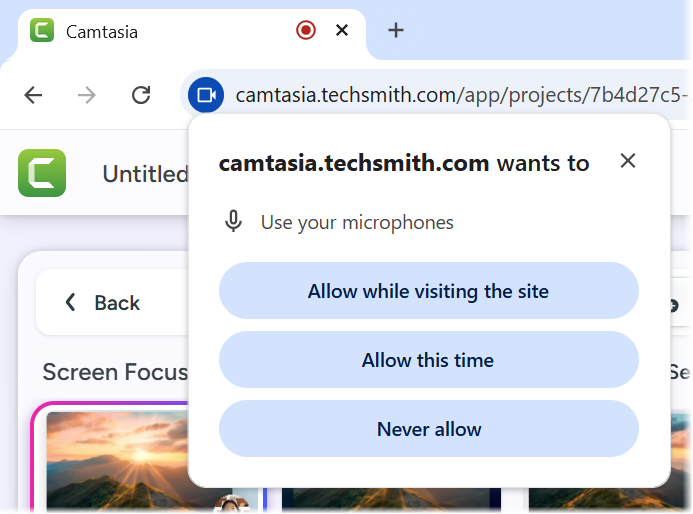
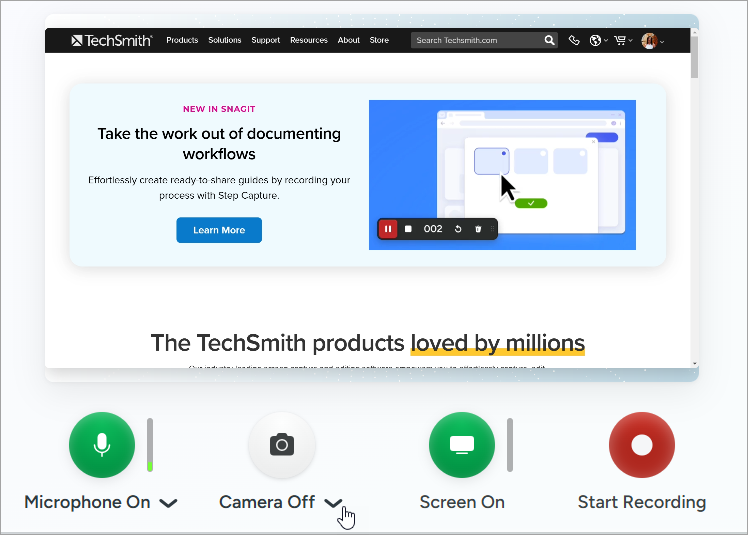
The first time you record with Camtasia Online, the browser prompts you for permission for Camtasia to record screen, audio, and camera.
To accept the site permissions based on your web browser, continue with the following:

 icon in the upper-right corner of the browser window and select Settings > Privacy and security > Site Settings.
After setting up the scene and permissions, you are ready to start your recording.
All Camtasia Online Tutorials