Share Captures
Learn how to quickly copy and paste, send, or share your capture files to a wide variety of applications and destinations.



Learn how to quickly copy and paste, send, or share your capture files to a wide variety of applications and destinations.

Copy an image or video to your clipboard, with any added callouts, arrows, or other additions, to paste into another application.

The Share Link button uploads your image or video to Screencast, our cloud-based solution for collaboration and feedback – free with your TechSmith Account.
Alternatively, if your company or IT administrator deployed Snagit, the Share Link button may be customized to share to OneDrive (Windows only) or Google Drive instead of Screencast.
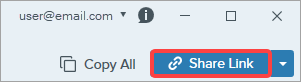
To learn more about Share Link and Screencast, see Get a Shareable Link.
Note: When sharing to Screencast and some other destinations, Snagit creates a descriptive title that includes source information such as the name of the file or web page captured.
To turn off descriptive file names, complete one of the following:
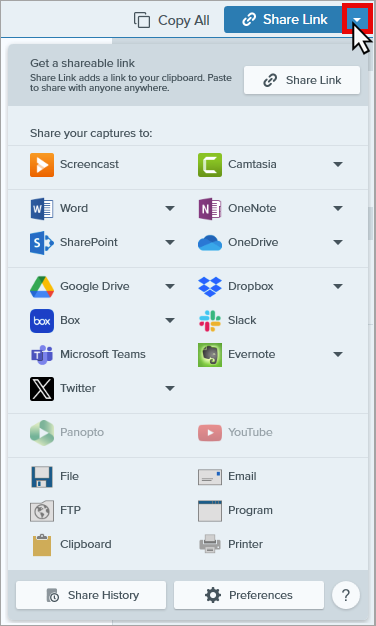
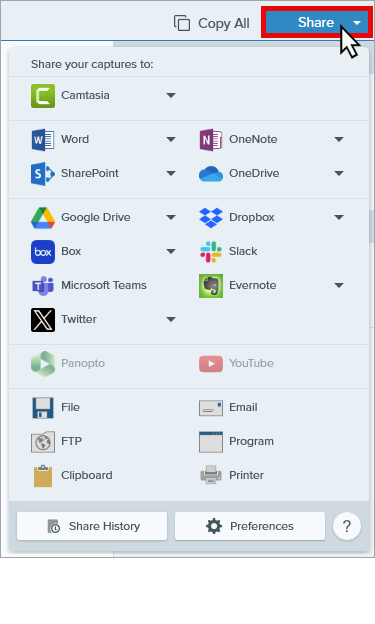
Snagit disables any share destinations in the Share menu that do not support the selected file type.
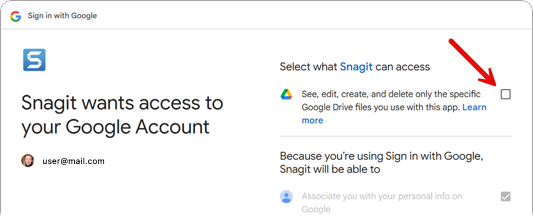
You may be prompted to sign in and allow Snagit access to your account or application before you can share to a specific destination.
Tip: Save time sharing with capture presets and a customized toolbar.
Create a preset to automatically send an image or video to a share destination after capture. Or add a specific share destination to your Editor toolbar. See Save Capture Settings as Presets and Customize the Snagit Toolbar.
Note: If a share destination is missing, see Add or Remove a Share Destination.
For many destinations, you will be prompted to sign in and allow Snagit permission to share.
| Share Destination | Image | Video |
|---|---|---|
| Camtasia Online Send one or more images to the Camtasia online free online recorder.
|  | |
| Camtasia Editor Send images or videos to the Camtasia Editor desktop application to use as source files in your Camtasia projects.
| | |
| Screencast Click the Share Link button or select Screencast from the Share dropdown. Snagit uploads an image or video to Screencast, TechSmith’s free online content hosting service, and copies a link to your clipboard to share with anyone, anywhere. To learn more, see Get a Shareable Link. | | |
| Microsoft Word Insert an image or video into a Microsoft Word document. Note: When you share a Step Capture visual guide to Word, Snagit creates a new Word document with editable text and images. See Automatically Create a Step-by-Step Guide (Step Capture). | | |
| Microsoft PowerPoint Insert an image or video into a Microsoft PowerPoint presentation slide. | | |
| Microsoft Outlook (Mac) Attach an image or video to a new Outlook email message. | | |
| Microsoft Excel Insert an image into a Microsoft Excel workbook. | | |
| Microsoft OneNote Insert an image into a Microsoft OneNote page. | | |
| Microsoft SharePoint (Windows) Upload an image or video to host on SharePoint. Snagit sends the share link to the Clipboard. | | |
| Microsoft OneDrive (Windows) Upload an image or video to Microsoft OneDrive. | | |
| Google Drive Upload an image or video to Google Drive for hosting. Snagit sends a share link to the Clipboard.
| | |
| Dropbox Upload an image or video to Dropbox for image or video hosting. Snagit sends the share link to the Clipboard. | | |
| Box Upload an image or video to Box for image or video hosting. Snagit sends the share link to the Clipboard. Box is not a default share destination on Mac. To add this share destination, see Add or Remove a Share Destination. | | |
| Slack Share an image, video, or animated GIF to a specific Slack channel or direct message. Install the Snagit App for Slack to preview and play Snagit content directly in the Slack message. To learn more, see Connect and Collaborate with Snagit + Slack. | | |
| Microsoft Teams Share an image or video to a Microsoft Teams Channel or Chat. To learn more, see Share to Microsoft Teams. | | |
| Evernote (Windows) Upload an image as a note to Evernote. | | |
| X (Twitter) (Windows) Author a post that includes an image or video. | | |
| Panopto (Mac) Upload a video to a Panopto account. | | |
| YouTube Upload a video to a YouTube account. Snagit sends the share link to the Clipboard. YouTube also provides an embed code for embedding the capture on a website or blog. YouTube resizes the video to fit within their standard dimensions. For best results, record at YouTube’s recommended dimensions. See Record a Video with Snagit. If prompted to sign in to YouTube, be sure to check the box to “Manage your YouTube account.”  | | |
| File Save an image or video to a file location. | | |
| Email Insert an image into a new email message. | | |
| FTP Send an image or video to an FTP server using file transfer protocol. | | |
| Program (Windows) Send an image or video to another program. Select from a list of programs that support the selected file format. To add a program to the list:
| | |
| Application (Mac) Send an image or video to another application. Select from a list of applications that support the selected file format. To add an application to the list:
| | |
| Clipboard (Windows) Copy an image to the Windows Clipboard for quick pasting into other locations or applications. | | |
| Printer (Windows) Send an image to a printer. | | |
| Pages (Mac) Insert an image or video into a Pages document. Snagit opens a new Pages document if one is not already open. Note: When you share a Step Capture visual guide to Pages, Snagit sends the guide as separate images with editable text rather than a single image. See Automatically Create a Step-by-Step Guide (Step Capture). | | |
| Keynote (Mac) Insert an image or video to a Keynote presentation. | | |
| Numbers (Mac) Insert an image or video to a Numbers document. | | |
To add or remove share destinations from the Share Link dropdown and the Share menu:
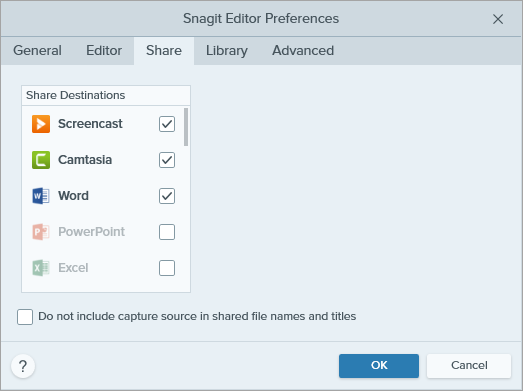
 button and select an option from the list.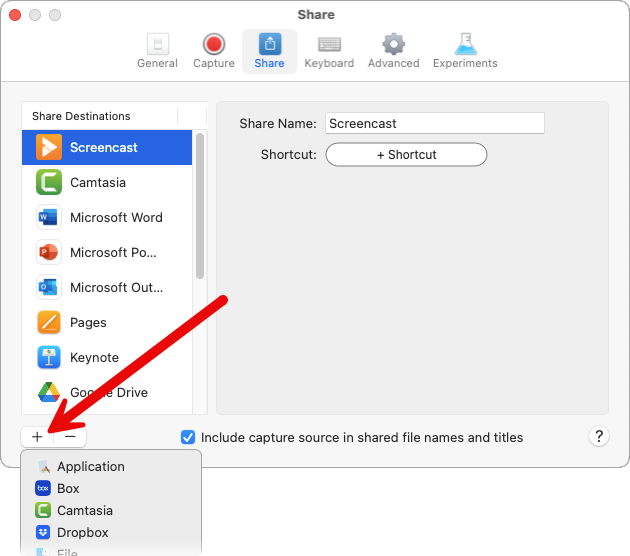
 button.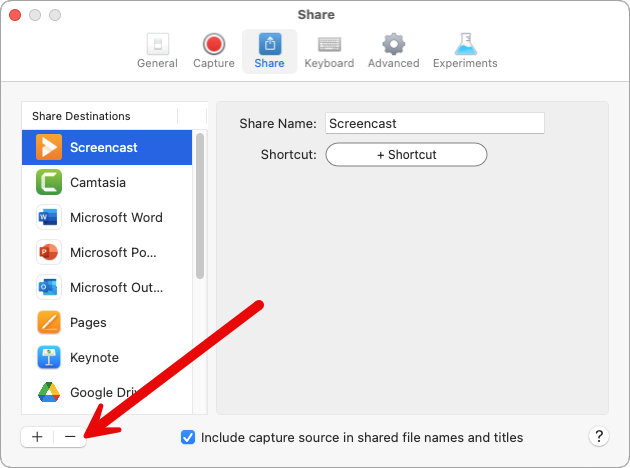
Customize share destinations to:
To customize a share destination:
The best screen capture software for professionals
* Have Snagit 2024 or earlier? Check out our previous version help.
 Add Program icon.
 Browse icon.