


Merge videos
Merging multiple video clips into a single, seamless video has never been easier, thanks to Camtasia’s intuitive drag-and-drop interface. Camtasia makes video merging fast and straightforward.
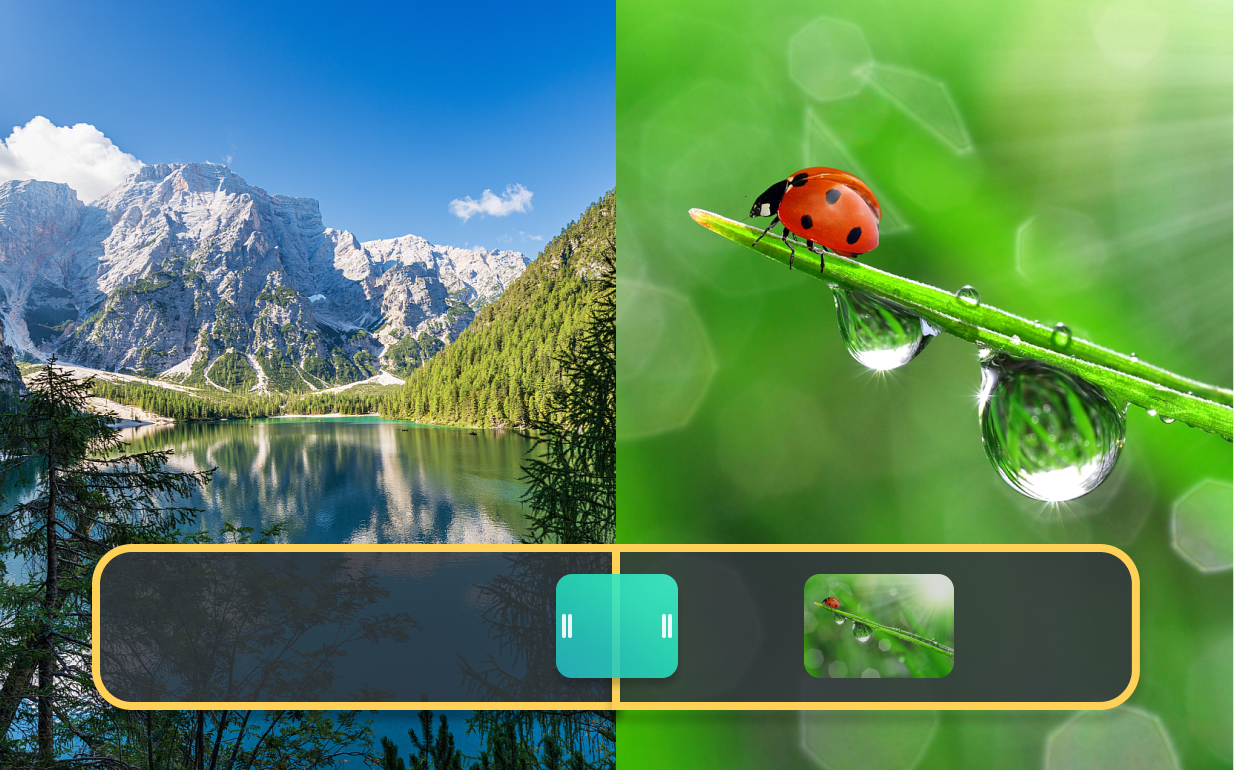
How to merge videos
Follow these three easy steps to merge your videos and create a single, professional-looking video:
1
Step 1: Drag and drop videos onto the timeline
Start by dragging your video clips directly from your computer onto Camtasia’s timeline. Skip the extra step of importing media—simply drag the files straight to the timeline to begin merging them.
2
Step 2: Arrange and apply transitions
Once the videos are on the timeline, arrange them in the desired order. Use Camtasia’s wide range of drag-and-drop transitions to create smooth, seamless cuts between the clips. You can customize the transitions to match the style of your video.
3
Step 3: Export your merged video
After arranging the clips and applying transitions, export the final video. Camtasia allows you to export the video in various formats, ensuring compatibility with your preferred platform.
Merge your video clips with ease
Camtasia offers several advantages when merging videos, making it the best tool for this task.
Simple drag-and-drop functionality
Merging videos in Camtasia is as easy as dragging files from your computer directly onto the timeline. This eliminates the need to import media separately, which saves time and streamlines the process.
Professional transitions
Camtasia offers a wide variety of transition options that can be applied with a simple drag-and-drop action. This ensures your final video looks professional and consistent, even when combining clips from multiple sources.
Efficient with minimal work
With just a few clicks, you can add multiple videos to the timeline and export them as a single, merged file. This quick and efficient workflow allows you to focus on content creation without getting bogged down by complicated editing steps.
Get started with Camtasia Editor

FAQ
Simply drag your video files directly from your computer onto the timeline in Camtasia, arrange them in order, and export as a single video file.
Yes! With Camtasia, you can add transitions to ensure smooth, professional transitions between video clips
Yes, Camtasia supports various video formats, making it a powerful video merger.
Combining videos in Camtasia is non-destructive, which means your original video files remain unchanged while you create the merged video on the timeline.
There is no limit to the number of video clips you can merge in Camtasia. You can combine as many clips as needed to create your final video.
Yes, even after merging the videos, you can still edit each clip independently on the timeline, giving you full control over your content
Check out our tutorial that will walk you through everything you need to know.
Still can’t find what you need? Contact us and we’ll help you out.