Add text to a video
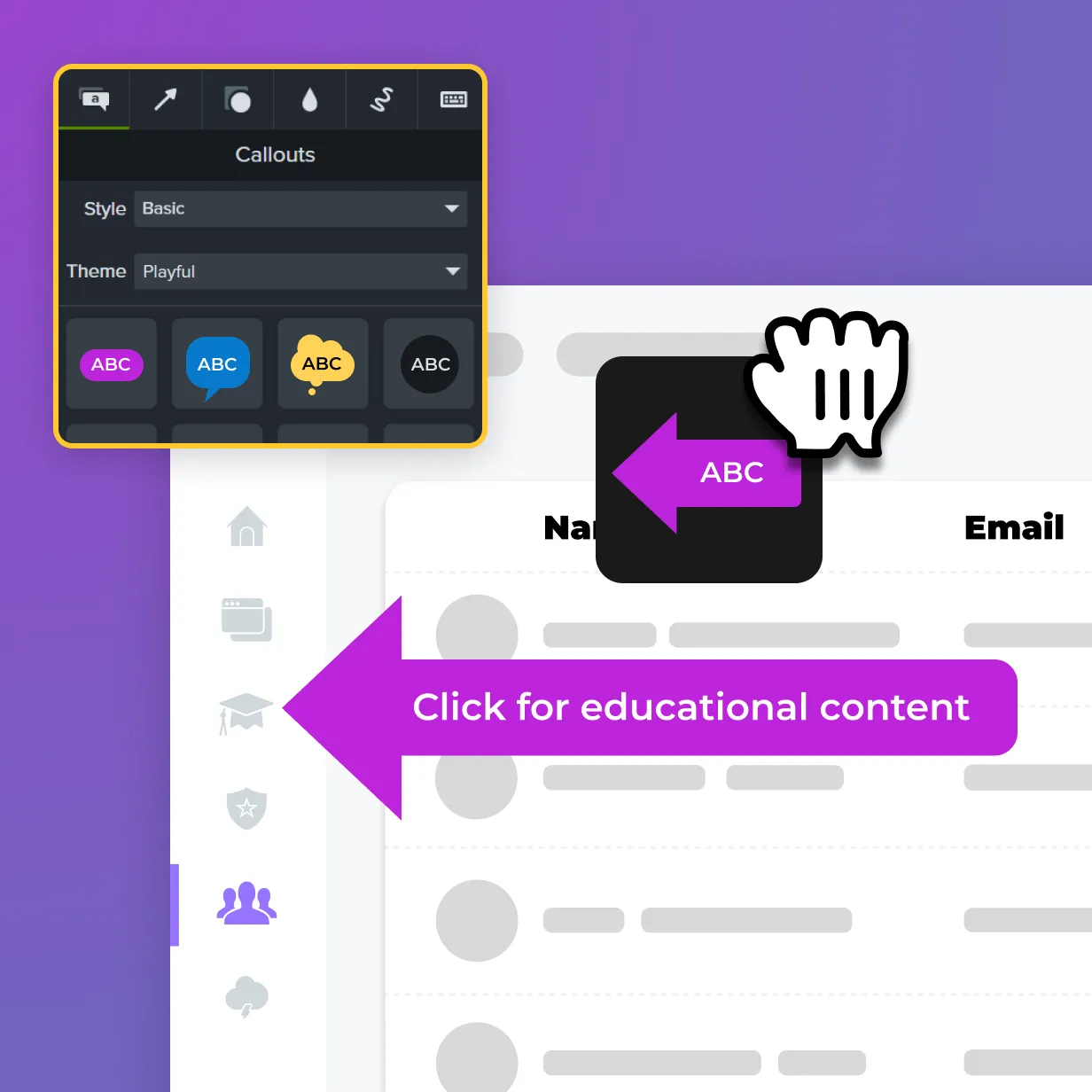
With access to over 100 million customizable assets, including titles, lower-thirds, and annotations, Camtasia helps you create polished videos with minimal effort.
ADD TEXT IN CAMTASIA
How to add text on a video with Camtasia
Adding text to your video in Camtasia is quick and simple. Follow these three steps to get started:
1
Step 1: Select a text asset from Camtasia Assets
Open Camtasia, navigate to the Media tab, and select the Camtasia Assets subtab. Choose from hundreds of professionally designed text assets, including titles, lower-thirds, and callouts. Simply drag and drop your chosen text asset onto the timeline.
2
Step 2: Customize the text to fit your style
Once the text is placed on the timeline, customize it to match your video’s style. You can adjust the font, size, color, and position of the text. If you want to keep a consistent look across multiple videos, you can save your customized text to your personal library for reuse later.
3
Step 3: Preview and export your video
After adding and customizing the text, preview your video to ensure it looks exactly how you want. Once satisfied, export your video in your preferred format, and you’re ready to share your polished, professional content with your audience.
Easily add text to your videos with Camtasia
Camtasia’s intuitive tools make adding text to videos fast and effective. Here’s why it’s the best option for creators:
Professionally designed, royalty-free assets
Camtasia provides access to over 100 million customizable, royalty-free assets, including titles, lower-thirds, and callouts. These professionally designed elements allow you to create high-quality videos without any design expertise.
Drag-and-drop simplicity
You don’t need to be a video expert to add text to your projects. With Camtasia’s drag-and-drop functionality, adding and customizing text is effortless, even for beginners.
Consistent branding across videos
Save your custom titles and text layouts to your personal library and reuse them across multiple videos. This helps maintain a consistent look for your brand, making your content more professional and cohesive.
Get started with Camtasia Editor
FAQ
Simply drag and drop a text asset from the Camtasia Assets onto your timeline. You can then customize the font, size, and color to match your video’s style.
Yes, Camtasia allows you to fully customize the text by changing fonts, colors, sizes, and positioning. You can also save your custom text layouts for future use.
Yes! Camtasia offers a large library of professionally designed, royalty-free text assets, including titles, lower-thirds, and callouts, which you can use at no additional cost.
Absolutely! Camtasia’s text tools allow you to add CTAs at the end of your video, encouraging viewers to engage with your product, subscribe to your channel, or watch more videos.
Yes, you can save your customized text and title layouts to your personal library, making it easy to reuse them across multiple videos for consistent branding.
Yes, Camtasia allows you to easily add subtitles or captions to your videos, ensuring accessibility and engagement for a wider audience.
Check out our tutorial that will walk you through everything you need to know.
Still can’t find what you need? Contact us and we’ll help you out.