


Audio joiner
Joining multiple audio files into a seamless, professional-quality track is a breeze with Camtasia. Perfect for content creators, podcasters, and audio editors, Camtasia makes it easy to combine clips and deliver a smooth listening experience with minimal effort.
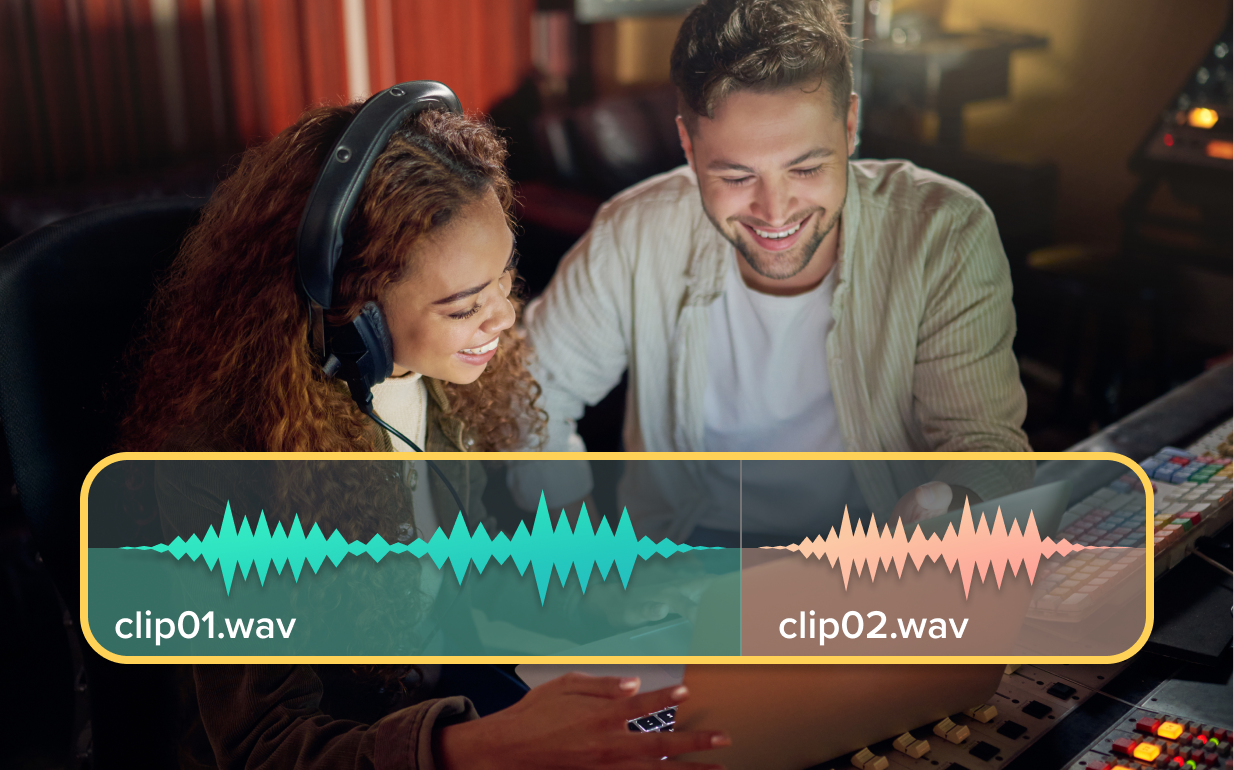
How to join audio files with Camtasia
Camtasia is an efficient and easy-to-use audio-to-audio joiner. Follow these three steps to get started:
1
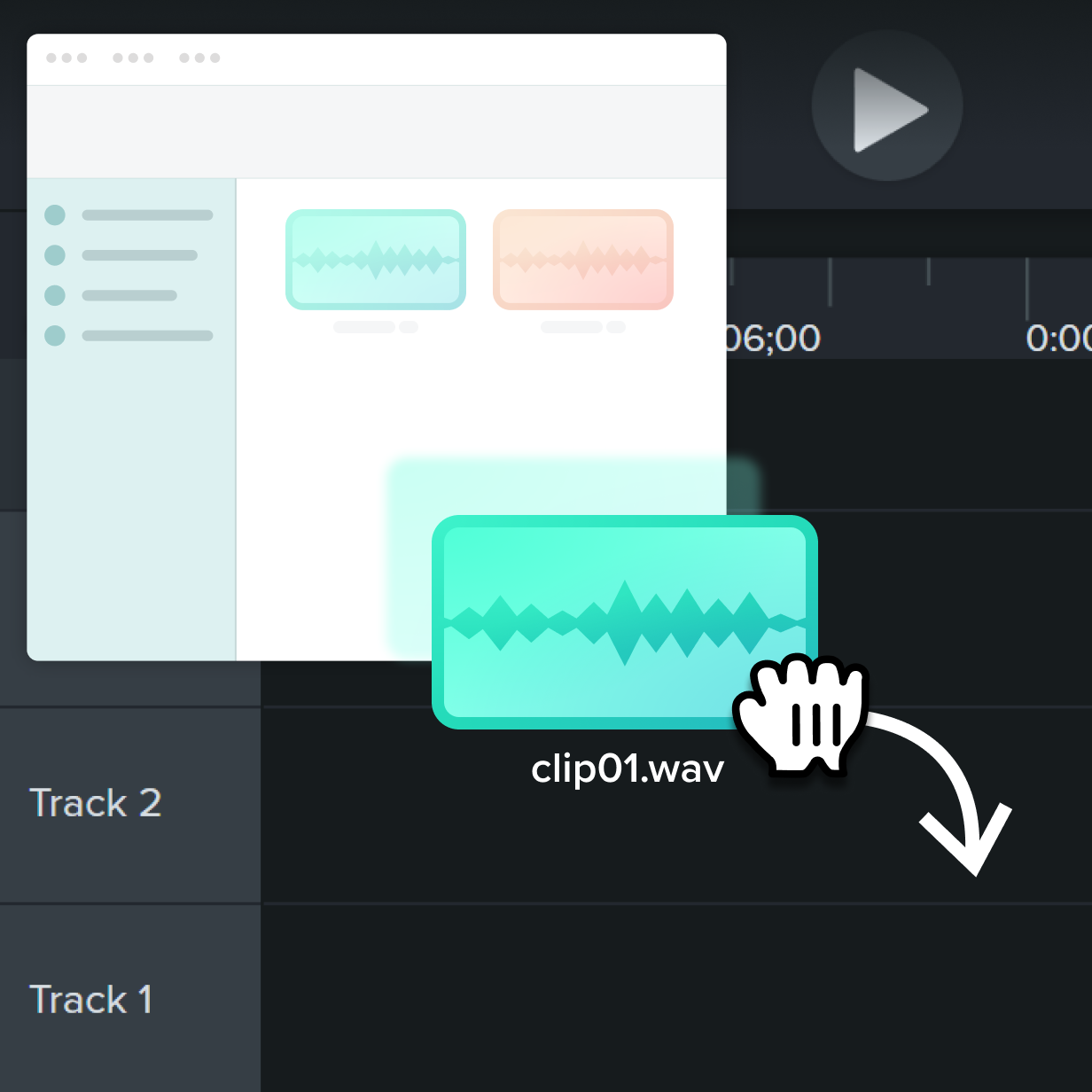
Step 1: Drag and drop audio files onto the timeline
Start by uploading your audio files into Camtasia. Or, drag and drop your files directly from your computer onto the timeline. If you uploaded the files, drag and drop them onto the timeline. This is where the audio will be merged and edited.
2
Step 2: Arrange and normalize audio
After placing the files on the timeline, arrange them in the desired order. Camtasia automatically normalizes the loudness across all files, ensuring consistent audio levels throughout the final track. This creates a professional-sounding result with minimal effort.
3
Step 3: Export the merged audio
Once you’re satisfied with the arrangement, simply export the audio as a single file. With just a few clicks, you can combine multiple audio files into one, ready for sharing or further use.
Easily join audio files with Camtasia
Camtasia offers several advantages that make it the best choice for merging audio files into a single track.
Drag-and-drop simplicity
Camtasia streamlines the process of adding audio clips by allowing you to drag files directly from your computer onto the timeline. This eliminates unnecessary steps, making audio joining quick and easy.
Consistent audio quality with auto-normalization
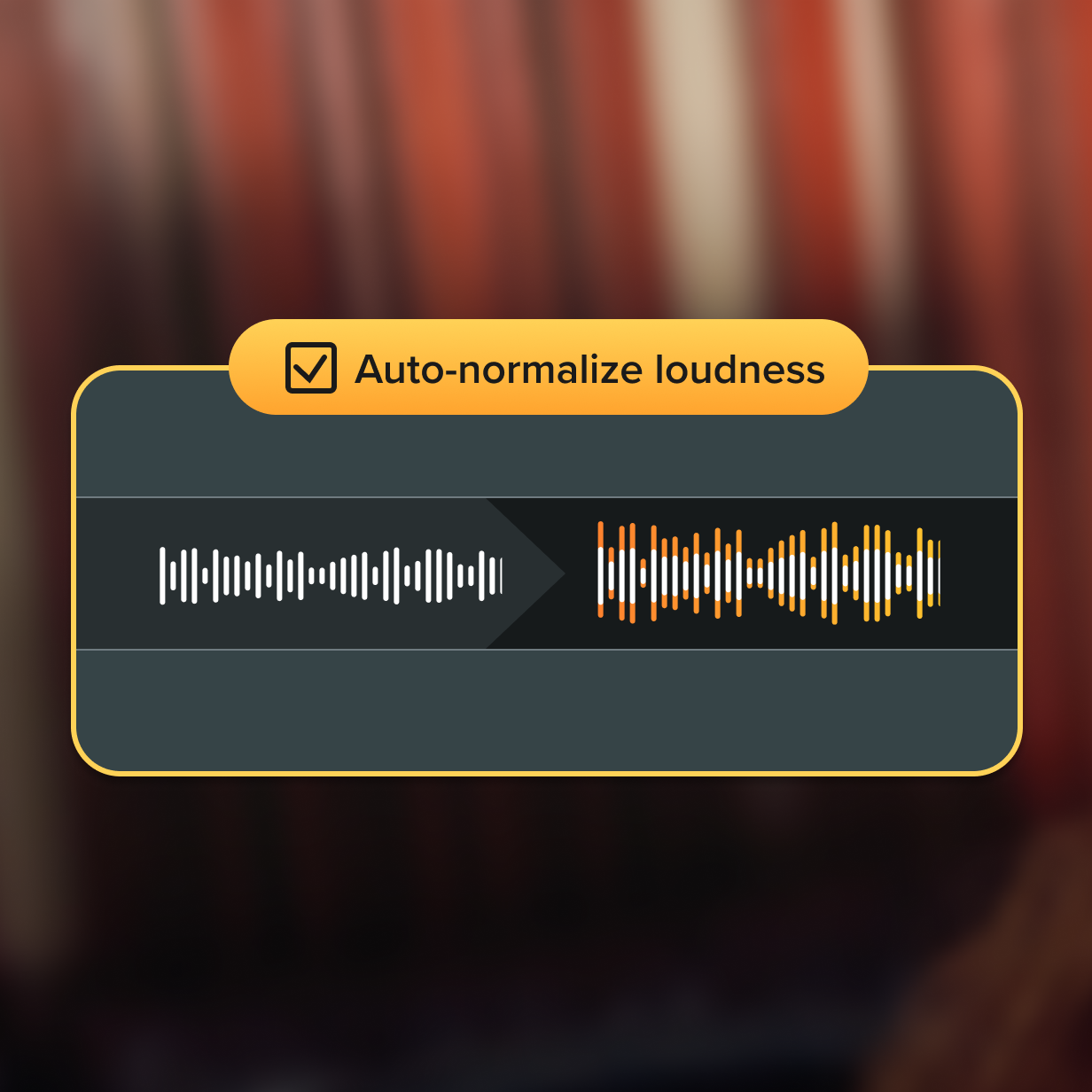
Camtasia automatically normalizes the loudness across all clips on the timeline, ensuring consistent volume levels throughout the merged file. This feature is applied by default, so you don’t have to worry about manually adjusting audio levels.
Professional, seamless results
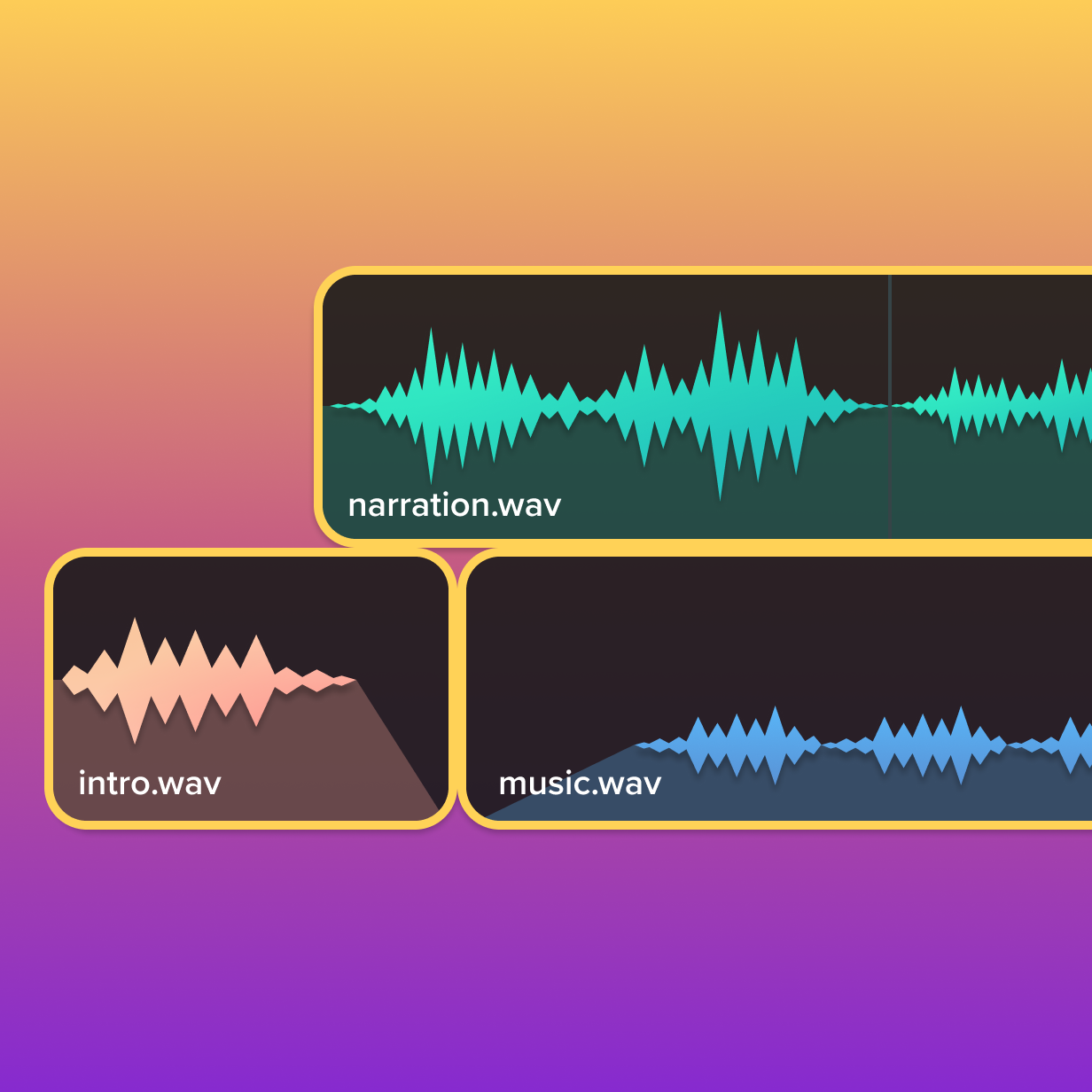
Whether you’re combining multiple audio tracks for a podcast or creating a clean, single audio file from different clips, Camtasia helps you achieve professional-quality audio that’s ready to share. With minimal effort, you can produce polished, engaging content.
Get started with Camtasia Editor
FAQ
Simply drag and drop your audio files from your computer onto Camtasia’s timeline. Arrange them in order and export as a single audio file.
Yes, Camtasia’s auto-normalization feature ensures consistent audio levels across all clips on the timeline, delivering a smooth, professional-sounding final track.
Absolutely! Camtasia’s MP3 merger allows you to export merged audio files in MP3 format, as well as other formats like WAV, making it versatile for different projects.
No, there’s no limit to the number of audio files you can merge in Camtasia. Simply add as many files as you need and export them as a single, seamless track.
Yes, you can adjust the order, trim the audio, or apply other edits before exporting the final merged file in Camtasia.
Yes, with Camtasia’s auto-normalization feature, all audio clips will have consistent volume levels, ensuring a smooth listening experience for your audience
Check out our tutorial that will walk you through everything you need to know.
Still can’t find what you need? Contact us and we’ll help you out.