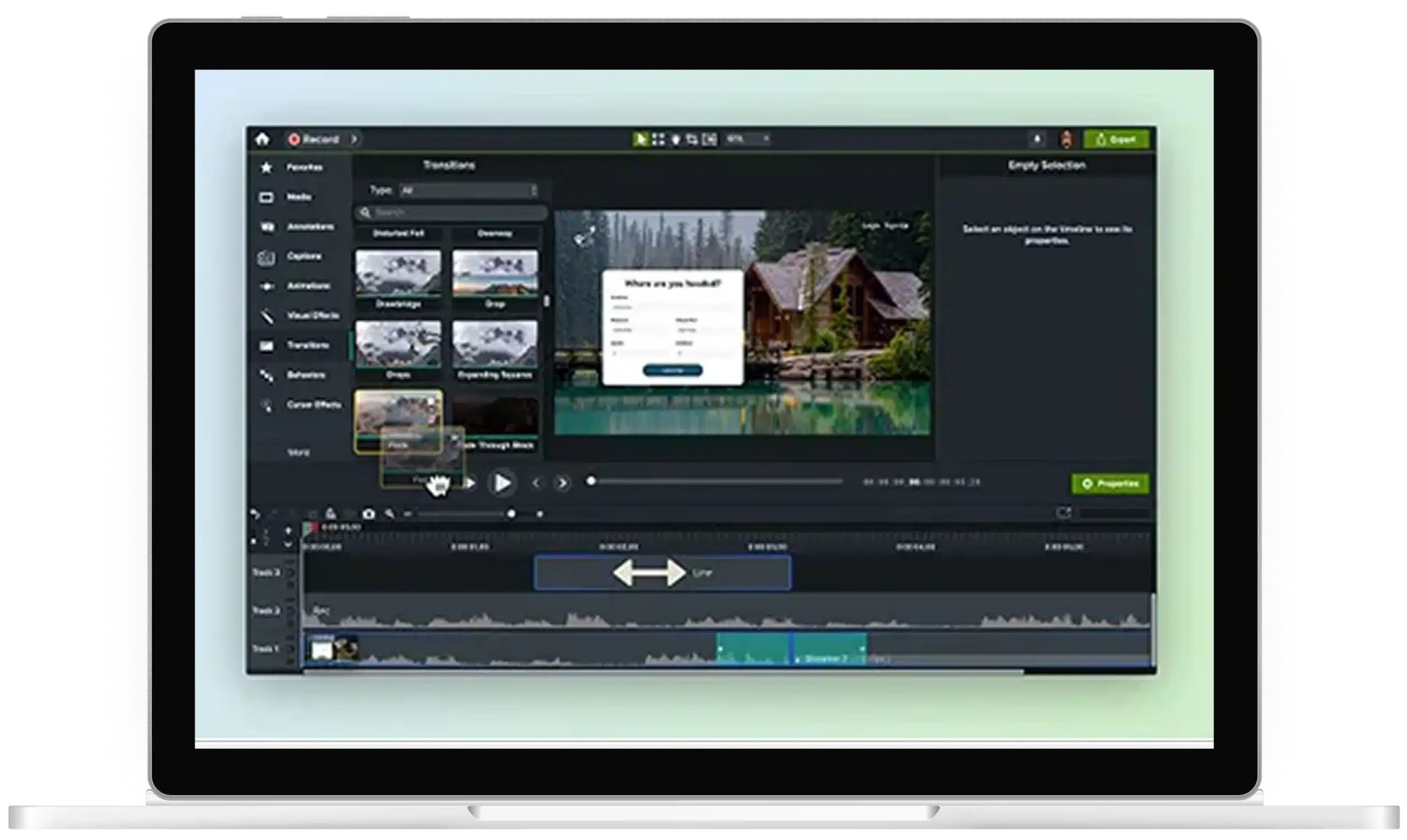






Audio trimmer
Looking for a reliable audio trimmer that offers precision and versatility? Camtasia is the ultimate solution for trimming and editing MP3 audio files. No matter how complex your media is, Camtasia’s intuitive audio trimming tools help you easily achieve professional-quality results.

Why trim audio with Camtasia?
Camtasia stands out from other audio trimmers thanks to its unmatched precision and ease of use. Here’s why it’s your best option for trimming audio:
Precise editing with multi-track timelines
Camtasia’s multi-track timeline allows you to separate audio from video, zoom in on the waveform, and trim with surgical precision. No more guessing where the audio cuts will fall.

Flexible waveform view options
With multiple waveform view options, including mirror waveforms, Camtasia gives editors more control over how they visualize their audio. Customize your editing view to suit your personal preference.

Trim audio in the middle of the track
Unlike basic audio trimmers that only let you cut from the start or end, Camtasia lets you trim any part of the audio file, making it perfect for refining audio in the middle of your project.

Get started with Camtasia Editor