


Extract audio from a video
Need an audio extractor? Camtasia makes separating audio from your video simple. You can easily extract audio for a podcast, voiceover, or background music. Then, save it in various file formats.
How to extract audio from video
1
Step 1: Add your video
Drag and drop your source video right onto the Camtasia timeline.
2
Step 2: Separate the audio and edit
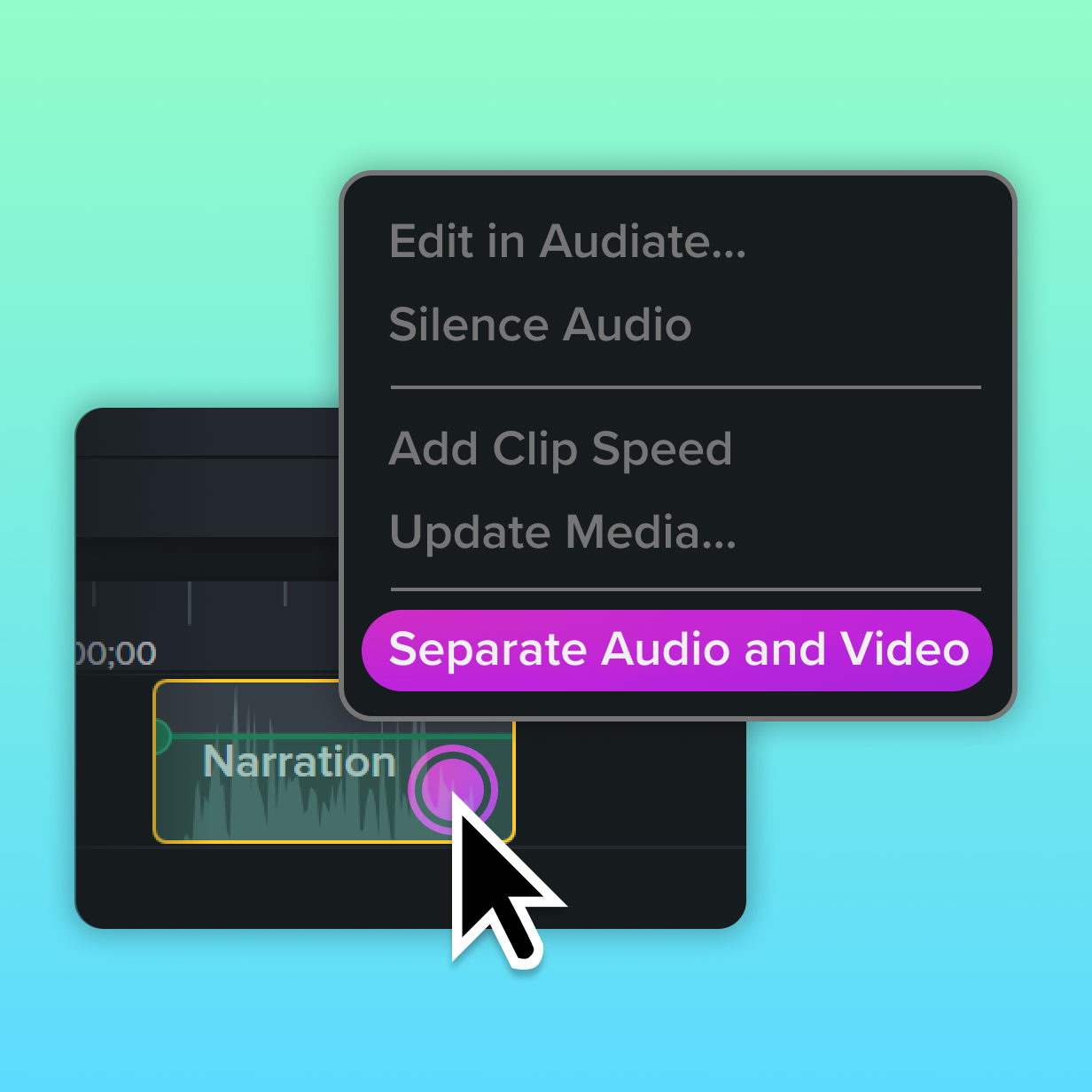
Right-click the video clip on the timeline and select Separate Audio and Video. This splits the audio into a separate track.
3
Step 3: Export your audio
Right-click the audio track, select Export Audio, and save it as an audio file.
Extract audio, edit video—all in one tool
Camtasia is a top choice for creators and video editors.
Simplify your workflow
Camtasia is a powerful video editor, so there’s no need for multiple tools or complicated processes. You can extract audio directly within the app while editing your video, saving you time.
Save your audio as an mp3
This widely compatible format ensures your file is ready for podcasts, presentations, or any project. Save them as standalone tracks or ready-to-share mp3 files.
Edit your audio clips
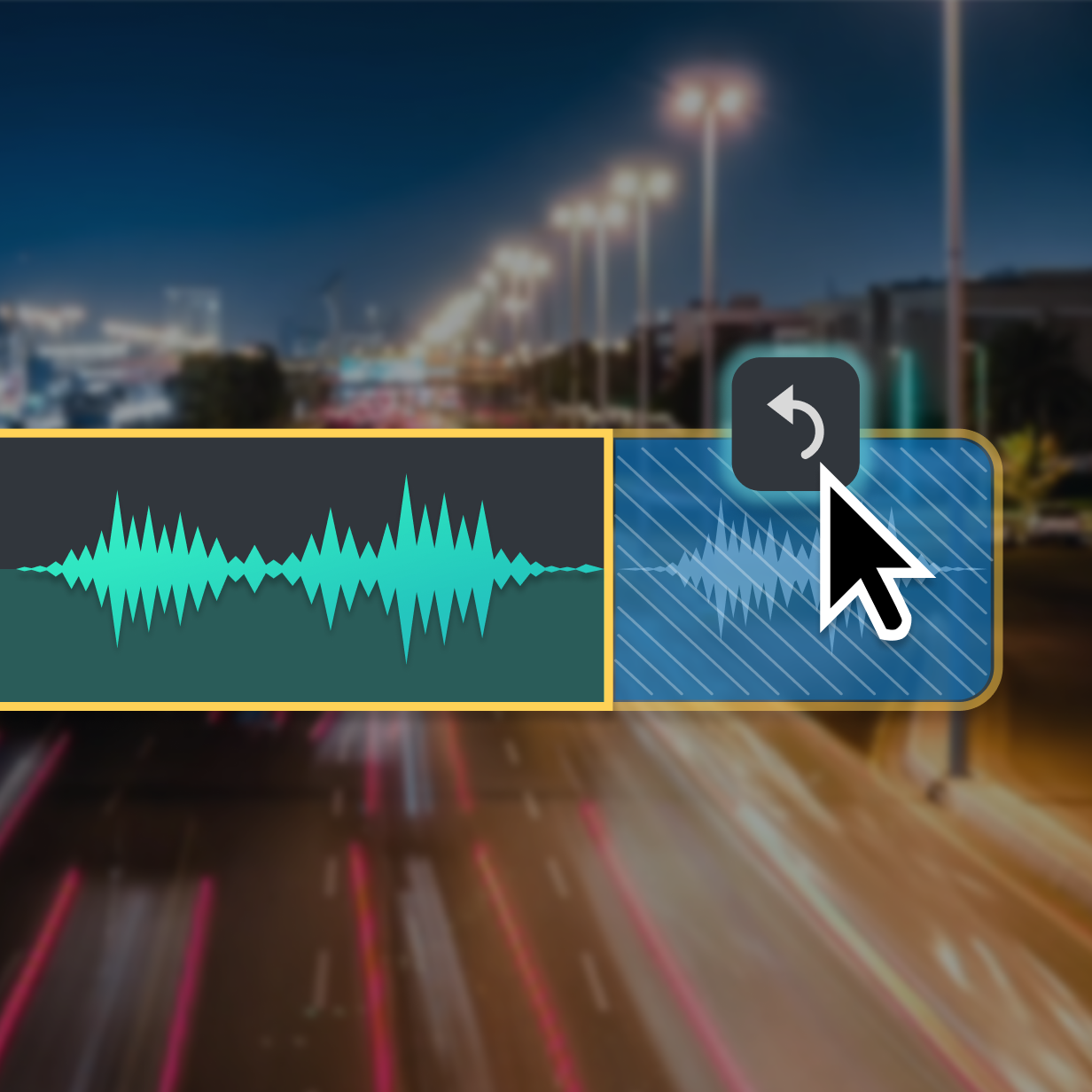
You can trim your video, add transitions, or sync new audio tracks seamlessly. Camtasia lets you do it all in one place.
Get started with Camtasia Editor

FAQ
With Camtasia, you can easily separate audio from any video. Simply choose your files, drag them into the timeline, right-click, and select “Separate Audio and Video.” Then, export the audio as a standalone file in formats like MP3 or WAV.
Yes! Just import your iPhone video into Camtasia on Windows or Mac. Then, separate the audio and save it in your preferred format.
It’s simple! Camtasia’s intuitive video editing tools allow you to pull and save audio from your videos with ease. Just click, convert, and save your audio in high-quality formats like MP3 or WAV.
Drag your MP4 video into Camtasia, right-click the video track, and select “Separate Audio and Video.” Once separated, save your audio as an MP3 or other formats compatible with most media players.
Yes, Camtasia lets you isolate all audio components from your video. Once separated, you can convert and save specific tracks, like music or voiceovers, for independent use or editing.
After separating the audio in Camtasia, export it as an MP3 or WAV file. These formats are widely compatible with most media players, making it easy to share or repurpose your content.
Camtasia is available for both Windows and Mac. Import your video, separate the audio, and click convert to save the file in your desired format, such as WAV or MP3.
Camtasia makes extracting background audio easy. Choose your files, separate the audio, and save or edit it. You can replace it or enhance it with new soundtracks.
Yes! Camtasia allows you to convert and save your videos as audio-only files. After extracting the audio, you can save it in formats like WAV or MP3 for use in other projects or media players.
No, Camtasia’s audio extraction is non-destructive. This means your original video remains intact while you work with the extracted audio.
Yes! After extracting the audio, you can replace it with a voiceover or background music. Camtasia’s video editing tools make this process simple.
Absolutely. After separating the audio and video, you can edit the audio on its own. Adjust the volume, trim it, or sync it with new media.
Yes, Camtasia supports a wide range of video and audio formats, including MP4, AVI, and WAV. This ensures you can work with files from various sources and convert them to meet your needs.
Check out our tutorial that will walk you through everything you need to know.
Still can’t find what you need? Contact us and we’ll help you out.