


Reverse video
With Camtasia’s easy-to-use features, you can reverse clips in just a few clicks, making it perfect for creating tutorials, training videos, or fun, engaging content.
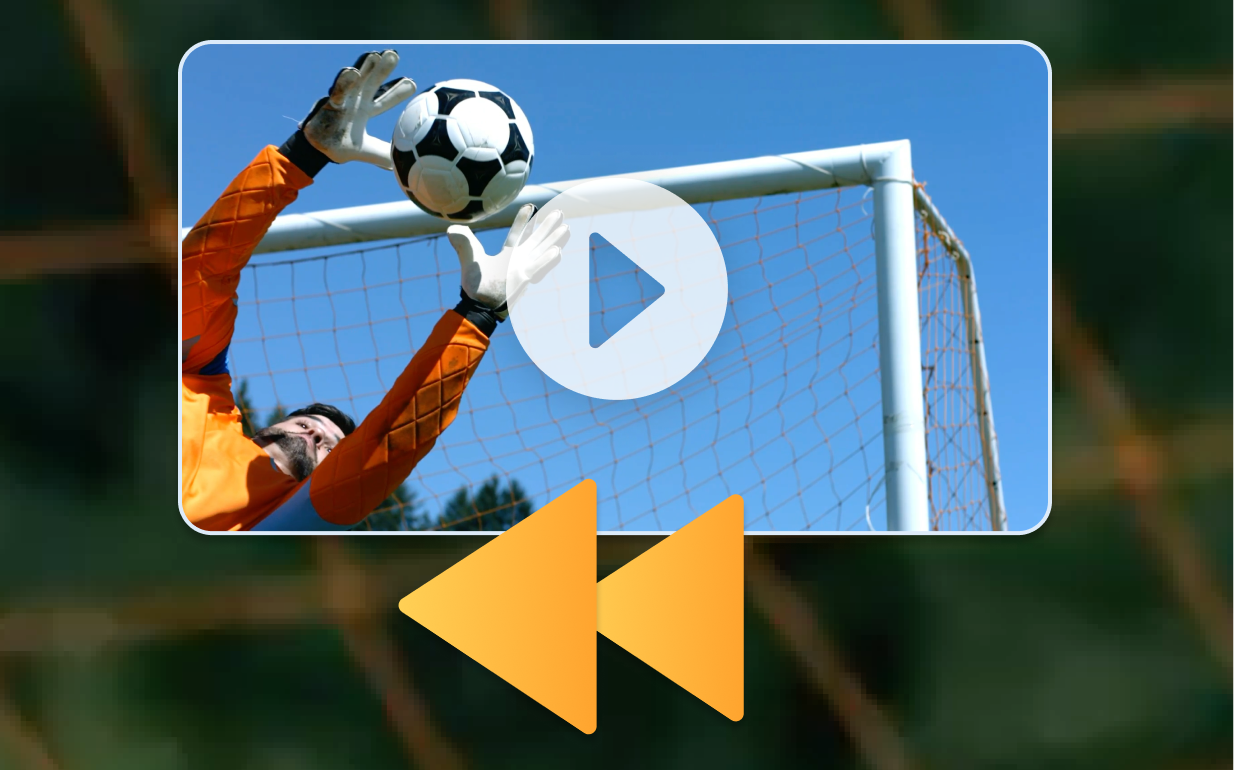
How to reverse a video
Reversing a video in Camtasia is quick and simple. Follow these three steps and add a dynamic twist to your project:
1
Step 1: Import your video into Camtasia
Start by importing the video clip into Camtasia’s media bin. Don’t drag your video onto the timeline just yet.
2
Step 2: Apply the reverse effect
Right-click on the video clip in the media bin and select the “Reverse Video” option. Camtasia will automatically complete the action, allowing you to view the action in reverse. You can reverse individual clips or multiple videos at once by using the multi-select feature in the media bin.
3
Step 3: Save or add to your library
Once you’ve reversed the video, you can add it to your user library for future use across other projects. You can now drag the video onto the timeline for further edits or combine it with other clips, and you can now also export the video in your desired format.
Easily reverse your video with Camtasia
Camtasia offers several key benefits that make it the best tool, whether for creative projects, training videos, or tutorials.
Quick and easy access to features
With just a few clicks, Camtasia allows you to reverse any video clip, making it easy to add this effect to your project. The intuitive interface ensures that even beginners can create professional-looking videos every time.
Enhance focus and engagement
Reversing a video is a great way to highlight important parts of your content, drawing attention to key moments or replaying sections for emphasis. This makes it ideal for training videos, product demonstrations, or any content where clarity is essential.
Use the content in multiple ways
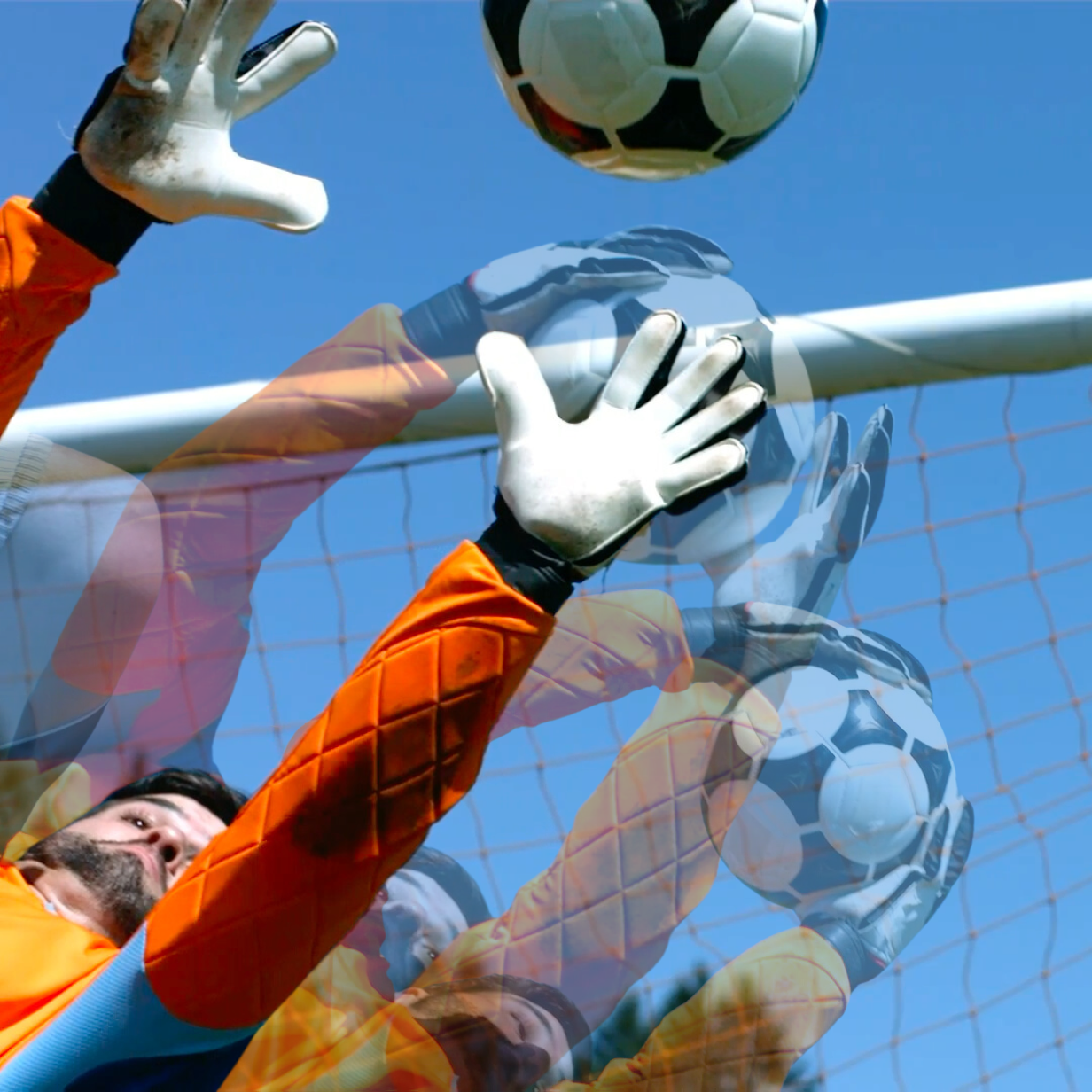
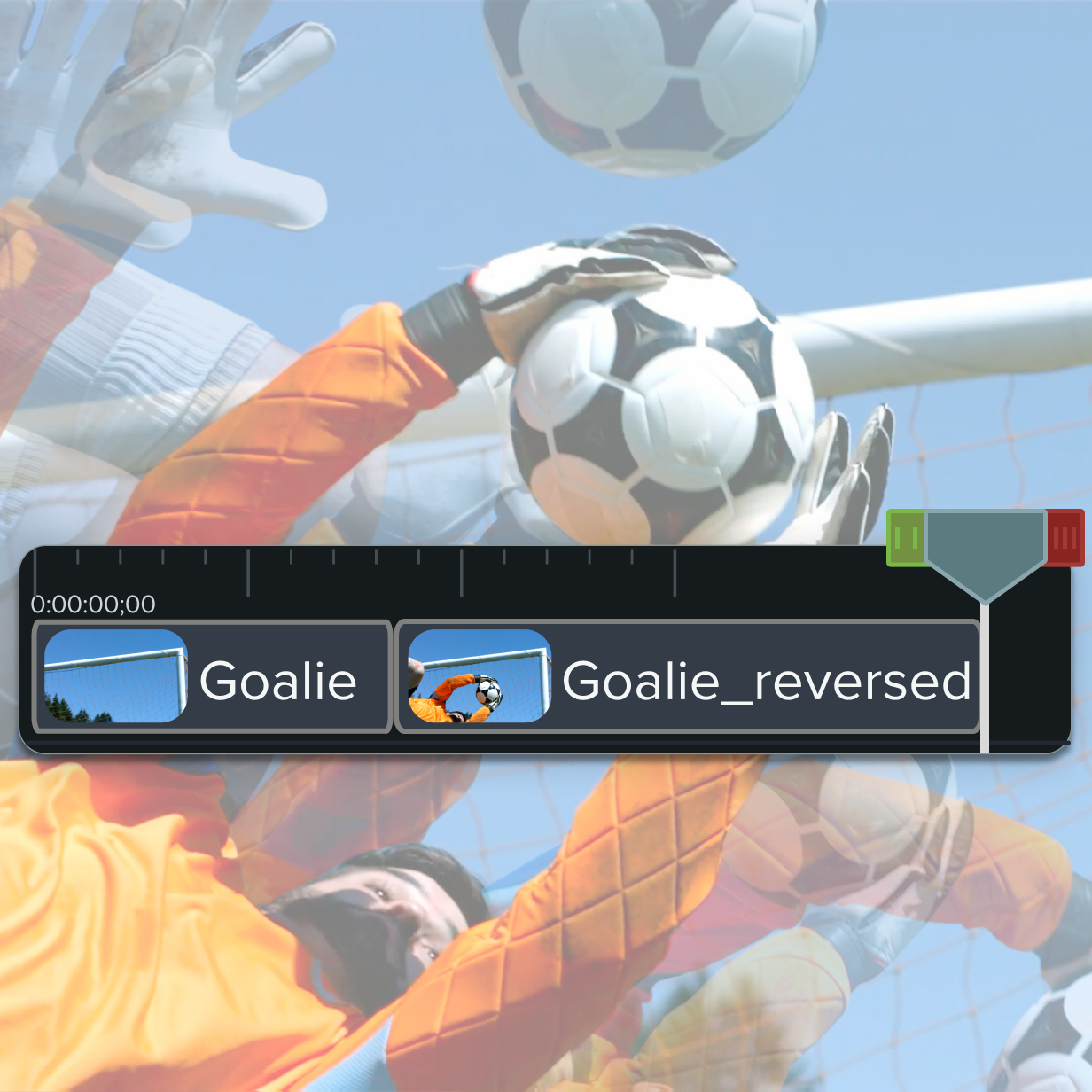
By reversing video clips, you can repurpose your content and show different viewpoints, enhancing its flexibility. You can also combine forward and reversed clips to create dynamic, engaging content that keeps your audience focused.
Get started with Camtasia Editor

FAQ
Simply import your video into Camtasia, drag it to the timeline, right-click, and select “Reverse Video.” It’s that easy!
Yes, Camtasia allows you to multi-select videos in the media bin and apply the reverse effect to multiple clips at once, saving time on bulk editing.
Absolutely! Once you’ve reversed a video, you can add it to your user library for quick access in future projects.
No, Camtasia’s editing is non-destructive, meaning your original video file remains unchanged. You’re free to reverse, edit, and save your video without affecting the original media.
Yes, you can split the video on the timeline, reverse only the desired section, and leave the rest of the clip playing normally. This is perfect for replaying key moments or adding emphasis.
Yes! Reversing video clips is an effective way to emphasize important parts of a tutorial or training video, allowing viewers to see a process both forward and backward for better understanding.
Check out our tutorial that will walk you through everything you need to know.
Still can’t find what you need? Contact us and we’ll help you out.