


Rotate a video
Rotating a video can instantly transform your content, making it more professional and engaging. Whether you need to correct the orientation of a video or add dynamic angles to your footage, Camtasia makes the process fast and simple.
DO VIDEO ROTATION IN CAMTASIA
How to rotate a video with Camtasia
Rotating a video in Camtasia is quick and simple. Follow these three easy steps to rotate your video to the perfect angle:
1
Step 1: Import your video and place it on the timeline
Start by importing your video into Camtasia and dragging it onto the timeline. Once the video is in place, click on the media to select it for editing.
2
Step 2: Access the rotate tool
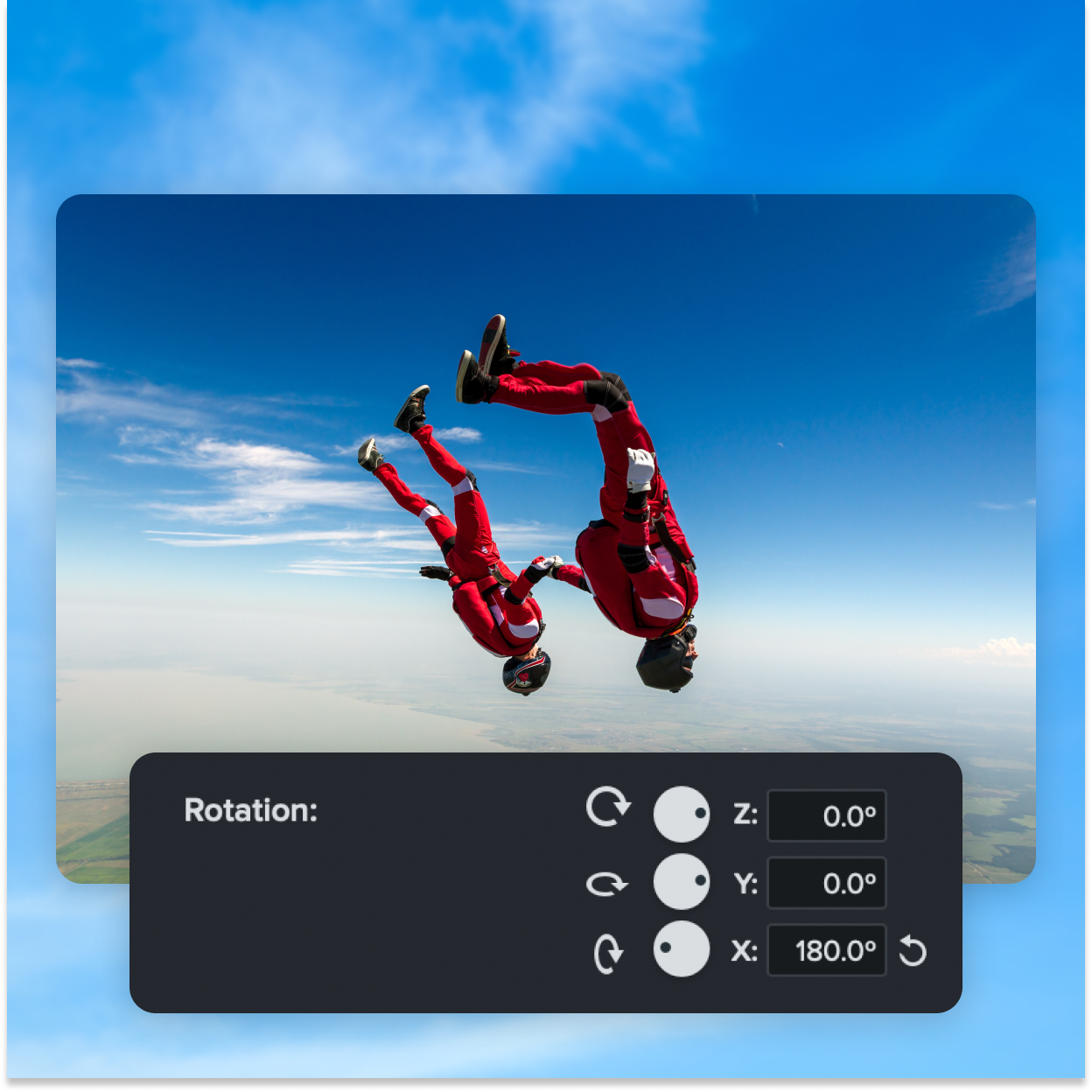
Click on the “Properties” tab, where you’ll find the rotation options. From here, you can rotate your video along the X, Y, or Z axis. Simply enter the exact degree of rotation you need, or use the slider to manually adjust the angle.
3
Step 3: Preview and export
Preview the video to ensure everything looks perfect once you’ve adjusted the rotation to your liking. When you’re satisfied, export the video in your desired format, and it’s ready to share.
Rotate a video flawlessly with Camtasia’s features
Camtasia provides a range of powerful tools for rotating videos, giving you the flexibility and precision needed to create professional-looking content.
Quick and easy rotation
Camtasia’s intuitive interface provides fast access to the rotate media tool, allowing you to adjust your video’s orientation in just a few clicks. Whether you need to fix a crooked shot or rotate a video recorded on a mobile device, the process is smooth and efficient.
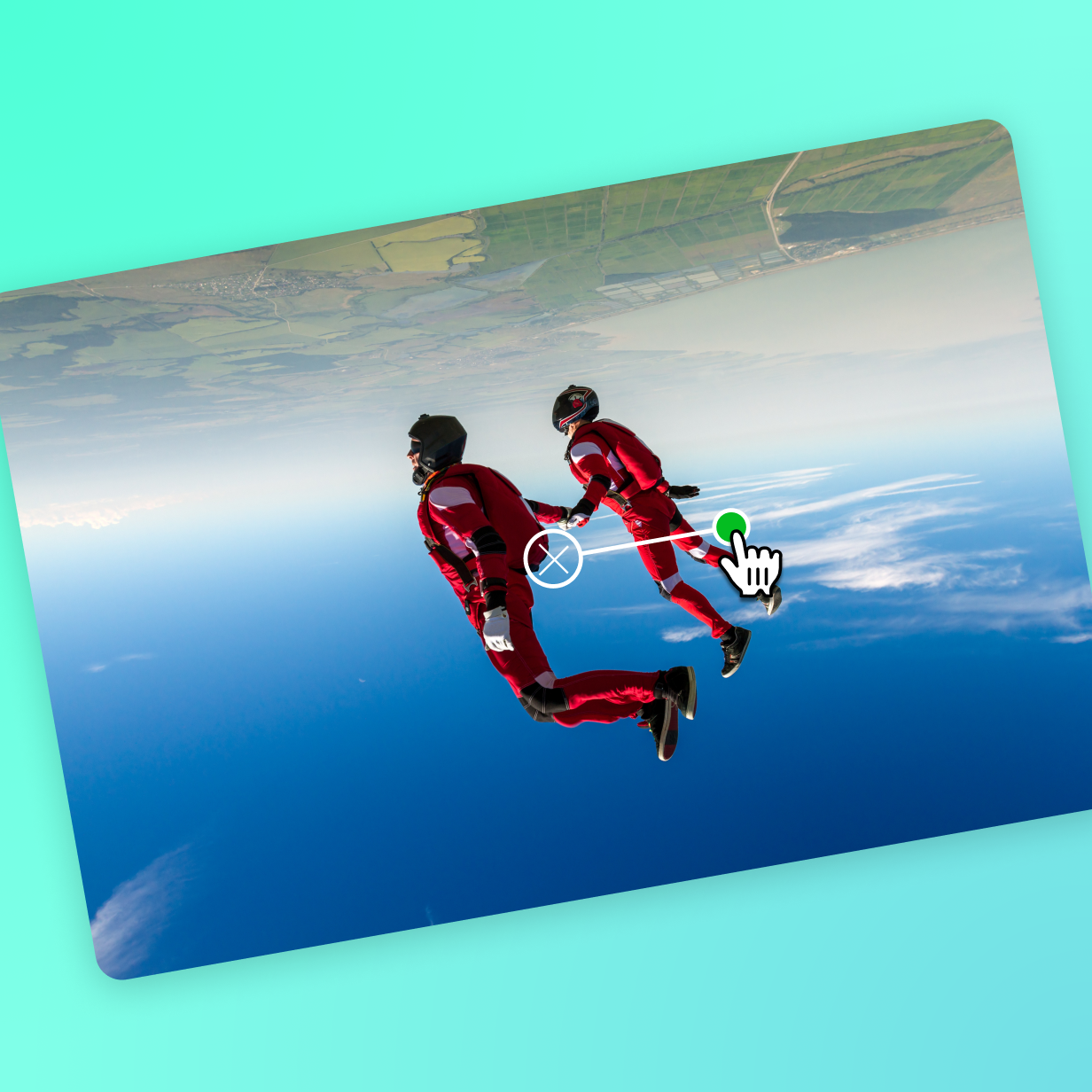
Precise control over rotation
Camtasia gives you exact control over the degree of rotation along the X, Y, or Z axis. This precision ensures your video is aligned perfectly, whether you’re correcting an off-kilter clip or adding a dynamic tilt for visual impact.
Professional-looking results
A well-rotated video looks more polished and professional. By aligning your video as expected, you reduce distractions and create a seamless viewing experience. Camtasia ensures your content is squared and visually appealing, keeping your audience focused on the message.
Get started with Camtasia Editor

FAQ
Yes, Camtasia allows you to rotate your video along the X, Y, and Z axes, giving you full control over the orientation and angle of your media.
Absolutely! In Camtasia, you can enter the exact degree of rotation you need for precise control, ensuring your video is perfectly aligned.
After rotating your video, you can use Camtasia’s preview feature to see how the changes look before exporting the final version. This ensures your video is exactly how you want it before sharing.
Yes! Rotate your video to 180 degrees or 90 degrees with ease. You can easily do this without losing quality in your video file. No need to zoom in and adjust your video or for drag and drop effects.
Yes! Camtasia makes it easy to rotate videos recorded on mobile devices. Whether your video was accidentally recorded in portrait instead of landscape, or you want to adjust the orientation for social media platforms, you can rotate your mobile videos to any angle.
Camtasia allows you to match the format of different social media platforms. You can easily rotate your video or change the aspect ratio to fit vertical platforms like Instagram Stories, TikTok, or Reels, ensuring that your content displays perfectly on mobile devices.
Absolutely! You can apply additional effects in Camtasia, such as zooming, panning, or adding transitions alongside the rotation. This allows you to create dynamic and engaging videos with smooth, professional-looking results.
If your video was recorded upside down, Camtasia makes it simple to correct. You can quickly rotate the video 180 degrees with a single click, bringing it back to the correct orientation without any hassle.
Check out our tutorial that will walk you through everything you need to know.
Still can’t find what you need? Contact us and we’ll help you out.