


Slow down your video
Slowing down videos is a great way to highlight important details, create dramatic effects, or make complex content easier to follow. With Camtasia, slowing down your video is incredibly simple.
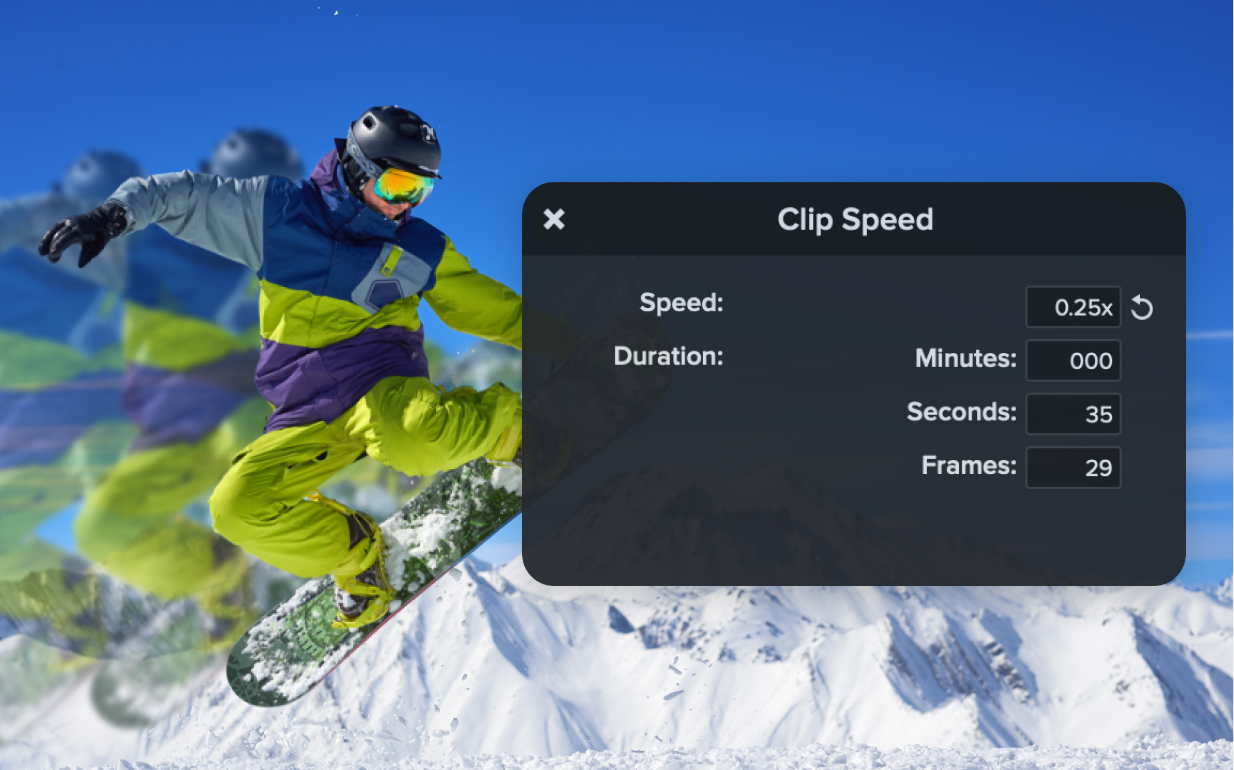
How to slow down a video with Camtasia
Slowing down a video in Camtasia is easy and requires just three simple steps:
1
Step 1: Import your video and place it on the timeline
Upload your video into Camtasia and drag it onto the timeline. This sets the stage for applying slow-motion effects to your clip.
2
Step 2: Adjust the clip speed
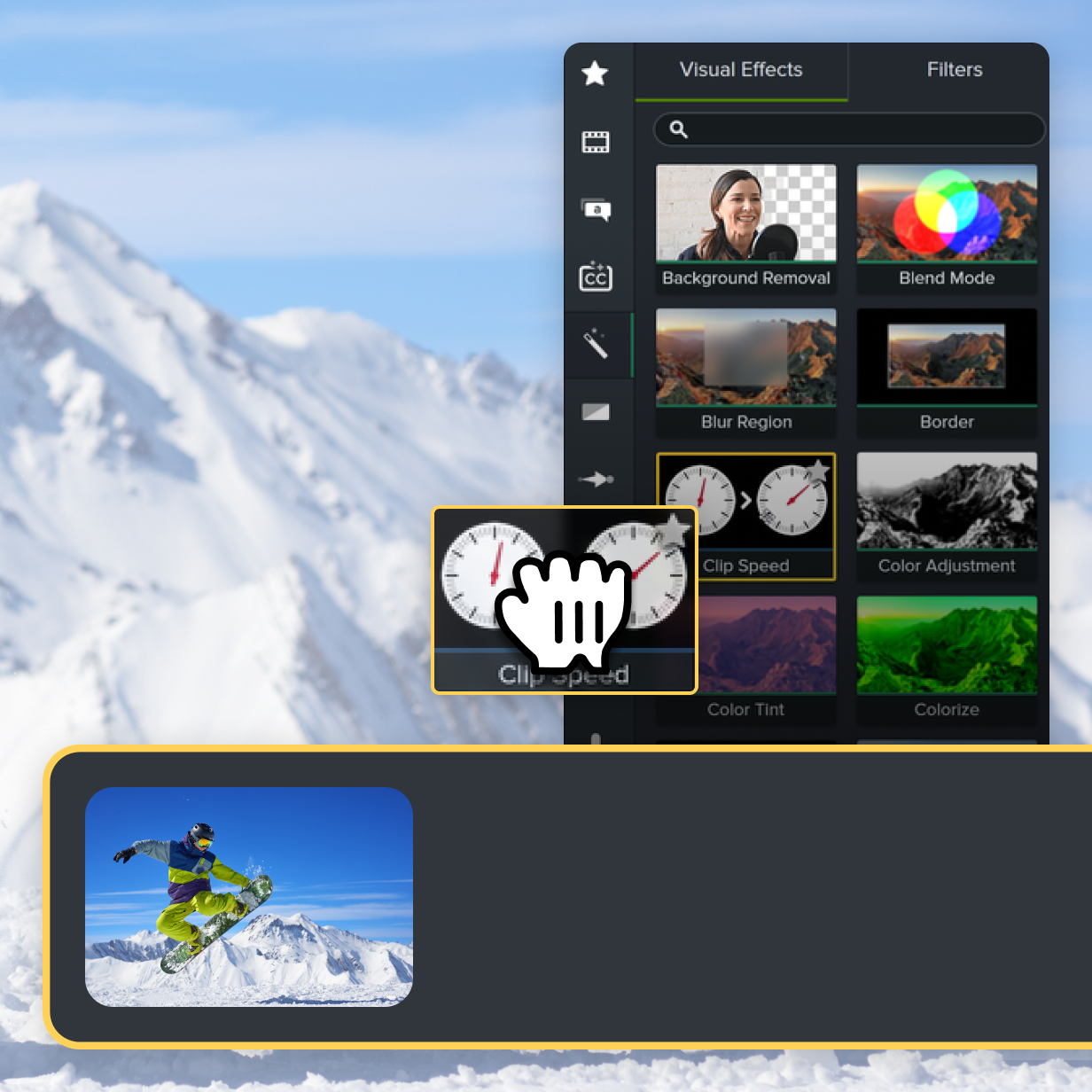
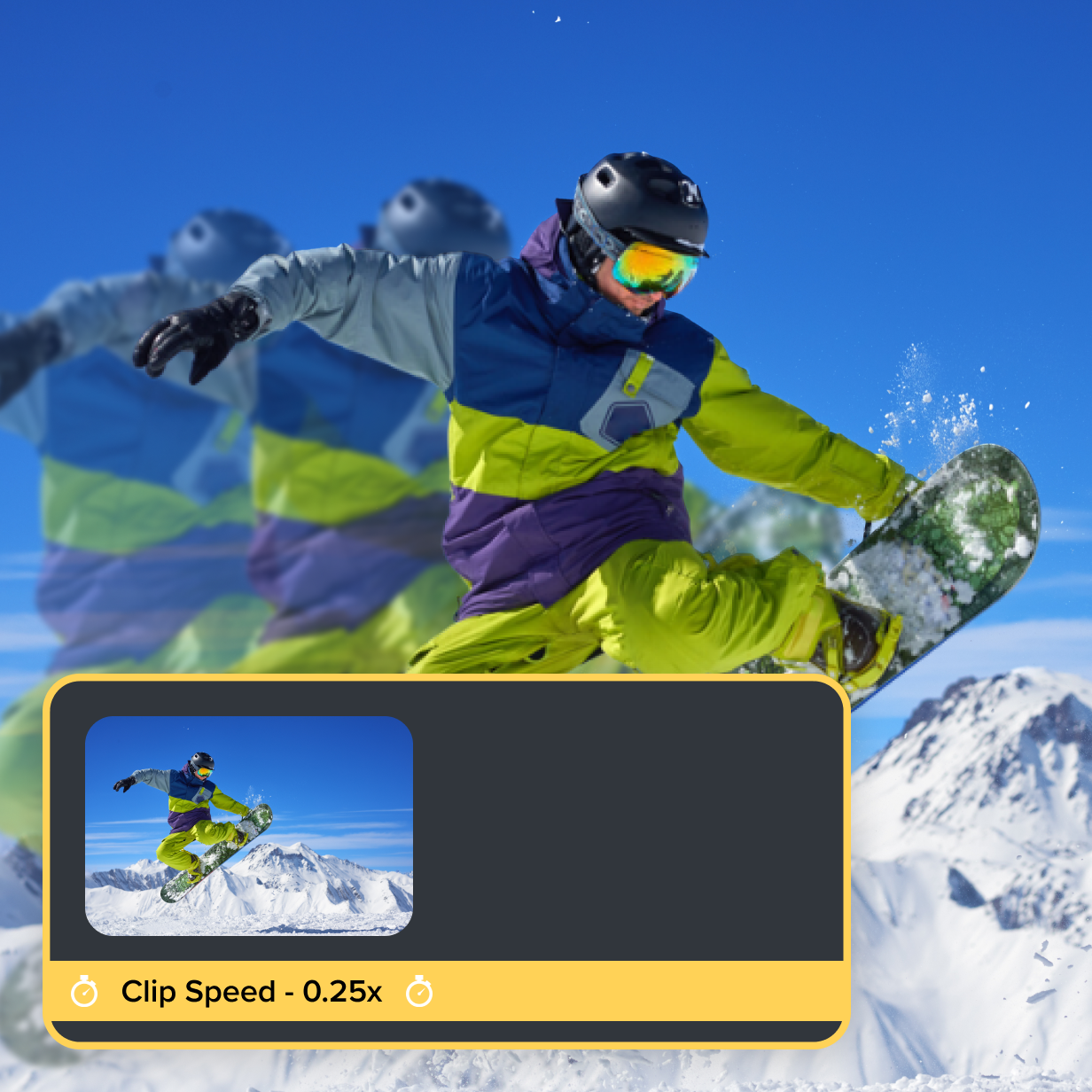
Select the media with the clip speed applied and click the arrow on the bottom of the clip to open the Effects tray. Select Clip Speed in the Effects tray, and Drag the clip speed handles to adjust the clip speed. Or, adjust the clip speed in the Properties panel, which allows you to adjust the speed and duration of the video.
3
Step 3: Fine-tune the speed
After adjusting the speed, review the slowed-down portion to ensure it looks exactly how you want. If needed, you can further fine-tune the speed for greater control over the final result, ensuring the right parts of your video stand out.
Camtasia makes slowing down videos simple
Camtasia offers several key advantages that make it the best tool for slowing down videos.
Drag-and-drop simplicity
With Camtasia’s intuitive drag-and-drop speed control, you can adjust clip speed quickly and easily. With a simple click and drag, you can control the exact speed of your video, ensuring precision without the guesswork.
Real-time preview
As you adjust the clip speed, Camtasia provides an immediate preview, allowing you to see the effect in real time. This helps you make quick decisions about how much to slow down your video, without needing to wait for rendering.
Enhanced focus and engagement
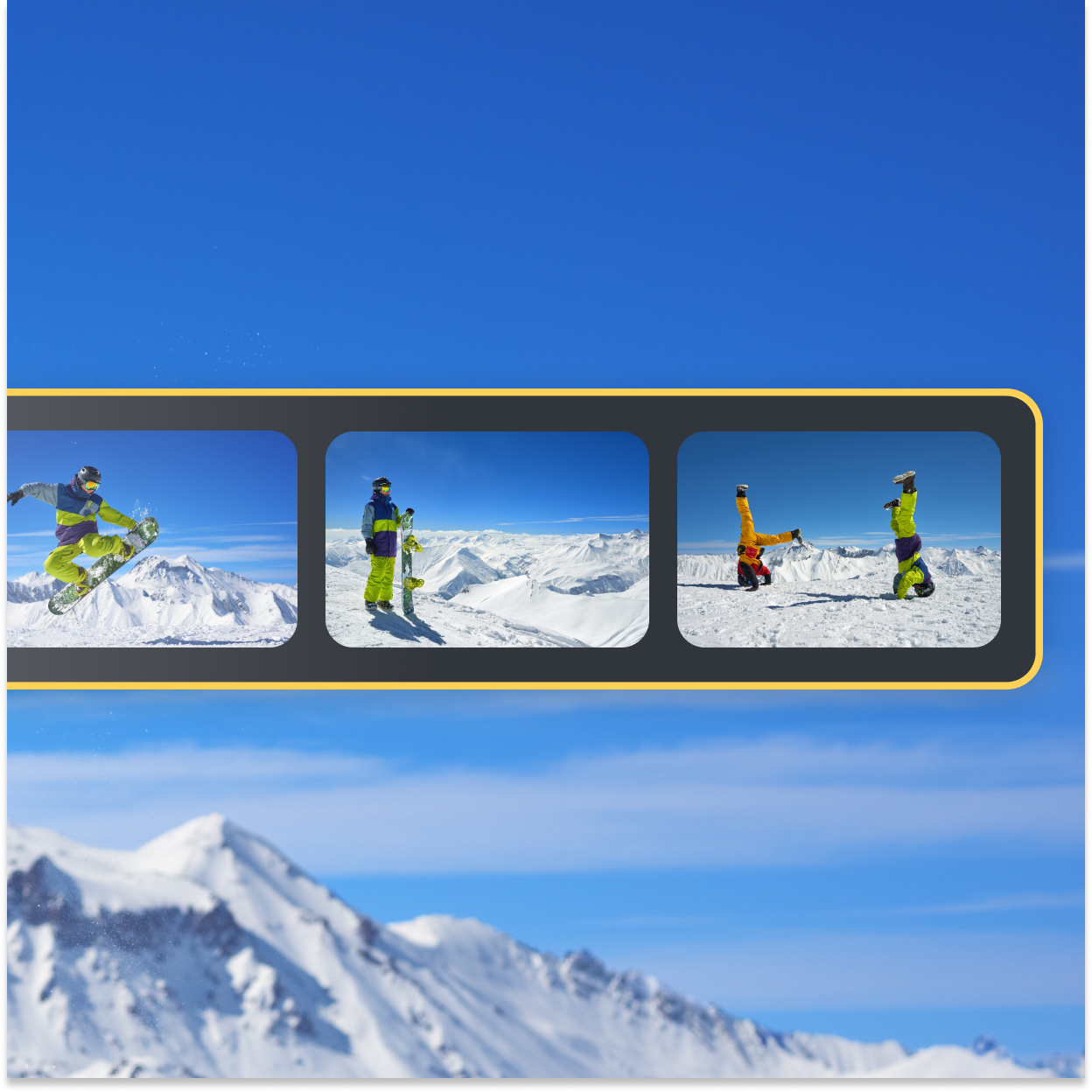
Slowing down videos with Camtasia helps you draw attention to important details that may be missed at regular speed. Whether it’s highlighting an action, focusing on a key piece of information, or adding dramatic emphasis, Camtasia ensures your viewers stay engaged and absorb the content.
Get started with Camtasia Editor

FAQ
Yes, Camtasia allows you to split your video into sections and slow down specific parts, leaving other segments at normal speed.
Yes, when you slow down a video, the audio will also slow down. If needed, you can mute the audio or replace it with a new track to match the slower pace.
Absolutely! Camtasia allows for precise control over the speed of your video. You can slow it down to the exact pace you need by adjusting the clip length.
Yes! Camtasia provides an immediate real-time preview of your slow-motion effect as you adjust the clip speed, allowing you to see the changes instantly.
No, Camtasia preserves the original quality of your video when slowing it down. You can confidently create slow-motion effects without sacrificing video resolution or playback speed.
Yes, you can apply slow motion to as many clips as you like within the same project. Camtasia’s video editor makes it easy to adjust the speed of individual clips or multiple sections of your video.
Yes, Camtasia allows you to import and export different formats including mp4.
Check out our tutorial that will walk you through everything you need to know.
Still can’t find what you need? Contact us and we’ll help you out.