Slow-motion videos
Slow-motion effects can add a dynamic element to your videos, highlighting important details and creating engaging, visually appealing content. With Camtasia, making a video slower is quick and easy.
MAKE SLOW-MOTION VIDEOS IN CAMTASIA
How to make videos slow motion
Editing a video slower in Camtasia is straightforward and requires just a few steps:
1
Step 1: Add your video and effect to the timeline
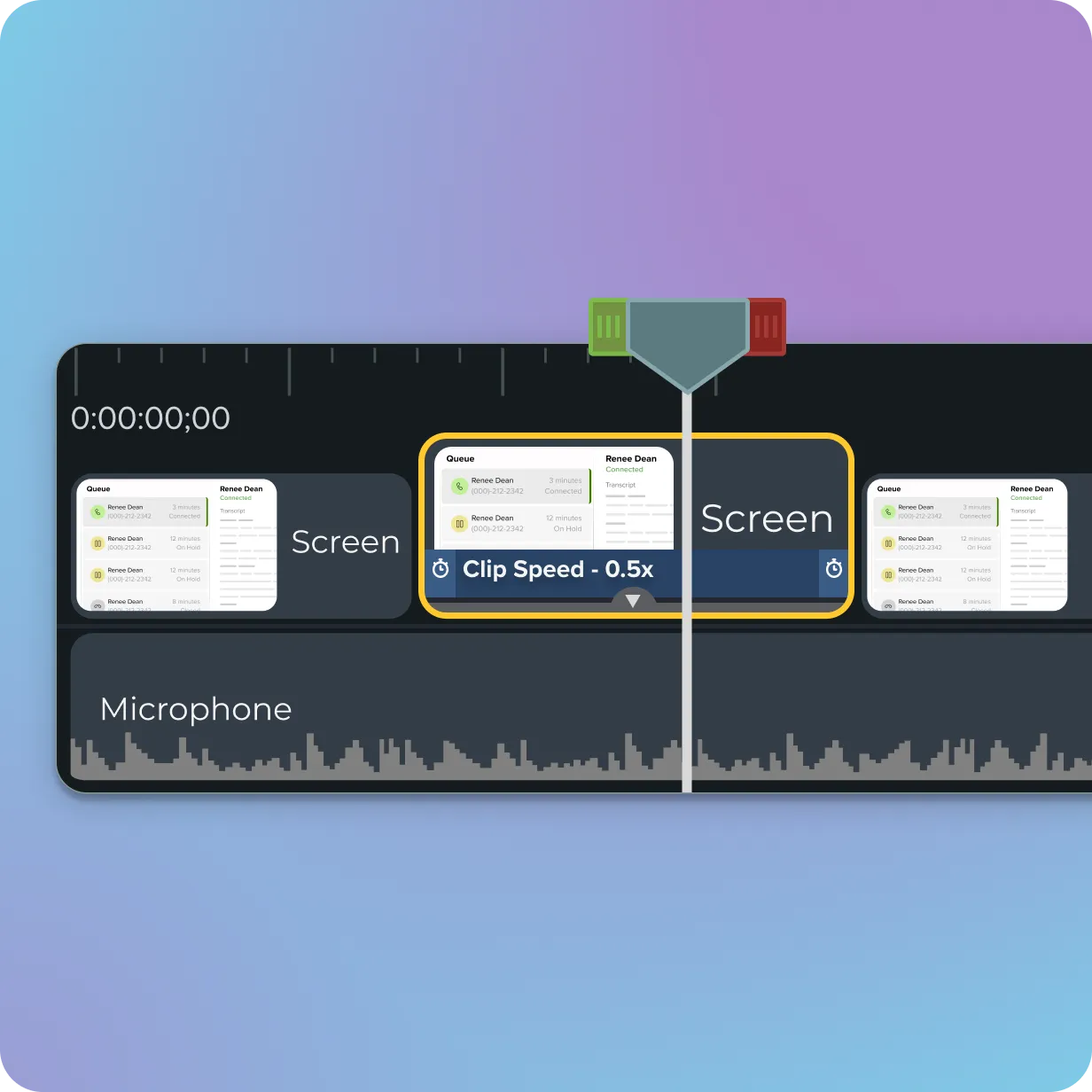
Start by importing your video into Camtasia. Drag your video file onto the timeline. Then, drag and drop the clip speed effect onto the media to start editing.
2
Step 2: Adjust clip speed
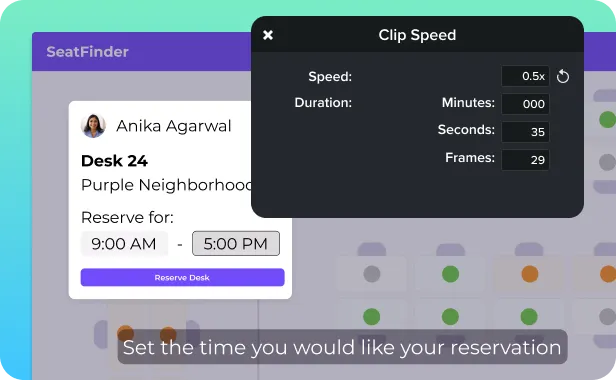
Select the media with the clip speed applied and click the arrow on the bottom of the clip to open the Effects tray. Select Clip Speed in the Effects tray, and Drag the clip speed handles to adjust the clip speed. Or, adjust the clip speed in the Properties panel, which allows you to adjust the speed and duration of the video.
3
Step 3: Refine audio settings
As the video slows down, the audio will also slow. If needed, you can mute the audio or adjust it to maintain the quality of your final product. Camtasia’s simple audio controls make it easy to create a seamless, polished video.
Benefits of using Camtasia to create slow-motion videos
Camtasia offers a range of features that make it the ideal tool for adding slow-motion effects to your videos.
Drag-and-drop simplicity
Camtasia’s drag-and-drop video effects make it incredibly easy to slow down any video clip. Simply extend the clip on the timeline, and Camtasia takes care of the rest. This user-friendly approach ensures you don’t need to be an expert to create professional-looking slow-motion effects.
Precise speed control
Camtasia gives you full control over the speed of your video. As you drag the clip to extend its length, the software automatically adjusts the speed, giving you the flexibility to create the exact slow-motion effect you want. Whether you’re highlighting an important detail or enhancing a dramatic moment, Camtasia helps you fine-tune the result.
Engaging and detailed content
Slow motion adds impact by drawing attention to specific details that might have been missed at normal speed. By slowing down a segment of your video, you can emphasize key moments and keep your audience engaged. Camtasia’s slow-motion effect is perfect for tutorials, presentations, and creative projects that require careful attention to detail.
Get started with Camtasia Editor
FAQ
Yes! In Camtasia, you can split your video into sections and apply the slow-mo effect to just one part, leaving the rest of the video at normal speed.
Yes, the audio will slow down along with the video, but you have the option to mute or edit the audio to better fit the slow-motion effect.
Absolutely! Camtasia provides an immediate preview as you adjust the clip speed, so you can see exactly how the slow-motion effect looks before exporting the video.
No, Camtasia’s video editor makes it easy to slow down the frame rate without needing to reshoot your video.
Yes, Camtasia allows you to adjust the degree of the effect by dragging the clip to your desired length. This gives you full control over how slow the video plays.
No, Camtasia maintains the original quality of your video, even when applying slow motion. You can add slow-motion effects without worrying about a drop in resolution or frame rate. This means that your videos will always be high-quality no matter how many effects you apply to it.
Check out our tutorial that will walk you through everything you need to know.
Still can’t find what you need? Contact us and we’ll help you out.