


Transcribe videos
Looking to turn your video into text effortlessly? Camtasia acts as a built-in video-to-text converter, giving you a transcription tool to quickly transcribe your video while editing.
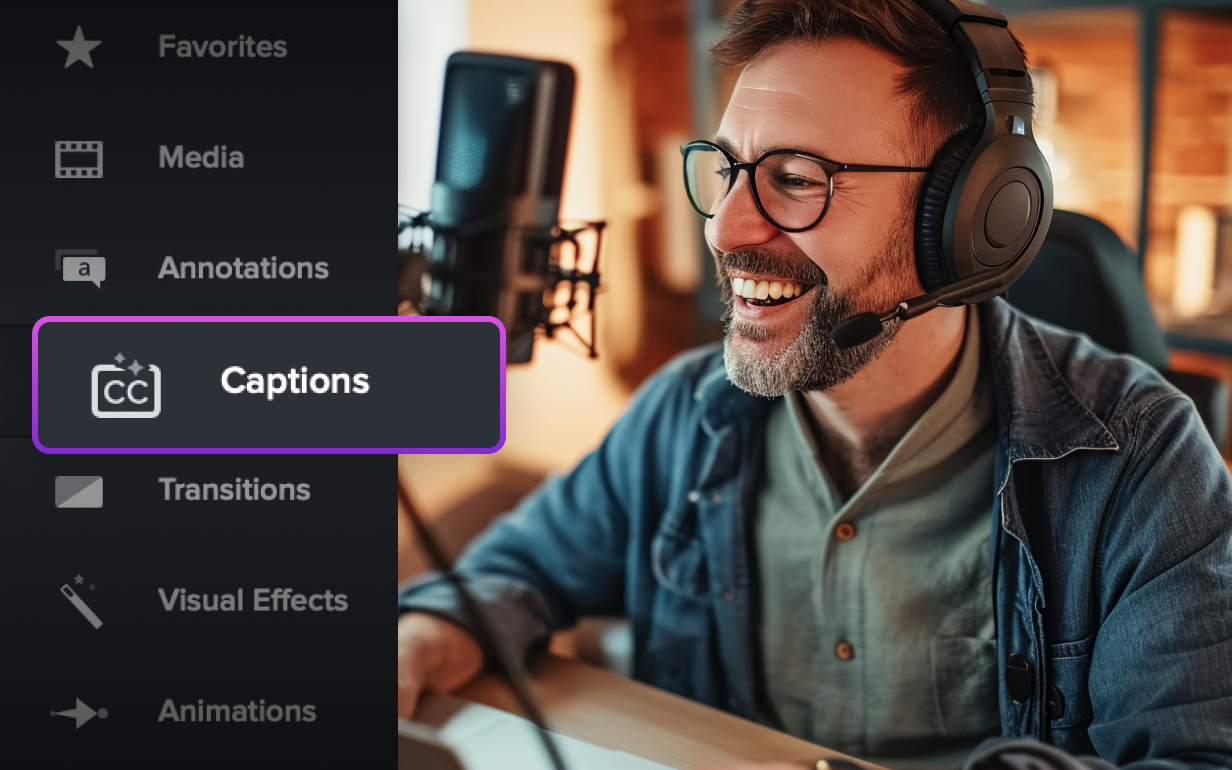
Transcribe any video accurately with built-in AI tools
With Camtasia’s video transcription features, you can:- Transcribe audio and edit captions in real time
- Export files in SRT, TXT, or styled subtitle formats
- Support languages like Spanish, French, German, and more
Camtasia makes video transcription seamless with AI-powered tools that convert speech into clean, editable text—no switching platforms or uploading files to a third-party transcription service. Whether you’re creating podcasts, tutorials, or team updates, this built-in transcription software helps you deliver more accessible, searchable content.
You can work with a wide range of video formats like MP4, MOV, AVI, or WAV, and generate accurate transcripts in multiple languages, which is great for localization or multilingual audiences.
How to transcribe your video
Transcribing a video with Camtasia is quick and simple.
1
Step 1: Import your video
To start, upload your video file into Camtasia. Drag it to your timeline, and you’re ready to transcribe.
2
Step 2: Generate transcription
Click the “Captions” button and select either the Closed Captions or Dynamic Captions subtab. For Closed Captions, click the option dropdown and select the Speech-to-Text option. For Dynamic Captions, drag one of the stylized caption options onto the timeline. In either case, Camtasia uses AI transcription to automatically generate captions from your video’s audio, allowing for quick, text transcription edits inside the app.
3
Step 3: Export your project
Lastly, it’s time to share your project. You can either export your closed captions as an SRT caption file or export your video with dynamic captions.
Easily and quickly transcribe videos with Camtasia
Camtasia offers the best-in-class video transcription experience, providing tools that make your workflow faster and smoother.
In-app transcription alongside your video
Transcribe your video directly within the editor, allowing you to edit text while watching the video in real time. No need for switching between multiple tools—the real-time transcription process makes it easy to catch errors and make fixes.
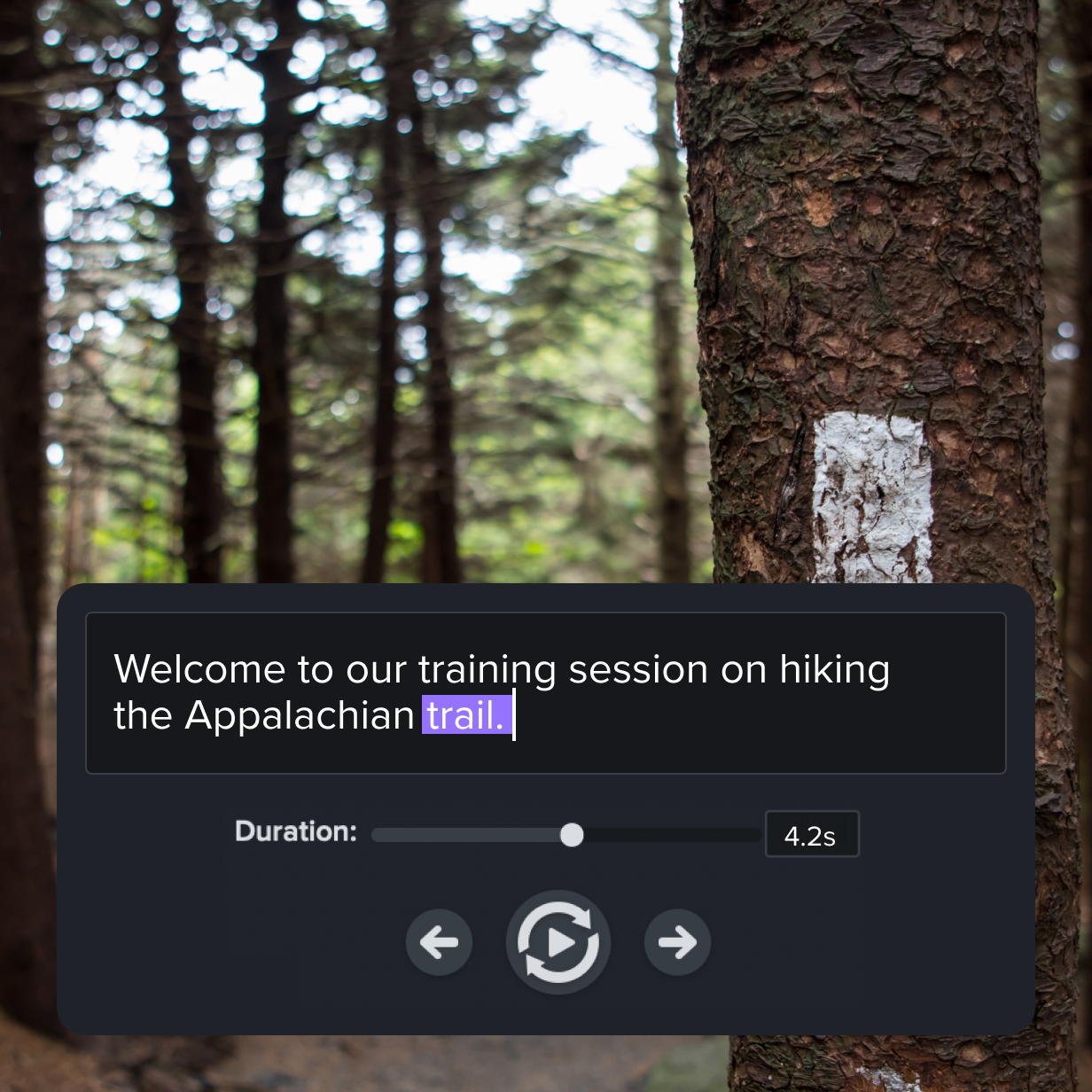
Generate captions instantly
Quickly transcribe audio to text and export your accurate transcripts in multiple formats like TXT or SRT—great for SEO, accessibility, and reuse.
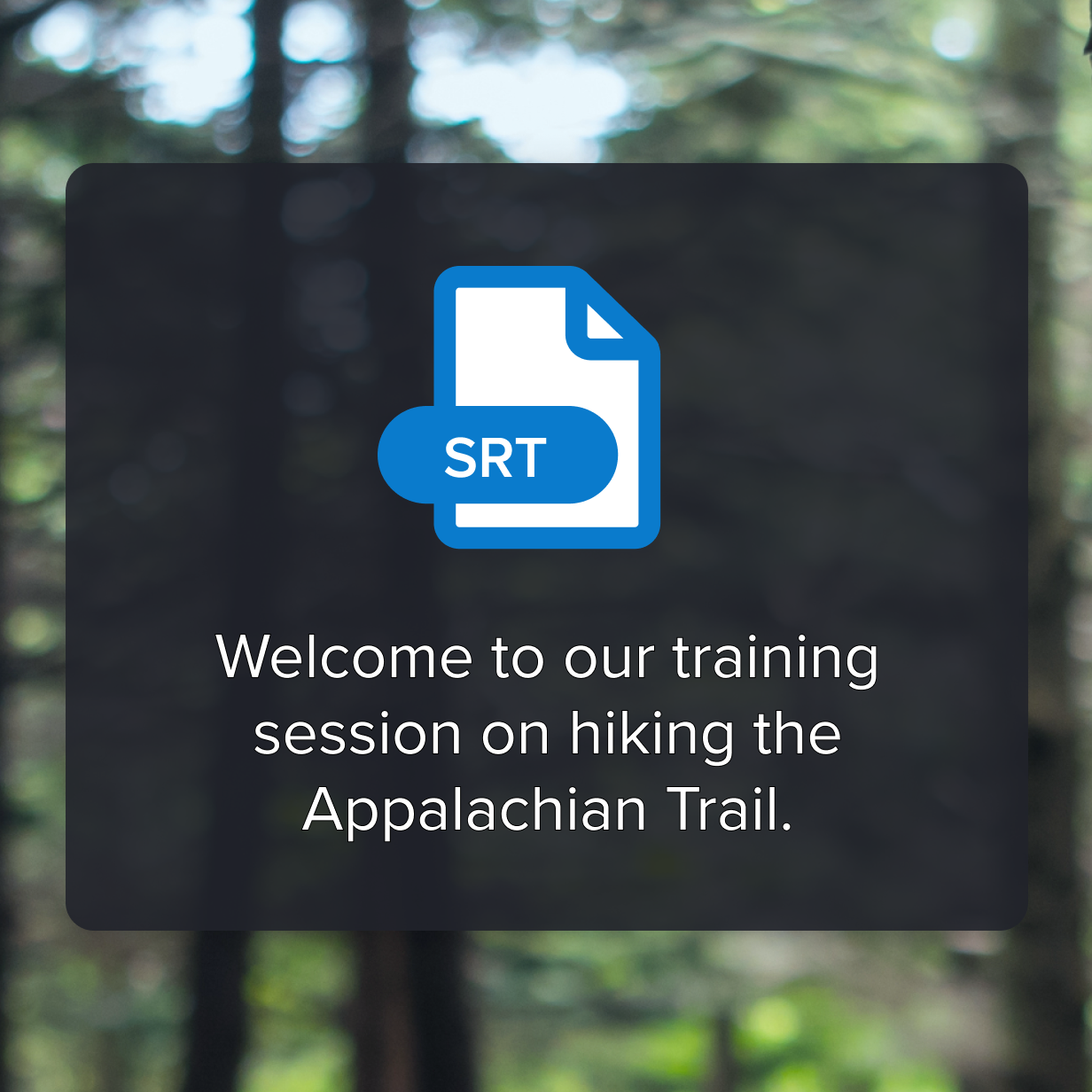
Edit and style text effortlessly
Add dynamic text or captions with ease. Whether you need standard captions or customizable styled text, Camtasia gives you complete control over how your transcription looks. You can change the font, size, and color of your captions to match your tone and branding.
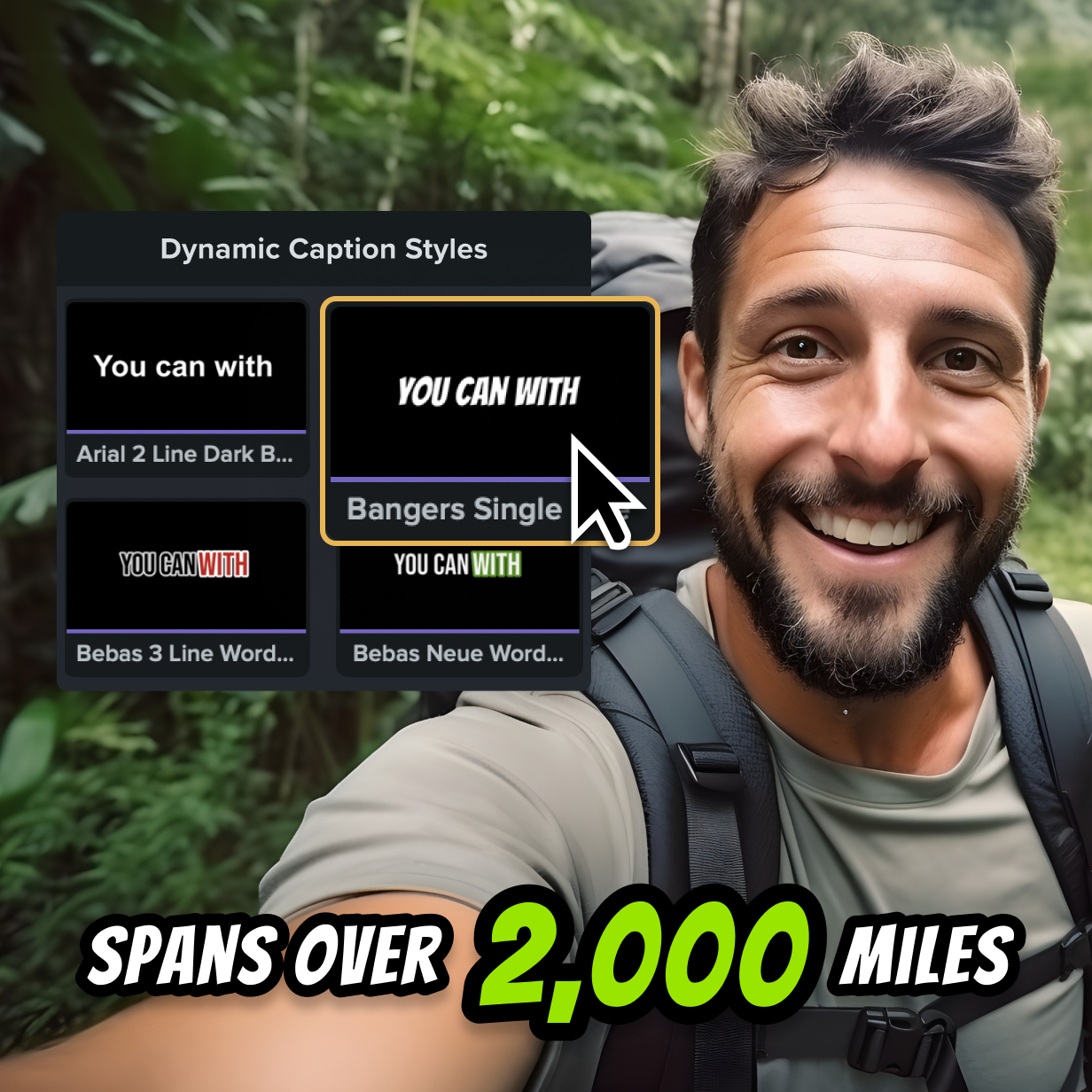
Get started with Camtasia Editor

FAQ
Yes! Camtasia allows you to transcribe audio from multiple files in a single project workflow. This streamlines your workflow, keeps transcripts consistent across scenes, and helps deliver accurate transcripts faster across all your video content.
After generating captions, you can export them as an SRT file, making it easy to use your captions across different platforms. You can add subtitles to your YouTube videos, social media reels, or any other project.
Absolutely. Camtasia’s automated transcription feature is integrated into the video editor with timestamps, so you can adjust the text while reviewing the video.
Yes! Camtasia supports transcription in multiple languages, including English, French, Dutch, German, Italian, Brazilian Portuguese, and Spanish.
Yes, Camtasia allows you to style dynamic captions with fonts, colors, and effects that match your video’s tone and branding. This is an easy way to create cohesive video content across multiple platforms.
Yes! Once you customize your dynamic caption styles, you can save them as a preset to use in future projects.
Yes, Camtasia supports both closed captions (exportable as SRT files) and dynamic text that can be styled and integrated into your video. Camtasia’s AI-powered speech recognition allows you to save time while creating high-quality transcriptions.
Check out our tutorial that will walk you through everything you need to know.
Still can’t find what you need? Contact us and we’ll help you out.